Archival Policies Overview
Last updated: June 9, 2026
Overview
Orchestry's Archival policies allow you to manage the end-of-life stages of a workspace in your M365 tenant. Whether the workspace is no longer needed and/or was abandoned, you can leverage Archival policies to automate their closure or renewal.
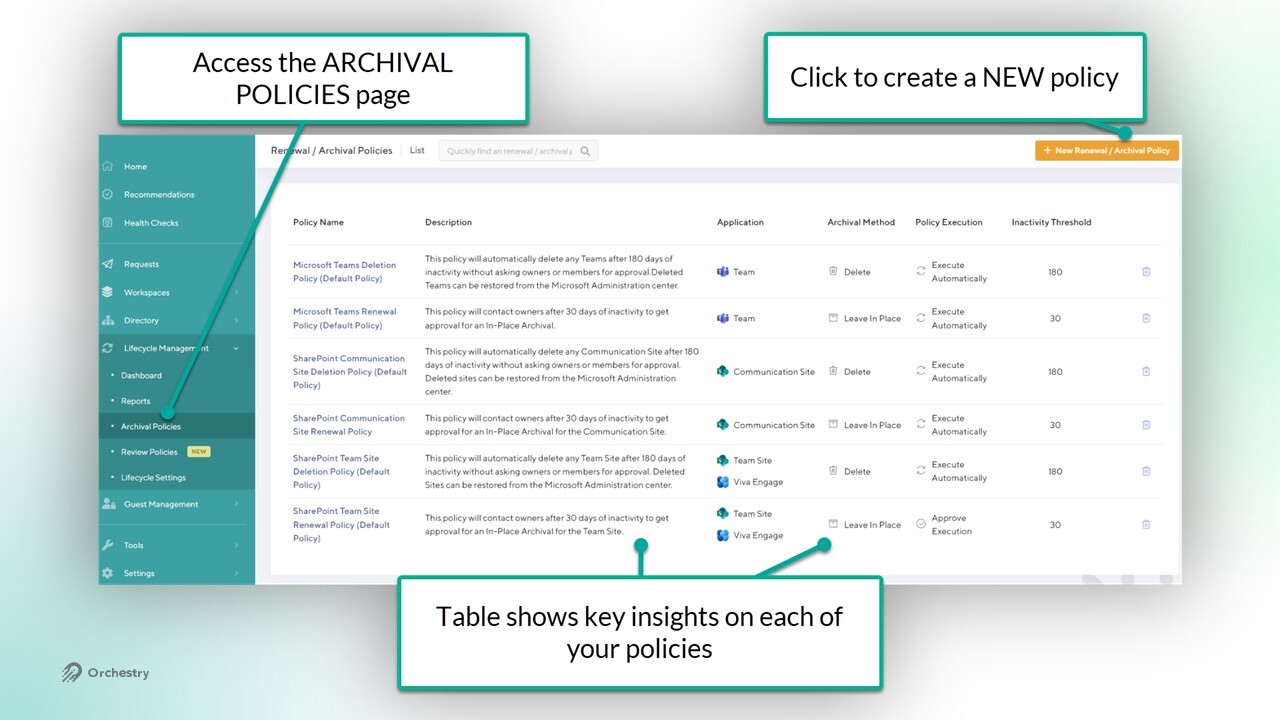
By leveraging Archival policies, you can:
Free-up tenant storage by deleting/trimming version history from archived workspaces
Close forgotten/abandoned workspaces
Close ownerless workspaces
Automate the review and closure of inactive workspaces
Archival Policy Support
Archival policies can be assigned to both workspace template AND existing workspaces to ensure no workspaces are left behind. However, there are limitations on what Orchestry can archive.
The table below shows where you can apply Archival policies:
| M365 GROUP | WORKSPACE TEMPLATES | EXISTING WORKSPACES |
Microsoft Teams | yes | supported | supported |
SharePoint Team Site | yes | supported | supported |
SharePoint Team Site (non group-connected) | no | not supported | not supported |
SharePoint Communication Site | no | supported | supported |
Viva Engage Community | yes | not supported | supported (team site only) |
Workspace Lifecycle Statuses
Orchestry assigns lifecycle statuses to your workspaces based on factors such as (in)activity, and archival/renewal actions. Archival policies are driven by these statuses.
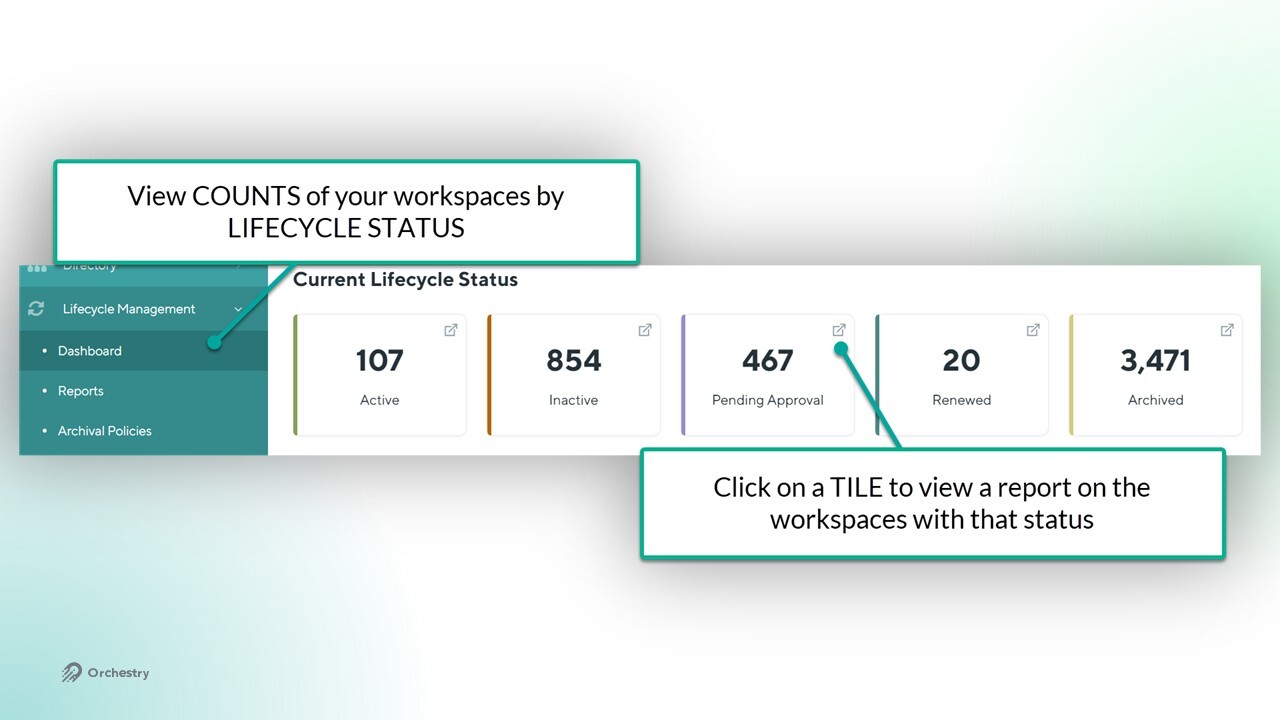
In Orchestry, workspaces are assigned one of the five statuses as described below:
STATUS | DESCRIPTION |
Active | All workspaces that are UNDER the inactivity threshold will be reported as ACTIVE. |
Inactive | All workspaces that are OVER the inactivity threshold and haven't executed a policy will be marked as INACTIVE. |
Pending Approval | Any workspaces that have had a Archival policy triggered that requires approval, but the approval hasn't been received |
Renewed | Any workspaces that have been RENEWED as part of a Archival policy. |
Archived via Orchestry | Any workspaces that were ARCHIVED by an Orchestry Archival policy. |
Archived via M365 | Any workspaces that were ARCHIVED by the Microsoft 365 Archival feature. |
Want to learn how Orchestry calculates inactivity?
Check out the article: Understanding ETL Crawls and Inactivity in Orchestry
Want to learn how to set the 'Inactivity Threshold' in Orchestry?
Check out the article: Lifecycle Management Settings
NOTE: Orchestry cannot assign or manage lifecycle statuses for non-group connected SharePoint Team sites or Classic sites. Numbers for these workspaces will not appear in any reports.
Archival Methods
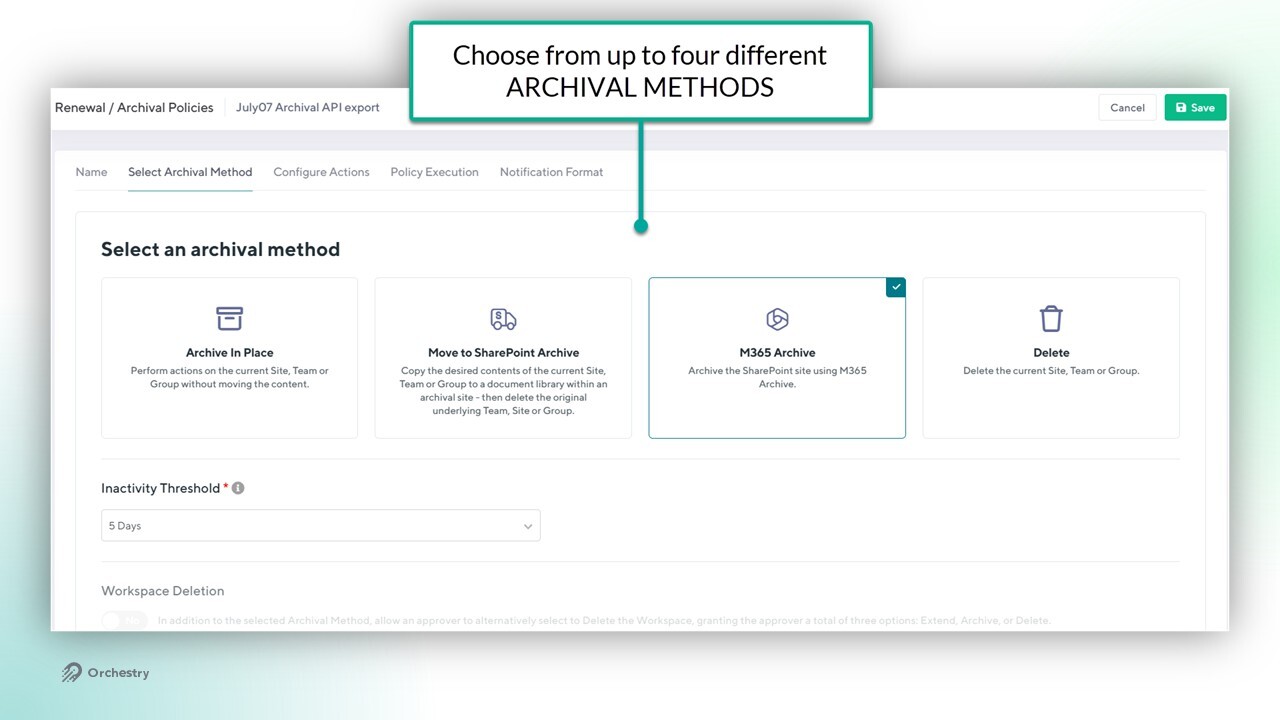
Archival policies can be configured to use one of (up to) four methods:
ARCHIVE IN PLACE: Archives the workspace without moving or deleting anything. Team and site can be moved to READ-ONLY states.
MOVE TO SHAREPOINT: Moves content to an existing SharePoint site of your choice AND deletes the team/site/group.
M365 ARCHIVE: Leverage Microsoft's archival method and move your workspaces to a cold storage layer. Subscription required to leverage this feature.
DELETE: Nothing is archived. The team/site/group is deleted.
How to Enable the 'M365 Archive' Archival Method
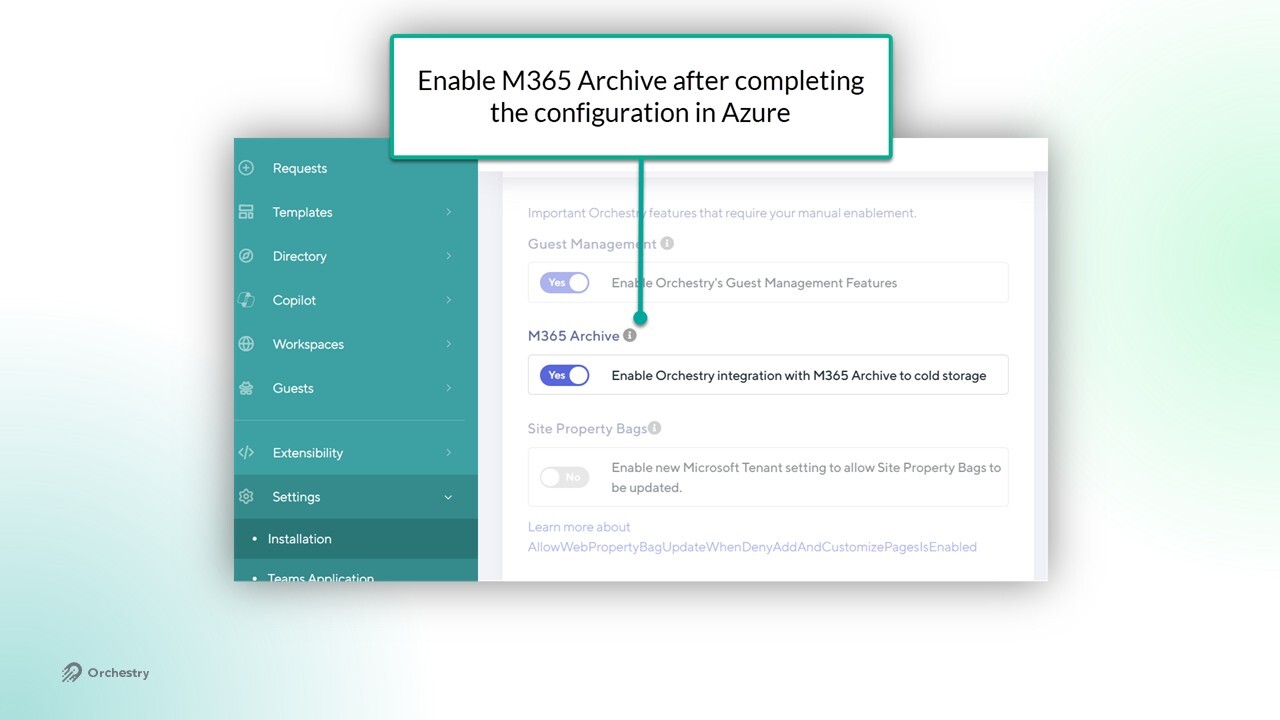
Admins can leverage their Microsoft 365 Archive license in Orchestry archival policies by:
Completing the purchase of the license and configuration in Azure,
Enabling the feature from the 'Installation' page (Settings > Installation)
Getting Started with Archival Policies
Create a plan. Try starting with your oldest inactive workspaces.
Create your archival policies. Each policy can only be assigned to one TYPE of workspace template (i.e.: Teams, SharePoint team site, etc.)
Assign the policies to your workspace templates. This ensures newly provisioned workspaces are setup out of the gate.
Assign the policies to your existing workspaces.
Want to get insights on your workspaces at risk?
Check out the article Recommendations Overview
Want to learn how to make an Archival Policy in more detail?
Check out the article Creating your first Renewal / Archival Policy
Want to learn how to assign an Archival policy?
Check out the article How to Assign Archival Policies to Workspaces
Want to get insights on your EXISTING workspaces?
Check out the article Workspace Dashboard and Reports Overview
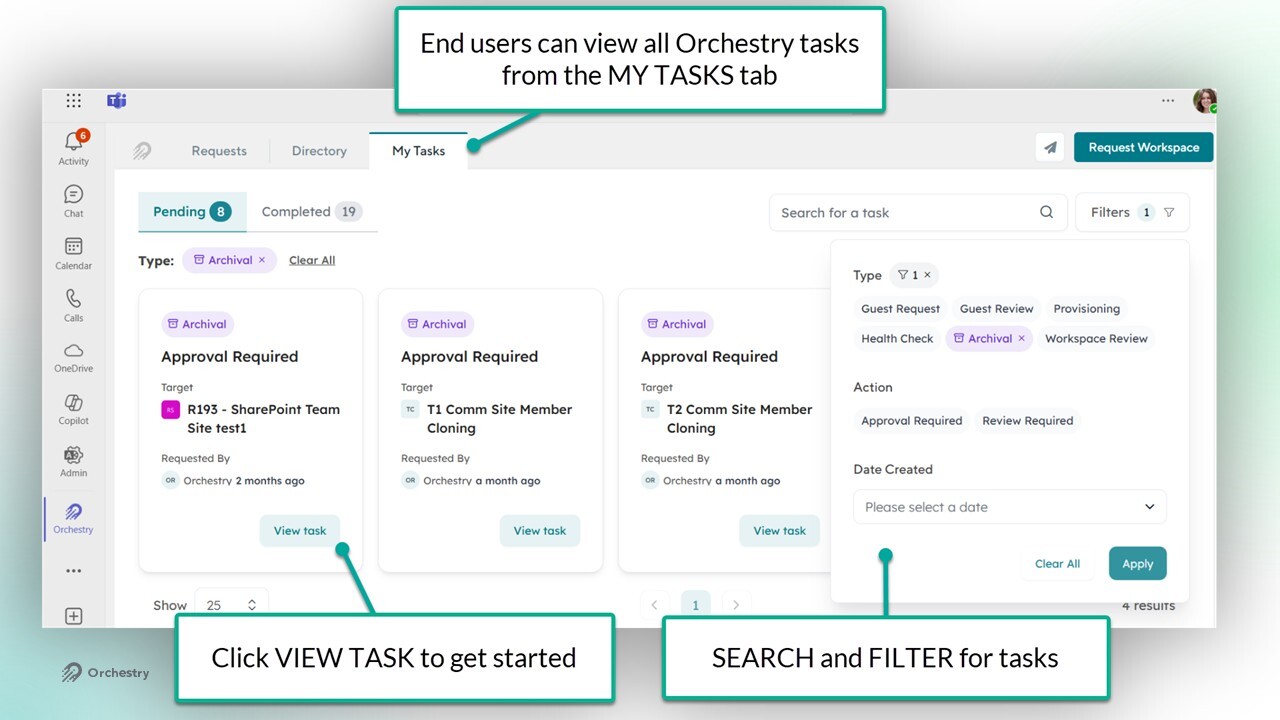
Archival Policy Approval End User Experience
You can configure Archival policies to include an approval step before any actions are taken. In this scenario, when a workspace is inactive long enough, the owner (or designate) receives an Archival task in Orchestry.