Workspace Management Settings
Last updated: April 23, 2026
The Workspace Management Settings page (Settings > Workspaces) provides tools to help you configure settings such as default archival policies, reset workspace statuses to 'Active', configure when a workspace is flagged as 'inactive' and more.
How to Assign Default Archival Policy to Workspaces
The Default Lifecycle Settings allow you to specify a default workspace archival policy to all Teams, SharePoint Teams sites and/or SharePoint Communication sites workspaces that do NOT already have a policy assigned to them.
To assign a default archival policy to a workspace type:
Choose the workspace type that you will assign a policy to
Set the "Apply selected default archival policy to all items" toggle to YES
Choose the archival policy to assign as the default
SAVE your changes
NOTE: Default policies do NOT overwrite the archival policies already assigned to your workspaces. Only workspaces without a policy will be affected.
Nightly Data Export
This option allows you to export all of the insight data that Orchestry stores to a CSV file that can be used for additional reporting or historical information.
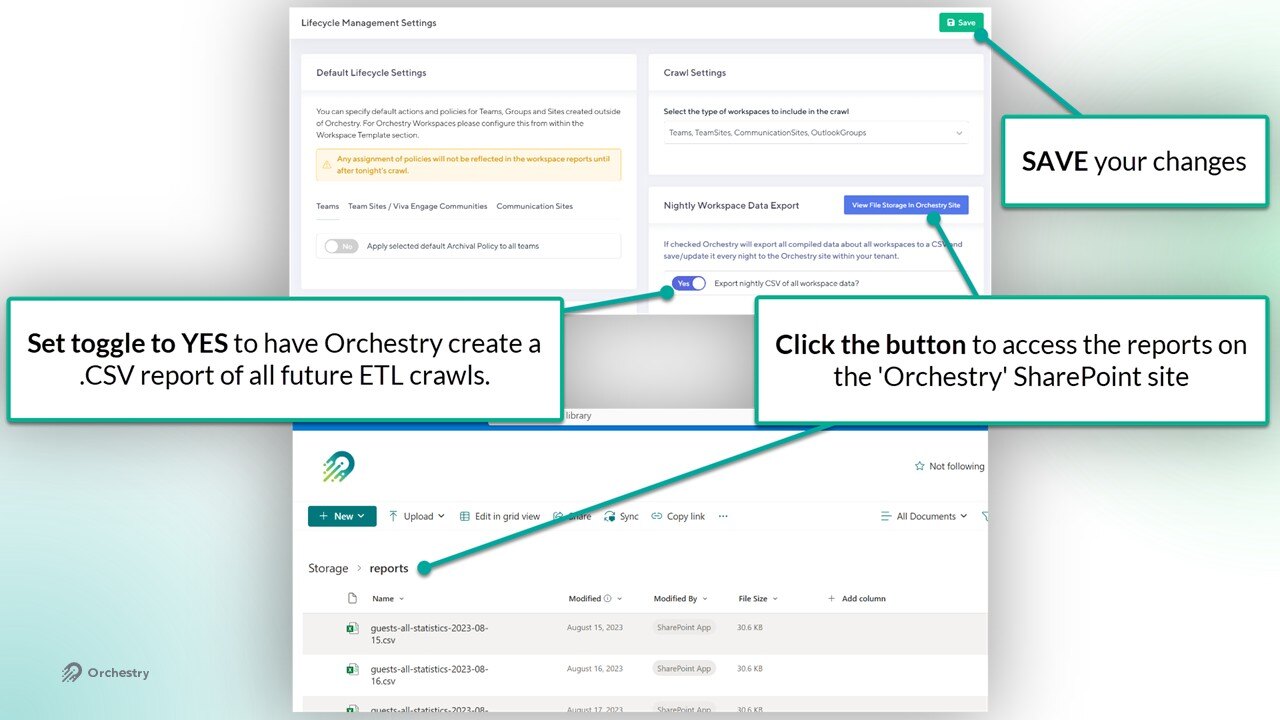
NOTE: You can access the .CSV reports from the Orchestry SharePoint site. Click the (blue) button to jump straight to the folder.
Lifecycle Inactivity Reporting
This tool allows you to specify the number of days before a workspace is classified as "Inactive" in Orchestry. This classification allows you to quickly see which workspaces are inactive and may be ready for archival.

NOTE: Changing this value will NOT trigger archival policies on your existing workspaces.
What Should We Set the Inactivity Reporting Value As?
While Orchestry will set this value to 90 (days) out of the box, you can change this to better align with your governance policies and Orchestry Archival policies.
As a rule-of-thumb, this value should be LOWER than the "Inactivity Threshold" values setup in all of your archival policies. This way, your workspaces are flagged as "Inactive" before the archival policy is triggered.
NOTE: Orchestry's archival policies will trigger independently of a workspace's classification/status.
Lifecycle Report Column Settings
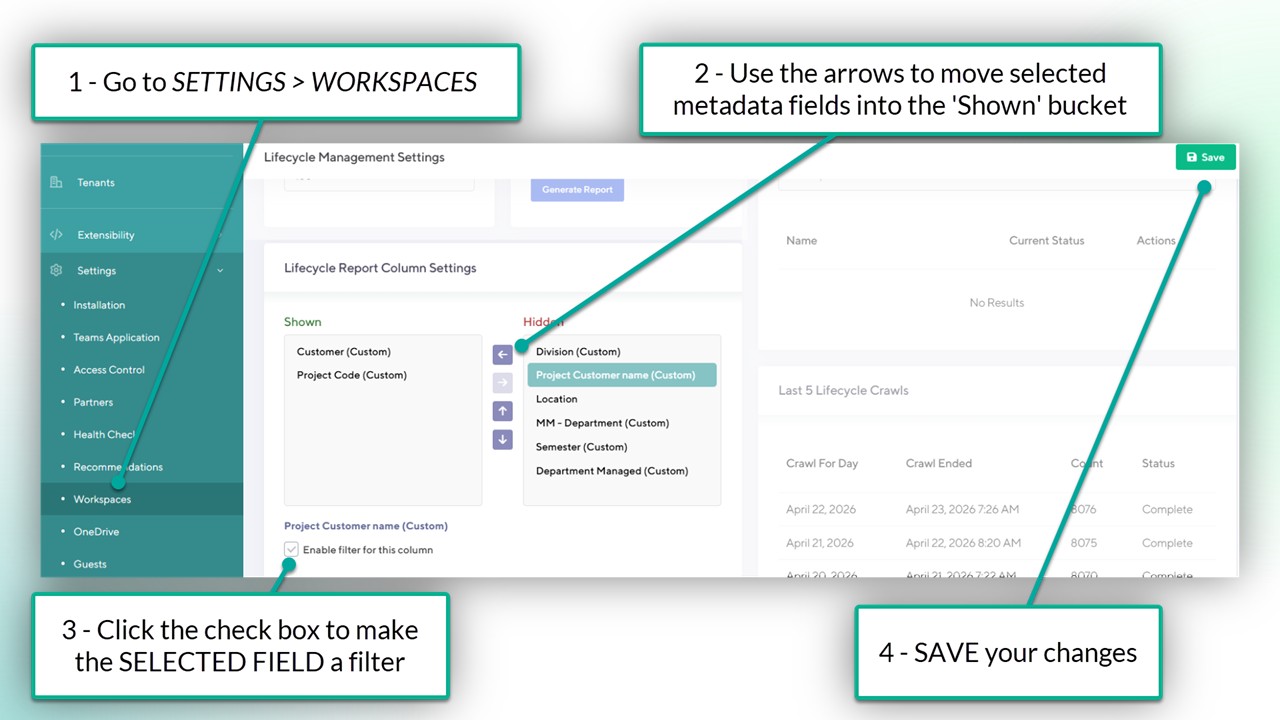
This tool also allows you to add Orchestry Metadata to the Lifecycle Management Reports page and even use them as filters.
After adding your own metadata fields to Orchestry:
Go to the Lifecycle Settings page (Settings > Workspaces)
Under the "Lifecycle Report Column Settings" section, move your metadata fields into the 'Shown' column
Click the box "Enable filter for this column" to enable it
SAVE your changes.
Reset Workspace Status To Active
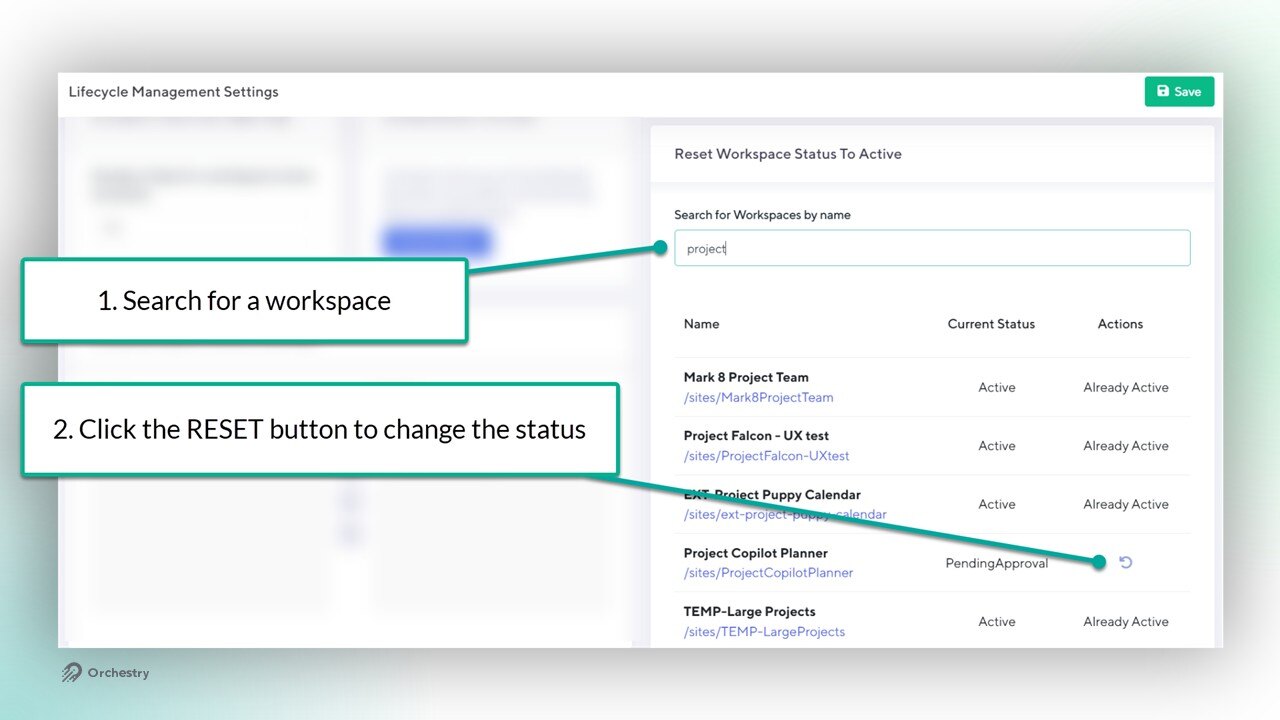
Allows you to reset a workspace back to the ACTIVE state.
How to Reset a Workspace Status:
Go to the Lifecycle Management Settings page
Search for the workspace by name
Click the RESET button under the 'Actions' column
You changes will be applied within a few seconds.
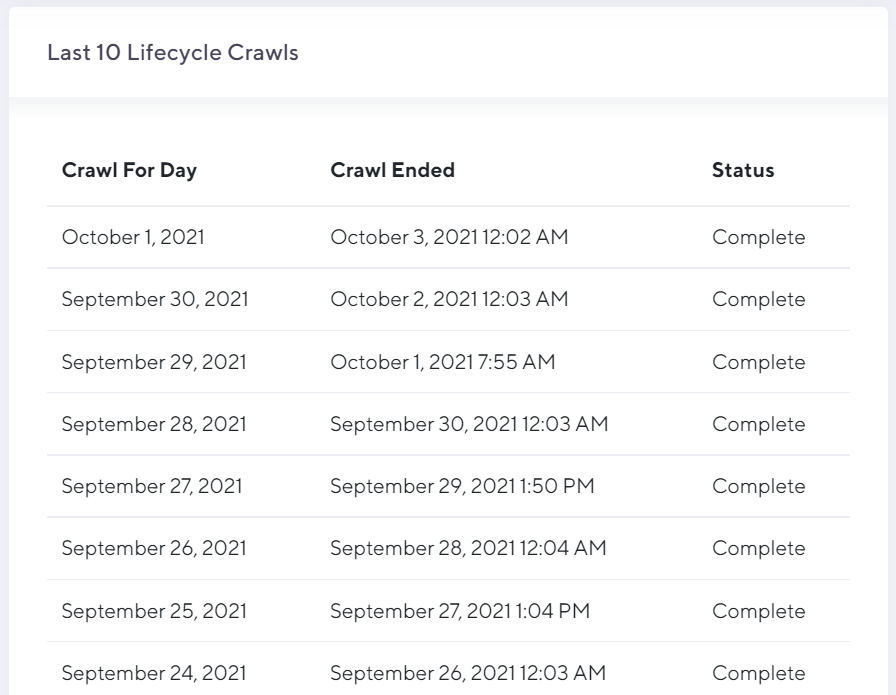
Last 10 Lifecycle (ETL) Crawls
Shows the last 10 nightly ELT crawls of your tenant. This is for reference only and cannot be actioned.