Using Actions on Workspaces
Last updated: August 5, 2026
Overview
From the workspace 'Reports' page (Workspaces > Reports), Admins can use the 'Actions' menu to assign policies, trigger policies, manage version history and more.
Accessing the Actions Menu
To access the 'Actions' menu:
Select one or more workspaces
Click the ACTIONS button
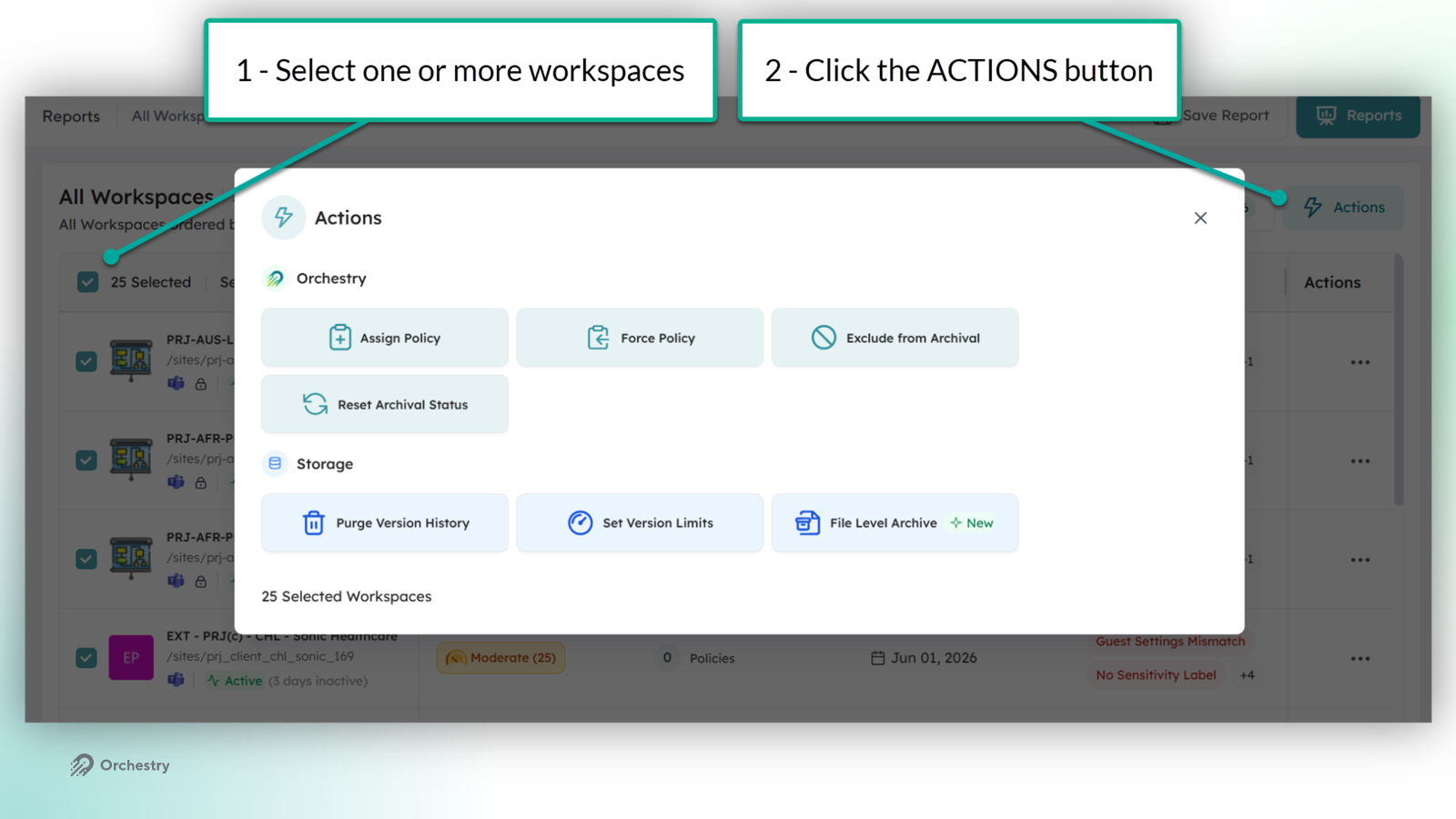
From the Actions window, admins select the action they want to take on the selected workspaces.
Action Menu Options
Assign Policies (to Workspaces)
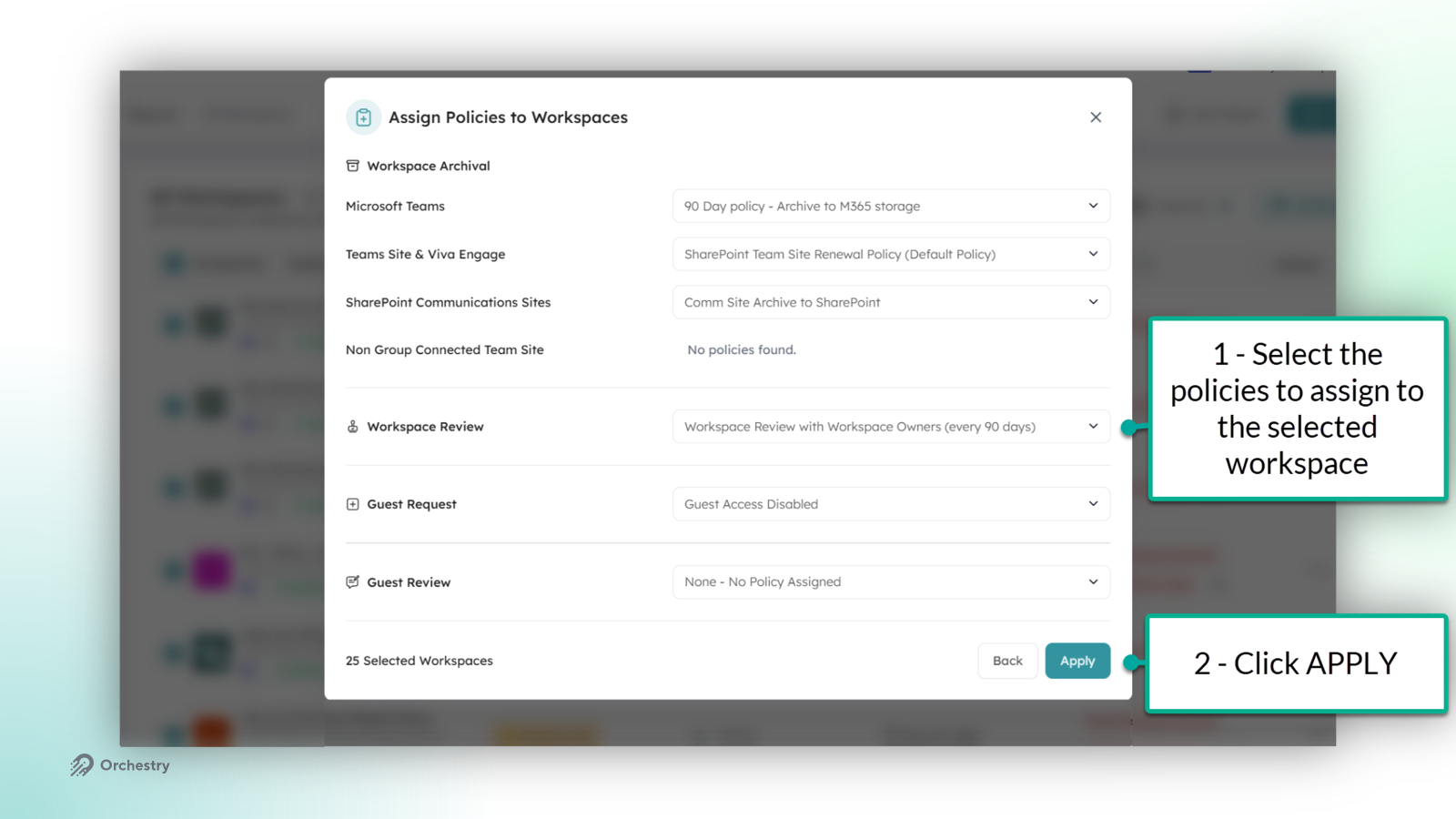
Admins can use this option to assign, update, or remove Orchestry policies from the selected workspaces. This method supports the assignment of archival, workspace review, guest request, and guest review policies.
TIP: Ends users are NOT notified when policies are assigned.
Force Policies
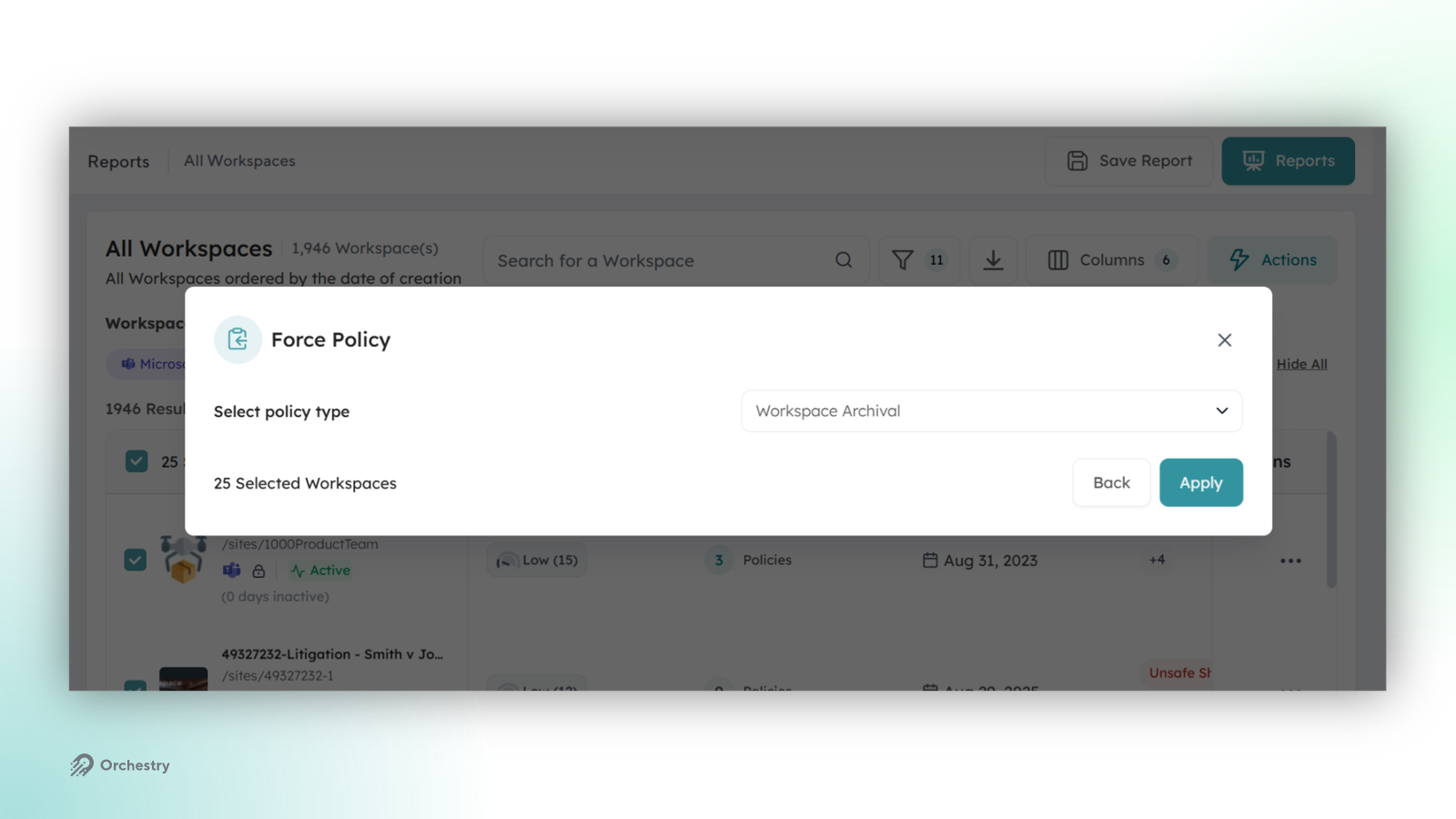
Admins can use this to manually trigger assigned policies on workspaces. To complete this action:
Choose the TYPE of policy to trigger, and
Click APPLY.
After the policies are triggered, end users may be notified (as per the policy configuration).
TIP: Manually triggering new policies is a helpful way to TEST them before rolling out.
Exclude from Archival
This action applies the 'Exclude from Archive' label to the selected workspaces. Admins can leverage this to help prevent permanent and long-term workspaces from being assigned archival policies.
TIP: You can apply the 'Exclude from Archival' label to workspace templates too
Reset Archive Status
Admins can reset the lifecycle status of the selected workspace back to 'Active' with this action. This is typically one of the final steps after restoring a previously-archived workspace.
NOTE: This action does NOT perform any unarchiving actions on the workspace.
Learn more: How to Unarchive a Workspace
Purge Version History
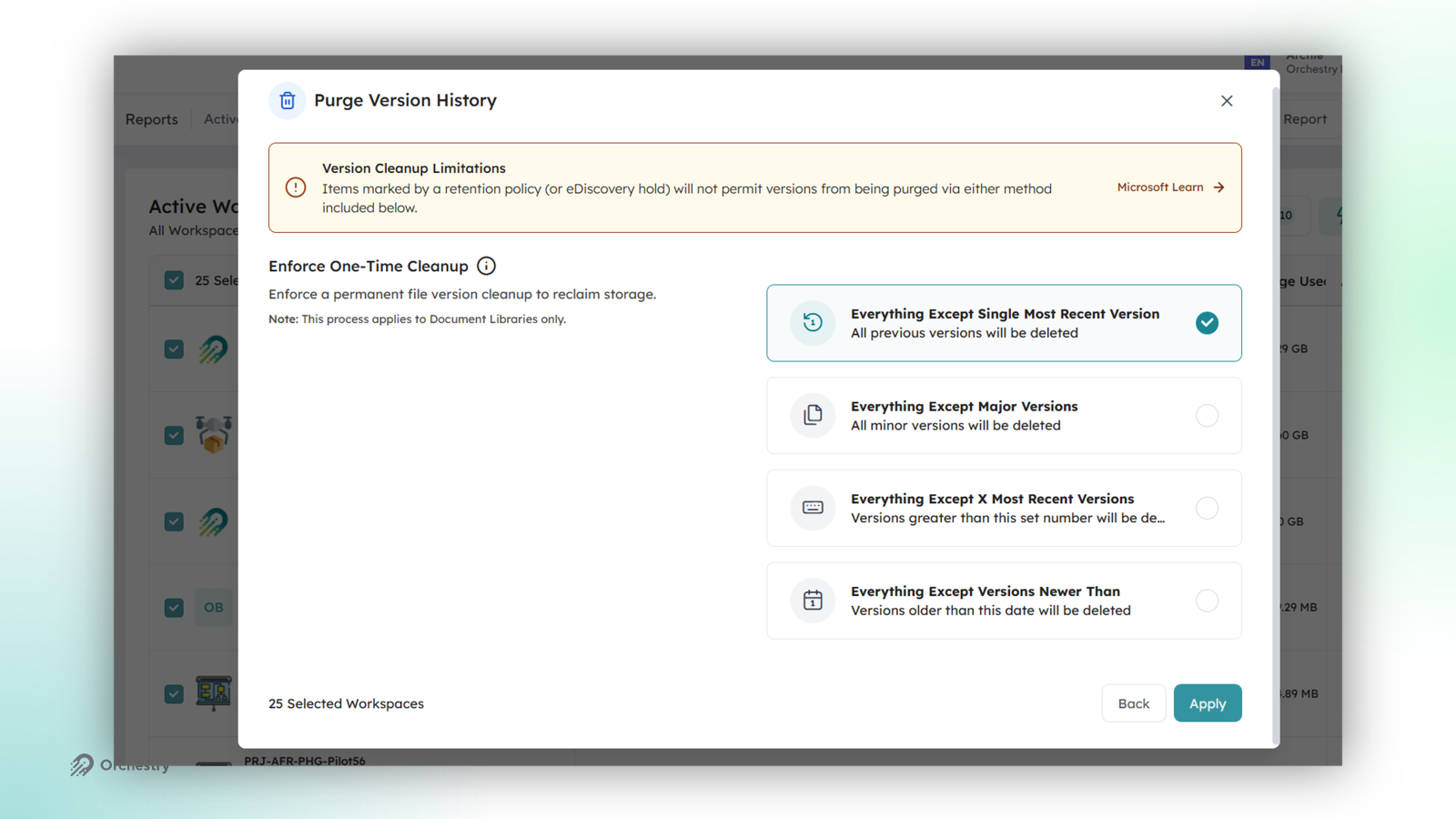
Admins can perform a one-time purge of version history from all document libraries in the selected workspaces. To perform this action:
Select a method for the one-time purge
Click APPLY
The job runs in the background and may take up to a few days to complete.
WARNING: Version history is permanently deleted and cannot be recovered from the recycle bin.
NOTE: Orchestry cannot delete version history to any workspaces with a Retention policy and/or eDiscovery legal hold.
Set Version History Limits
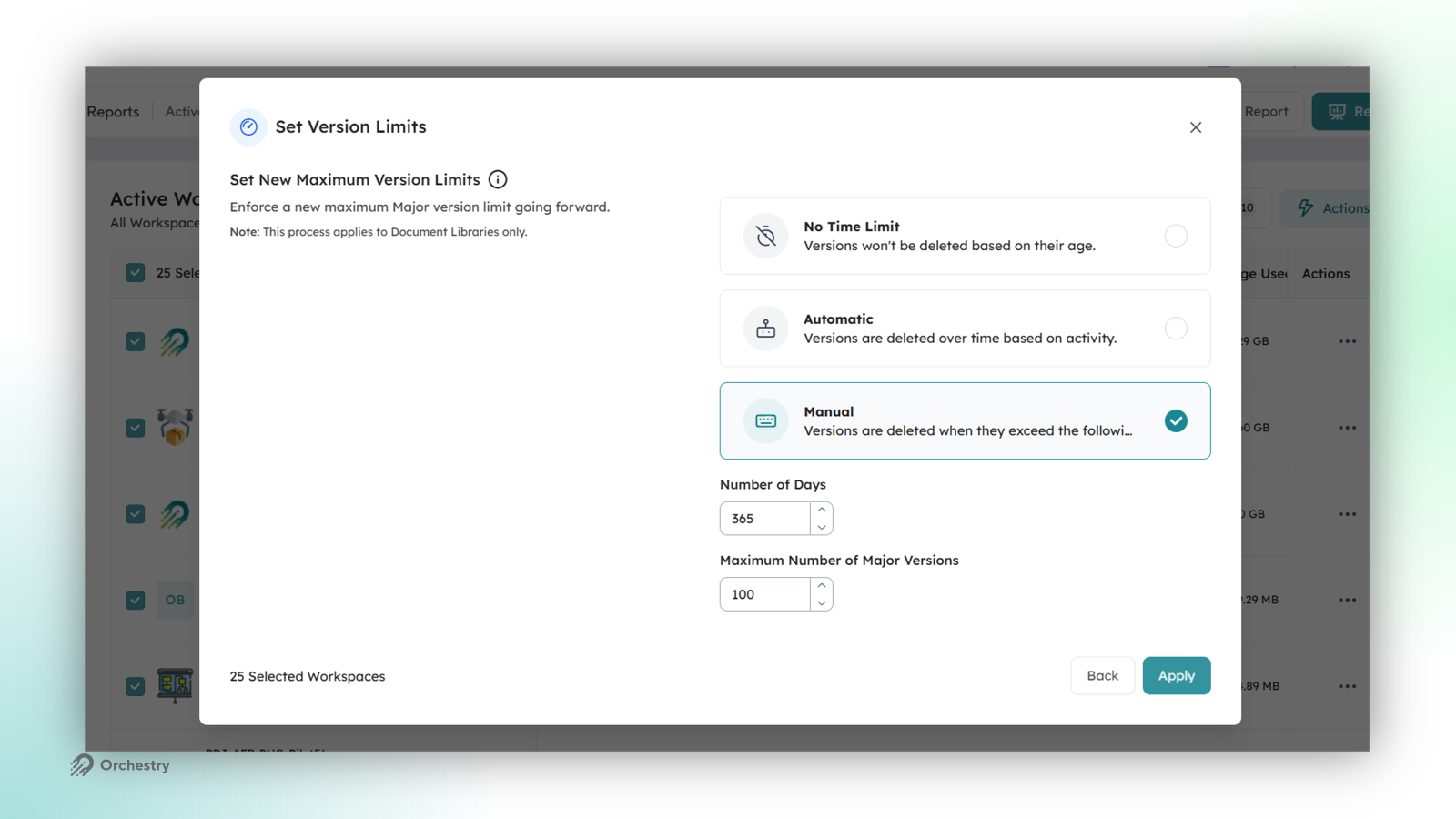
Admins can apply limits to version history to the selected workspaces. To perform this action:
Select the method for limiting version history
Click APPLY
NOTE: Previously existing version history may still exceed the new limit until a one-time purge of version history is performed.
The File Level Archive Action
NOTE: the tenant must have both tenant-level AND per-site enablement configured to leverage File-Level archival policies.
Want to learn how to setup file-level archival in your tenant?
Learn how: How to enable file-level archive in Microsoft 365: Admin guide
How File Level Archive Works
Orchestry queues the work and processes it in the background under its throttling engine, so a large run never overwhelms your tenant. Up to 100 workspaces can be submitted at a time.
Files that are locked, already archived, or otherwise ineligible are skipped and counted rather than causing the job to fail.
If you submit a workspace that already has archival in progress, Orchestry tells you it was skipped instead of queueing duplicate work.
File-level archive applies to SharePoint sites only. OneDrive personal sites and Viva Engage communities are excluded by Microsoft.
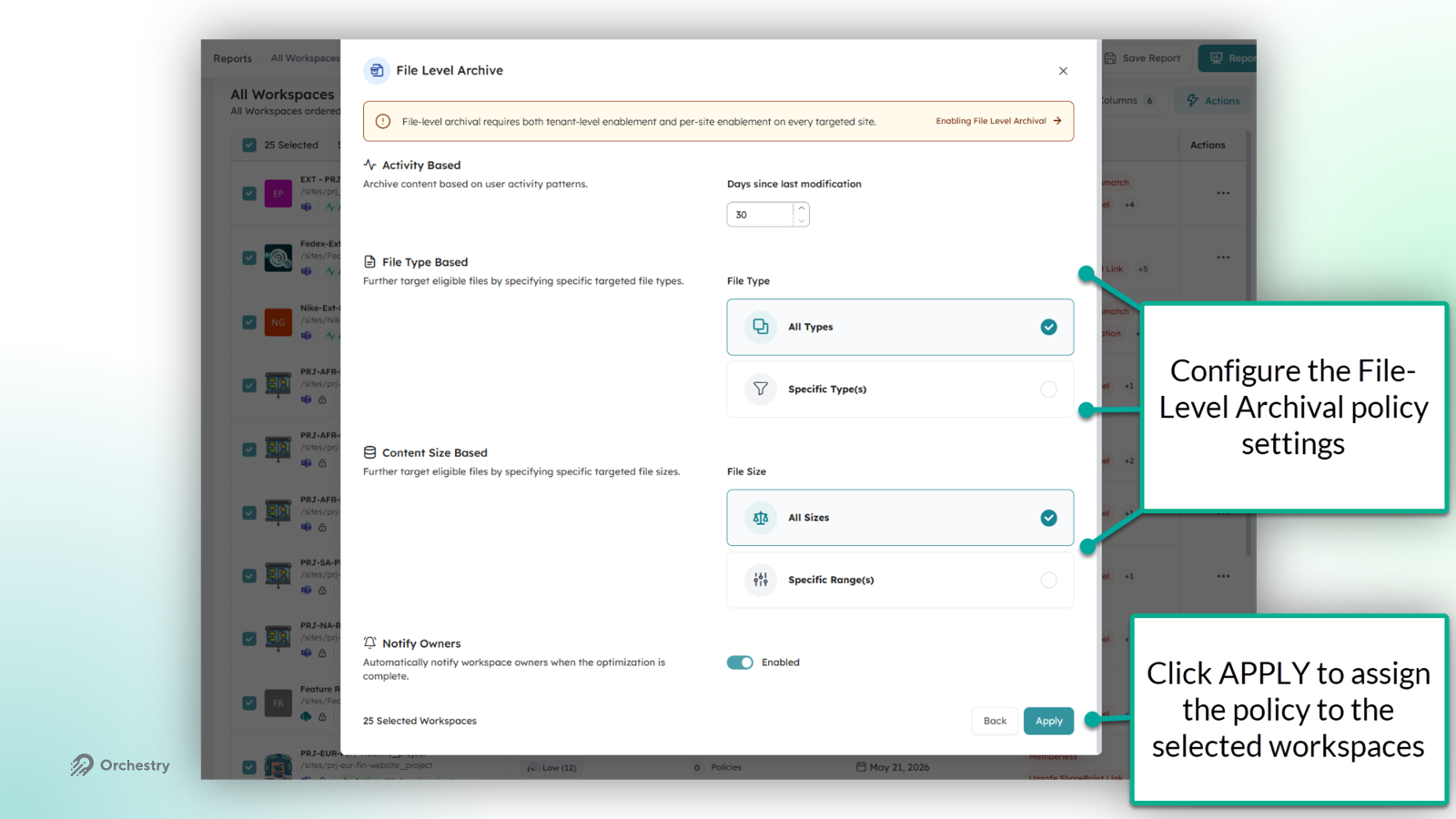
How to Configure and Apply the Action
Admins can apply file-level archival action to the selected workspaces. To perform this action:
Configure the policy
Activity Based: set Days since last modification. Anything older is eligible. The minimum is 30 days and the maximum is 3,650 days (10 years).
File Type Based: choose All Types, or Specific Type(s) and pick from the file extension list. This is where you target the big, cold formats first: video, design files, CAD drawings, archives, disk images, PST and OST files.
Content Size Based: choose All Sizes, or Specific Range(s) and set a size band anywhere from 0 GB up to 1 TB.
Notify Owners: ON by default. When enabled, workspace owners receive a summary once the job finishes.
Click APPLY
What workspace owners see
Owners receive an email, plus a Teams message when the workspace is Teams-connected. The notification is framed as a storage optimization, not a deletion. It confirms how many files were archived, how much storage was moved to cold storage, explains that nothing was lost, and links directly to a SharePoint search that surfaces the archived files.
What happens to archived files
Files remain visible in their original library, in an archived state. Links do not break.
Reactivation is instant within the first seven days and available within 24 hours after that. There are no reactivation fees.
Purview retention labels, eDiscovery, and Content Search continue to operate on archived content without interruption.
Every job writes Initiated, Completed, and Failed events to the workspace's lifecycle history, with the file counts and volume archived, so each workspace carries its own durable audit trail.
Want to learn more about File Level Archival in Orchestry?
Check out the article: 📄 How to Configure and Use the File Level Archive Action