
Part #1: Start a New Archival Policy
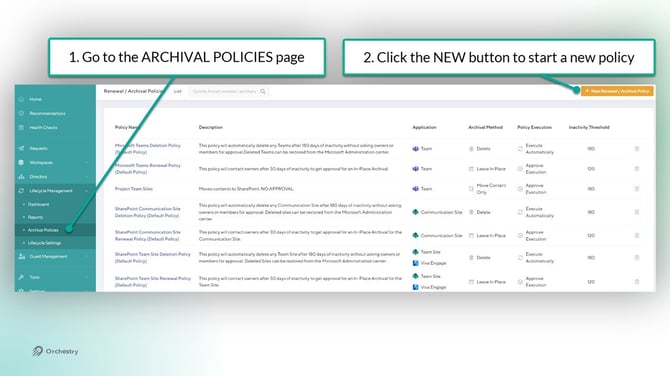
Archival policies can be created and managed from the 'Archival Policies' page. As an Orchestry admin:
- Open the 'Archival Policies' page
- Click the NEW button to start a new archival policy
This will launch a wizard to help guide you through the creation of your archival policy.
Part #2: The 'NAME' Tab
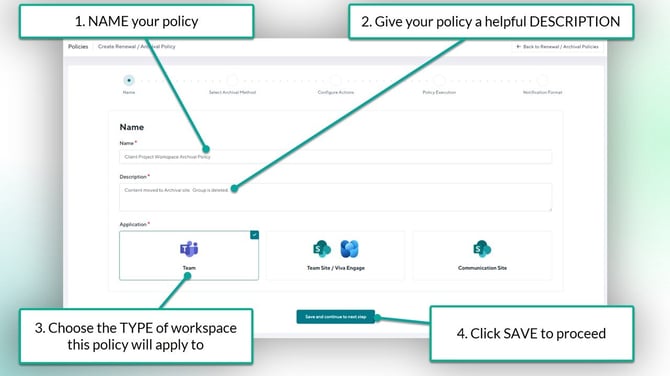
The 'Name' tab is the first page of the archival policy and must be completed before you can save your policy. To complete the NAME tab:
- Give your policy a name
- Give your policy a description
- Choose the type of workspace (application) the policy will apply to
- SAVE to continue
Policies can only be configured for one type of workspace (Teams, SharePoint Communication sites or Team Sites) and cannot be changed after the policy is saved.
Part #3: The 'SELECT AN ARCHIVAL METHOD' Tab
On this tab, you will configure the type of archival policy this will be. You can choose one of the three archival methods available:
- Archive-in-Place: The workspace (group and contents) are moved to a read-only status with restricted access.
- Move to SharePoint: Workspace content is moved to a designate SharePoint site, and the workspace is deleted
- Delete: No archival occurs. Both the workspace and content are deleted.
How to Configure an 'Archive-in-Place' Archival Method
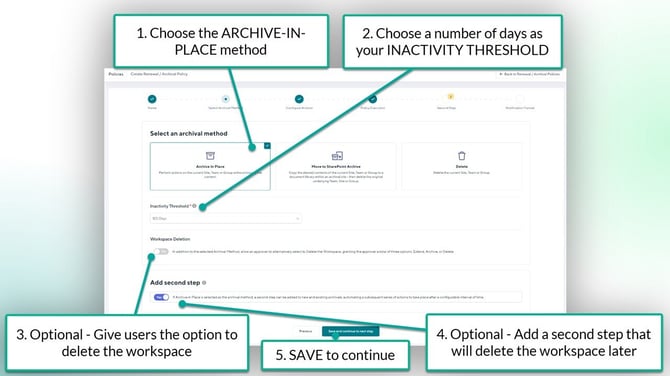
- Choose 'Archive-in-Place' as your archival method
- Set the policy Inactivity threshold. This is the number of days a workspace must be inactive for before the archival policy triggers.
- OPTIONAL - Enable Workspace Deletion. This gives end-users the option to skip archival and delete the workspace
- OPTIONAL - Add the Second Step. This will add a step to the policy that will archive (or delete) the workspace some time after
- SAVE your changes to continue
Want to learn more about the 'Second Step' for Archive-in-Place policies?
Check out the article: How to Configure a Archival Second Step
How to Configure an 'Move to SharePoint Archive' Archival Method
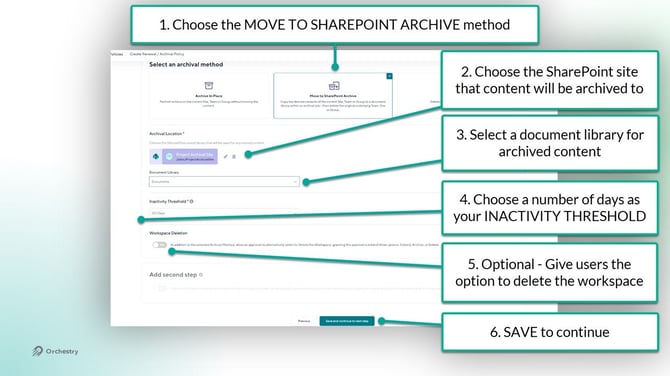
- Choose 'Move to SharePoint Archive' as your archival method
- Choose the SharePoint site that will store archived workspace content
- Choose the document library for the archived content
- Set the policy Inactivity threshold. This is the number of days a workspace must be inactive for before the archival policy triggers.
- OPTIONAL - Enable Workspace Deletion. This gives end-users the option to skip archival and delete the workspace
- SAVE your changes to continue
How to Configure a 'Delete' Method
The DELETE method skips the archival and deletes the entire workspace, including the M365 group and contents.
- Choose 'Move to SharePoint Archive' as your archival method
- Set the policy Inactivity threshold. This is the number of days a workspace must be inactive for before the archival policy triggers.
- SAVE your changes to continue
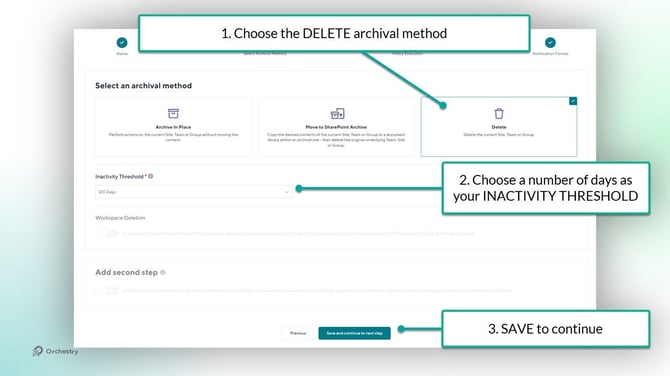
Want to learn more about configuring the "Delete" archival method?
Check out the article: How to Configure Archival Policy to Delete Workspaces
How to Configure the M365 Archive Method
The 'M365 Archive' method allows you to take advantage of the Microsoft 365 Archival feature, moving your inactive workspaces to a layer of cold storage and frees up space in your tenant.
This method should only be enabled and used if you have an active subscription to Microsoft 365 Archive. Attempts to use this method without a subscription may lead to failed archival jobs.
The Orchestry Service app must be updated to version 1.0.0.2.9 (or higher) to enable this feature.
To configure an Archival policy to use the M365 Archival method:
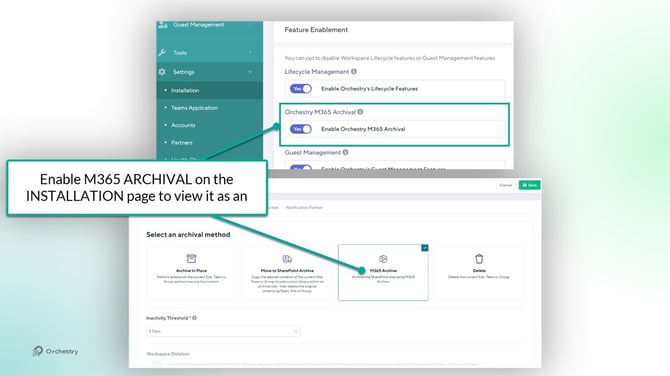
- Enable the "ORCHESTRY M365 ARCHIVAL" feature on the Installation page
- Select "M365 ARCHIVAL" in your Archival policy
- Set the policy Inactivity threshold. This is the number of days a workspace must be inactive for before the archival policy triggers.
- SAVE your changes to continue
Part #4: The 'CONFIGURE ACTIONS' Tab
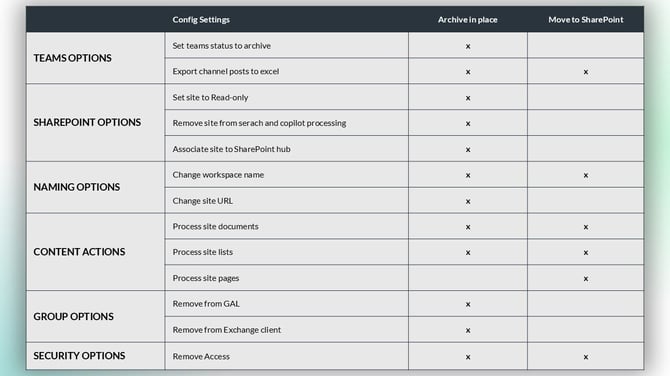
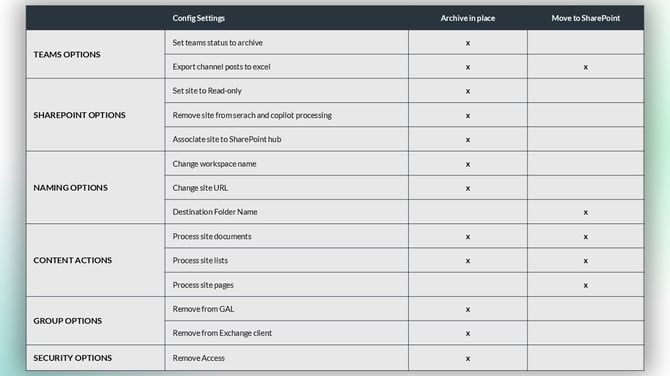
On this tab, you can configure what contents are kept when a workspace is archived. The options available differ depending on (1) the type of workspace the policy will archive, and (2) the archival method chosen.
To complete the 'Configure Actions' tab:
- Review all sections and complete as necessary
- SAVE your changes
The table shown below highlights the different options available for the 'Archive-in-Place' and 'Move to SharePoint Archive' methods:
Part #5: The 'POLICY EXECUTION' Tab
On this tab, you can configure the policy to include an approval step before executing the archival actions. Alternatively, you can choose to NOT have an approval policy and allow the policy to execute immediately after being triggered.
To configure the policy with no notification or approval step:
- Click 'No Notification'
- SAVE your changes to continue
To configure the policy with a notification, but no approval step:
- Click 'Notification'
- Choose your stakeholders. You can assign (A) workspace owners, (B) workspace members, or (C) specific users
- Review and update the notification text as necessary
- SAVE your changes to continue
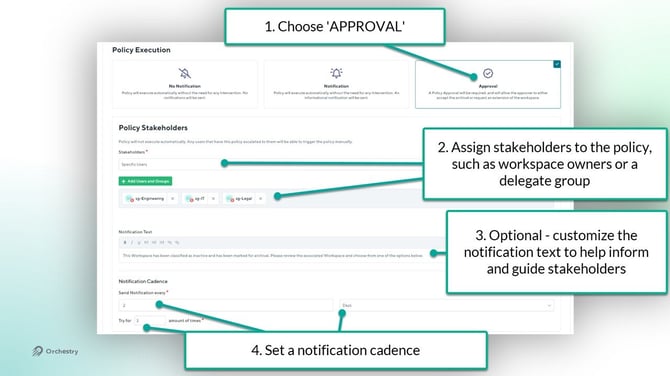
To configure the policy with an approval step:
- Click 'Approval'. This method will assign an Orchestry task to the policy stakeholders
- Choose your stakeholders. You can assign (A) workspace owners, (B) workspace members, or (C) specific users/groups
- Review and update the notification text as necessary
- Choose the 'Notification Cadence'. This determines how many times Orchestry will notify the stakeholders of the archival task before default action is taken
- Choose a 'Workspace Renewal' method. This allows stakeholders to renew the workspace until it goes inactive again, or for a fixed number of days
- If you chose "Extension Days (static)", enter in the number of days workspaces can be extended for.
- OPTIONAL - Choose who to escalate the archival to. If the original stakeholders do not complete the archival (approval) task,
- OPTIONAL - Add a cadence to automatically execute the policy. By adding this, Orchestry will automatically execute this policy if no one completes the archival (approval) task.
If left blank, Orchestry will not execute the policy actions until someone completes the archival task.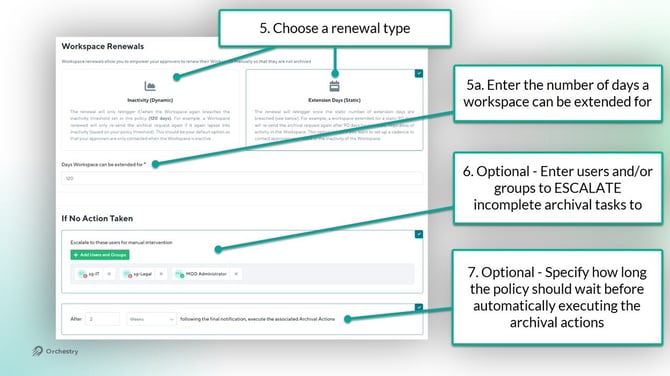
- OPTIONAL - Add a webhook URL. Extend the archival steps with your own script.
- SAVE your changes to continue
TIP: You can assign both security groups and/or M365 groups as policy stakeholders.
Want to learn more about Orchestry tasks?
Check out the article: Navigating My Tasks
Part #6: The NOTIFICATIONS Tab
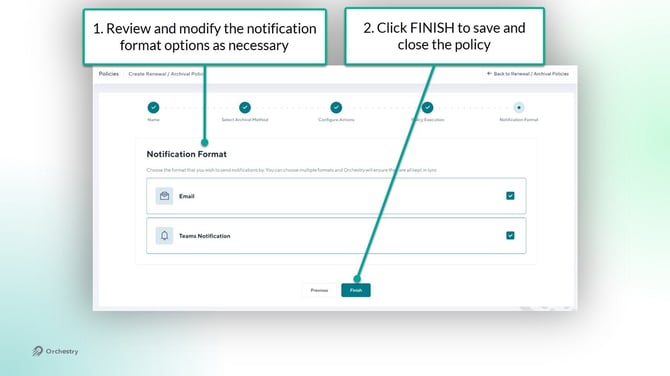
On this final tab, you can choose whether the policy uses email and/or Teams to send notifications when triggered.
To finish your new archival policy:
- Review and modify the notification options as required
- Click the FINISH button
Your new policy is now ready to be assigned to workspaces. Well done!
Want to learn how to assign archival policies to your workspaces?
Check out the article: How to Assign Archival Policies to Workspaces