Orchestry Post Installation Configurations
Last updated: June 24, 2026
After installing Orchestry, review the suggestions below to ensure Orchestry is setup correctly.
Setup the Orchestry Web Parts
The Orchestry web parts are installed along with Orchestry. Before end users can leverage them in SharePoint sites, admins must:
Ensure the web parts have VIEW/READ access in the SharePoint App Catalogue
Ensure the APIs have been approved by a SharePoint admin
Want to learn how to setup Orchestry's web parts?
Check out the article: Orchestry Web Parts Overview
Import Existing Workspaces into the Orchestry Directory
Admins can configure the Orchestry to import existing workspaces into its Directory.
To import your workspaces into Orchestry for the first time:
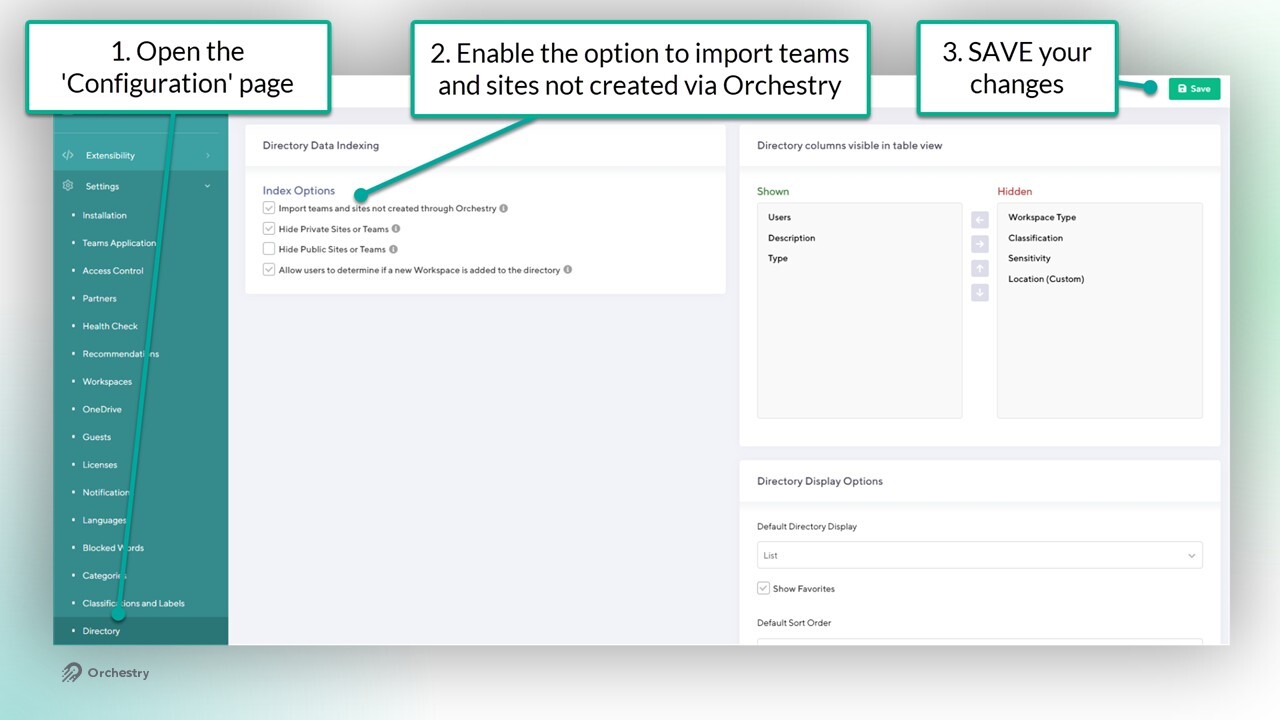
Navigate to the Directory settings page (Settings > Directory)
ENABLE "Import teams and sites not created through Orchestry"
SAVE your changes
Orchestry will import all of your workspaces automatically during the next overnight scan (ETL). Admins are encouraged to review
Want to learn more about the Orchestry Directory?
Check out the article: Orchestry Directory Overview
Review and Update Access to the Orchestry app for Microsoft Teams
The Orchestry app for Teams is installed with Orchestry and is assigned to the default permission group. While it will not be installed into Teams for end users, it may be available from the Teams app store.
NOTE: Admins should review this access if they wish to limit end user exposure to Orchestry until it's officially rolled out.
Want to learn how to setup the Orchestry app in Teams?
Check out the article: Teams Application Configuration
Remove Orchestry from the M365 App List
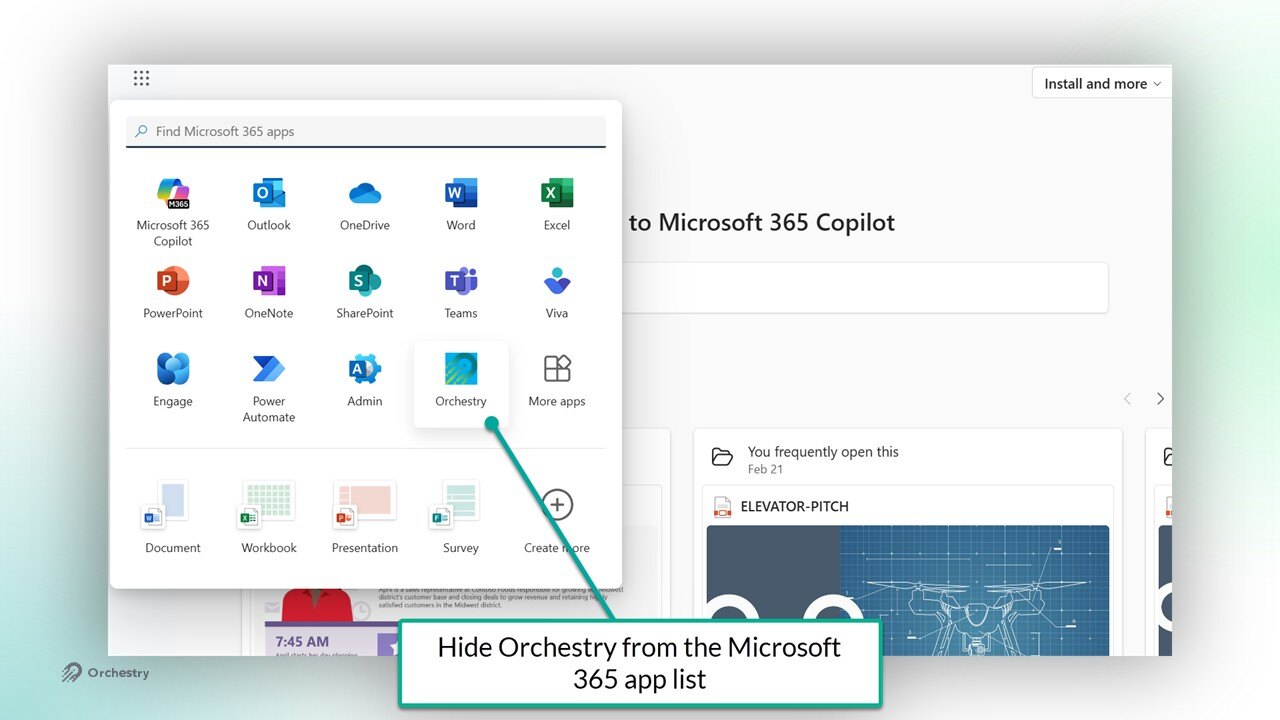
Orchestry can be accessed via https://app.orchestry.com OR the Microsoft Teams app. End users may also discover Orchestry in M365 app lists, but they will NOT be able to launch it from there.
Admins are encouraged to remove Orchestry from those lists to prevent confusion among end users.
Want to learn how to remove Orchestry from the M365 app lists?
Check out the article: How to Hide Orchestry from the Microsoft 365 App List for Users
Enable Provisioning for Microsoft EDU Tenants
Before creating any workspace templates, admins for EDU tenants should enable this functionality from the 'Installation' page (Settings > Installation)
Want to learn how to enable provisioning for EDU tenants?
Check out the article: How to Enable Provisioning for Microsoft Education (EDU) Tenants
Configure OneDrive Link Scanning (Enterprise Only)
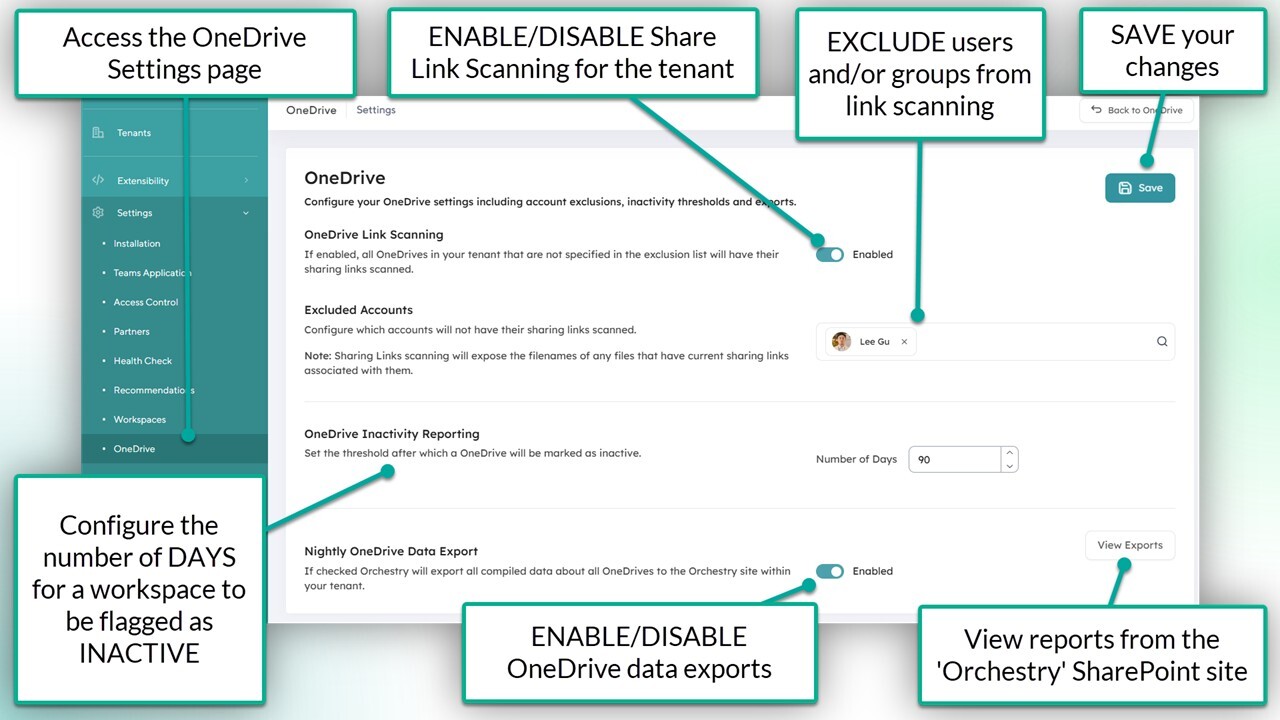
Orchestry admins that want to view and manage sharing links from OneDrive will need to enable the feature from the settings page (Settings > OneDrive).
Admins are also encouraged to add accounts that should be excluded from share link scanning.
Want to learn more about OneDrive features in Orchestry?
Check out the article: OneDrive Management Overview
Configure M365 License Reporting and Pricing (Enterprise Only)
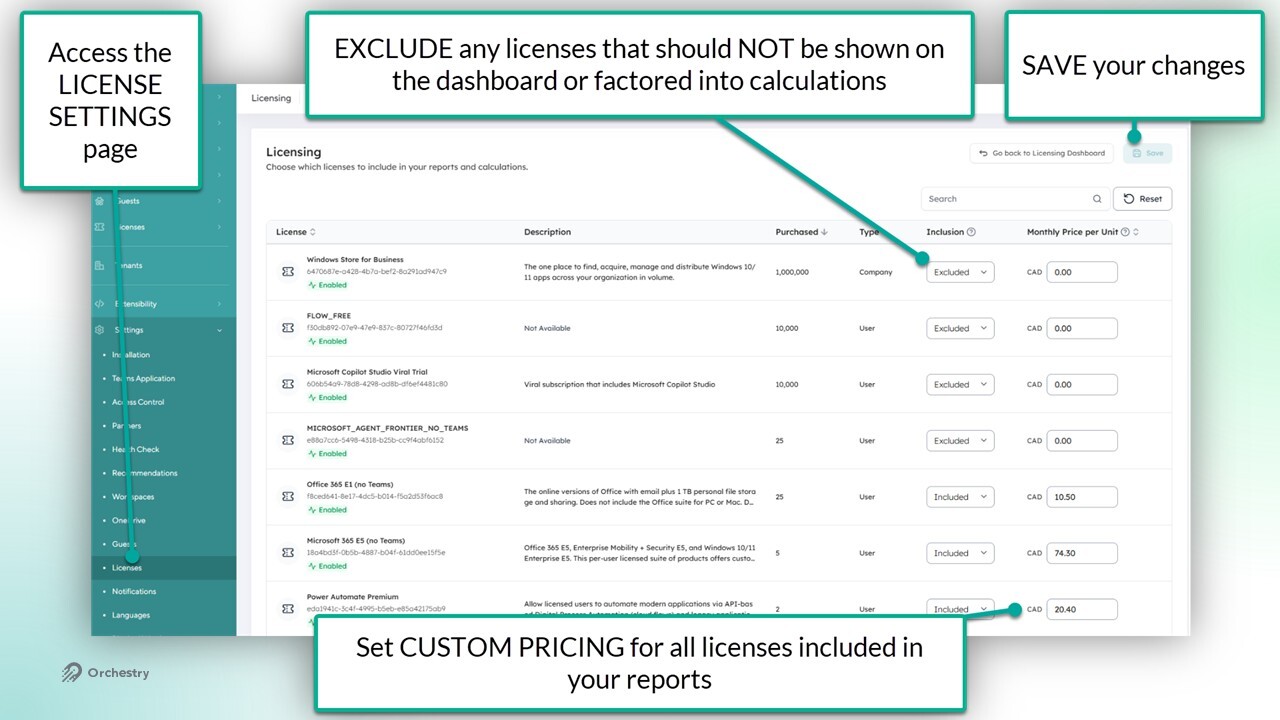
Orchestry admins should review the License Settings page (Settings > Licenses) to:
Remove any licenses that should NOT be included in reporting, and
Update the monthly cost-per-unit to ensure accurate calculations on costs and potential savings
Configure the Orchestry Service App for Multi-Geo Environments
In order to provision workspaces in multi-geo environments, the Orchestry Service app must include the API permission Directory.ReadWrite.All
Want to learn how to update the Service App permissions?
Check out the article: Multi-Geo Provisioning in Orchestry