OneDrive Management Overview
Last updated: September 16, 2026
Enterprise subscribers can access OneDrive (business) reporting and policies to ensure these accounts are monitored and reviewed regularly. Admins will gain access to:
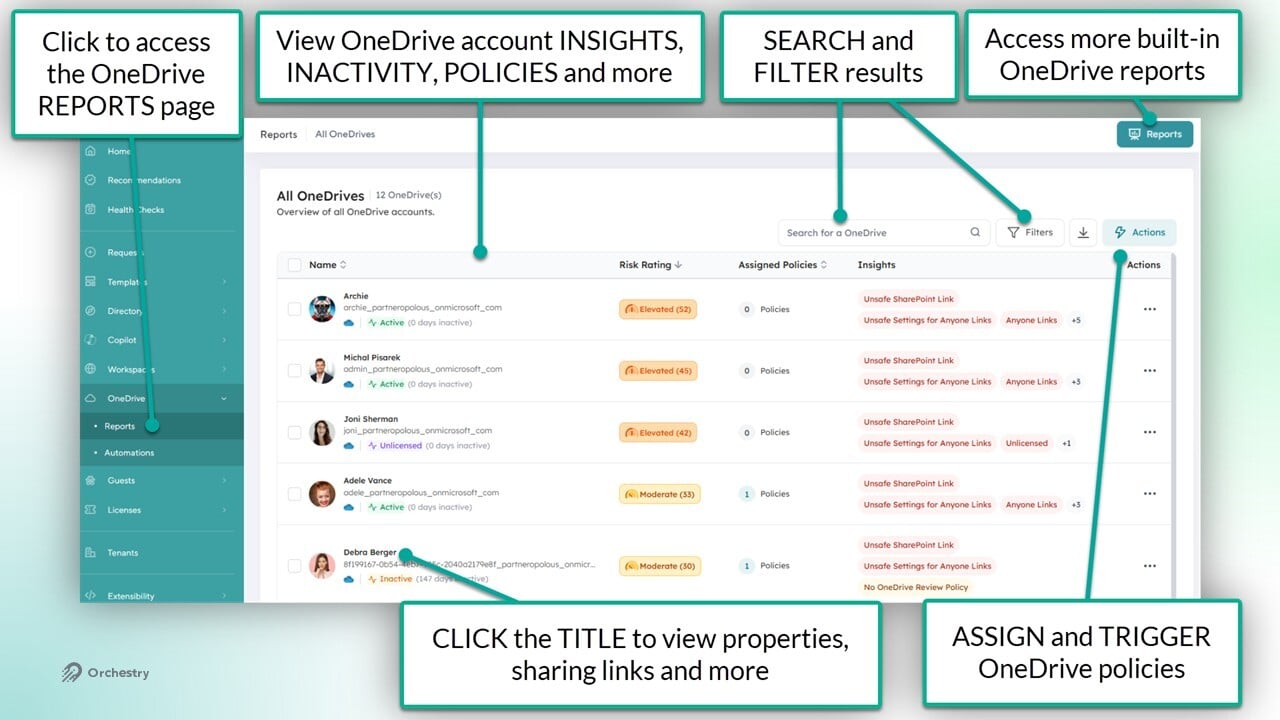
a OneDrive 'Reports' page (OneDrive > Reports) where all OneDrive accounts can viewed and actioned
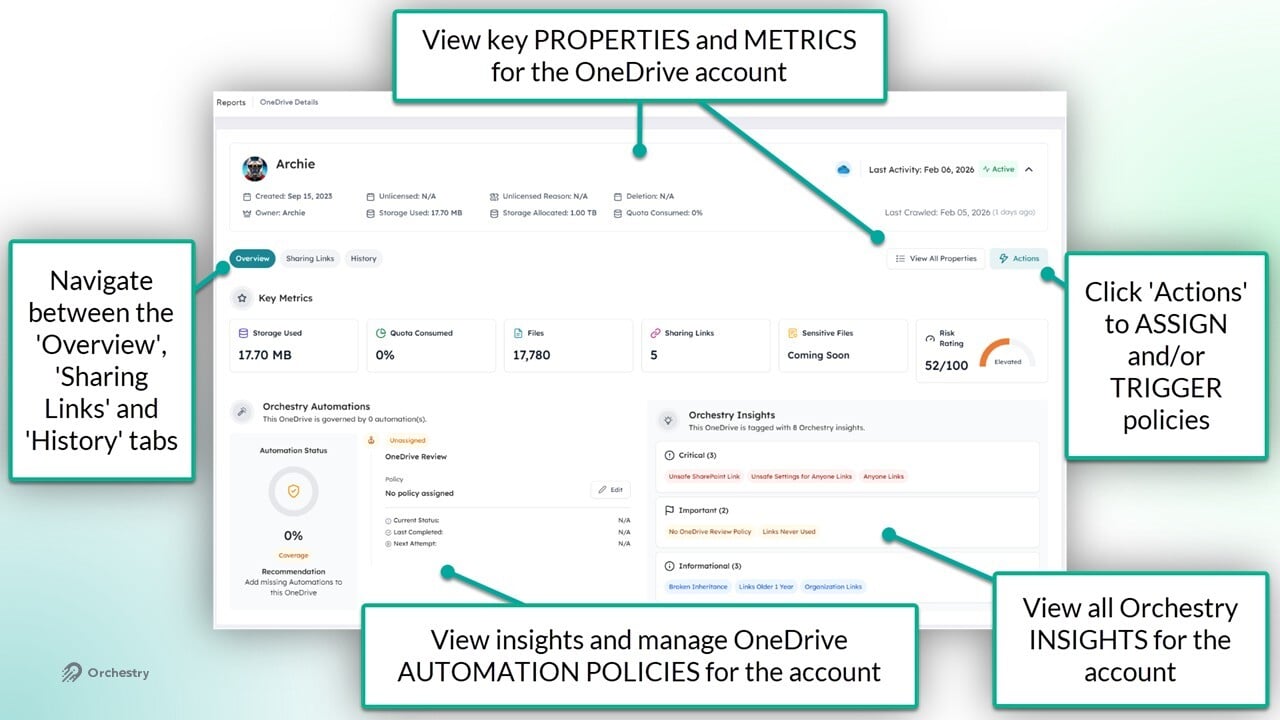
The 'OneDrive Details' page where admins can view insights on specific accounts, assign policies and more.
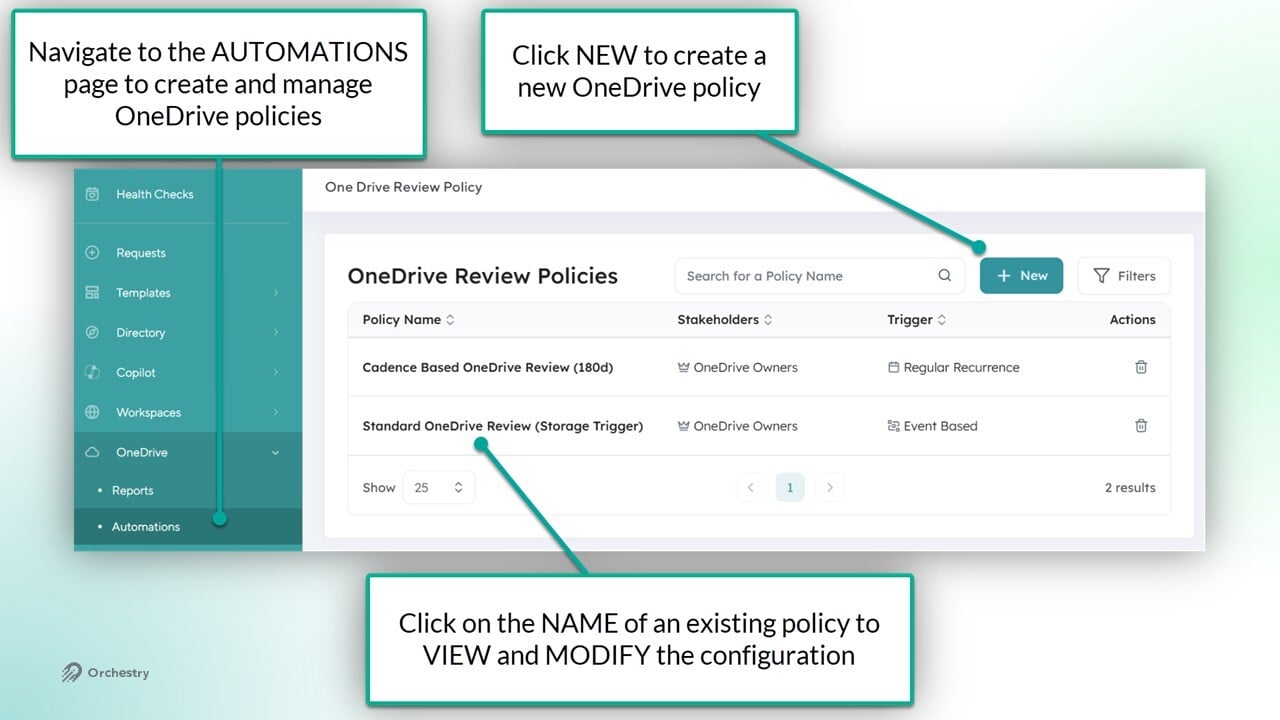
OneDrive Review policies (OneDrive > Automations) where admins can create and manage policies that run on recurring schedules and/or when storage exceeds a threshold
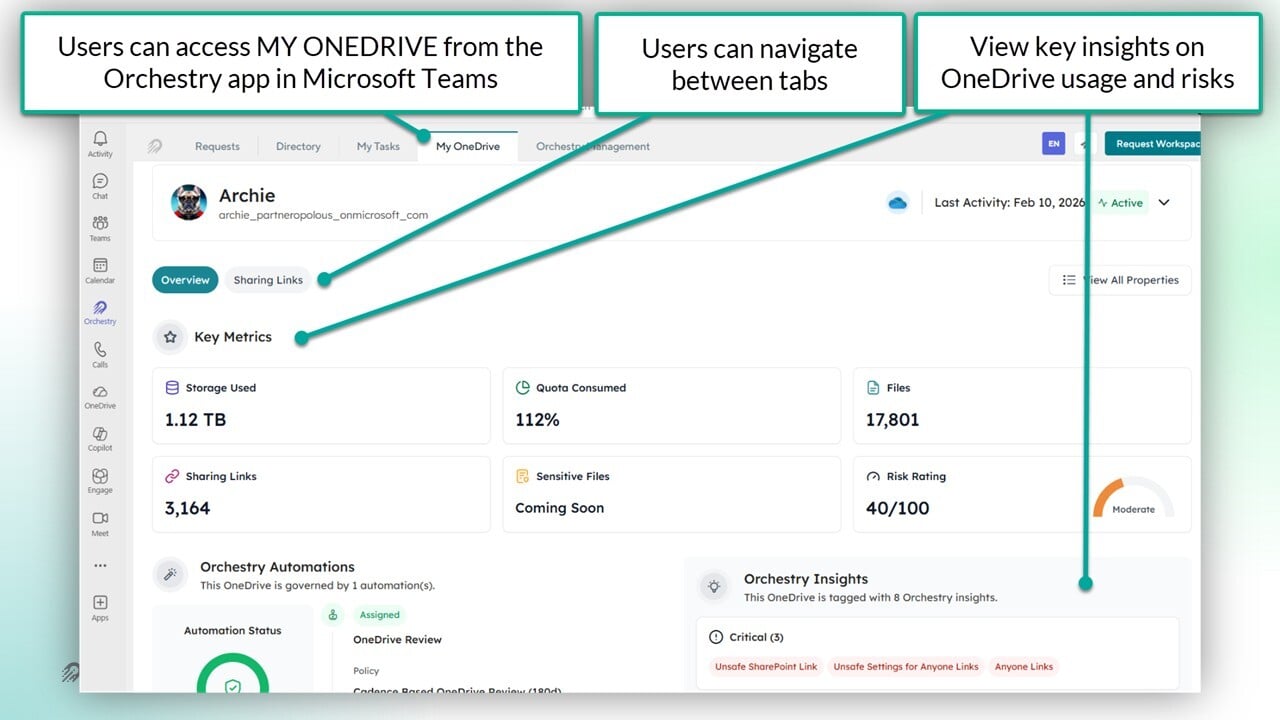
'My OneDrive' where end users can view insights about their own account usage and manage sharing links
Interested in learning more about Orchestry Enterprise plan features?
Learn more: Orchestry Pricing & Plans
OneDrive Reports Page
The OneDrive management 'Reports' page allows Orchestry admins to view insights and take action on user OneDrive accounts in their tenant. It includes search, filters and built-in reports to help admins identify areas of risk and where action is required.
OneDrive Account Details
From the OneDrive 'Reports' page, admins can click on any account name/time to:
Review properties and insights of the account
Assign/Update policies assigned to the account
View and manage sharing links from the account
View history of activities performed on the account
Want to learn more about the OneDrive Reports page?
Check out the article: OneDrive Reports Page Overview
OneDrive Review Policies
OneDrive Review policies can be used to automate regular reviews of user accounts. OneDrive reviews (assigned as an Orchestry task) ask end users to:
Review and update search and Copilot visibility
Review and consent to version history clean-up of their files
Clean up insecure and/or old sharing links
Want to learn more about creating and managing OneDrive Review policies?
Check out the article: How to Configure OneDrive Review Policies
OneDrive Management Settings
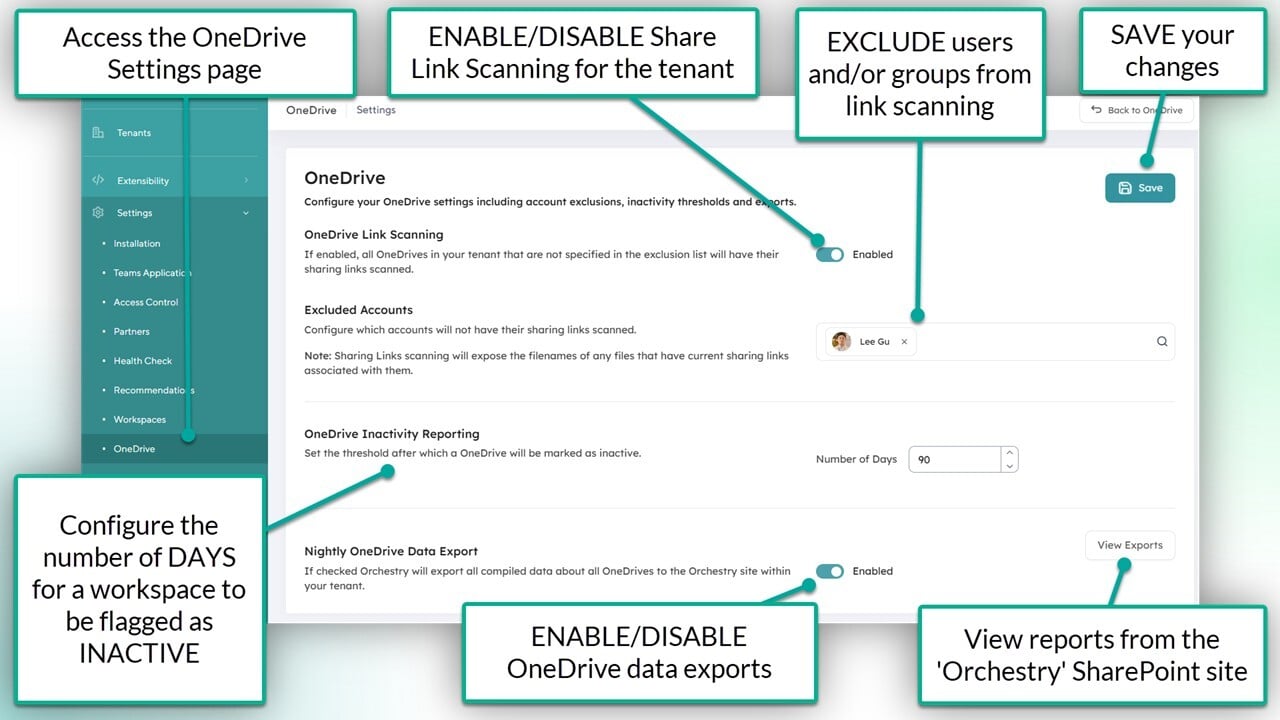
On the OneDrive Setting page (Settings > OneDrive), Orchestry admins can:
Enable/disable OneDrive Link scanning (disabled by default)
List accounts that should be EXCLUDED from link scanning
Set the threshold of days before a OneDrive account is marked as INACTIVE
Enable a nightly export of OneDrive Data
My OneDrive (End User Experience)
End users have access to the "My OneDrive' tab in the Orchestry Teams app. From there, users can:
Review insights about their account, and
Review and delete their sharing links.
Want to learn more about 'My OneDrive'?
Check out the article: The 'My OneDrive' End User Experience
Questions & Answers
How Does Orchestry Calculate Inactivity for OneDrive Accounts?
Orchestry largely uses the LASTACTIVITYDATE of OneDrive files accessed, uploaded, edited or shared.
How Do OneDrive Insights Filters Work?
With every nightly ETL scan, Orchestry will review and update OneDrive account insights.
Note that filters may not accurately reflect changes applied to accounts between each ETL scan (i.e.: policies applied to accounts)
What Happens When a User Account is Deleted from Entra?
Orchestry cannot scan OneDrive account if the Entra ID profile of the associated "Owner" has been deleted.