How to Configure OneDrive Review Policies
Last updated: July 21, 2026
Admins can configure Orchestry's OneDrive Review policies to automate regular reviews of sharing links, clean-up version history and hide files from search and Copilot.
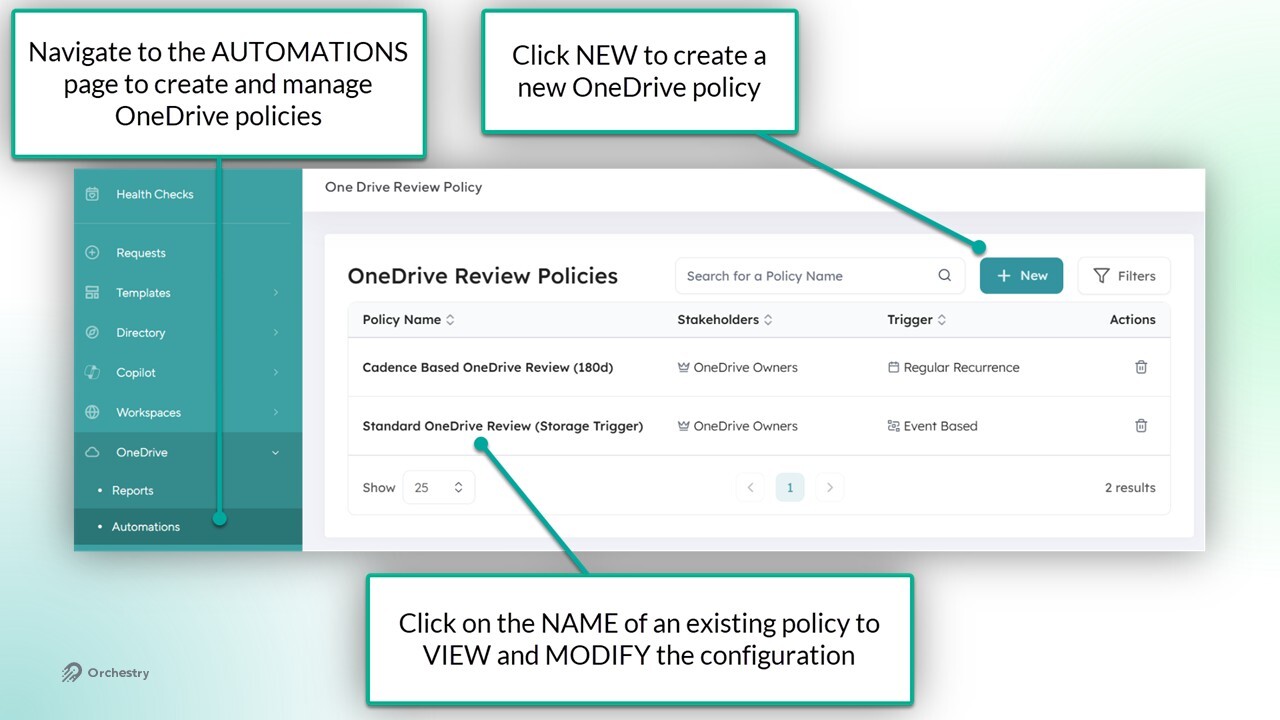
How to Configure a OneDrive Review Policy
OneDrive Review policies can be configured with a mix of different steps, allowing admins to curate different policies for different users and scenarios.
The general steps to create a OneDrive Review policy are as follows:
From the 'Automations' page (OneDrive > Automations), click NEW
From 'Name tab, apply a NAME and DESCRIPTION for the new policy
From the 'Configuration' tab
Select ACTIONS from the 'Actions' tab
Configure each ACTION on their respective page
From the 'Execution' tab:
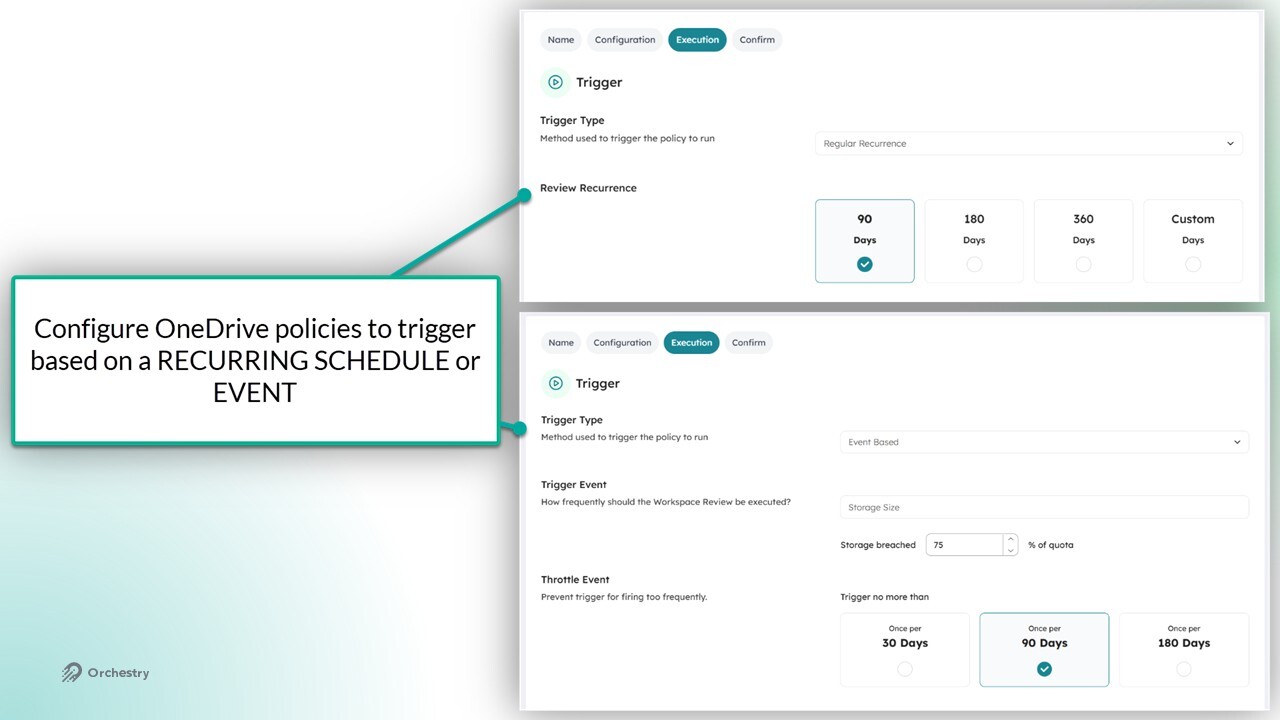
Configure the trigger type: REGULAR RECURRANCE or EVENT-BASED
Configure the NOTIFICATION CADENCE for the tasks assigned from this policy
Add a CANCELLATION step (optional)
From the 'Confirm' tab, click SAVE to publish the new policy
The WELCOME Page | Orchestry Review Policy Actions
When users open a OneDrive Review task, the first page shown is the 'Welcome' page. This page can help set the tone and expectations of this task for your end users.
To configure the 'Welcome Page' page, admins should:
Add customized HELPER TEXT
Modify the POSITION of the text (optional)
TIP: Try adding links to support materials for your end users in the helper text.
The SEARCH AND VISIBILITY Page | Orchestry Review Policy Actions
Admins can let end users show or hide their OneDrive content from M365 search and Copilot.
To configure the 'Search & Copilot Visibility' page, admins should:
Add customized HELPER TEXT
There are no additional customizations required for this page.
The VERSION CLEANUP Page | Orchestry Review Policy Actions
Admins can recover M365 tenant storage by (1) enforcing a one-time clean-up of version history on OneDrive accounts, and (2) setting limits on version history moving forward.
To configure the 'Version Cleanup' page, admins should:
Add customized HELPER TEXT
Enable the ONE-TIME CLEAN-UP of version history
choose how MUCH version history is cleaned up
Enable a MAXIMUM LIMIT on version history
choose how Orchestry deletes old version history (by age and/or number of versions)
Enable or disable 'skippable libraries'. Useful if user has more than one library in the parent site.
Enable or disable 'skippable step'. Useful when user may not want to delete ANY version history
The SHARING LINKS Page | Orchestry Review Policy Actions
Admins can enable end users to review and delete sharing links created from their OneDrive account.
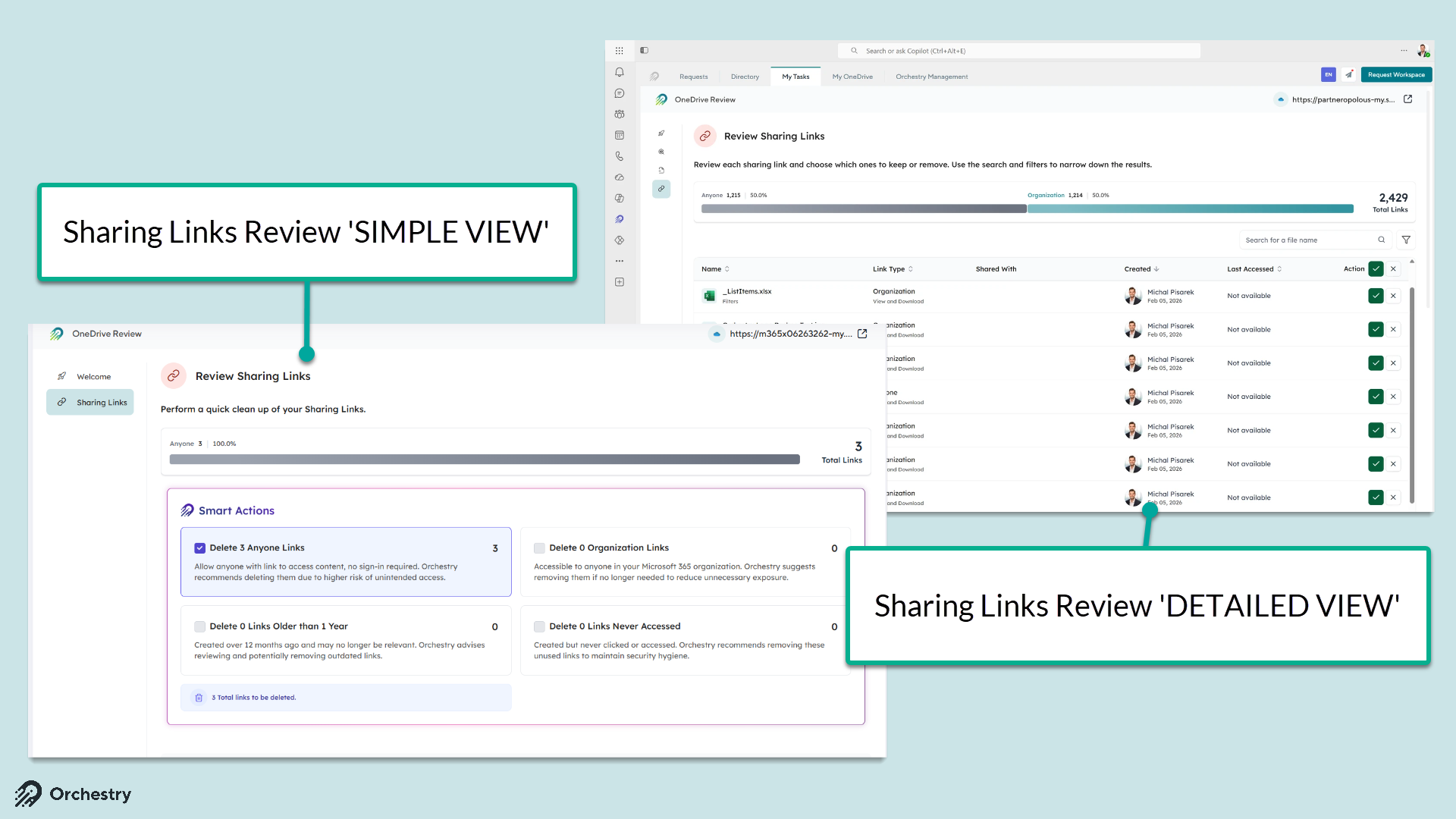
To configure the 'Sharing Links' page, admins should:
Add customized HELPER TEXT
Select DETAILED VIEW or SIMPLE VIEW
If using the 'Simple View' option, select the SMART ACTIONS options to include in the review
Regular Recurrence vs Event-Based Triggers | Orchestry Review Policy Execution
Orchestry policies have two options for triggers:
Regular Recurrence: policy is fired on a fixed schedule based on (A) the date of the policy was first assigned, or (B) when the policy was last completed. Admins can customize the value between 30 and 1200 days.
Event-Based: policy is fired when the OneDrive account storage reached a the configured percent of its storage quota. Admins can configure value between 1% to 100% of quota.
Event-based policies triggers have an additional control to prevent the policy from triggering too frequently. Admins can configure the policy to only fire once every 30, 90, or 180 days.
NOTE: If users have over 100,000 links in their OneDrive, Orchestry will gracefully fallback to the simplified view.
Assigning and Triggering OneDrive Review Policies
Admins can assign and trigger policies from the OneDrive 'Reports' page.

Want to learn how to assign and trigger OneDrive policies?
Check out the article: 📄 OneDrive Reports Page Overview