Workspace Directory Overview
Last updated: April 15, 2026
Orchestry's 'Workspace Directory' is a tool for both admins and end-users to discover, view and access workspaces across your tenant.

Where is the Directory Data Stored?
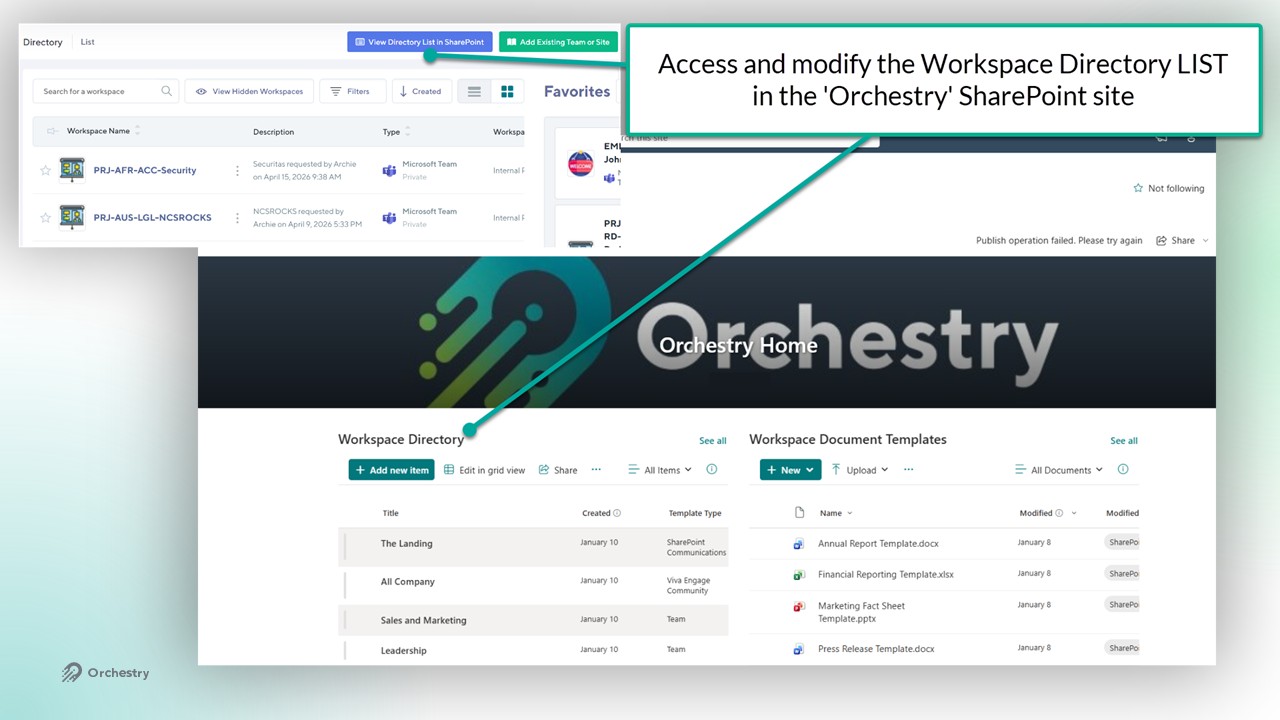
The Directory data is stored in the 'Workspace Directory' list found in the 'Orchestry' SharePoint site. Anytime a new workspace is created, Orchestry adds the new workspace to the list, which is synced back to the directory in Orchestry.
Supported Workspaces
As part of the automatic crawl that updates the Orchestry Directory with your current workspaces, it is important to note that not all workspaces are currently supported, especially those relating to classic infrastructure.
Supported:
Microsoft Teams
Modern Group-connected Team sites
Modern non-Group-connected Team sites
Communication sites
Viva Engage Workspaces
Classic sites
Not Supported:
Classic Publishing Sites
The User Experience
Both Orchestry admins and end-users can access and leverage the Orchestry directory to access workspaces
All Users can:
Search and filter for private and/or public workspaces by name
Visit workspaces via URL (access is NOT automatically granted to unauthorized users)
View supplemental properties about workspaces (based on columns set by admin)
View workspace membership
Add workspaces to their 'Favorites' list
Orchestry Admins can also:
view hidden workspaces
modify workspace metadata
modify workspace visibility in the directory
force-sync workspaces
NOTE: End users and Orchestry admins can VIEW but not automatically access private workspaces they do not have access to.
How to Access the Directory
All users can access the directory via:
the Orchestry web app
the Orchestry Teams app
the Orchestry SharePoint 'Directory' web part
How to Configure the Directory
Admins can configure the directory to control what workspaces and properties are visible to end users. Admins can do this from the directory UI and/or the SharePoint list
Want to learn how to configure the workspace directory?
Check out the article: Configuring the Workspace Directory
How Orchestry Syncs Workspaces to the Directory
Orchestry can automatically add newly provisioned workspaces to the directory, including:
Site title/name changes
Permission updates
Group membership changes
Site metadata modifications
Template type changes
Want to learn more about how Orchestry syncs workspaces to the directory?
Check out the article: Directory Sync
How to Use Orchestry Metadata in the Directory
Admins can add Orchestry metadata as directory columns and filterable properties, allowing end users to locate workspaces faster.
Want to learn more about configuring the directory with Orchestry metadata?
Check out the article: How to Use Orchestry Metadata in the Directory