Configuring the Workspace Directory
Last updated: August 6, 2026
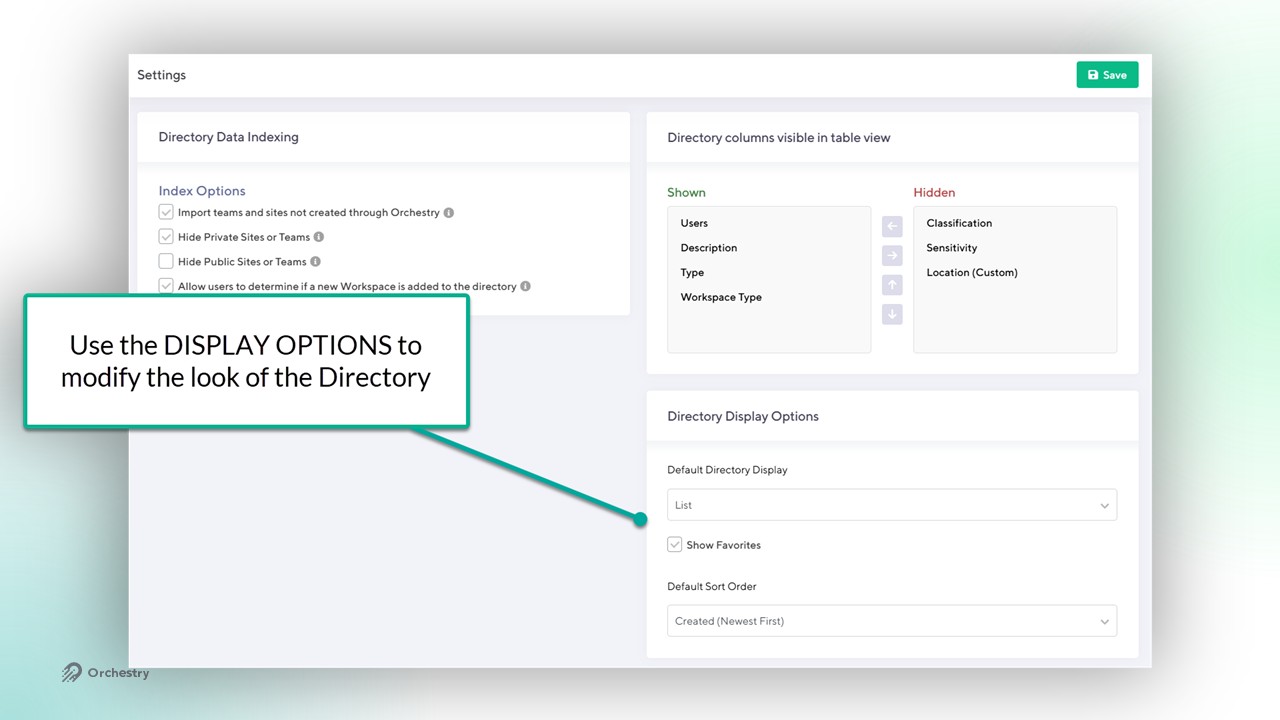
From the Directory's settings page (Settings > Directory), Admins can modify the contents, look and feel of the Directory that end users see in Orchestry.
Import Existing Workspaces into the Directory (Post-Install Step)
Orchestry admins can configure the Directory to include all workspaces that were NOT created through Orchestry. Before the first ETL, Orchestry admins can configure the Directory to:
import all workspace created outside of Orchestry, and
hide private and/or public workspaces from the directory
This initial import adds workspaces to the 'Workspace Directory' list in the 'Orchestry' SharePoint site. To configure the initial import:
Open the Directory Settings page (Settings > Directory)
Enable the setting "Import teams and sites not created through Orchestry"
Choose whether to HIDE public and/or private workspaces from the Directory
SAVE your changes
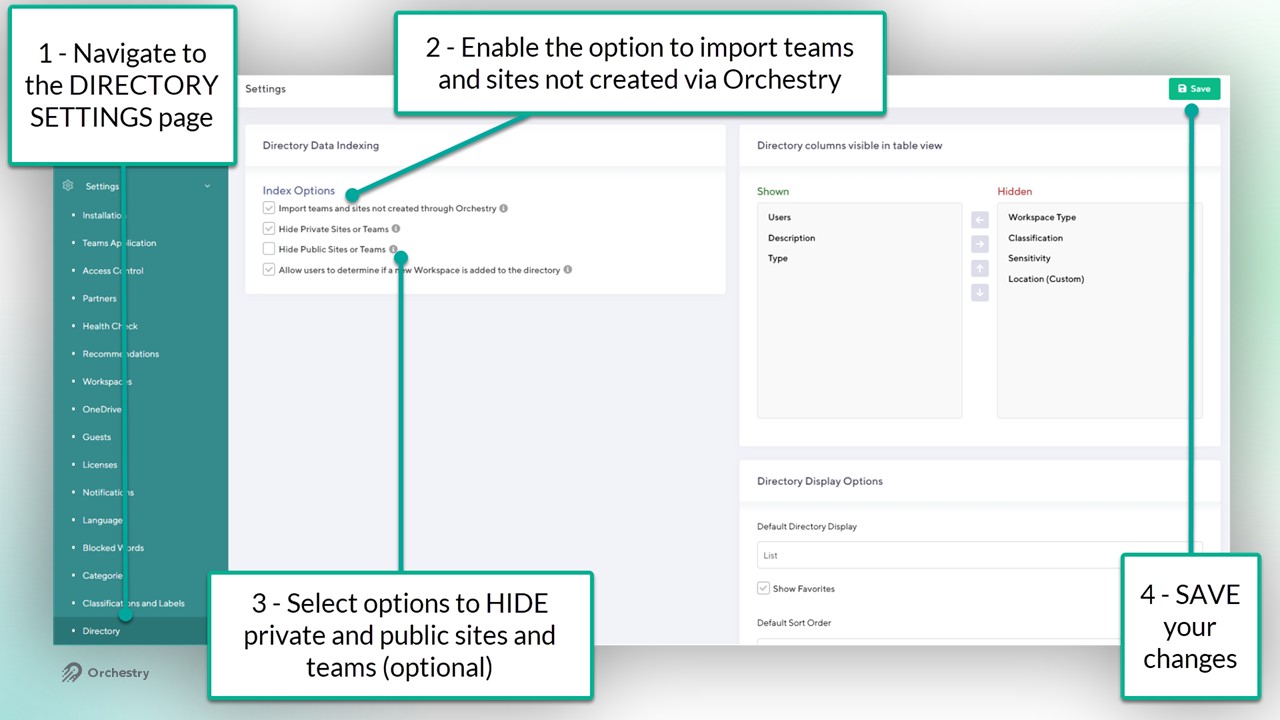
NOTE: These settings must be configured prior to the first ETL crawl and cannot be used again afterwards.
Want to learn more about the post-installation steps for Orchestry?
Check out the article: Orchestry Post Installation Configurations
How to Add Workspaces to the Directory
Allow Users to Add New Workspaces During a Request
On the Directory settings page (Settings > Directory), admins can enable/disable the ability for users to choose whether to include their new workspaces in the directory.
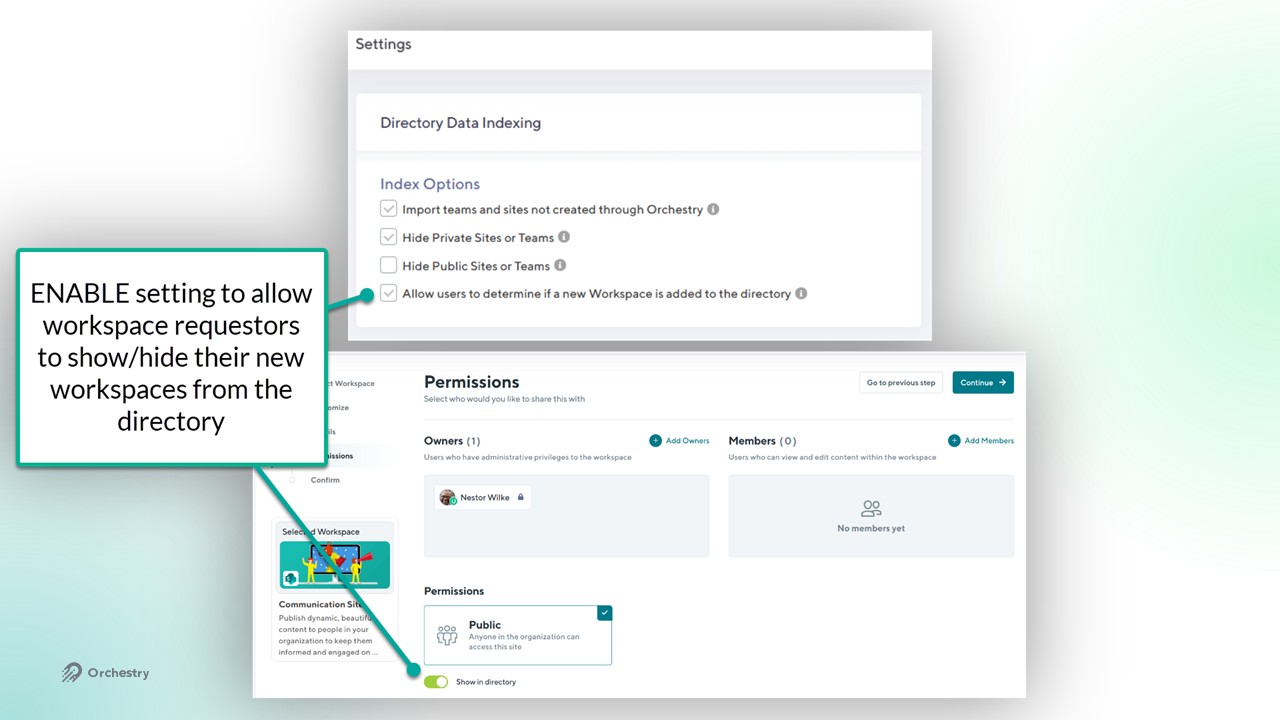
When ENABLED:
the "Show in Directory" toggle appears on the 'Permissions page of the workspace request wizard
the default option is YES (workspace is added to the directory).
When DISABLED:
newly provisioned workspaces are hidden from the directory by default.
The 'Add Existing Team or Site' Button
To manually add existing Microsoft Teams and SharePoint sites:
Navigate to the directory (Directory > View Directory)
Click 'Add Existing Team or Site'
Search for the workspace by NAME
Click the plus (+) to add the workspace to the directory
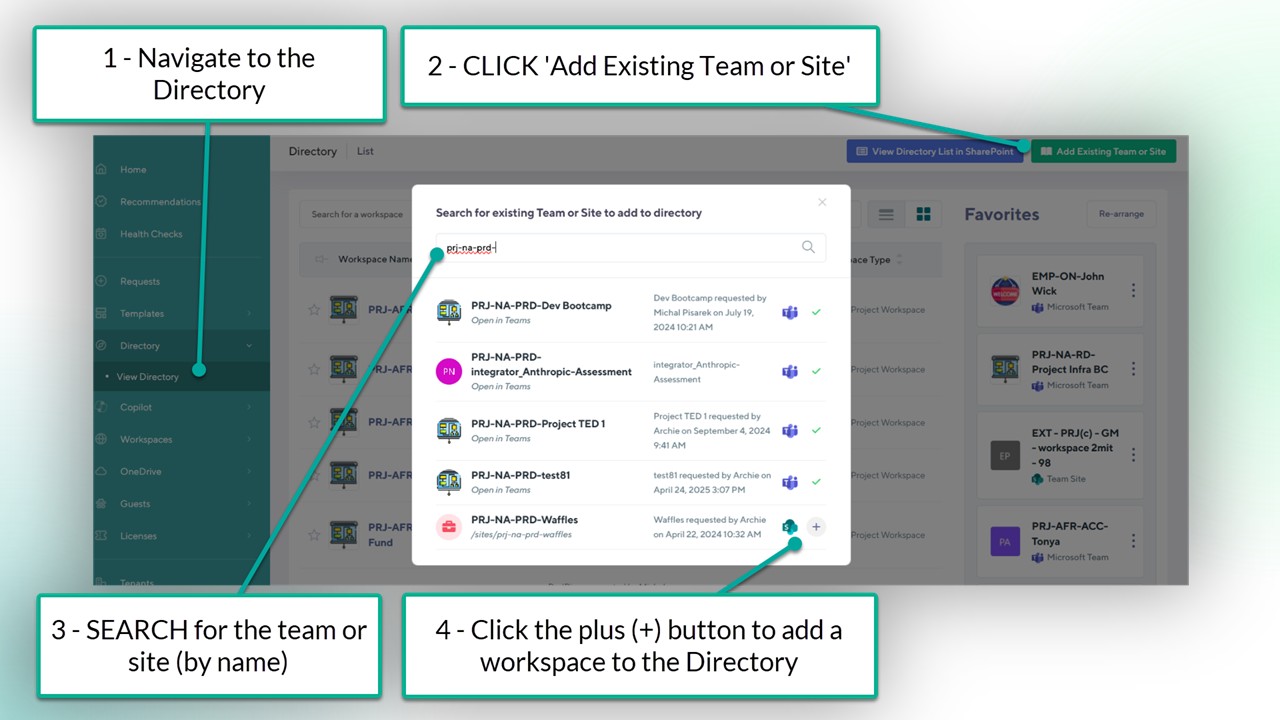
NOTE: non-group connected Team sites, Viva Engage communities or classic SharePoint sites are supported with this method.
Limitations of the 'Add Existing Team or Site' Button
This button cannot be used to add the following types of workspaces:
Classic SharePoint sites
Viva Engage Communities (team site CAN be added)
Non-Group-Connected SharePoint Team sites
How to Modify the Visibility of Workspaces in the Directory
Admins can configure the directory to show or hide private and public workspaces from the directory. For example, some may prefer to hide all private workspaces and show only public workspaces (i.e.: SharePoint intranet sites).
Option 1 - Hide Workspaces During the Initial Import of Existing Workspaces
To SHOW/HIDE private and public workspaces during the initial setup, navigate to the Directory settings page (Settings > Directory) and toggle the settings:
hide Private Sites or Teams
hide Public Sites or Teams
NOTE: This method only applies prior to the first ETL crawl.
Option 2 - Modify Visibility of Workspaces from the Directory
Admins can show/hide individual workspaces from the directory on an as-needed basis. To modify the visibility of a workspace from the directory:
From the 3-dot menu next to the workspace name, CLICK 'Edit Item Metadata'. This will open a new window.
From the 'Update directory item metadata' window, ENABLE/DISABLE the 'Show in Directory' toggle
Click 'Update Item in Directory' to SAVE your changes.

Option 3 - Bulk-Modify Visibility via the 'Workspace Directory' SharePoint List
The SharePoint list that stores all directory contents includes a 'YES/NO' field called 'Is Visible in Directory'. Site members can use this column to modify the visibility of one or multiple workspaces at once.
Navigate to the 'Workspace Directory' list (Orchestry site > Site Contents > Workspace Directory
Click "Edit in Grid View'
Modify the (YES/NO) values in the 'Is Visible in Directory' column
Click 'Exit Grid View'
NOTE: Changes made to the 'Workspace Directory' list are visible in Orchestry immediately.
Other Directory Settings
Modify Directory Columns
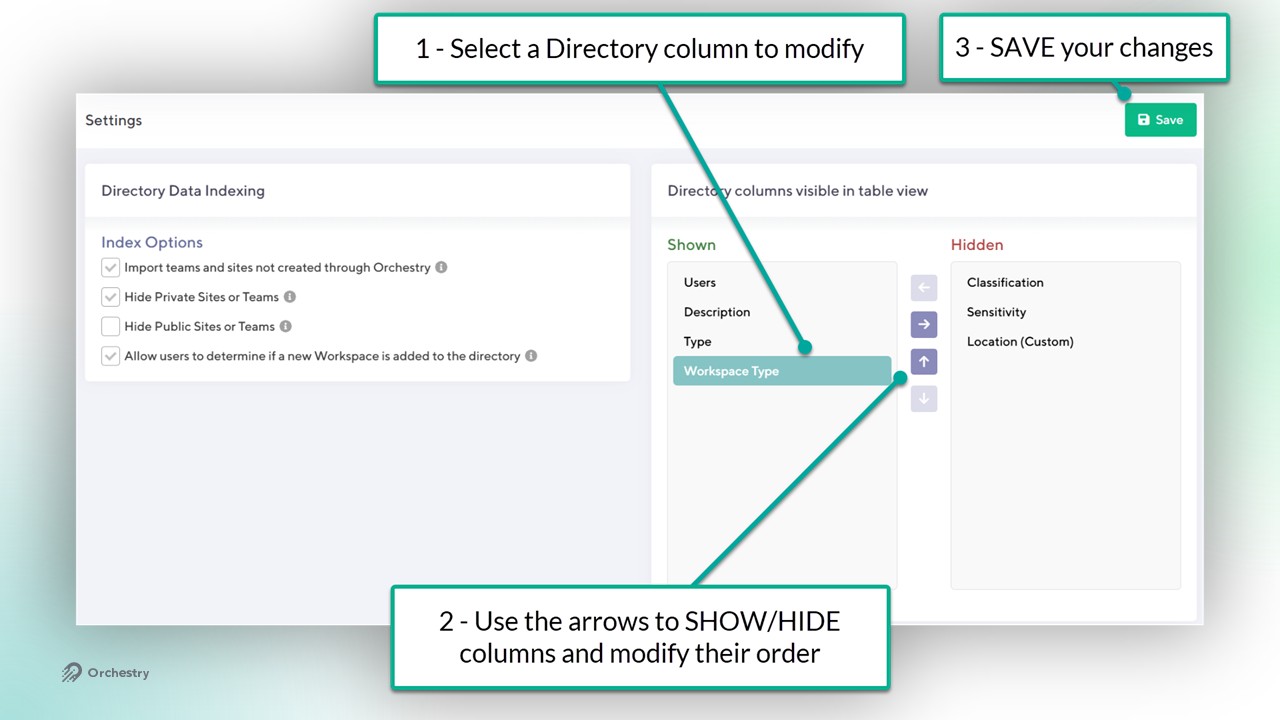
Admins can modify the visibility and order of columns (properties) in the directory from the 'Directory Settings' page (Settings > Directory).
Select a column
Use the arrows to modify the column's visibility and/or sequence order
SAVE your changes
Directory Display Options
The 'Directory Display Options' section found on the Directory settings page allows Admins to:
show/hide the 'Favorites' panel in the directory
modify the look of the Directory (list vs cards)
modify the default sort order of workspaces