How to Use Orchestry Metadata in the Directory
Last updated: April 15, 2026
Editing Metadata for a Single Workspace from the Directory in Orchestry
This method allows admins to quickly modify metadata for one-off workspaces:
Navigate to the Directory
From the 3-dot menu, CLICK 'Edit Item Metadata"
Add/modify metadata as required
SAVE your changes
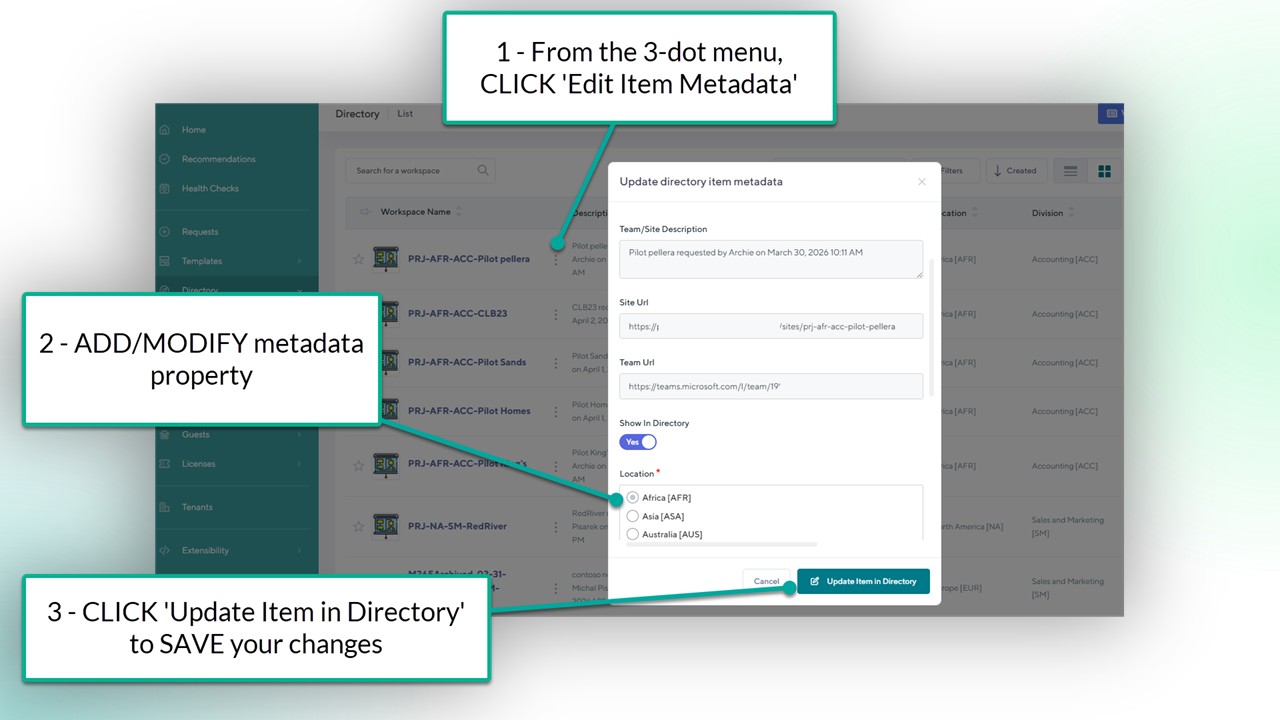
NOTE: Orchestry will not save changes until all REQUIRED metadata is configured for the workspace.
Editing Workspace Metadata in Bulk
Admins can add/modify workspace metadata to multiple workspaces from the 'Workspace Directory' list in SharePoint.
Want to learn how to modify items SharePoint lists?
Check out the article: Edit list items - Microsoft Support
Adding Metadata as Directory Columns
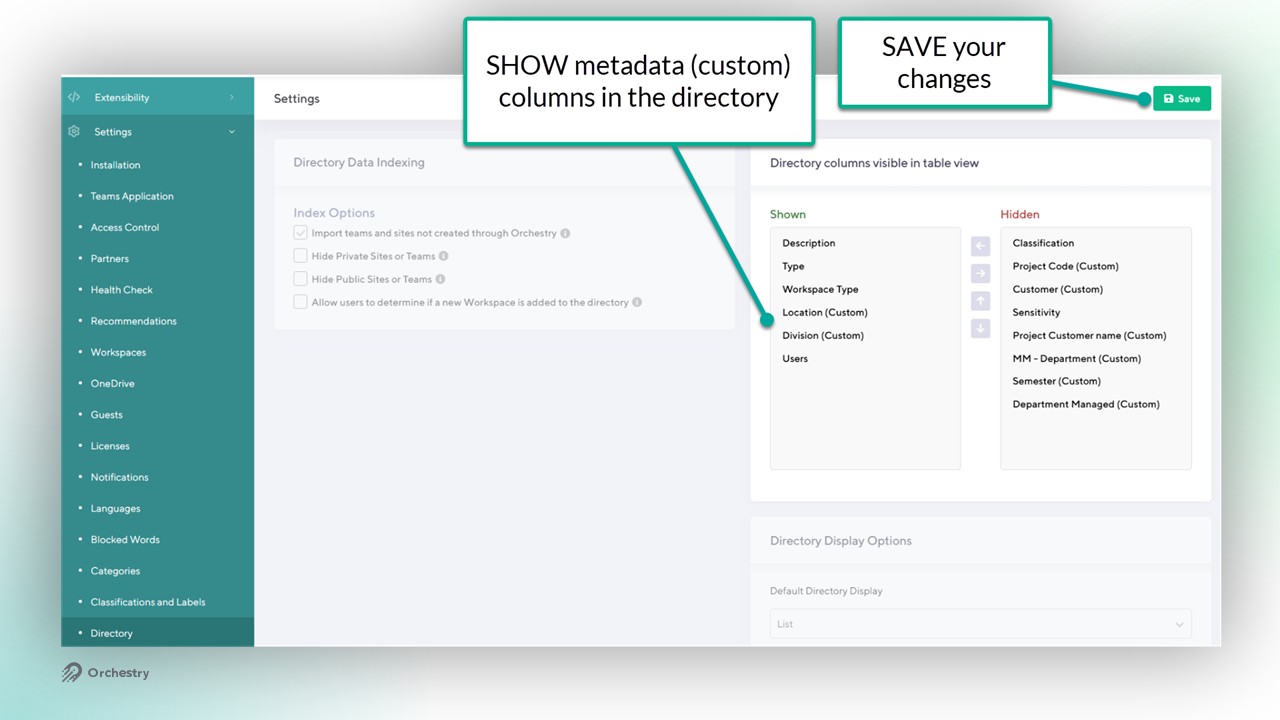
Navigate to the Directory settings page (Settings > Directory)
In the section "Directory columns visible in table view", MOVE the (custom) metadata properties into the 'SHOWN' bucket.
Use the UP/DOWN arrows to modify the column position
SAVE your changes
Adding Metadata as Directory Filters
Admins can configure metadata to used as filters in the directory, giving end users more ways to locate specific workspaces. To configure metadata as a directory filter:
Open the metadata property
Set the "Show as Filter in Workspace Directory" toggle to YES
SAVE your changes
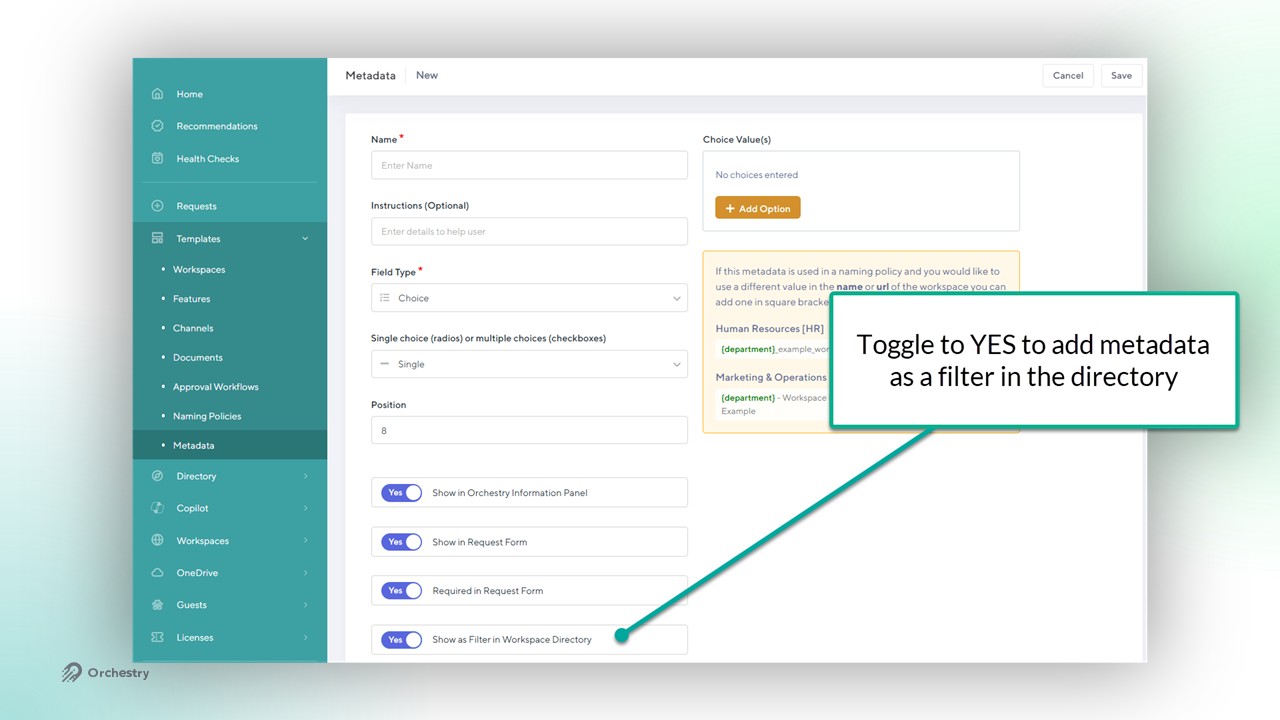
NOTE: Configuring metadata as a directory filter adds the property to the 'Workspace Directory' SharePoint list as an indexed column.
Learn more: Add an index to a list or library column - Microsoft Support
Want to learn more about Orchestry metadata?
Check out the article: Workspace Metadata Overview
Known Limitations
multi-value CHOICE metadata types cannot be sorted or added as filters
multi-line STRING metadata types cannot be sorted or added as filters
LINK types cannot be sorted or filtered
DATE types cannot be sorted or filtered