
What are Health Checks?
Health checks are built-in reports from Orchestry that help summarize changes across your tenant storage, workspaces activity, sharing links and more.
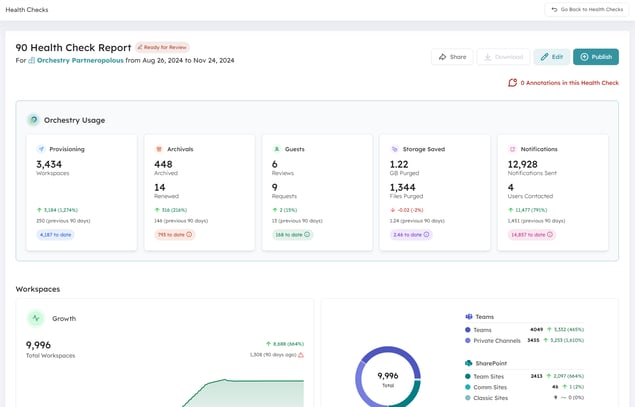
Health check reports can be:
- created automatically and/or manually
- collaborated on with designated 'Reviewers'
- shared with viewers (read-only access)
- downloaded and shared as PDF reports
Want to learn more about Health Checks?
Check out the article: Heath Checks Overview
How to Change the Automatic Cadence of Health Checks
You can setup Orchestry to automatically create new health checks from the Health Check settings page.
To enable and modify the automatic cadence of health checks:
- Open the Health Checks Settings page
- Enable 'Automated Generation'
- Choose your scheduled cadence (monthly, quarterly, semi-annually, or annually)
- SAVE your changes
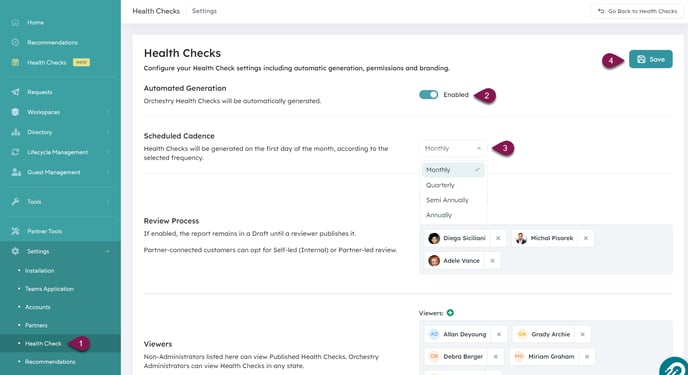
Automated reports will always generate on the 1st of the month.
Want to learn more about Health Check settings?
Check out the article: Heath Check Settings Page
How to Create a Health Check Manually
You can create your own ad-hoc health check reports within moments. This is helpful when you need to review a specific date-range, or don't have automatic reporting enabled.
To manually create a new health check report:
- Go to the Health Checks page
- Click the 'NEW' button
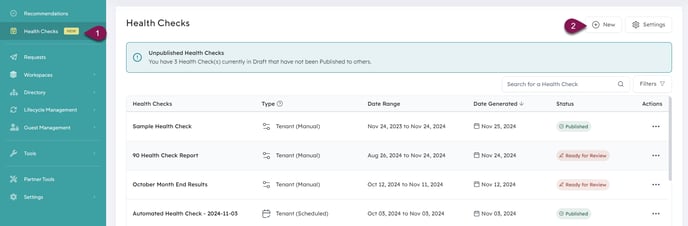
On the 'Generate New Health Check" page:
- Give your report a name
- Choose a date range
- Click 'Generate'
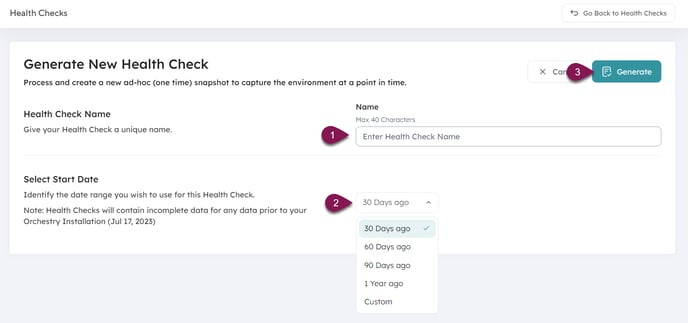
The average 30-day health check report can be ready within a few moments. However, larger date-ranges can take longer to generate.
Want to learn more about manually creating health checks?
Check out the article: How to Create Custom Health Check Reports
How to Enable the Review Process for Health Checks
When new health checks are created, you can add a 'Ready for Review' stage, where Orchestry admins and collaborators can review the health check, leave annotations and add custom recommendations before it's published.
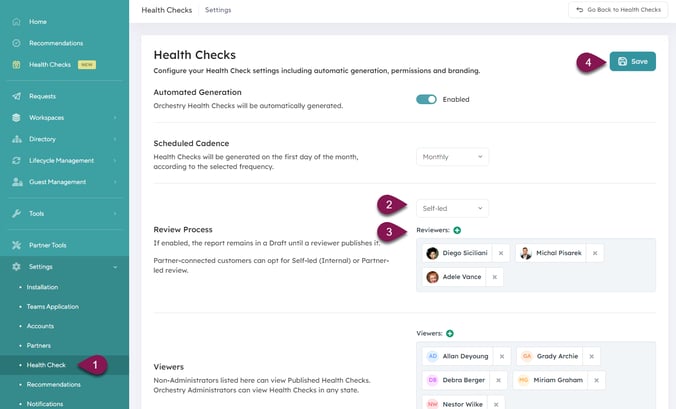
To enable reviews for internal users:
- Go to the Health Checks settings page
- Set the Review Process to 'Self-led'
- Assign default reviewers (optional)
- SAVE your changes
Do you work with an Orchestry Partner? Choose 'Partner-led' to make them the primary reviewers of your health check reports.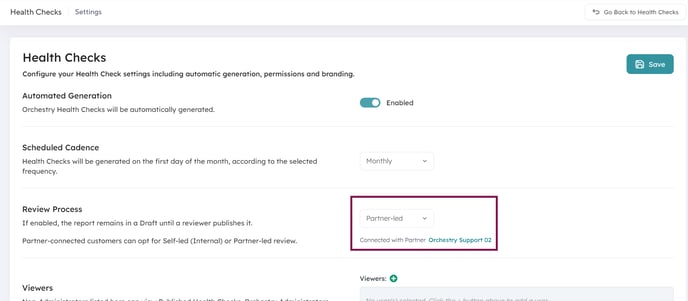
Want to learn more about Health Check settings?
Check out the article: Heath Check Settings Page
How to Add Annotations to Health Checks
You can add context to your health check reports by leaving annotations. These annotations will be visible to anyone the reports are shared with.
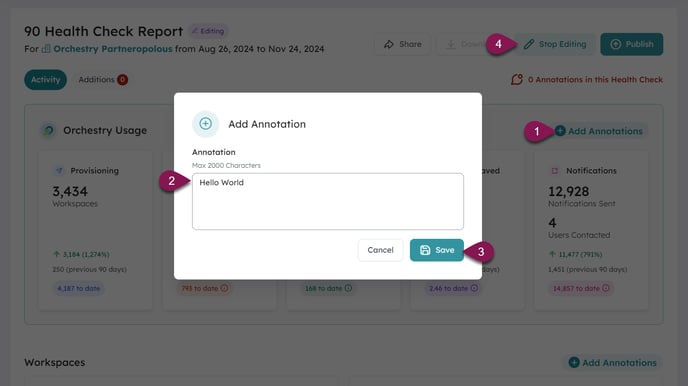
To leave annotations, you must be in EDIT mode.
To leave annotations in a report:
- Click the 'Add Annotations' button on any section you wish to comment on
- Write your comments
- SAVE
- Exit EDIT mode when finished
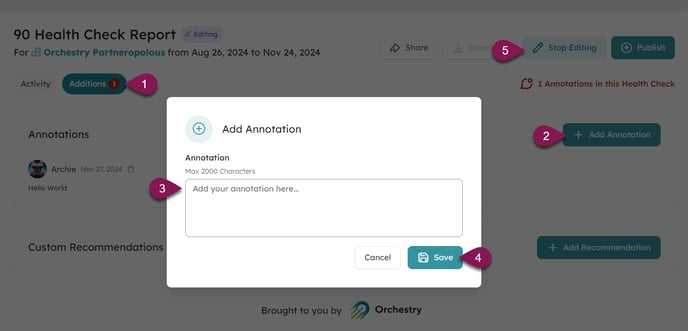
You can also add annotations to the 'Additions' tab of the report:
- Go to the 'Additions' tab (only visible in EDIT mode)
- Click 'Add Annotation'
- Leave your comments
- SAVE your annotation to post it
- Exit EDIT mode when finished
Annotations are also visible in the health check PDF reports
Want to learn more about reviewing health check reports?
Check out the article: How to Review and Publish Health Check Reports
How to Access and Share PDF Reports
Shortly after a health check is published, Orchestry will generate a PDF version that is stored in your tenant's 'Orchestry' SharePoint site. These reports will include any annotations added to the report.
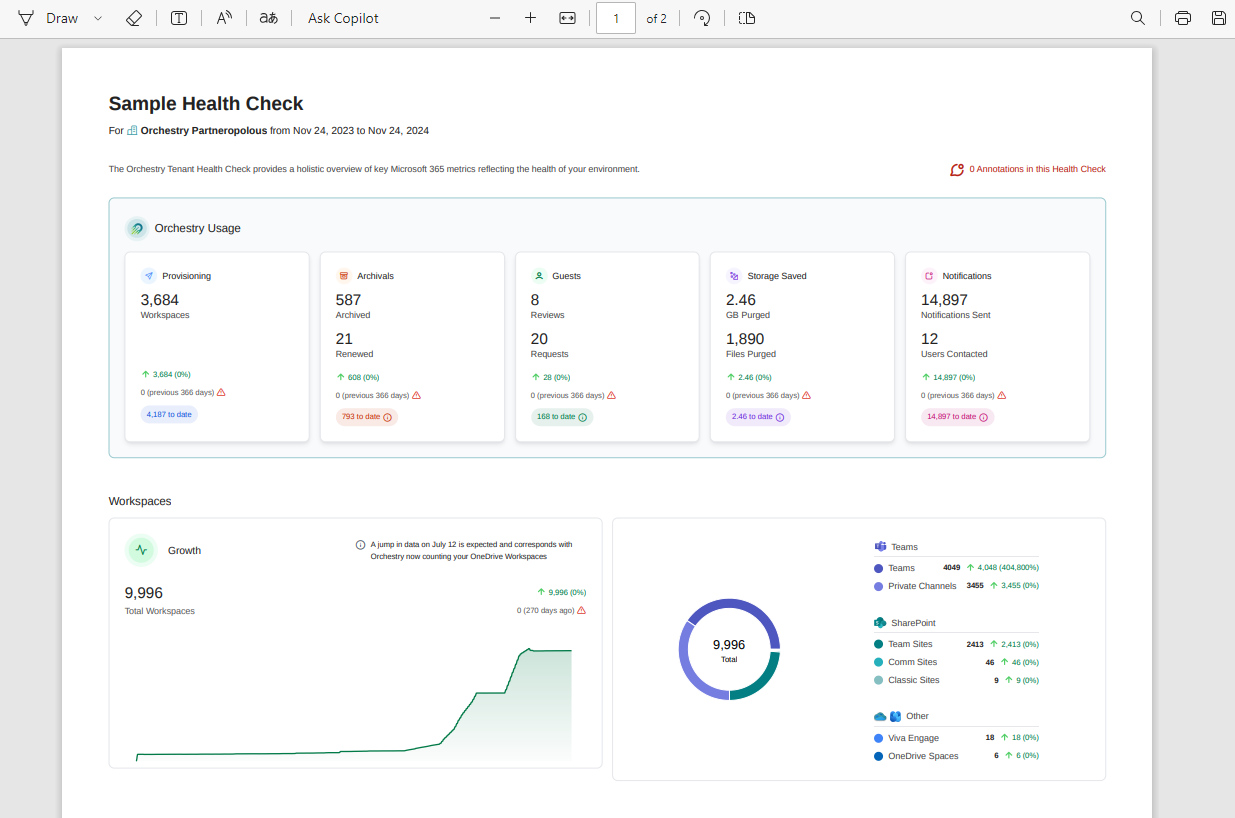
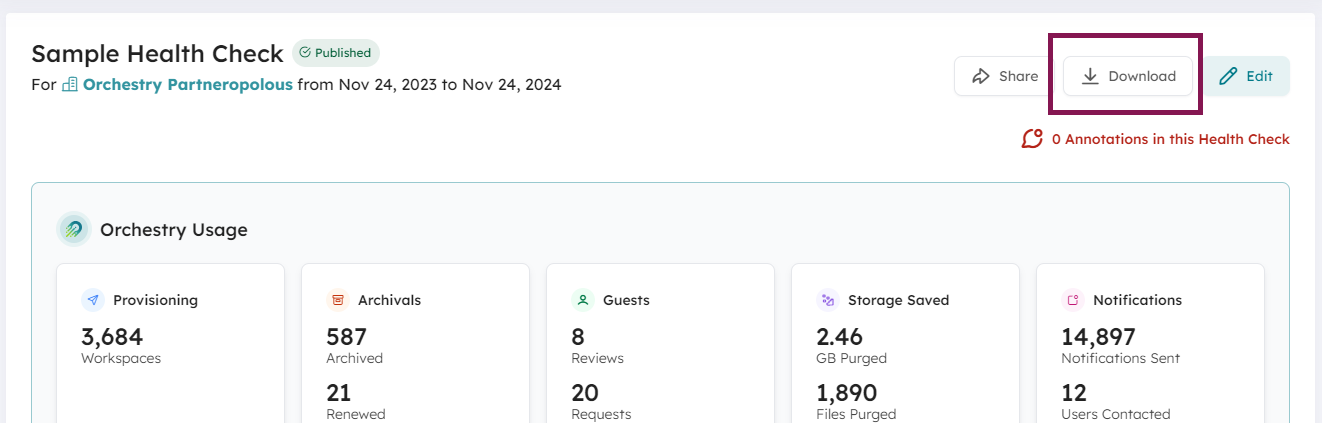
To access the PDF report, click on the DOWNLOAD button in the report. This will open the report stored in SharePoint
How to Share a PDF Report
It's recommended to create a COPY of the report for sharing purposes and to leave the original file in the 'Health Checks' folder.
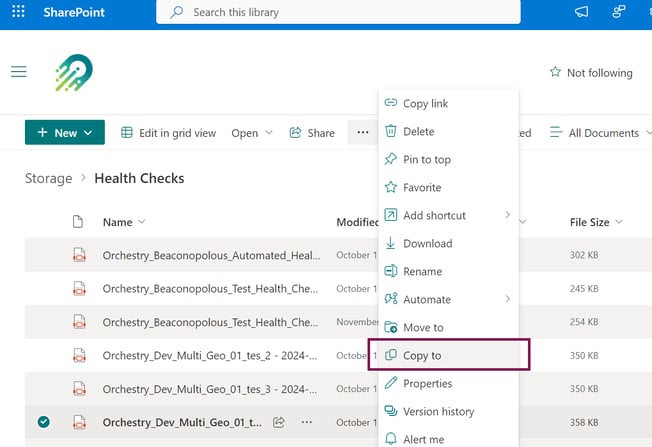
Alternatively, you can share a READ-ONLY link with your end users instead of making copies.
This allows Orchestry to update the PDF if new annotations are added to the health check after it's published.
Want to learn more about Health Check PDFs?
Check out the article: How to Create and Share Health Checks as PDFs