How to Review and Publish Health Check Reports
Last updated: April 1, 2026
If you have elected to enable a self-led Review process for your Health Checks, any newly created health checks are created in a draft state called "Ready for Review". Orchestry admins and reviewers have the opportunity to review and leave annotations on health check reports before they're published.
This provides an opportunity for admins, management, and Orchestry partners to investigate changes and provide added context to this unique report before publishing it to others.
Note: Only certain Orchestry roles are permitted to view Health Checks in a draft state and perform reviews. For more information, see Orchestry User Roles.
Editing Health Checks
When a health check is in edit mode you can:
Leave annotations on different sections of the report (activity tab)
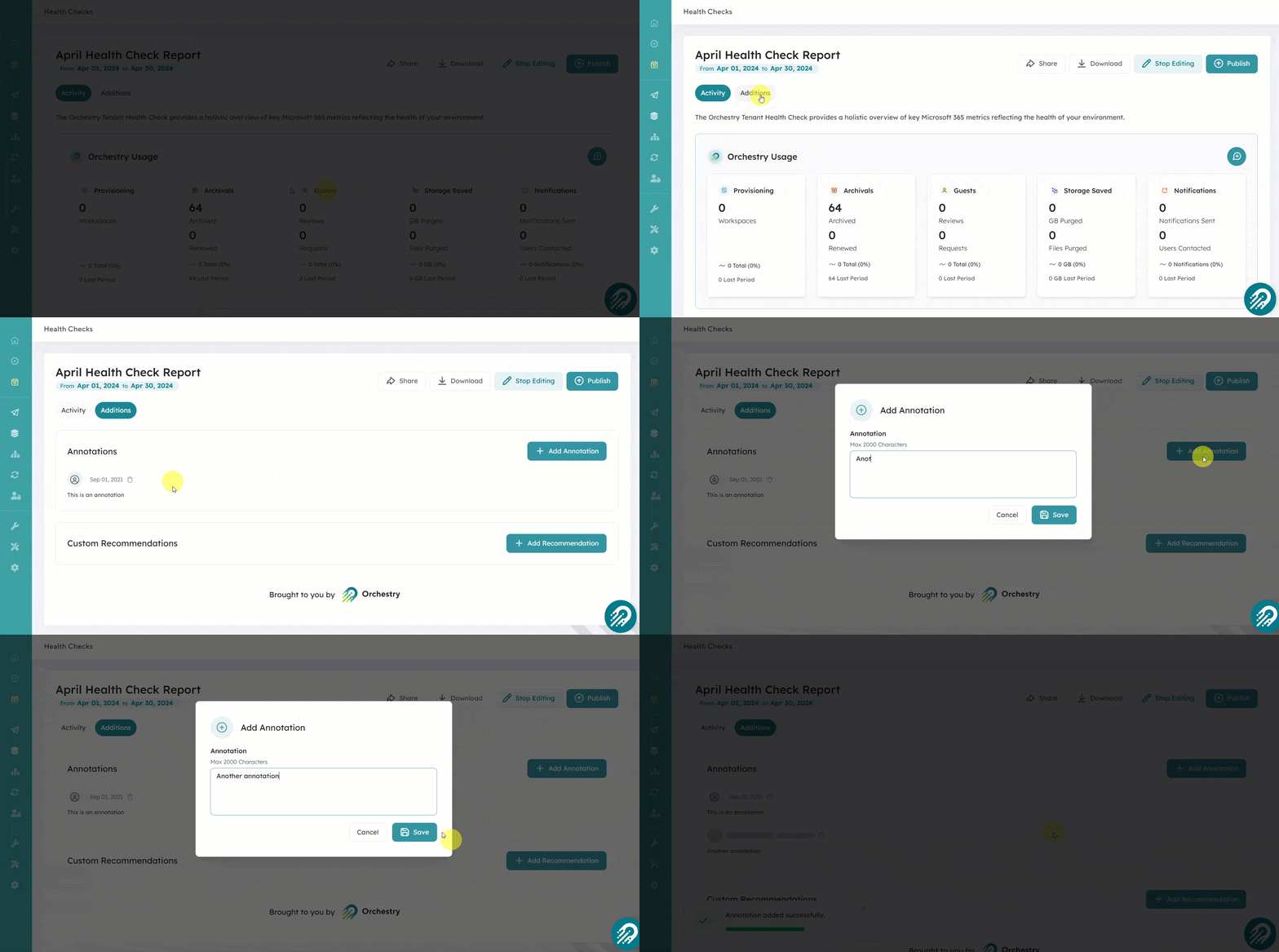
Leave annotations on the 'Additions' tab
Add custom recommendations on the 'Additions' tab
How to Enter Edit Mode
There are two ways to start editing a health check.
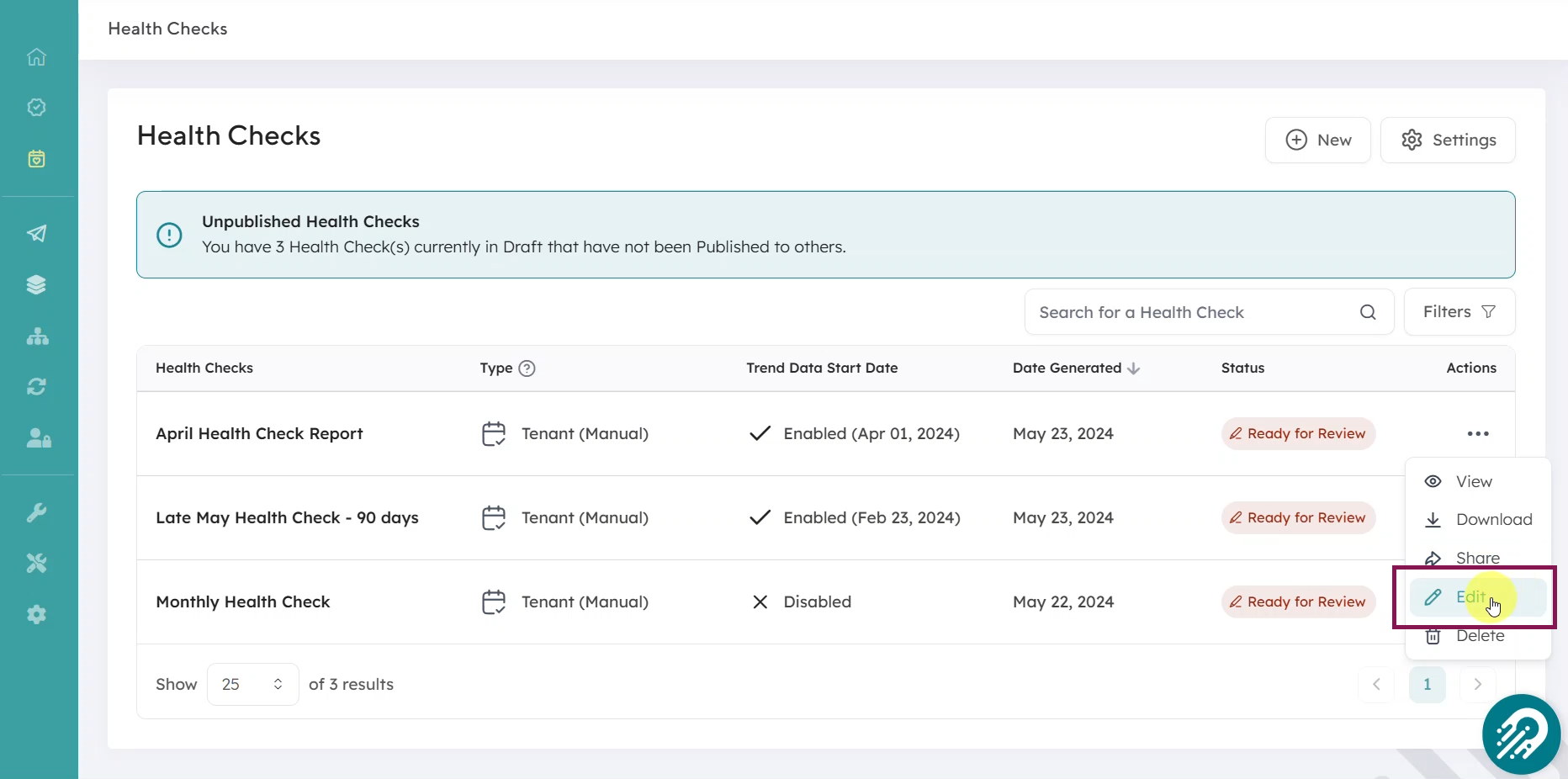
Option #1 is the EDIT button from the Health Checks page:
Option #2 is the EDIT button in the health check report:
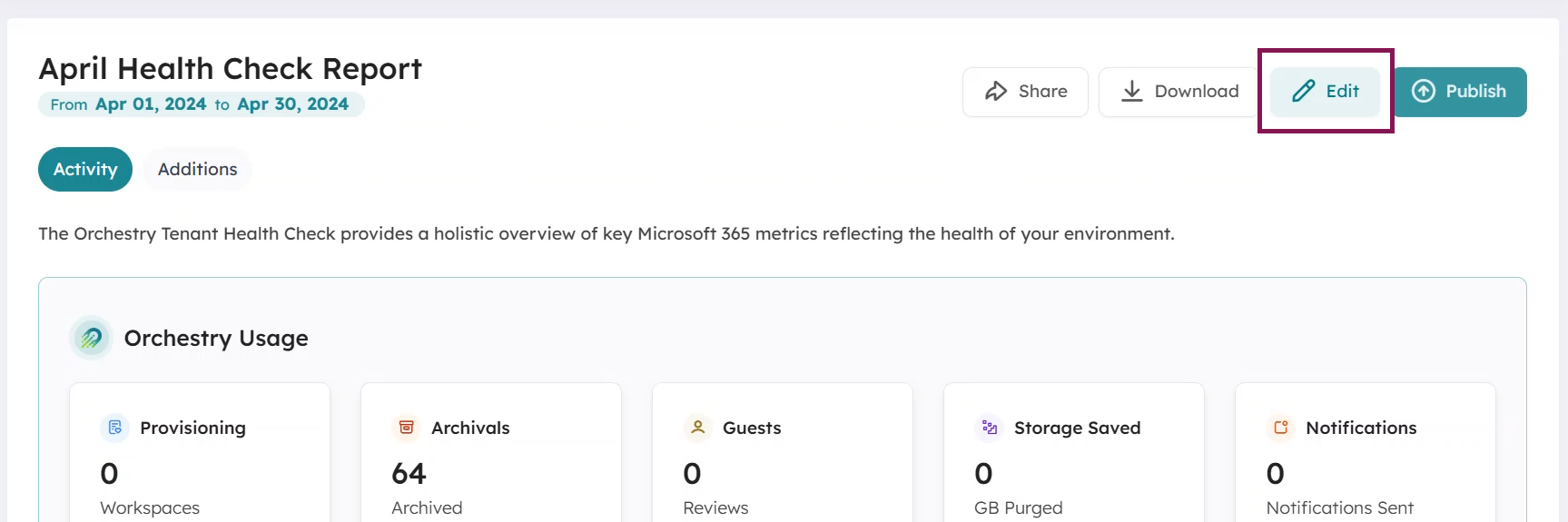
When you're done, click the Stop Editing button again to exit edit mode.
Annotating Health Check Reports
You can leave annotations (comments) on the "Activity" tab and the "Additions" tab of a Health Check Report.
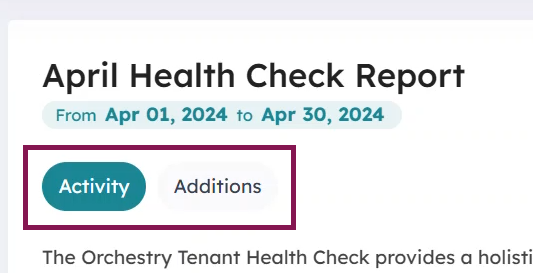
Annotations can only be added and deleted when in EDIT mode.
How to Add Annotations on the 'Activity' Tab
When in EDIT mode, each section of the report has an annotation icon. This allows you to comment on specific sections of the report.
Click on the annotation icon on the top-right corner of a section to leave a comment.
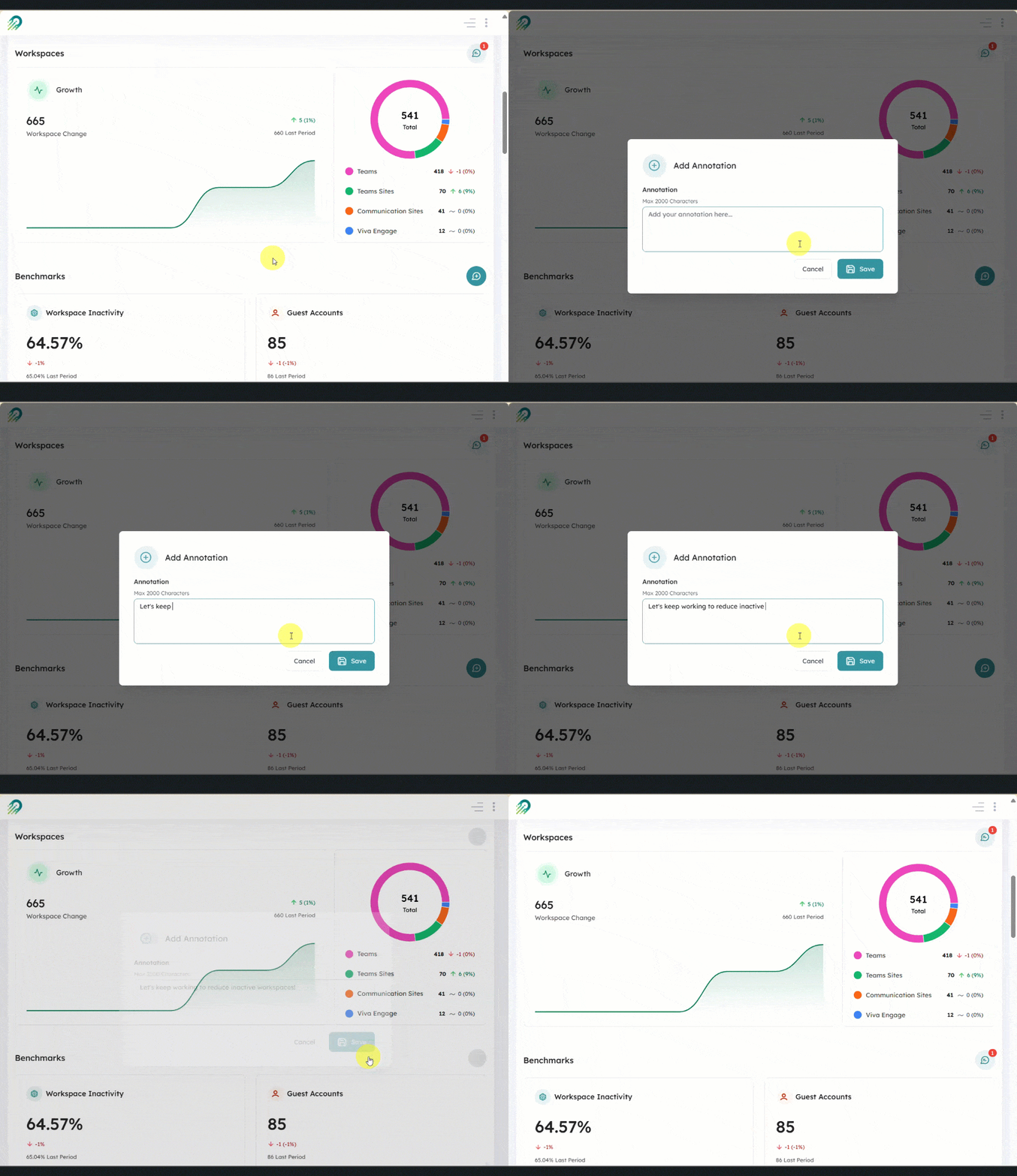
How to Add Annotations on the 'Additions' Tab
Annotations on the "Additions" tab are a great place to leave general notes about the report for others.
Adding Custom Recommendations
You can create custom recommendations from the 'Additions' tab to capture action items from the report. These will not only appear in the report, but also the Recommendations page where Orchestry admins can keep tabs on them.

Note that custom recommendations work differently than recommendations provided by Orchestry. Learn more in this article.
How to Share Health Check Reports
Sharing reports is a way to add viewers to a given health check report, in addition to any default viewers named on the Health Check Settings page.
Click SHARE button in a health check report
Add VIEWERS. These individuals will only be given access to the specific report you're sharing.
Click SAVE. The report viewers will be notified about the health check report.
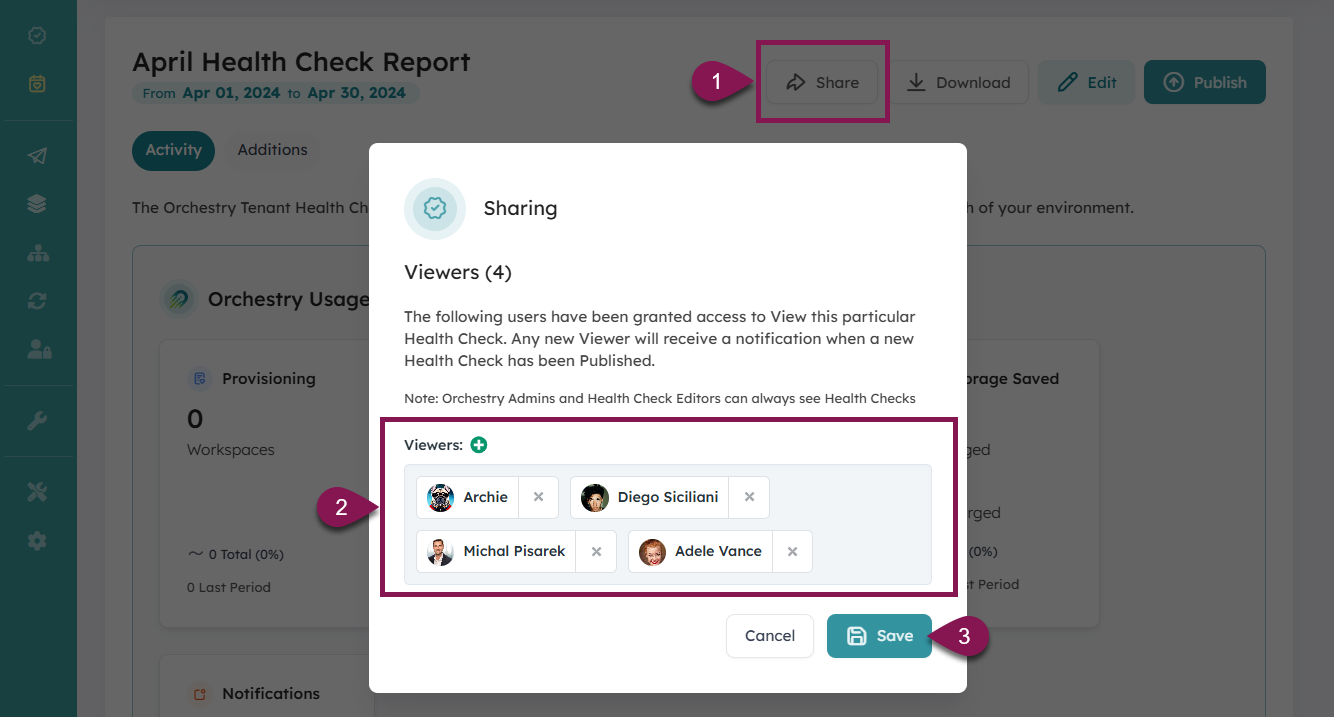
Note that viewers cannot see the report until AFTER the report is published.
How to Publish Health Check Reports
Publishing health check reports makes them accessible to all report viewers.
By clicking the 'Publish' button on the report, your report reviewers will be notified about the report's availability.
