Health Check Settings Page
Last updated: June 9, 2026
The Health Check Settings page (Settings > Health Check) allows admins to configure automatic report generation, enable and assign report reviewers, enable partner-led reviews, and apply your branding to health check reports.
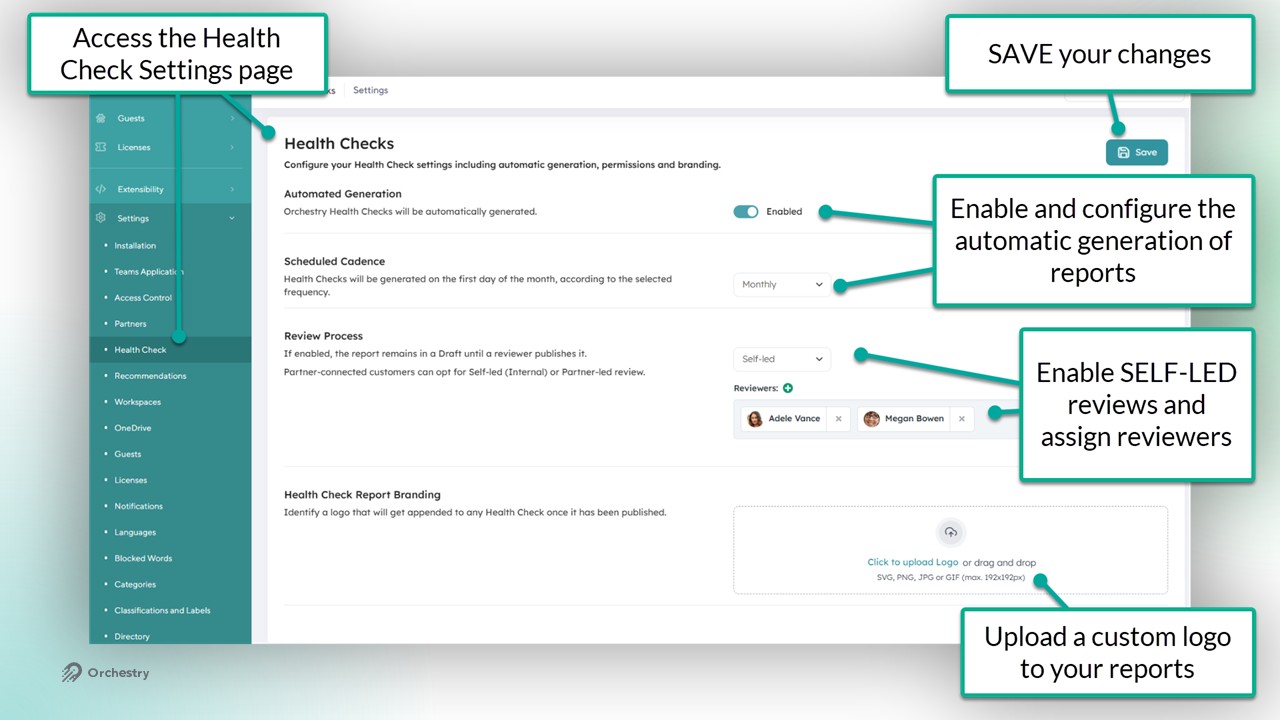
Configuring the Health Check setting page
Automated Generation
When ENABLED, Orchestry will generate health check reports based on the Scheduled Cadence. When DISABLED, Health Checks reports not automatically generated, however reports can still be created manually.
Scheduled Cadence
Monthly
Reports are generated on the 1st of every month
Quarterly
If reports have not been generated before, they will be generated on the next 1st of the month, then every 3 months thereafter on the 1st of the month (e.g. Feb 1, May 1, Aug 1, etc.)
If reports have been generated before, then the next report will be generated 3 months after the last report, on the 1st of the month.
Semi Annually
If reports have not been generated before, they will be generated on the next 1st of the month, then every 6 months thereafter on the 1st of the month (e.g. Feb 1, Aug 1, etc.)
If reports have been generated before, then the next report will be generated 6 months after the last report, on the 1st of the month.
Annually
If reports have not been generated before, they will be generated on the next 1st of the month, then every 12 months thereafter on the 1st of the month (e.g. Feb 1 2026, Feb 1 2027, etc.)
If reports have been generated before, then the next report will be generated 12 months after the last report, on the 1st of the month.
Review Process
Disabled: New Health Check reports are immediately available for viewing ('Published). Orchestry administrators and Health Check Viewers will be notified when a new Health Check report is available.
Self-Led: When enabled, Orchestry admins can assign users to the 'Reviewer" role. New Heath Checks reports are generated in the "Ready for Review" state, which can only be accessed by Reviewers and Admins.
Partner-Led: If your environment is associated with an Orchestry partner, then your Partner Tenant Reviewers will be notified. Orchestry administrators are also notified.
After setting the review type to Partner-Led, please allow up to 24 hours for the health check generation option to become available in the partner tenant for that customer.
Health Check Report Branding
Add your company branding to your Health Check reports by uploading a logo. Supported formats include: SVG, PNG, JPG or GIF (max. 192x192px)
Assigning View (Read) Access to Published Health Check Reports
By default, only Orchestry Administrators can view generated reports in Health Checks. To grant users read-only access to Health Check reports, update the Health Check Viewer' role found in the 'Access Control' page (Settings > Access Control).
Want to learn more about Orchestry Access Controls?
Check out the article: Orchestry Roles and the Access Control Page