
What Are Guest Management Policies?
Orchestry's Guest Management policies allow you to manage the creation and closure of your guest user accounts (stored in Microsoft Entra). This is accomplished with our two policies:
- Guest REQUEST Policies: enables workspace owners to request new guests be added
- Guest REVIEW Policies: a workflow that will trigger workspace owners to review guests in their workspace and remove anyone that should no longer be there
Both policy types can be assign to Microsoft Teams workspaces, as well as SharePoint Team site and Communication sites. Viva Engage workspaces do not support guest policies at this time, but do support sensitivity labels.
Want to learn more about Guest Management in Orchestry?
Check out the article: Guest Management Overview
The End User Experience for Guest Management Policies
When guest request policies are assigned to a workspace, the (group) owner can submit requests for new guest users using Orchestry.
Want to see more end-user resources?
Check out the article: End User Adoption Resources
How to Create a Guest Request Policy
Guest Request policies enable workspace owners to add new (or existing) guest users. Assigning these policies to any Teams or SharePoint workspace will replace the native M365 methods of adding guests.
Want to learn more on creating guest request policies?
Check out the article: Configuring Guest Request Policies
How to Create a Guest Review Policy
Guest Review policies trigger workflows that ask workspace owners to review access for their workspace's guest users. The workflow enables them to extend access for guests, or remove them from the workspace entirely.
Want to learn more on creating guest review policies?
Check out the article: Configuring Guest Review Policies
How to Assign Guest Policies to Existing Workspaces
After creating your policies, you can assign them to existing workspaces either one at a time, or assign them in bulk.
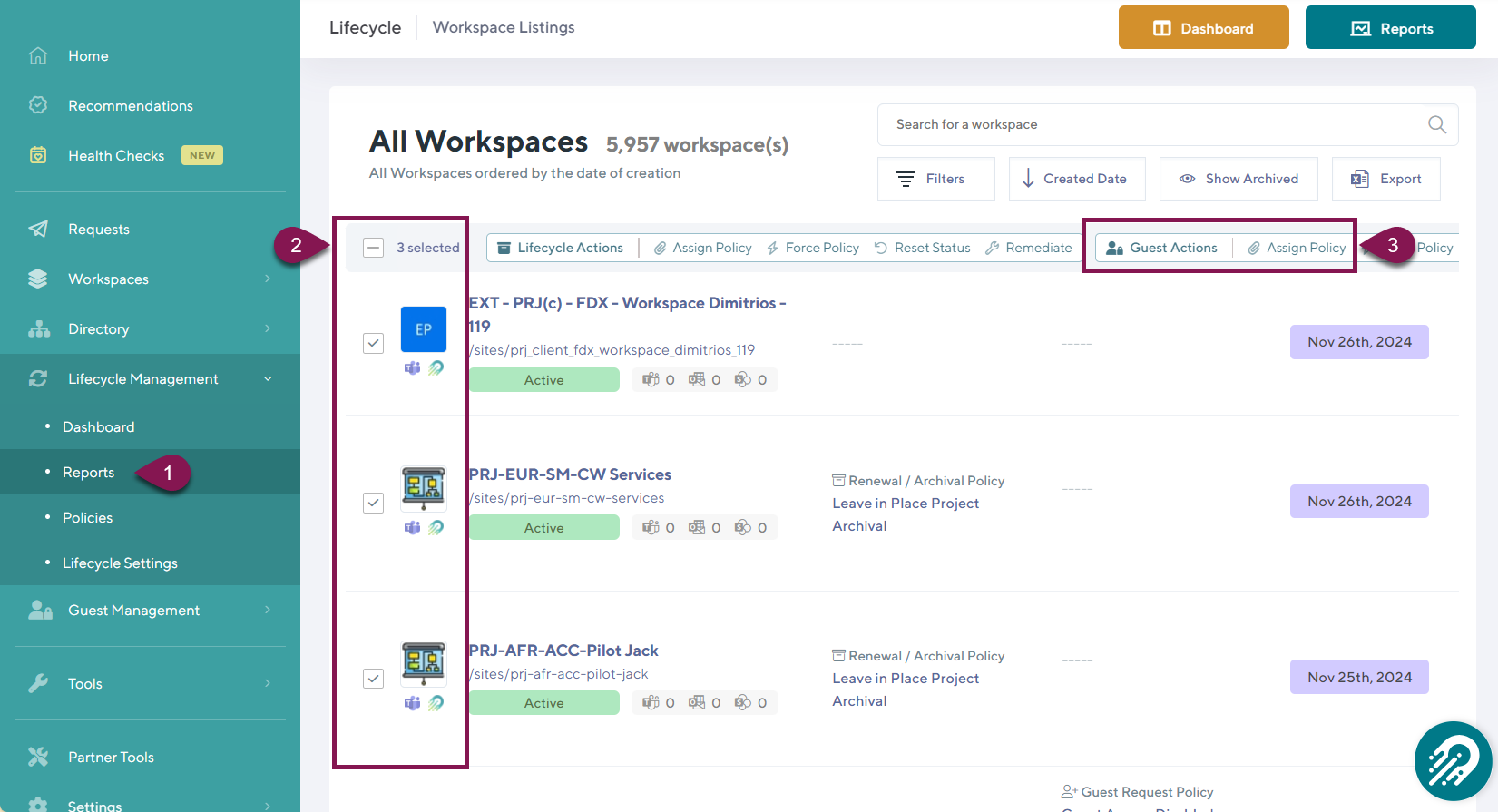
- Go to the Reports page under 'Lifecycle Management'
- Select one or multiple workspaces
- Click 'Assign Policy' in the toolbar that appears
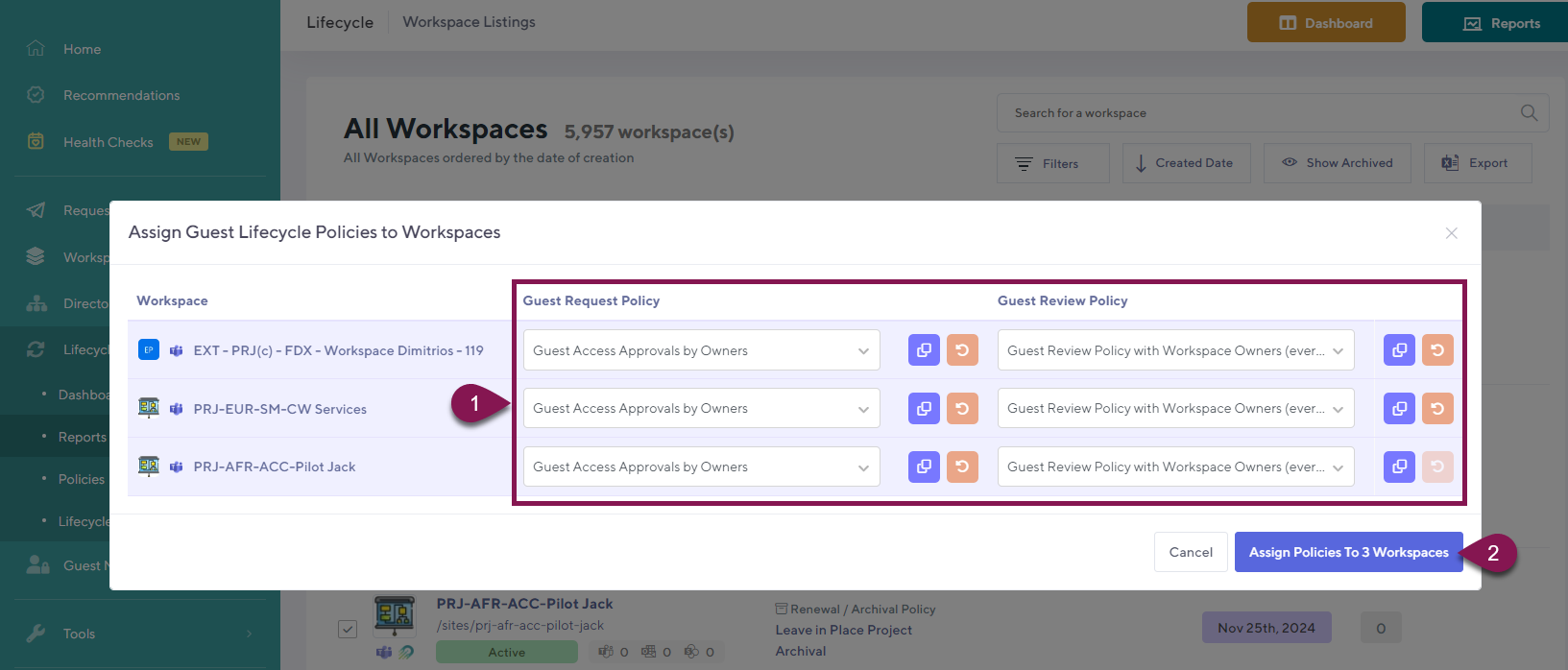
From the pop-up window, you can assign your guest policies your selected workspaces
- Choose your guest request and/or guest review policies
- Click the APPLY button
Workspace owners should see the 'Add Guests' button in the Orchestry's Team Information tab (for team channels) and/or the Workspace Information web part (for SharePoint sites).
How to Assign Policies to Workspace Templates
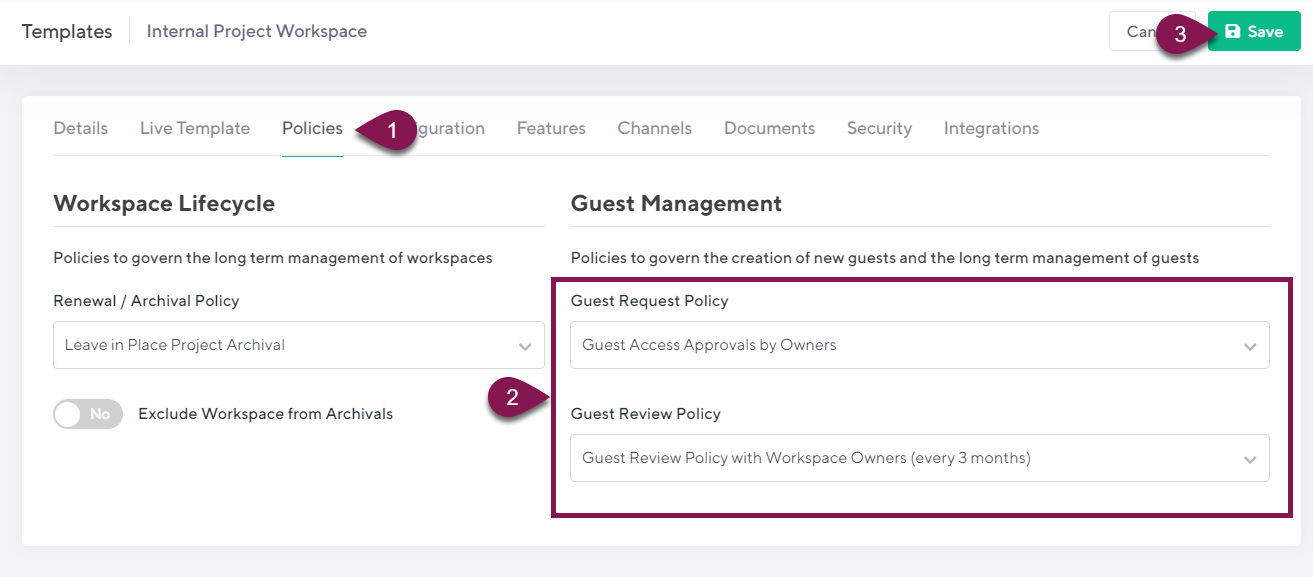
You can proactively assign your guest polices to future workspaces by applying them to the workspace templates you use for provisioning.
- Go to the 'Policies' tab in your workspace template
- Choose the appropriate guest request and guest review policies
- SAVE your changes.
Guest Dashboard and Reports
Keep track of your guest users with Orchestry's built-in reports and Dashboard.
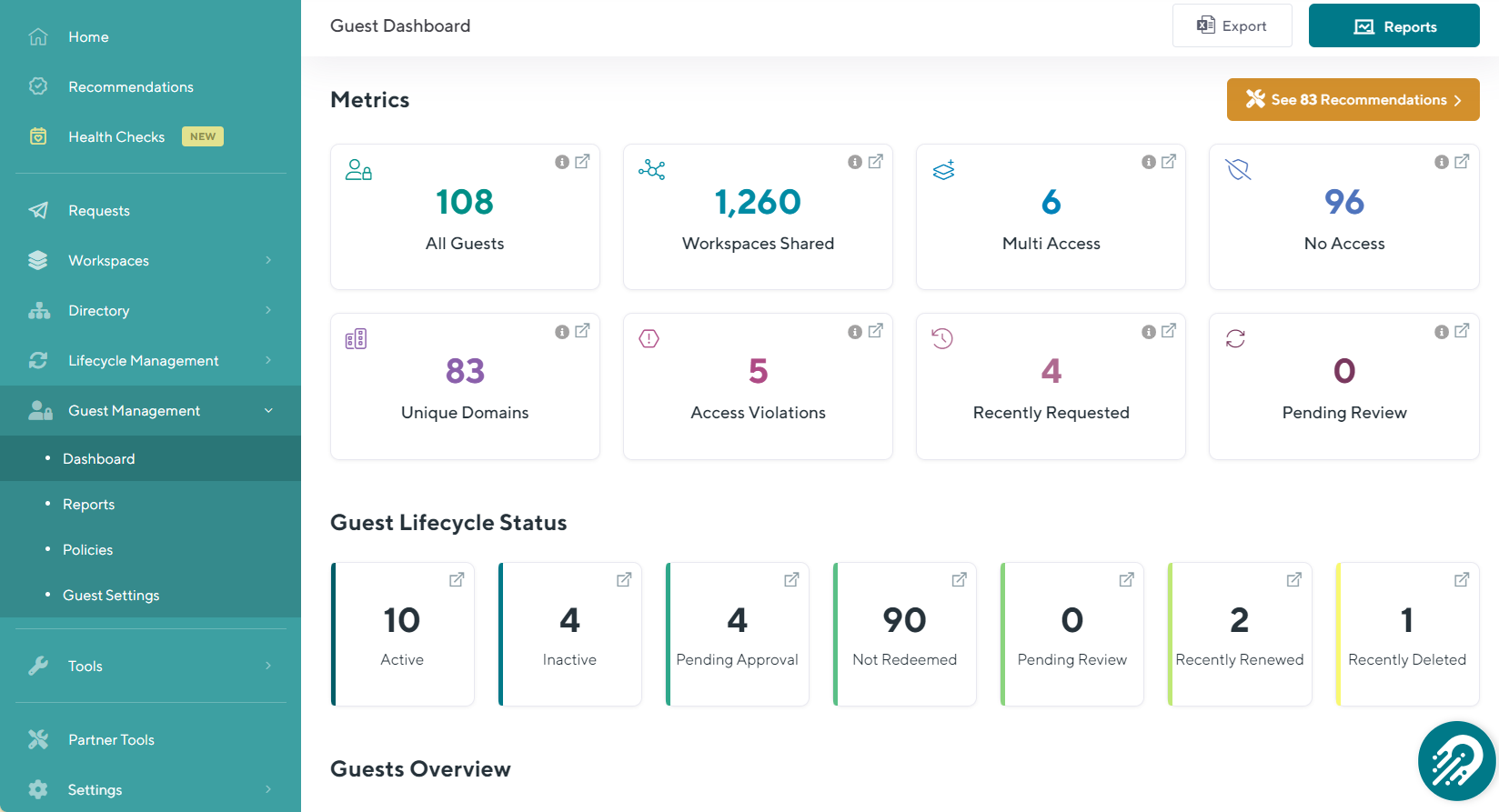
Clicking on the dashboard tiles will direct you to the Guest Management 'Reports' page, where you can view your guest data in more detail.
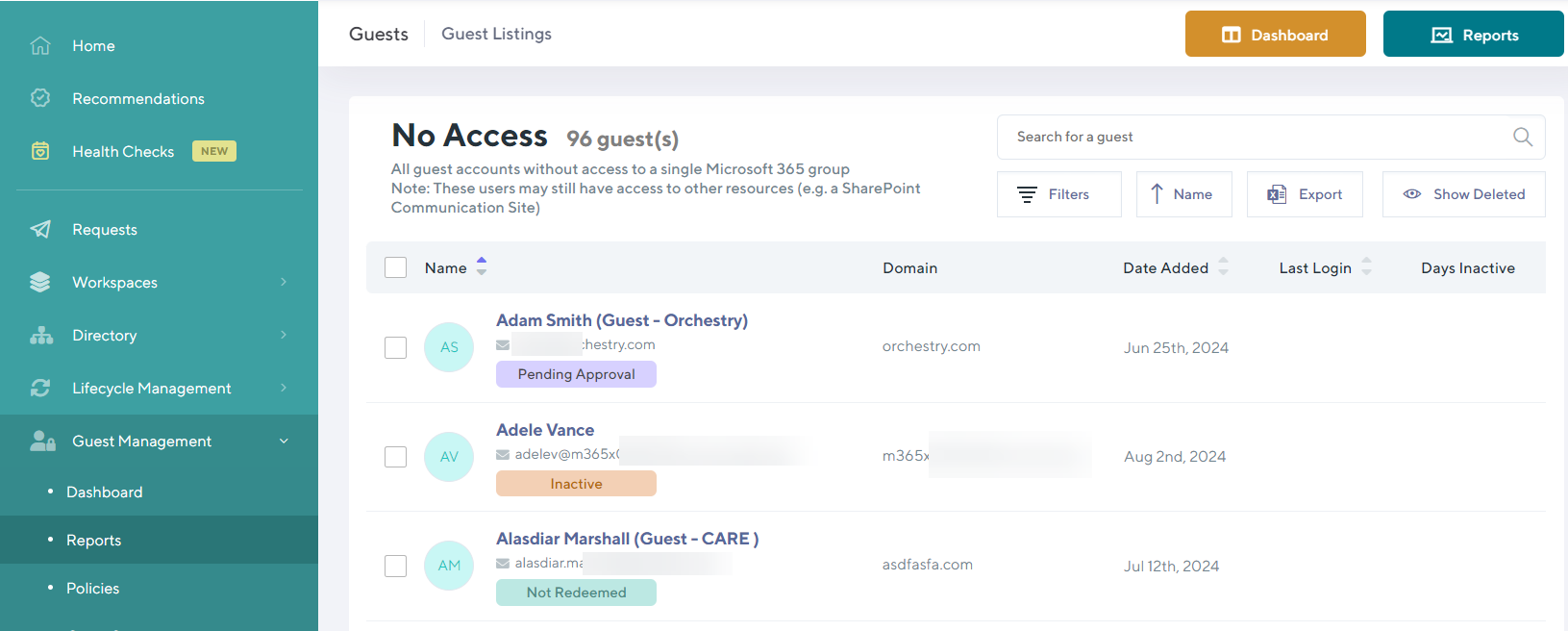
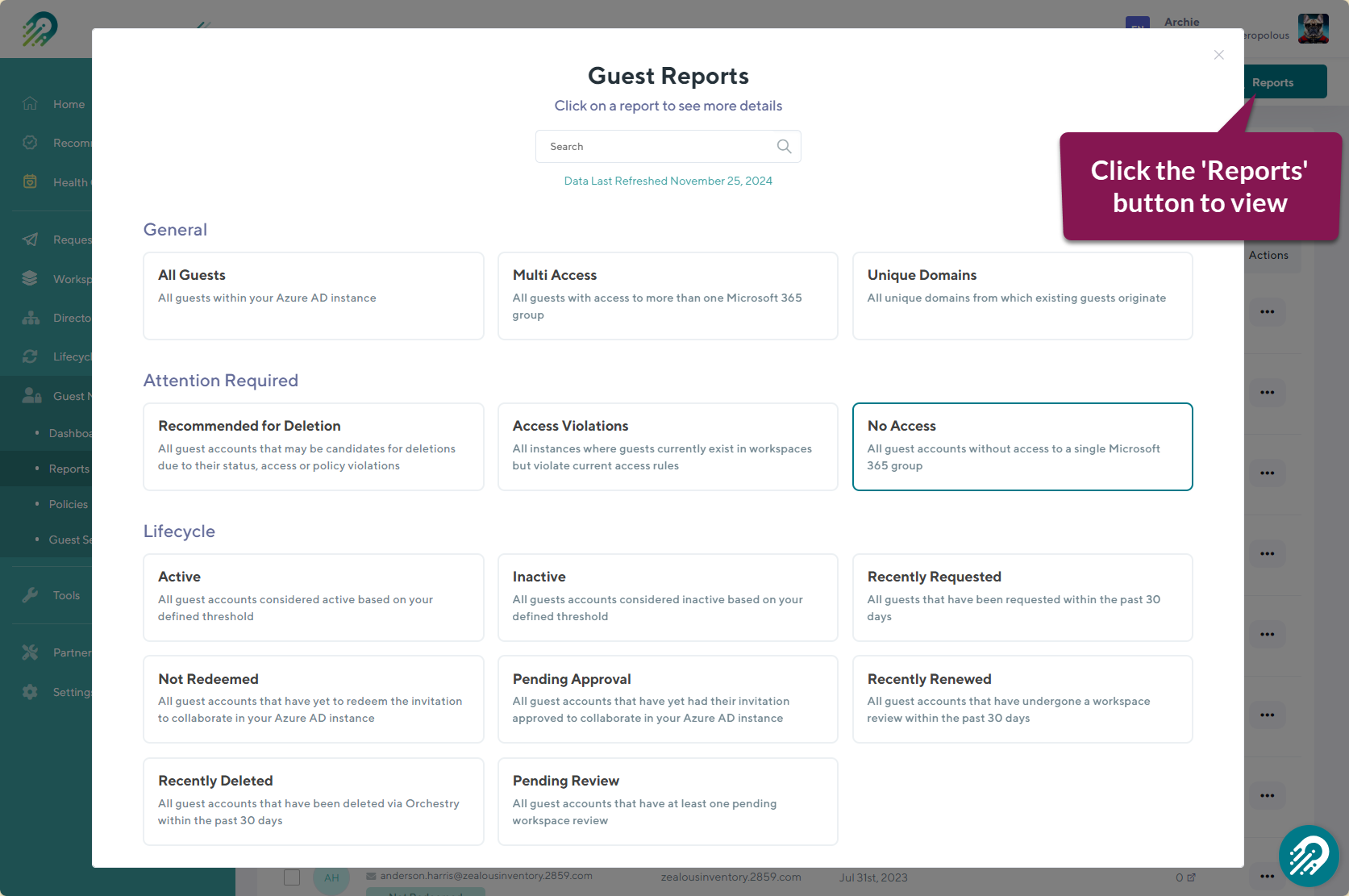
Clicking on the 'Reports' button will show you more guest reports built into Orchestry.
Want to learn more about Guest Management Dashboards?
Check out this article: Introduction to the Guest Dashboard