
Guest request policies are intended to add control and governance around how guests are requested and then granted access to Microsoft 365 groups.
Check out this quick video to get started:
The Guest Request End User Experience
When a Guest Request policy is assigned to a workspace, the group/workspace owners must use Orchestry's "Team Information" channel tab, or the Workspace Information web part to submit guest requests.
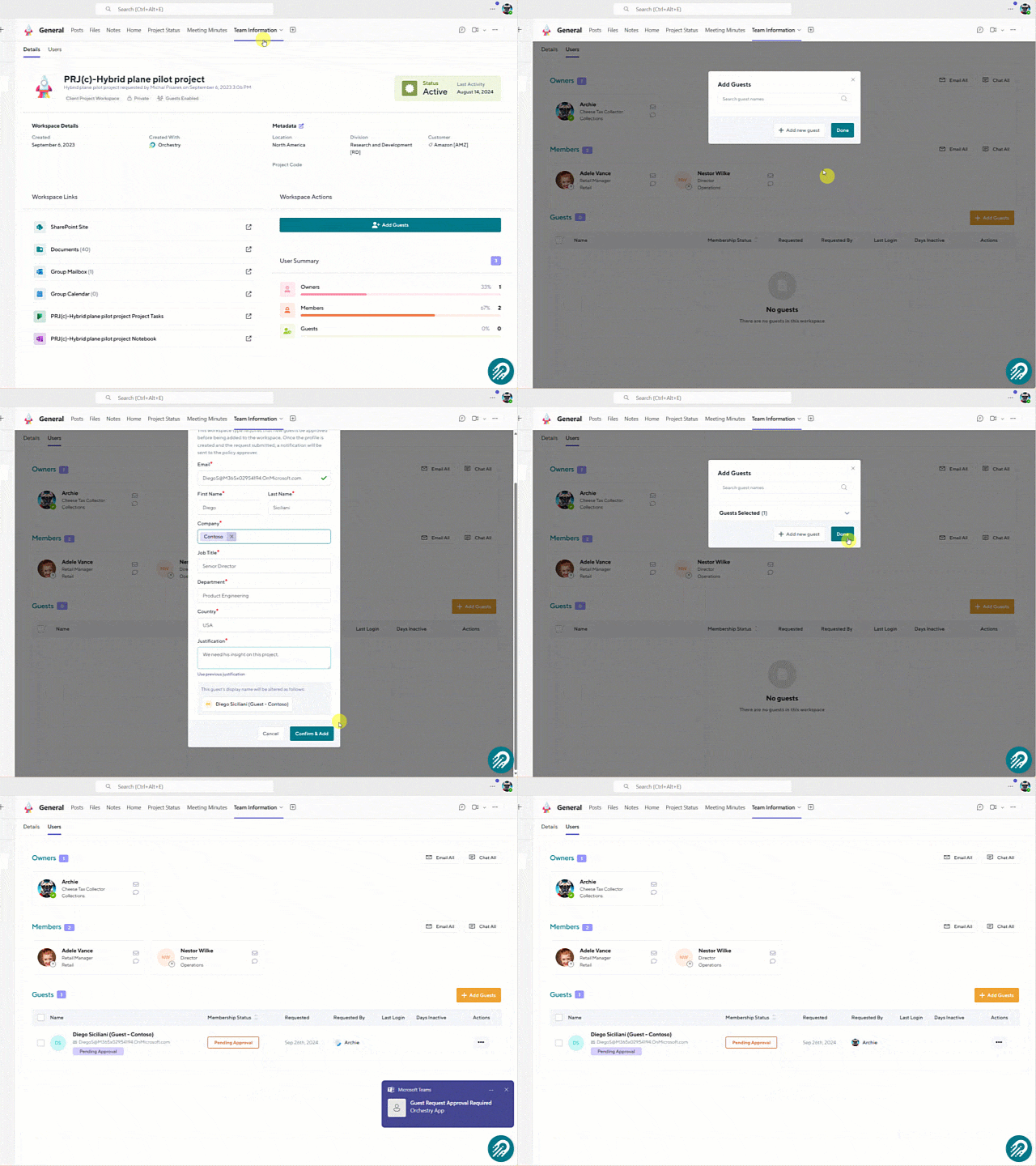
Only workspace owners can submit guest requests. Once submitted, the request will await approval before the guest is sent the (Microsoft default) email invitation to the workspace.
To learn more about the end-user experience for requesting guests, check out the article: Using a Guest Request Policy
Creating a Guest Request Policies.
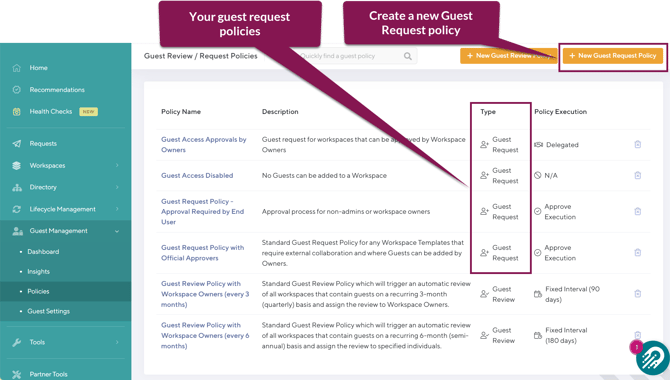
On the Guest policies page, you can create new policies and manage your existing ones. Orchestry comes with a few request policies out of the box, but we encourage you to create your own that are designed for your organizations needs.
To create a new guest policy, click the "New Guest Request Policy" button on the Guest Policies page.
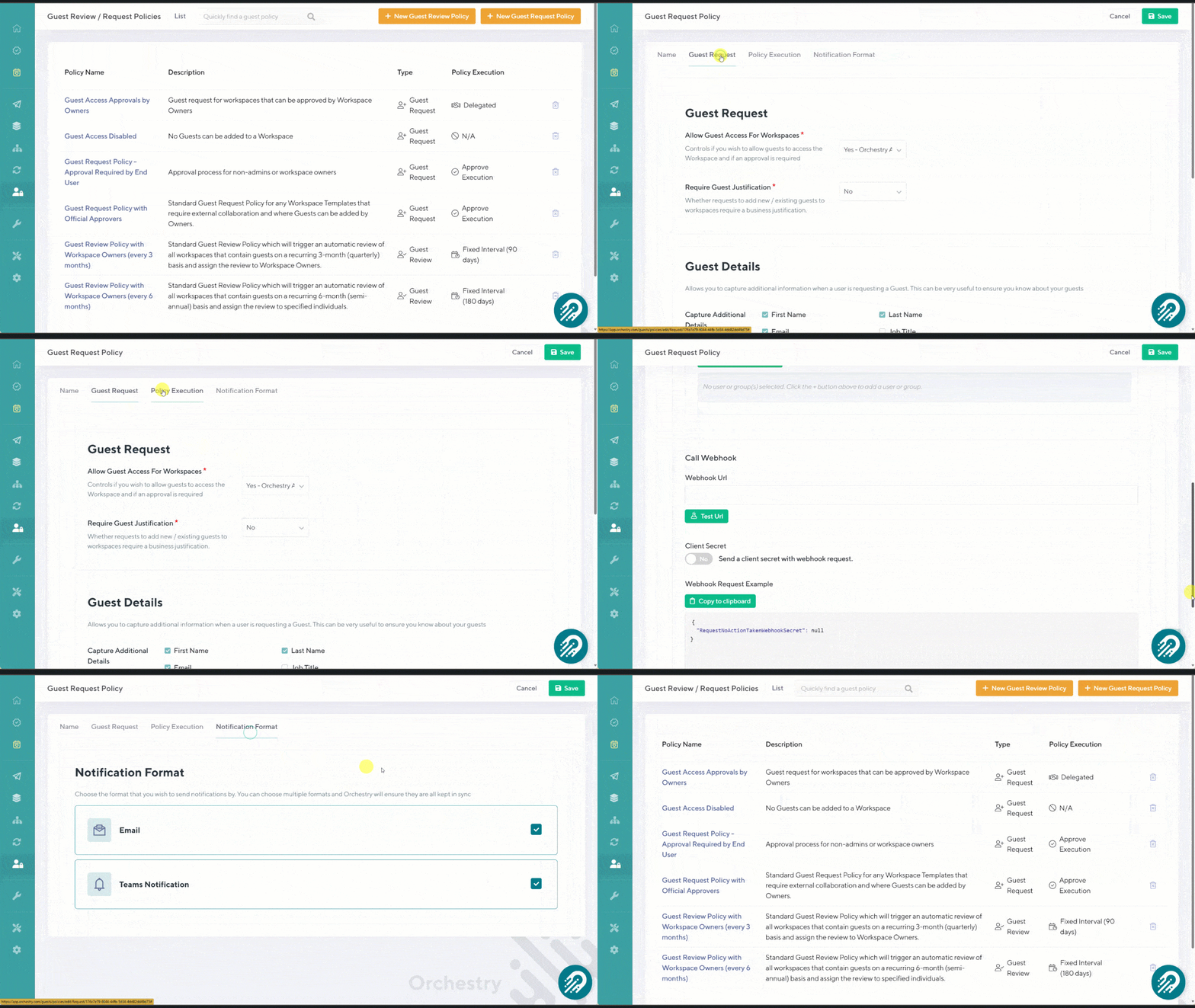
Complete all required fields across the NAME, GUEST REQUEST, POLICY EXECUTION AND NOTIFICATION FORMAT tabs and then SAVE your changes.
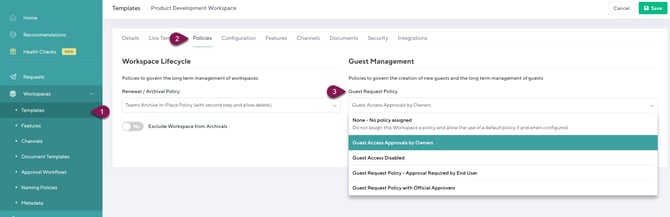
Your new policy can then be assigned to any existing workspace of the same type (i.e.: teams workspace). You can also proactively assign guest request policies by attaching them to your workspace templates.
Guest Request Policies - The NAME Tab
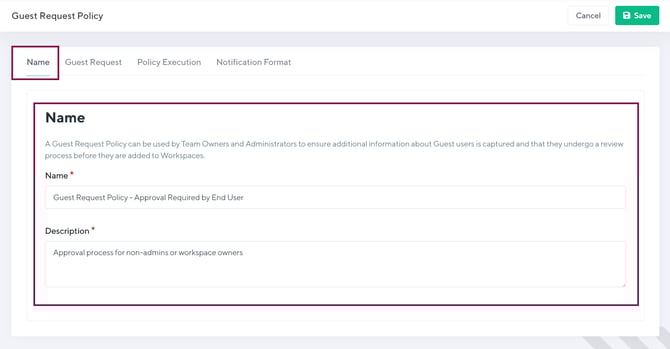
On the first tab of your policy, give it a clear name and description.
TIP: In the NAME field, include a brief summary of what the policy does. This can help other admins know what each policy does at a glance.
Guest Request Policies - The GUEST REQUESTS Tab
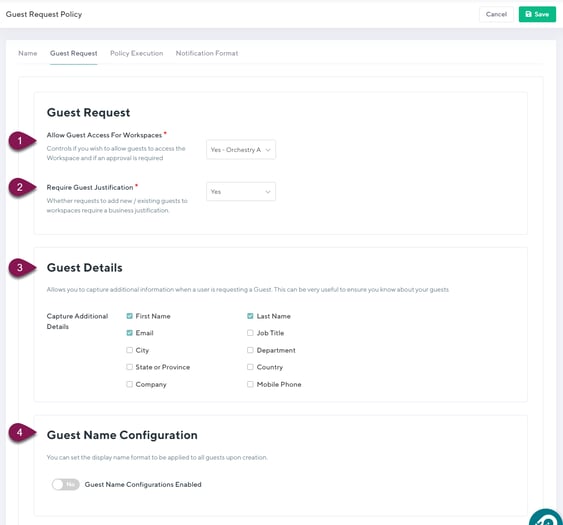
The Guest Requests Section
On this tab, the two most important (and required) fields are (1) "Allow Guests Access for Workspaces" and (2) "Require Guest Justification":
| 1. Allow Guest Access for Workspaces |
|
| 2. Require Guest Justification | Adds a required text field to the Guest Request form for users to include the reason for adding the guest. |
Allowing Guests from Specific Domains
By choosing the "YES - SPECIFIC DOMAINS" option, you can restrict who can be invited to workspaces assigned the Guest Request policy. When you select the option, enter each domain that should be ALLOWED in the workspace.
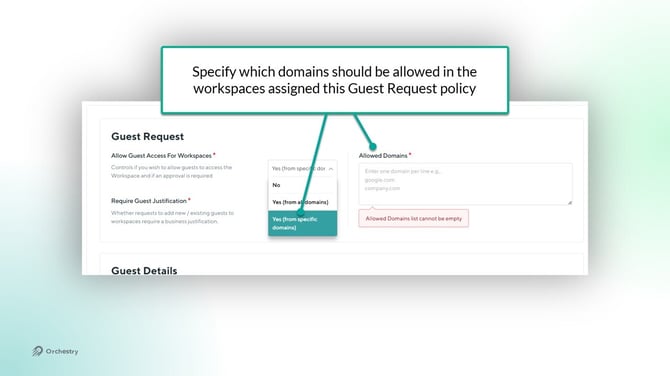
Note that 'Guest Request' policies CANNOT be used to permit blocked domains.
Want to learn how to BLOCK and ALLOW domains for guest users?
Check out the article: Guest Management Settings
The Guest Details Section
Capture additional details about your guest users by adding fields to the Guest Request form. All fields are part of the Guest's Entra ID profile.
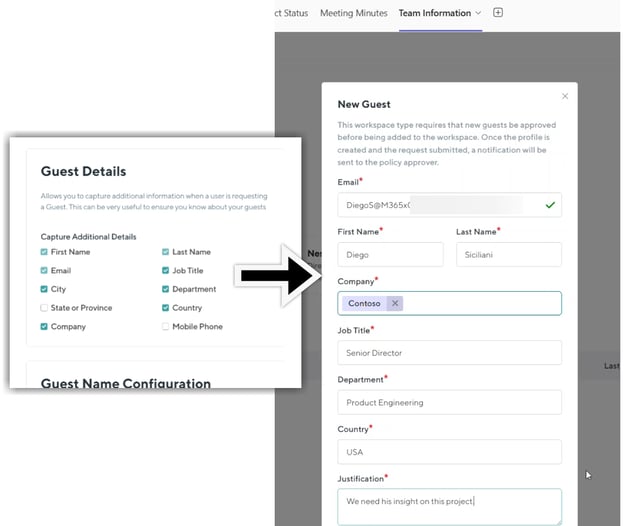
NOTE: the fields "First Name", "Last Name" and "Email" are mandatory for setting up a guest profile and cannot be disabled in the policy.
The Guest Name Configuration Section
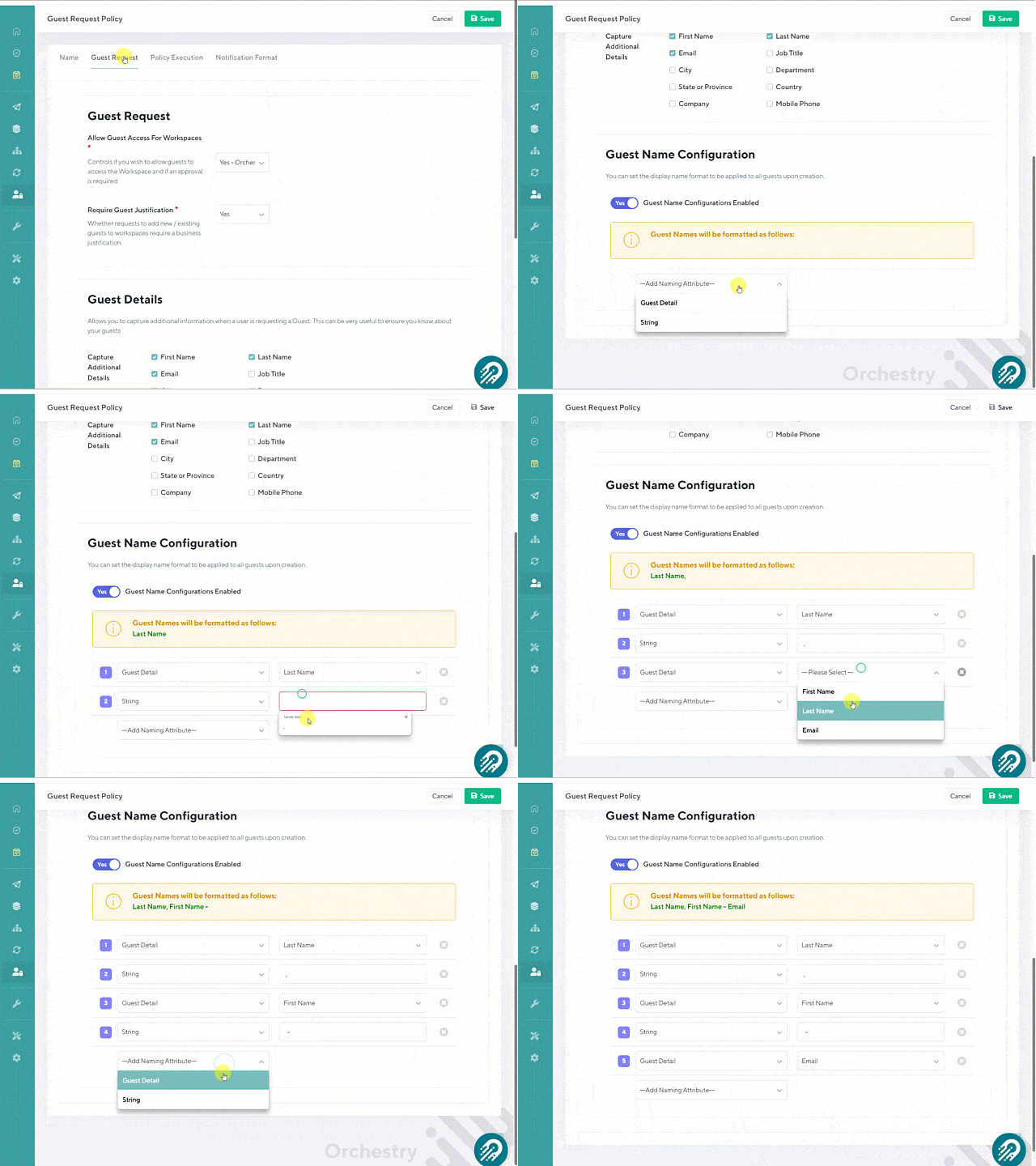
This section allows you to configure how guest names are displayed when added via this policy. You can use a mix of the Entra ID fields and string/text fields.
TIP: Reference the yellow box to see a live sample of your naming configuration
Guest Request Policies - The POLICY EXECUTION Tab
Policy Approvers
All Guest Request policy workflows include an approval step before the guest is invited to the workspace.
When configuring a policy, you can (A) designate the workspace owner as the approver, or (B) designate a specific users/groups.
| APPROVERS | WHAT HAPPENS.. |
| Delegate to Workspace Owners: | Guest request approval is automatically approved. Workspace owners do not need to approve their own requests. |
| Specific users/Groups: | Guest request is sent to the designated individuals and/or security groups you specify. |
Assigning Specific Users/Groups as Guest Request Policy Approvers
If you need to assign specific people in your organization as Guest Request approvers, a few extra fields must be completed in your policy.
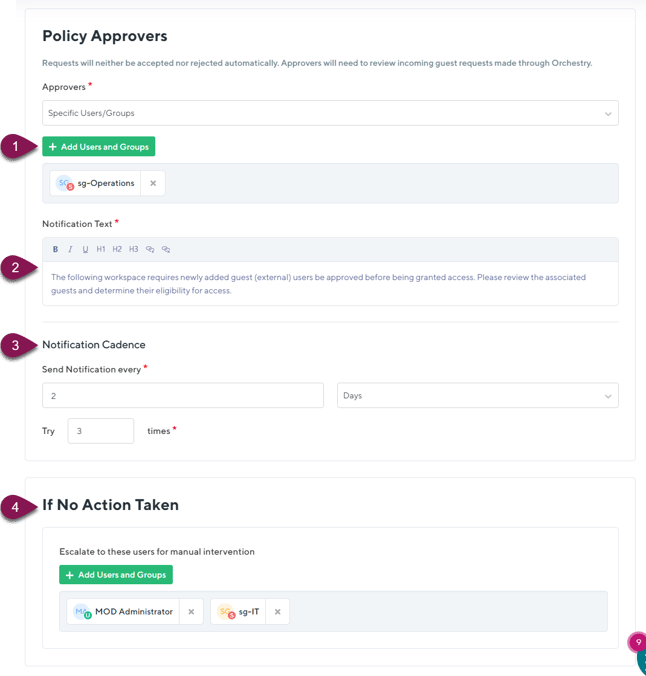
| 1. Add Users and Groups: | Identify any licensed users in your organization to be an approver. You can also add security groups to ensure multiple people are notified. Only one person needs to approve the request. |
| 2. Notification Text: | Customize the notification approvers receive. |
| 3. Notification Cadence: | Configure how many times the approvers will be notified before the approval is escalated |
| 4. If No Action Taken | Choose individuals or a security group to escalate pending guest requests after the reminder cadence ends. The request will remain here until it's approved to rejected. |
Call Webhook:
Add a custom webhook to extend the functionality of this Guest Request policy. To learn more, check out our API documentation.
Guest Request Policies - The NOTIFICATION FORMAT Tab
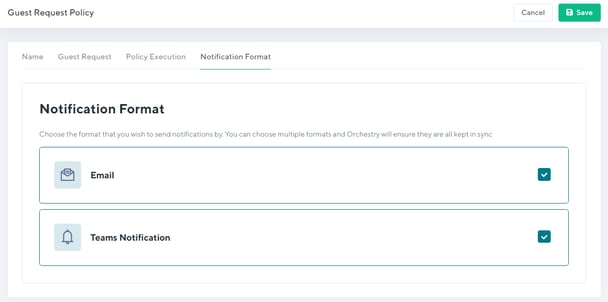
Ensure your policy approvers are notified where they work. Choose to send the notification via email and/or Microsoft Teams.
Guest Request Policies VS Native M365 Controls
When you add a Guest Request policy to a workspace, Orchestry will automatically disable the native means to add guests to the group, including Outlook, Teams, and SharePoint.
This means that Orchestry becomes the one-true way to add guests into workspaces. You don't need to worry about users bypassing the request process.
NOTE: The graph call used to disable native methods for adding GUEST users also blocks B2B external users. If your workspace has Shared Channels in Microsoft Teams that are configured for external membership, we recommend NOT applying a Guest Request policy.
To learn about the Graph call we use to prevent users from adding guests, please check out this article: https://learn.microsoft.com/en-us/microsoft-365/solutions/per-group-guest-access?view=o365-worldwide#change-group-settings-using-microsoft-graph-powershell
To learn how to now apply these policies to workspaces, check out Applying Guest Request and Review Policies.