Using a Guest Request Policy
Last updated: March 31, 2026
Assigning Guest Request Policies to Workspaces
Policies can be assign to both existing workspaces and workspace templates.
Want to learn how to assign policies?
Check out the article: Applying Guest Request and Review Policies
The End User Experience for Guest Request Policies
Need to train your users on Orchestry?
Check out our resources: End User Adoption Resources
Submitting a Guest Request
Workspace (Group) owners can submit guest requests using the Teams information tab, the Workspace Information web part for team sites, and when requesting a new workspace.
When a workspace allows guest access, the workspace/group owner will see the "Add Guests" button when using the Teams Information tab (and/or Workspace Information web part).
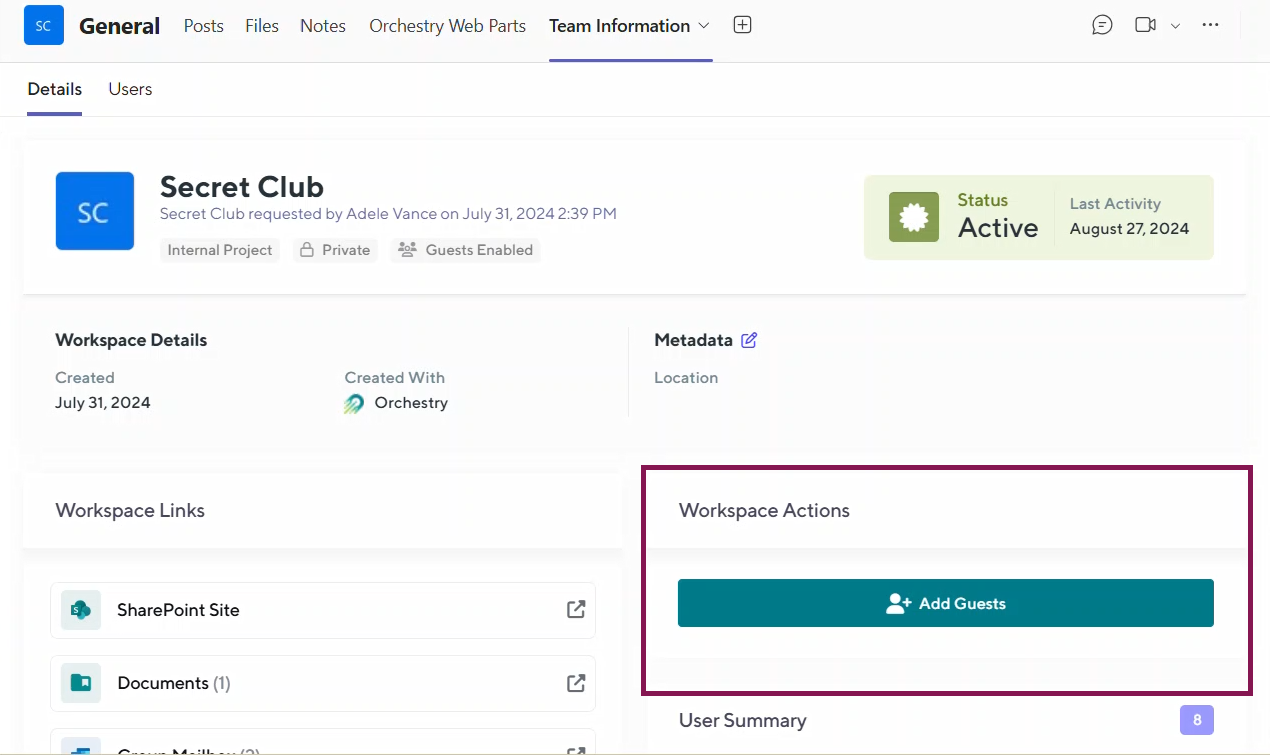
Owners can search for existing guests and/or add new guests. When adding a NEW guest, they must complete all required fields of the form to submit the request.
NOTE: Orchestry cannot be used to add guests to Viva Engage communities.
Approving Guest Requests
All guest request policies include an approval step before the guest is emailed an invitation.
If the policy sends approvals to workspace owners, the approval is completed automatically
If the policy sends approvals to specified users or groups, they will get a notification from Orchestry

NOTE: Approvers will need to include a comment to REJECT a request.
Managing Guests in a Workspace
Workspace owners can remove guests from their workspace anytime from the 'Users' tab of the Teams Information tab and Workspace Information web part.
Owners can also revoke unredeemed or resend invitations to their workspace.
