
What is an Archival Policy?
Orchestry's archival policies help archive and delete workspaces after they've reached the end of their lifecycle.
These policies trigger automated workflows when a workspace has been inactive for a period of time, notifying the workspace owner to either renew the workspace, archive it, or even delete it.
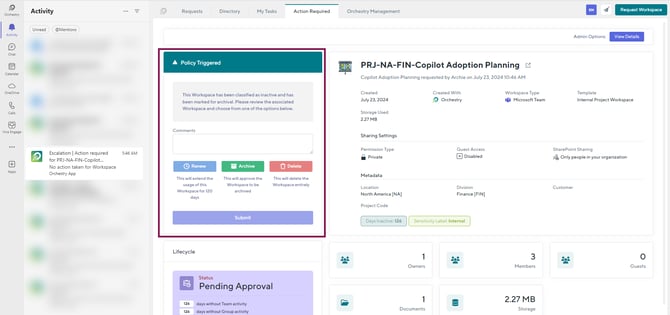
Policies can be applied to all workspace types, such as Microsoft Teams workspaces, SharePoint Team sites, Communication sites and Viva Engage communities.
Want to learn more about Archival Policies?
Check out this article: Archival Policies Overview
What are the Different Archival Methods?
You can design policies to meet the various needs of your organization's departments and functional groups. Some may need access to files for longer, while some may never need to see them again.
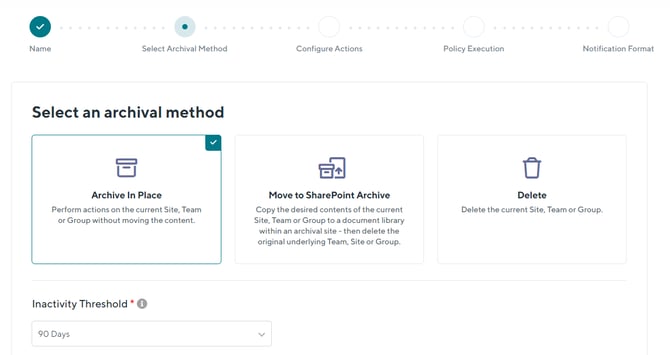
In Orchestry, your policies must be configured with one of these three archival methods:
- Archive In-Place: Nothing is moved or deleted. You can configure your policy restrict access to the workspace incase it's needed again.
- Move to SharePoint: Keep the content, delete the group (workspace). These policies can be configured to move your SharePoint content, channel conversations and more into a dedicated SharePoint site of your choice.
- Delete: Don't need a workspace or it's content? Configure your policy to delete the workspace and reclaim the storage space.
How to Create an Archival Policy?
You can create and manage your policies from the Lifecycle Management 'Policies' page.
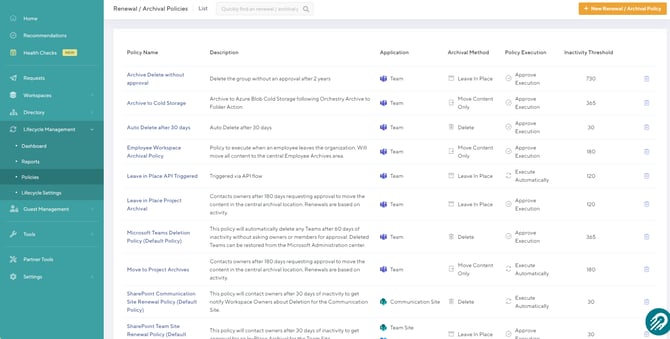
To create a new archival policy:
- Click the 'Create' button
- Give your policy a name, description and define the type of workspace it applies to
- Choose your archival method and inactivity threshold
- Configure the actions your policy will take when executed
- Configure whether an approval is needed, and who is responsible
- Configure the notifications
Want to learn more about creating archival policies?
Check out the article: How to Create a Workspace Archival Policy
How to Assign Archival Policies to Existing Workspaces
You can assign archival policies to one or multiple workspaces from the Lifecycle Management 'Reports' page.
- Go to the Lifecycle Management 'Reports' page
- Select one or multiple workspaces
- Click 'Assign Policy' on the Lifecycle
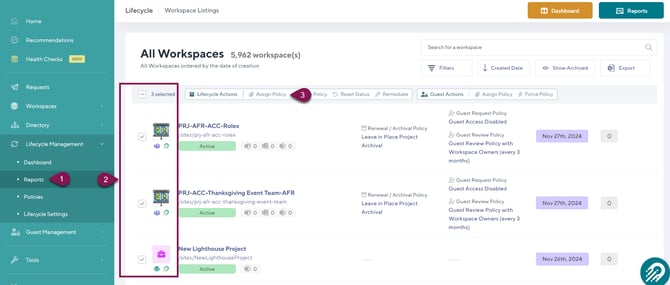
From the pop-up window, you can assign archival policies your selected workspaces
- Select an archival policy for all of the workspaces you select
- Click the APPLY button
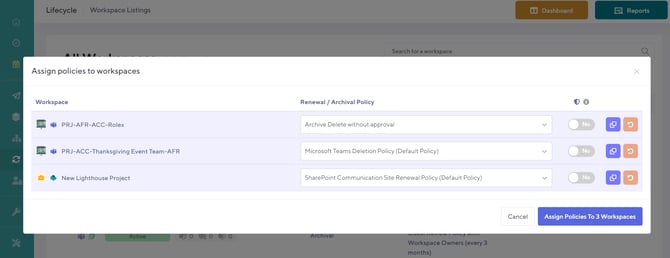
Your assigned policies will not trigger until the overnight ETL scan if the archival conditions are met.
Want to learn more about assigning archival policies?
Check out the article: How to Assign Archival Policies to Workspaces
How to Assign Archival Policies to Workspace Templates
You can proactively assign archival policies to future workspaces by assigning them to workspace templates. All workspaces provisioned off templates will carry the policy you assign to them.
To assign archival policies to workspace templates:
- Open the 'Policies' tab of the workspace template
- Select the appropriate archival policy for the workspaces
- SAVE your changes
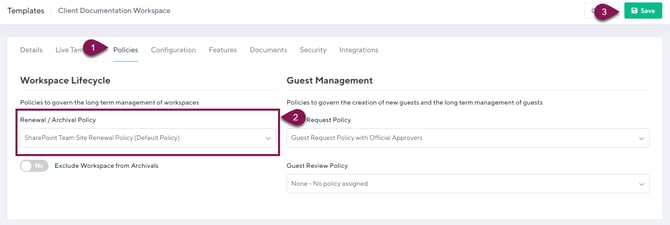
You cannot assign archival policies to Viva Engage templates, however, you can assign them to existing workspaces.
Learn more in the article: How to Assign Archival Policies to Viva Engage Workspaces
Workspace Dashboard and Reports to Check Out
Keep track of your workspaces across their lifecycles using the built-in Workspace Dashboard in Orchestry.
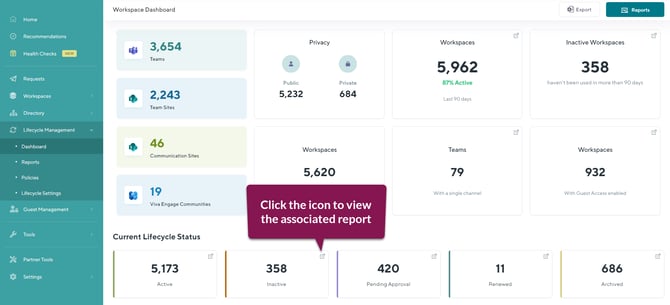
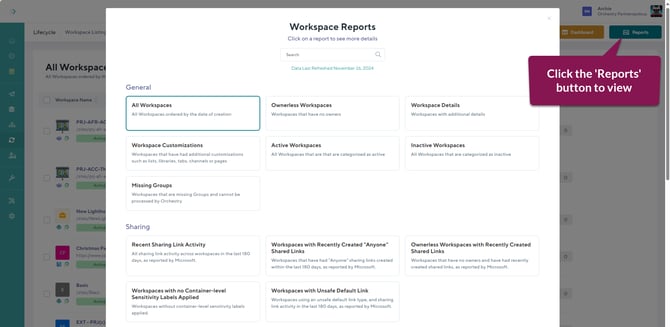
Any tiles with an icon on the top-right are linked to existing Workspace reports in Orchestry. Clicking this icon will take you to the workspace 'Reports' page where you can view the data in more detail and take appropriate actions.
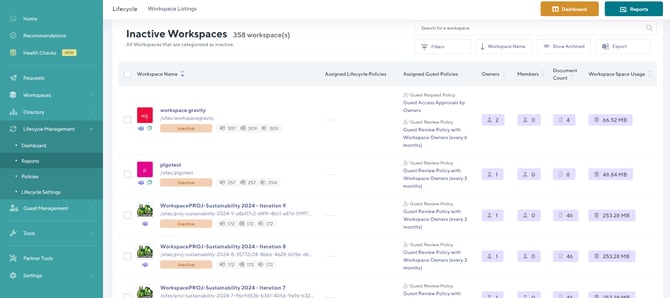
Clicking on the 'Reports' button will show you more of the workspace reports built into Orchestry.
Want to learn more about the Workspace Dashboard and Reports?
Check out this article: What are Orchestry Dashboards and Reports?