
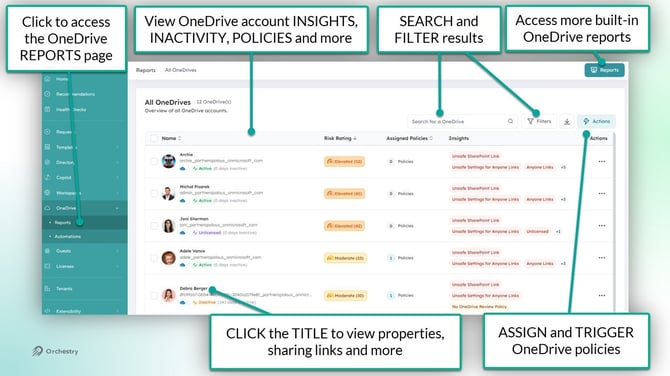
The OneDrive 'Reports' page allows Orchestry admins to review and manage OneDrive accounts. From this page, admins can:
-
review the status of OneDrive accounts with insights
-
Access the built-in OneDrive reports from Orchestry
-
Deep dive the status of individual OneDrive accounts
-
Assign OneDrive Review Policies
OneDrive Account Details Page
Orchestry admins can review individual OneDrive accounts by:
-
clicking the name/title of the account, or
-
selecting "View Details" from the ACTIONS menu.
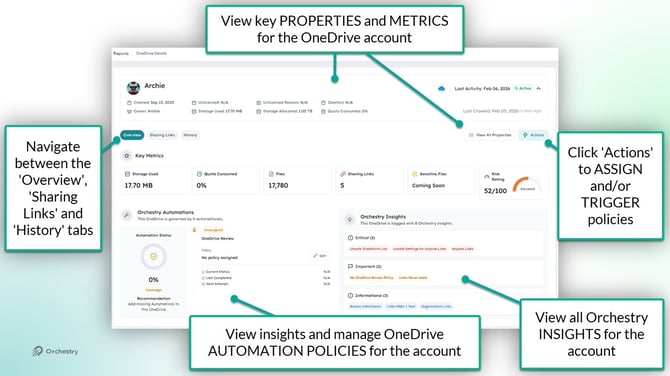
The OneDrive Account Details page is broken into three tabs: Overview, Sharing Links and History.
The Overview Tab | OneDrive Account Details
From the 'Overview' tab, admins can view detailed insights about the account, and assign/modify Orchestry policies.
The Sharing Links Tab | OneDrive Account Details
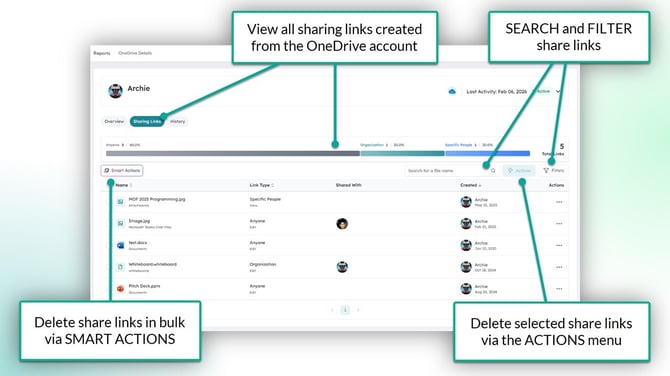
From the 'Sharing Links' tab, admins can:
- Review all sharing links created from the account,
- Delete specific sharing links via the ACTIONS menu, and
- Delete links in bulk via the SMART ACTIONS button
Want to learn how end users can review their own OneDrive details and sharing links?
Check out the article: The 'My OneDrive' End User Experience
The History Tab | OneDrive Account Details
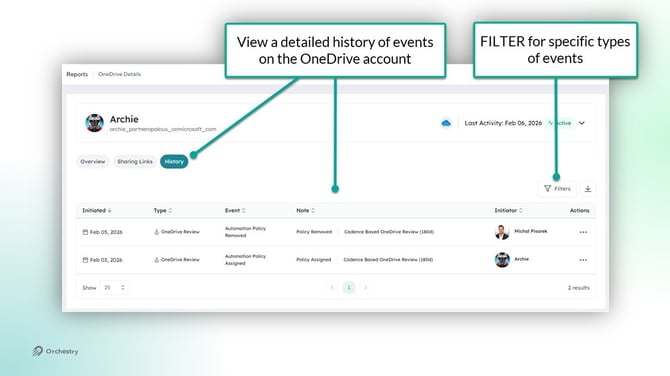
From the 'History' tab, admins can view a history of events taken on a OneDrive account. The reports includes:
- policy assignments and modifications
- task assignments and statuses
- dates events were triggered
- who triggered the event('Indicator')
These reports can also be downloaded for external analysis.
OneDrive Insights and Risk Ratings
To help admins quickly identify risky accounts, Orchestry automatically assigns:
- a list of rated INSIGHTS, and
- a 'Risk Rating' that calculates an overall risk score (out of 100, where 100 is the highest risk)
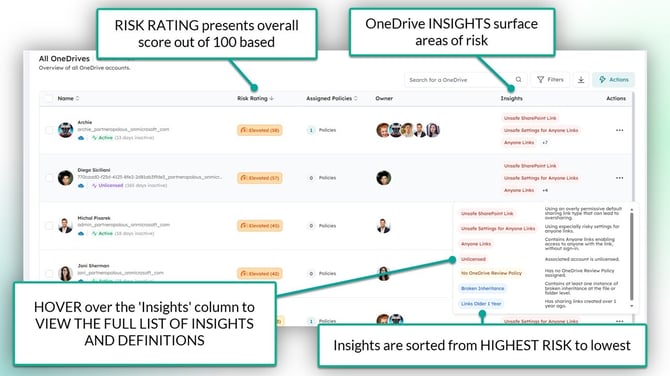
Insights are sorted and grouped into the following rankings:
- Critical (highest risk)
- Important (medium risk)
- Informational (lowest risk)
TIP: Try filtering the list of accounts using INSIGHTS
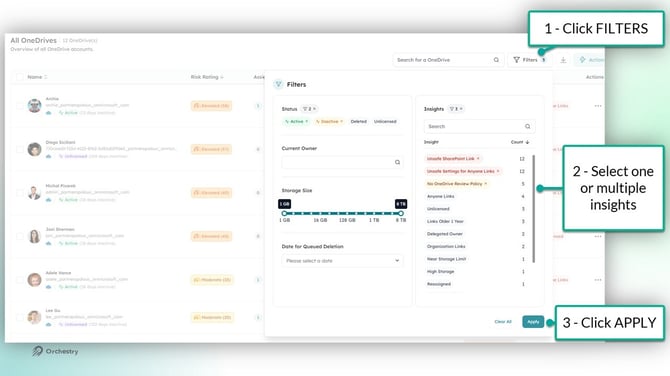
OneDrive Insight Risk Rating Calculations
Each insight is assigned a value that is used to calculate the overall risk rating for a given account. The table below shows each insight, their weight and
| # | Metric | Weight | Points |
|---|---|---|---|
| 1 | Near Storage Limit | HIGH | 10 |
| 2 | Unlicensed | HIGH | 10 |
| 3 | No Review Policy | HIGH | 10 |
| 4 | Has Anyone Links | HIGH | 10 |
| 5 | Unsafe Workspace Default Sharing (Anyone) | HIGH | 10 |
| 6 | High Storage | MED | 5 |
| 7 | Reassigned | MED | 5 |
| 8 | Inactive | MED | 5 |
| 9 | Unsafe Default Link Setting | MED | 5 |
| 10 | Has Folders Exposed | MED | 5 |
| 11 | Has Org Links | LOW | 3 |
| 12 | Links Older Than 1 Year | LOW | 3 |
| 13 | Links Never Used | LOW | 3 |
How to Assign and Manually Trigger OneDrive Review Policies
From the 'Reports' page, admins can assign OneDrive policies to accounts and trigger them manually when appropriate.
To Assign OneDrive policies from the 'Reports' page:
- Select one or more OneDrive accounts
- Click the ACTIONS button
- Select ASSIGN AUTOMATIONS
- Select the OneDrive policy to assign
- Click APPLY
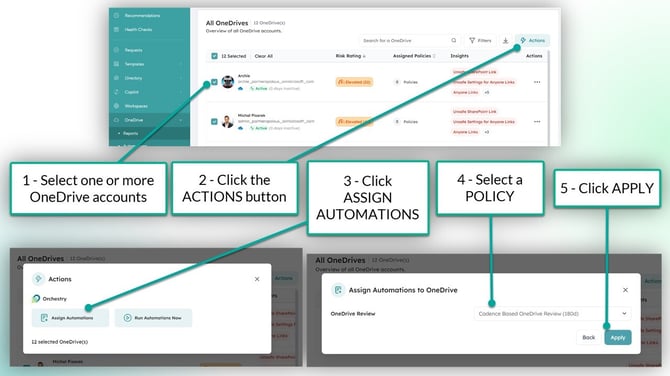
To manually trigger OneDrive policies from the 'Reports' page:
- Select one or more OneDrive accounts
- Click the ACTIONS button
- Select RUN AUTOMATIONS NOW
- Click RUN NOW
Want to learn more about OneDrive Review policies?
Check out the article: How to Configure OneDrive Review Policies
Questions and Answers | OneDrive Account Details
Can Orchestry admins VIEW or EDIT files surfaced in the Sharing Links tab?
No, Orchestry does not provide admins READ or EDIT access to content in OneDrive. Only filenames will be visible in sharing link reporting.
What to learn how to manage OneDrive sharing link scanning?
Check out the article: OneDrive Management Overview