How to Block Workspaces from Sharing Link Scanning
Last updated: March 30, 2026
If your tenant has workspaces with sensitive and/or confidential information that should not be seen by anyone outside of the group, including Orchestry admins - you can disable content scanning for the workspace.
Considerations of Disabling Content Scanning on a Workspace
Should you block a workspace from being scanned, the following features will no longer function:
Workspace Details - Sharing Links tab
Workspace Details - Broken Inheritance tab
Workspace Reviews - Sharing Link Review
Teams Information Tab/ Workspace Information Web Part - Sharing Links tab
How to Disable Content Scanning for a Workspace
Open the 'Workspace Details' page for the workspace
Open the 'Sharing Links' tab
Click the ACTIONS button
Select 'Disable Sharing Scanning'
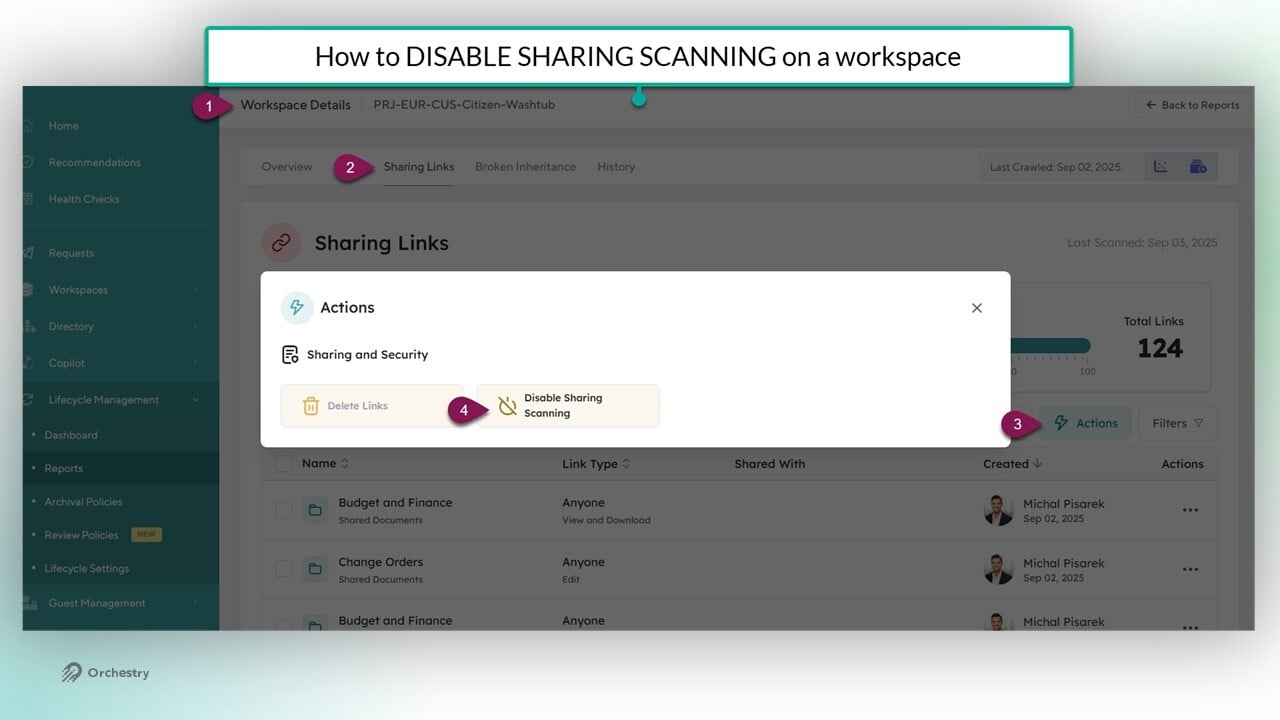
NOTE: Any links shown from previous scans will be removed from Orchestry when the Content app runs again.
How to Re-Enable Content Scanning for a Workspace
Should circumstances change, you can always re-enable content scanning. From the 'Sharing Links' tab, click the 'Enable Sharing Scanning' button.

NOTE: Links will not be re-populated until the next overnight scan of the Content app. It may take longer if the Content app has a lot of workspaces to scan.
TIP: When a workspace is in queue to be scanned, click the 'Prioritize Workspace for Scanning' button to ensure it's near the top of the list for the Content app's next scan.
