Workspace Review Policies Overview
Last updated: October 14, 2026
Workspace Reviews are a type of automated policy that help Orchestry admins ensure active workspaces meet current governance standards and practices.
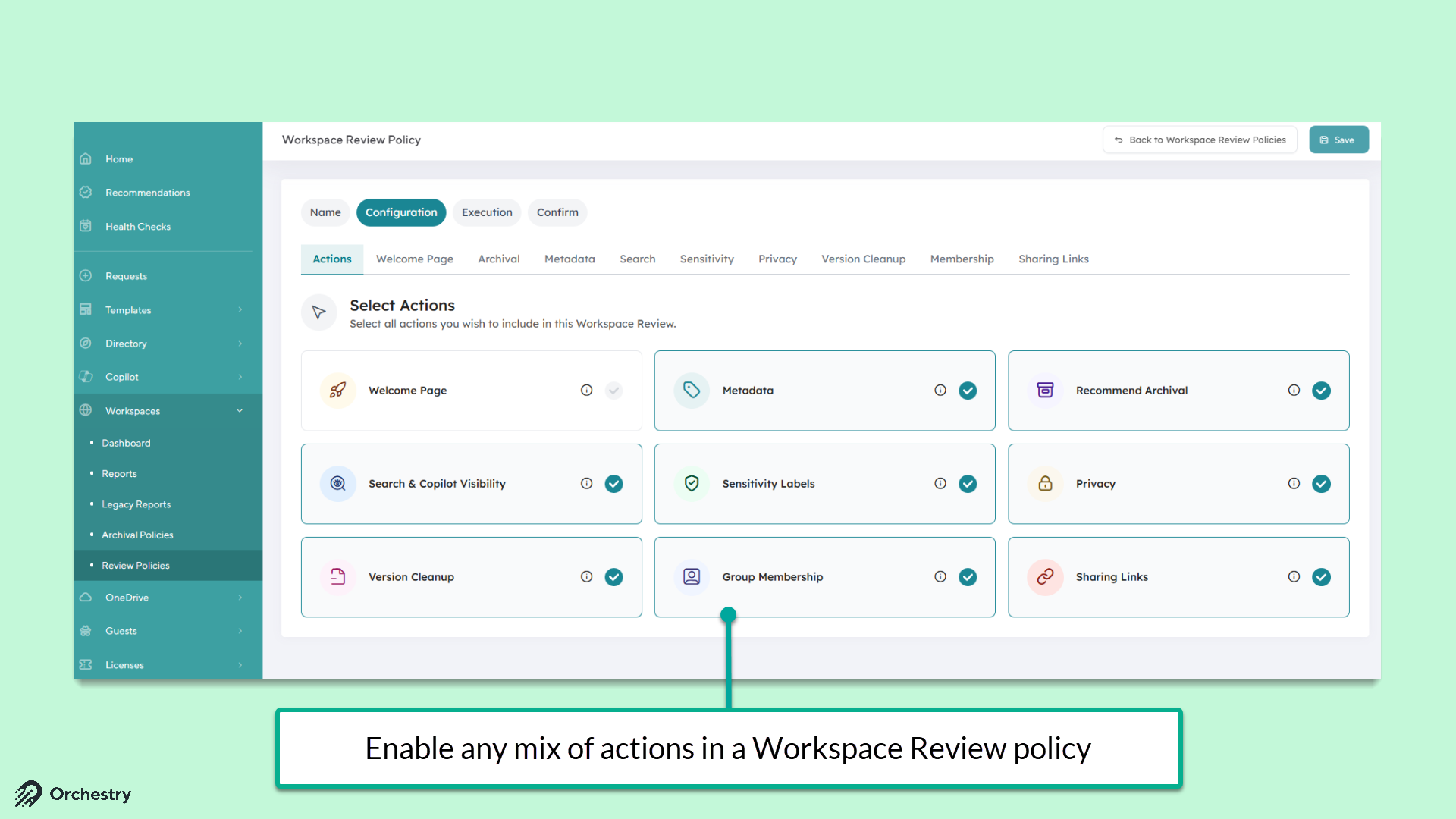
Review policies are built of a custom mix of actions that the end users must complete, including:
applying/updating Orchestry metadata,
applying/updating container-level sensitivity labels (must be enabled; see 📄 Enabling Sensitivity Labels in Orchestry)
allowing owners to archive their workspace early
applying/updating the workspace privacy setting (private vs public)
applying limits and a one-time version history purge to the (parent) SharePoint site document libraries
hide the workspace from Microsoft 365 search and Copilot
conducting a review of the M365 group membership (including guest users).
conducting a review of workspace-owned sharing links
How Do I Create a New Workspace Review Policy?
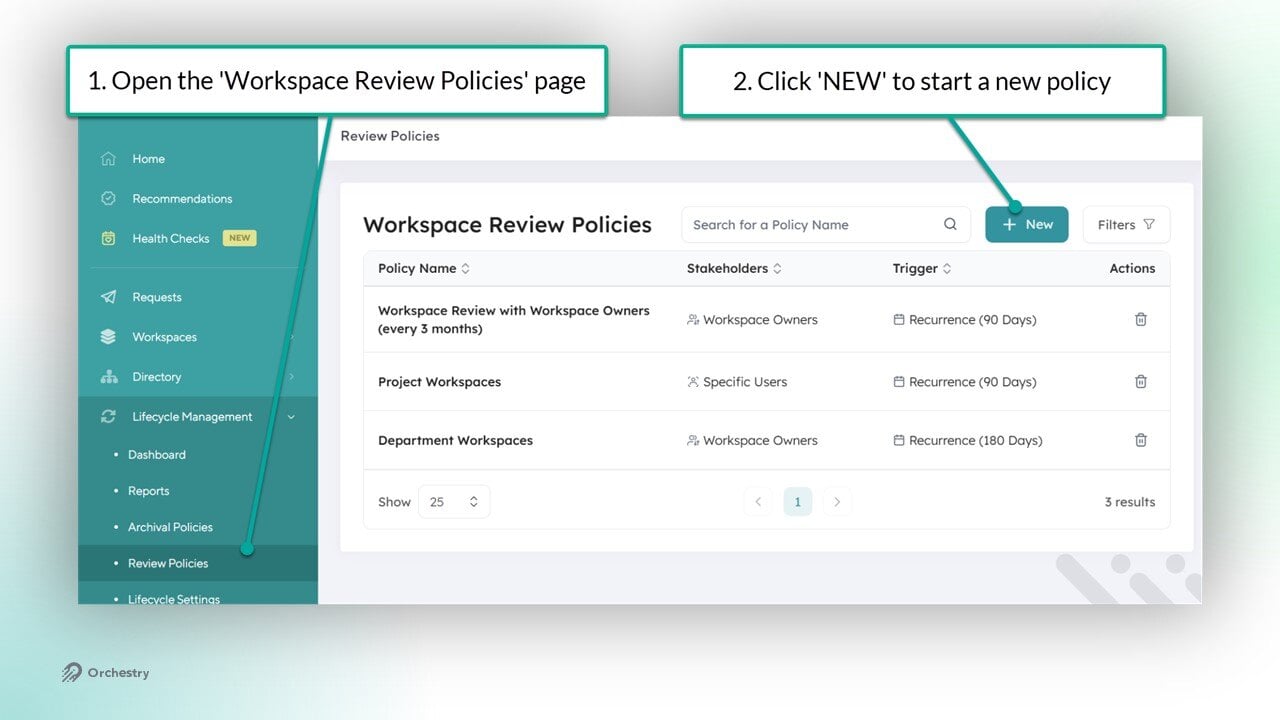
New workspace review policies can be created and managed from the 'Workspace Review Policies' page (Workspaces > Review Policies).
To create a new policy:
As an Orchestry admin, go to the 'Workspace Review Policies' page (https://app.orchestry.com/lifecycle/policies/workspacereview)
Click the NEW button to start a new policy
Want to learn how to configure your first Workspace Review Policy?
Check out the article: 📄 How to Create a Workspace Review Policy
How Do I Complete a Workspace Review?
When a Workspace Review is triggered, the workspace owner (or delegate users) will be assigned a task in Orchestry.
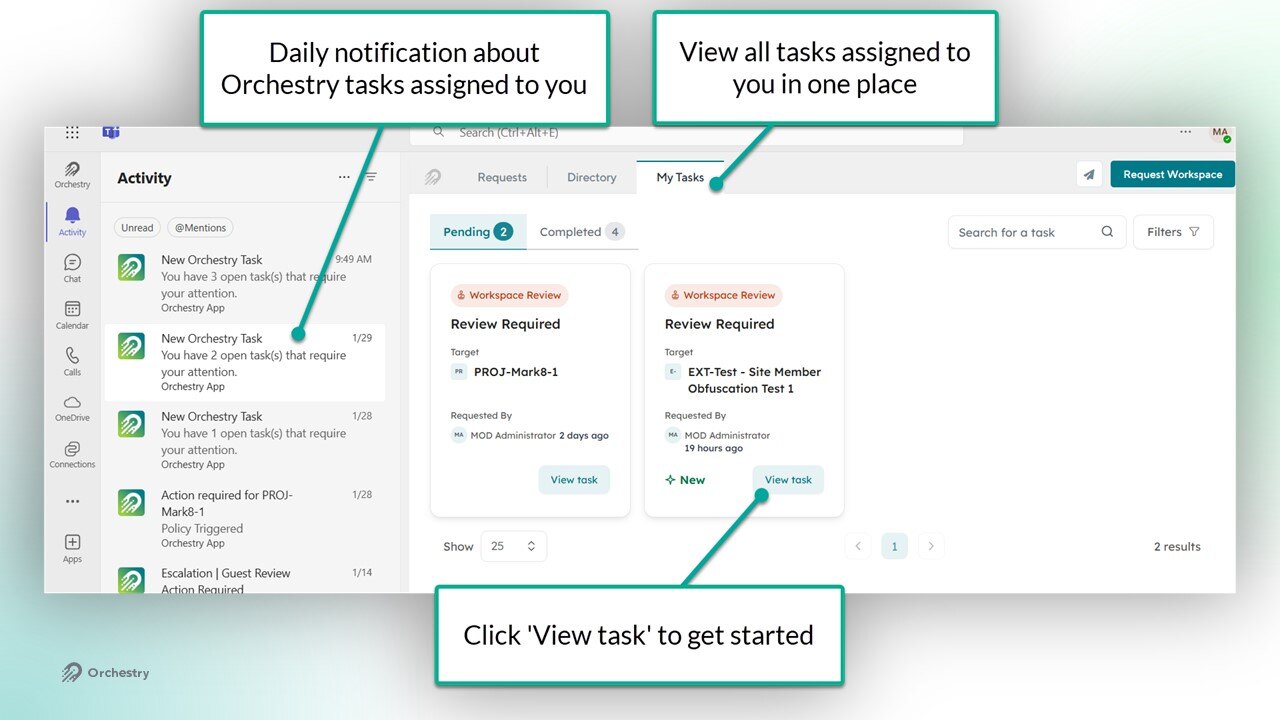
By clicking "View Task", Orchestry will launch the wizard to guide users through each step of the review.
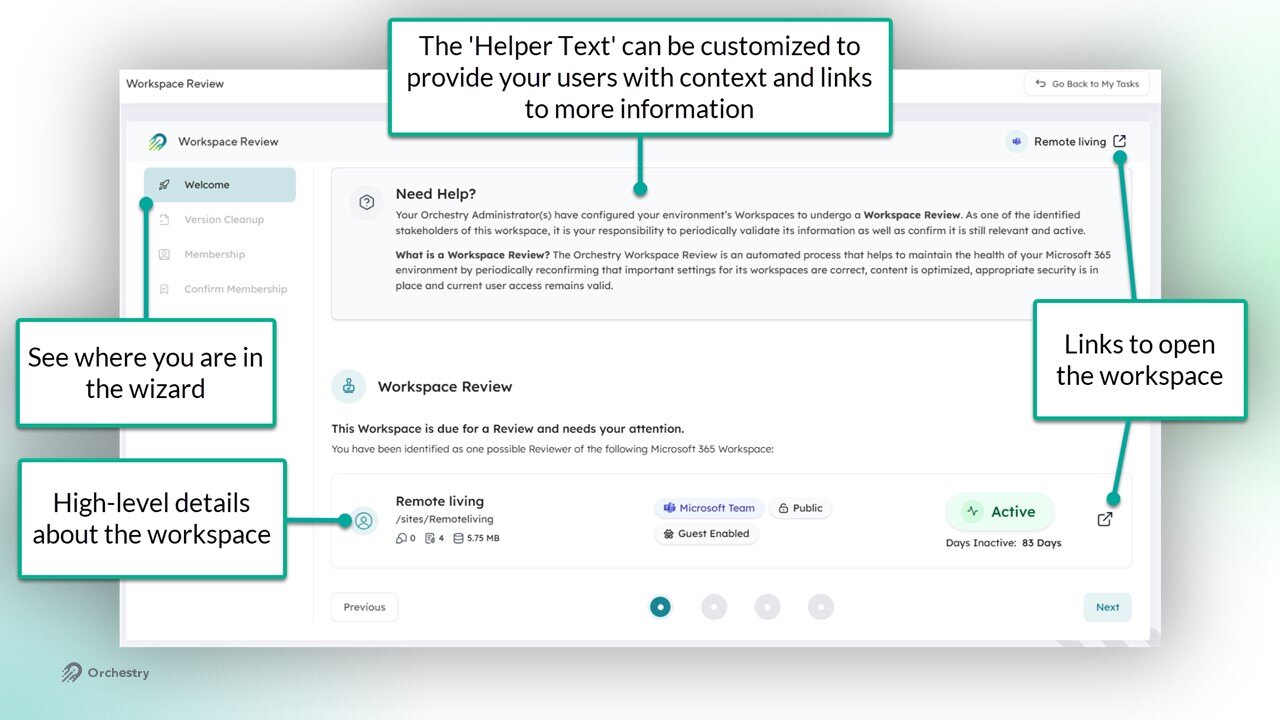
Want to learn more about completing workspace reviews?
Check out the article: 📄 Completing a Workspace Review
FAQs
What Types of Workspaces Support Workspace Review Policies?
Workspace Review policies can be assigned to the following workspace types:
Supported? | |
Microsoft Teams: | yes |
SharePoint Team Sites: | yes |
SharePoint Communication Sites: | partial; membership reviews are not supported. |
SharePoint Non-Group Connected Team Sites: | partial; membership reviews are not supported. |
Viva Engage Communities: | yes |
SharePoint Classic Sites: | no |
Can Users Add Guest Users When Doing a Workspace Review?
No, reviewers can choose to KEEP or REMOVE guest users. To add guest users, workspace owners can continue to leverage existing Guest Request policies
Can I Assign Workspace Review Policies as a Default Policy?
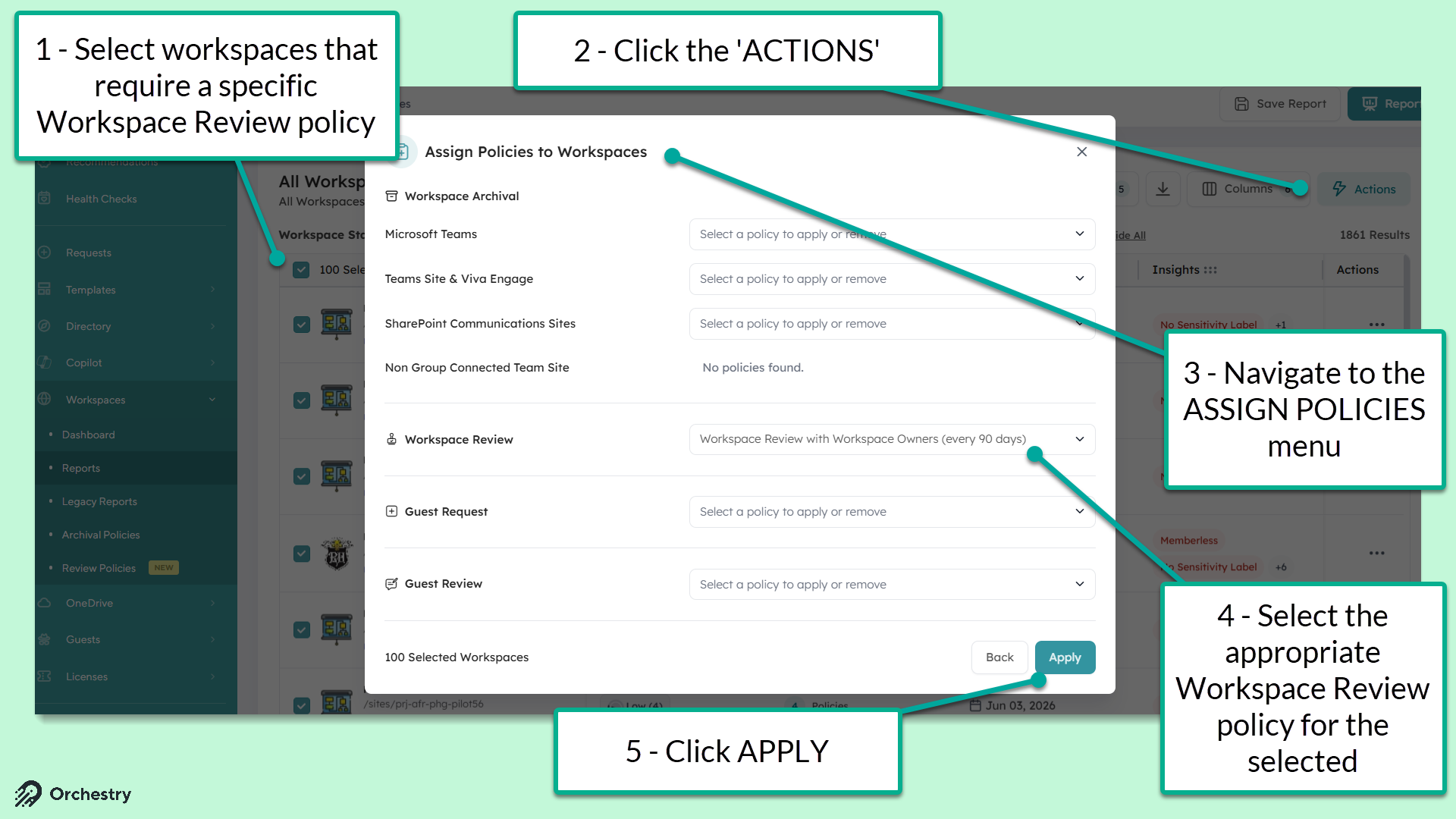
No, policies can only be assigned to existing workspaces via the Lifecycle Management Reports page (Workspaces > Reports) and via workspace templates.
What Happens if the Workspace Owner Does Not Complete an Assigned Workspace Review?
You can configure Workspace Review policies to include (1) an escalation step, and/or (2) a cancellation step. These can help ensure assigned tasks do not remain open indefinitely.
NOTE: if the policy does not have cancellation configured in the policy, Orchestry administrators can cancel incomplete reviews by removing the policy from the workspace.
Want to learn how to configure escalation and cancellation settings in Workspace Review policies?
Check out the article: How to Create a Workspace Review Policy
Can I Assign Workspace Review Policies to Different Types of Workspaces?
Yes, Workspace Review policies can be assigned to a mix of Teams, Team site or Viva Engage workspaces.
Deleted Version History Go to the Recycle Bin?
No, version history bypasses the SharePoint site recycle bin and is permanently deleted.
How Does the Version History Cleanup Work?
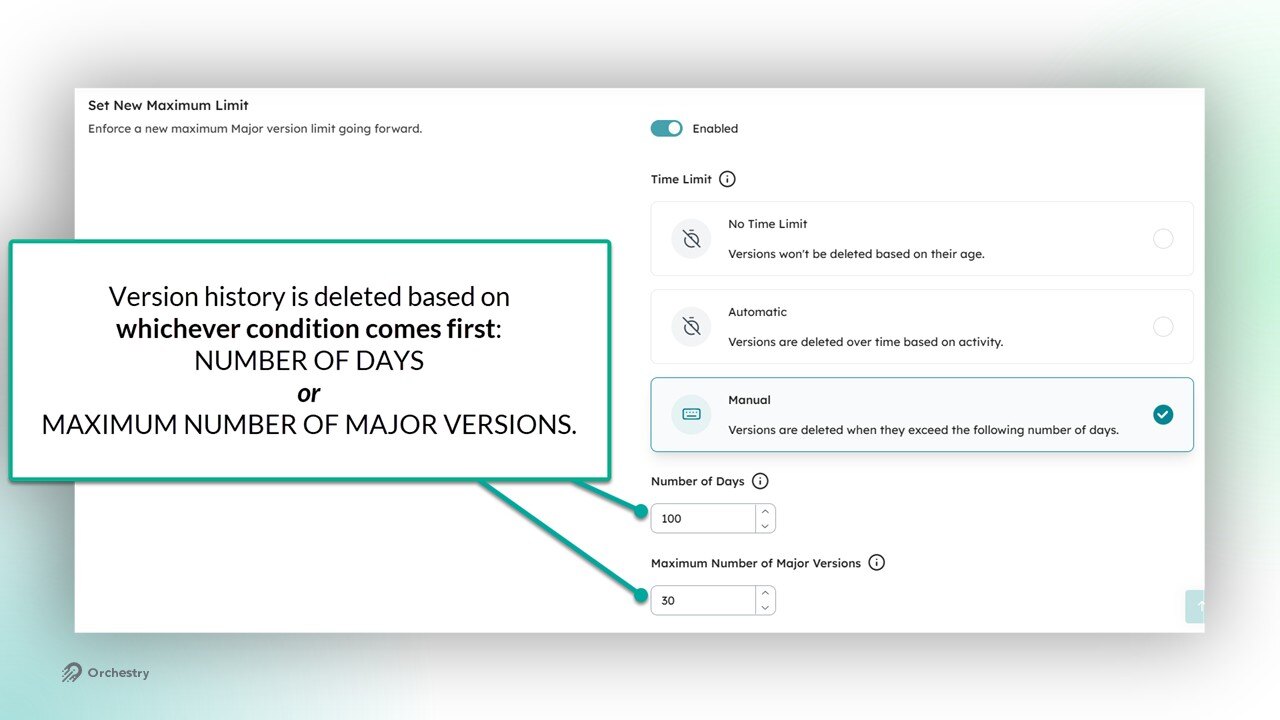
Orchestry uses Microsoft's methodology for deleting old version history. Either one of the two conditions can trigger archival:
Maximum number of days is exceeded. The oldest version is deleted.
Maximum number of Major Versions is exceeded. The oldest version is deleted.
Are Static and/or Dynamic Security Groups Supported in the Membership Review?
No, only direct M365 Group owners, members and guests are surfaced during the Membership Review step. Users added via security groups are not included in the reviews.
Known Limitations and Unsupported Features
Group membership reviews only apply to group-connected workspaces
Group membership reviews are unsupported for workspaces with membership over 999 users across all roles (Group Owners, Members, and Guests)