How to Unarchive a Workspace
Last updated: June 10, 2026
Overview
While Orchestry does NOT have a function for restoring archived or deleted workspaces, it is possible for M365 Admins to restore archived and deleted workspaces via the Admin center and/or PowerShell.
Want to learn more about the different archival methods available in Orchestry?
Check out the article: Archival Policies Overview
Note that some steps require some PowerShell, as well as access to multiple Admin centers (Teams, SharePoint, Exchange, etc.). The instructions below should be performed by a M365 Admin with sufficient permissions.
How to Restore Deleted Workspaces
Workspaces archived/deleted via the "Move to SharePoint" or "Delete" archival methods are sent to the M365 recycle bin. While they cannot be restored through Orchestry, M365 admins can restore them through the M365 admin center.
Please refer to the following links for restoring DELETED workspaces:
For M365 Group-connected workspaces (Teams, Team Sites and Viva Engage communities): Restore a deleted Microsoft 365 Group
For non Group-connected workspaces (Communication sites and Team sites): Restore Deleted Sites
How to Restore a Workspace Archived via the 'M365 Archive' Method
Please refer to the following article for restoring workspaces archived via 'M365 Archive': Manage Microsoft 365 Archive - Reactive a Site
How to Unarchive "Archived In-Place" Workspaces
Step #1: Reversing the Archival Steps
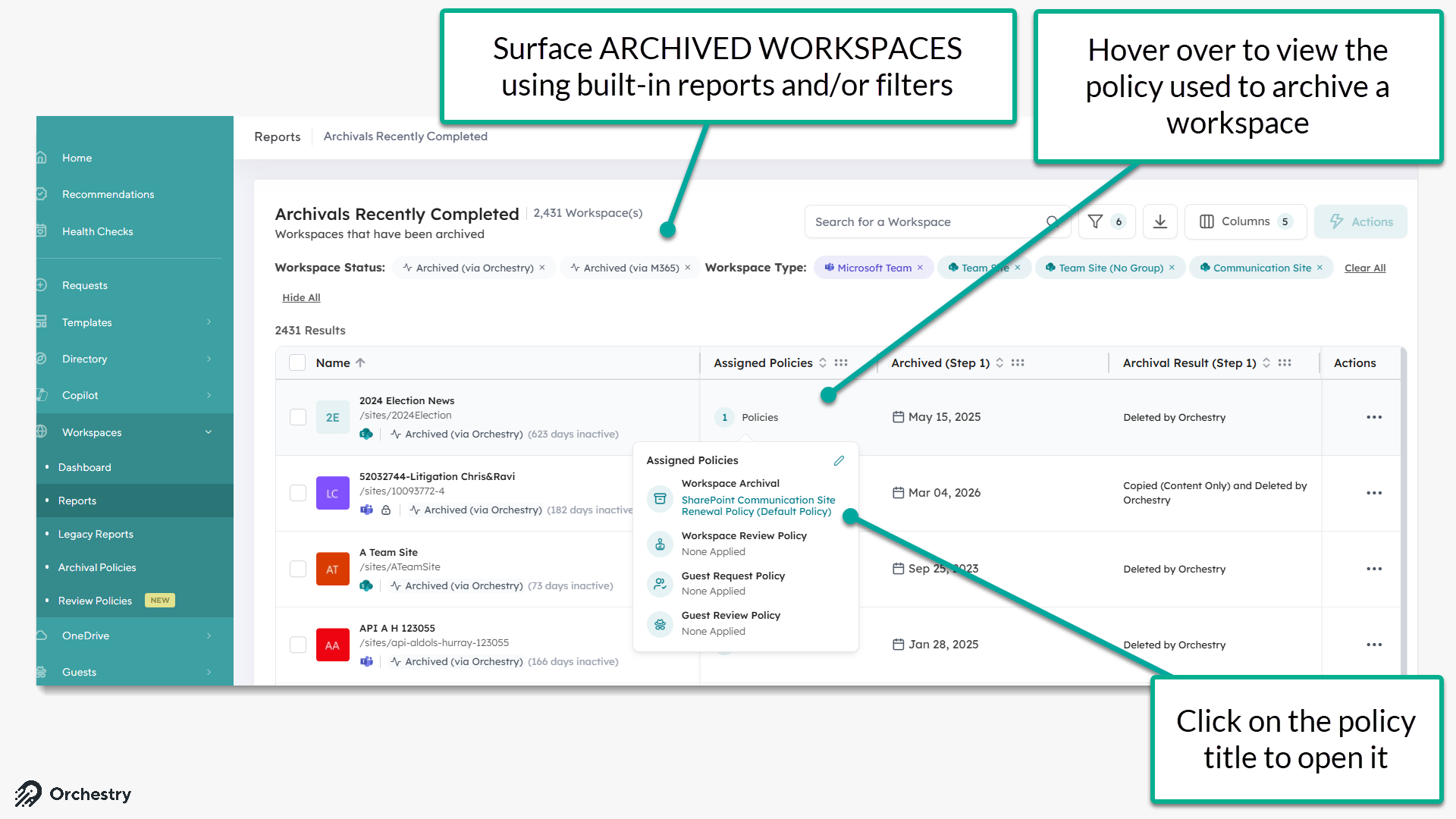
From the Workspace 'Reports' page (Workspaces > Reports), surface the workspace(s) you want to unarchive
After locating the desired archived workspace, you can quickly identify the Archival Policy that was used by clicking on the hyperlinked Policy under the 'Assigned Policies' column of the report.
Once you’ve jumped to the Archival policy, navigate to the 'Configure Actions' tab. Using the sub-menus on this page, you can identify what actions were carried out as part of the archival.
Use this as a checklist to go about un-doing the changes made.
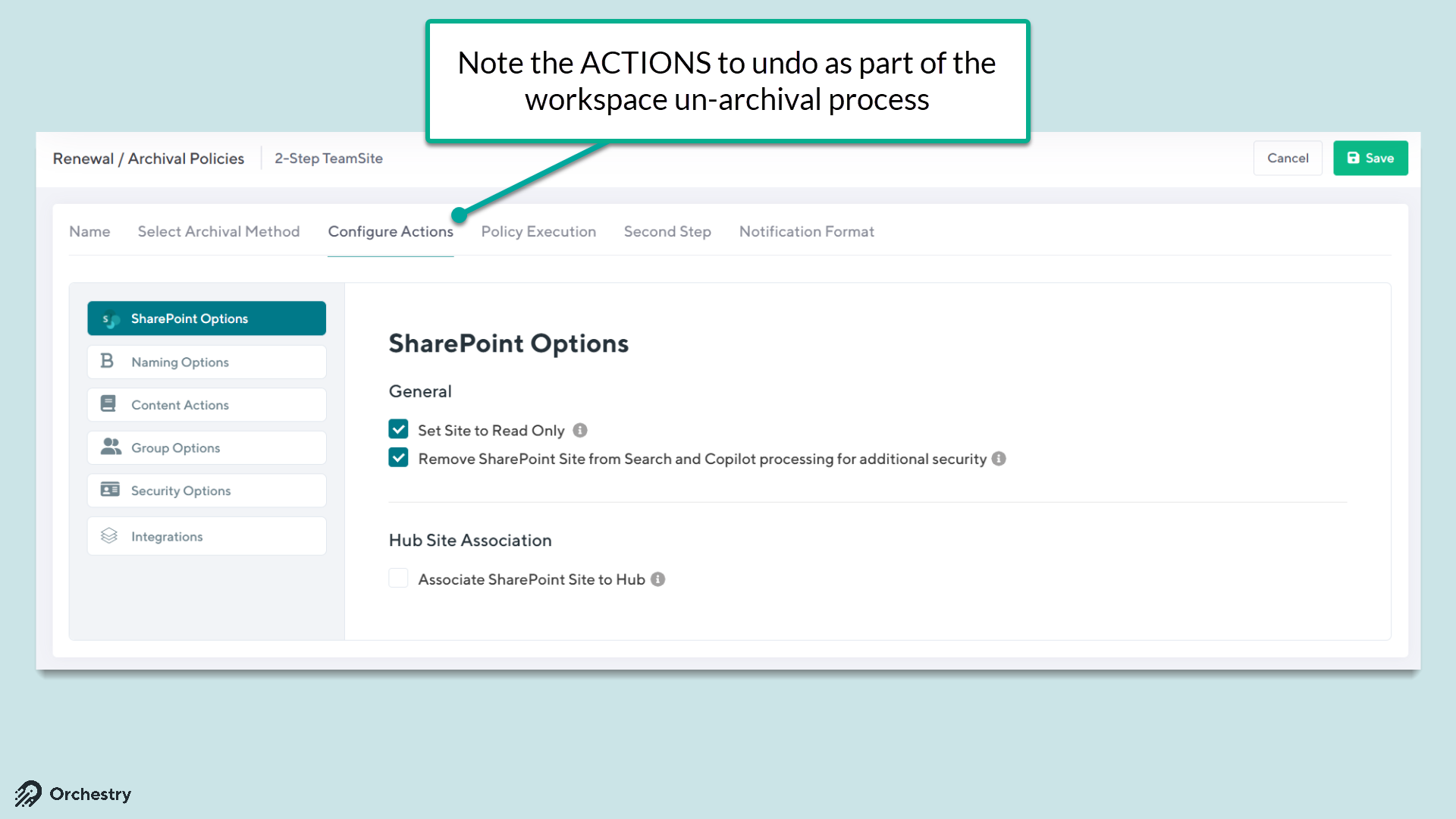
You will need to manually "undo" the actions that were taken, such as adding permissions back (this is where the permission export can be very useful), remove the mapping to a hub site, or rename the workspace.
See below the Archival actions and their reversal steps.
Teams Options
ACTIONS | REVERSAL STEP | SUPPORTING LINK |
Set Team Status to Archive | Undo Archival in Teams Admin Center | Archive or delete a team in Microsoft Teams - Microsoft Teams | Microsoft Learn |
Export Channel Posts to Excel | Not applicable. This is a Orchestry export feature. |
SharePoint Options
ACTIONS | REVERSAL STEP | SUPPORTING LINK |
Set Site to Read Only | Change Lock State of a Site via PowerShell | Lock and unlock sites - SharePoint in Microsoft 365 | Microsoft Learn |
Remove SharePoint site from default search scope | Change search scope through Site Settings > Search and offline availability | SharePoint Online: How to Exclude a Site from Search Results? - SharePoint Diary |
Associate SharePoint Site to Hub | Change Hub Association in SP Admin Center | Associate a SharePoint site with a hub site - Microsoft Support |
Naming Options
ACTIONS | REVERSAL STEP | SUPPORTING LINK |
Change Group/Site Name | Change Group/site name in either M365 Admin Center under Teams & Groups > Active teams &groups or in Entra Identities Group Properties settings | |
Change Site URL | Change Site URL in SP Admin Center | Change a site address - SharePoint in Microsoft 365 | Microsoft Learn |
Content Actions
ACTIONS | REVERSAL STEP | SUPPORTING LINK |
Process Site Documents | Recover items from SharePoint recycle bin | Restore items in the recycle bin that were deleted from SharePoint or Teams - Microsoft Support |
Process Site Lists | Recover items from SharePoint recycle bin | Restore items in the recycle bin that were deleted from SharePoint or Teams - Microsoft Support |
Process Pages | Recover items from SharePoint recycle bin | Restore items in the recycle bin that were deleted from SharePoint or Teams - Microsoft Support |
Group Options
ACTIONS | REVERSAL STEP | SUPPORTING LINK |
Remove from Global Address List (GAL) | Change Hide this group from the global address list group's setting in Exchange Admin Center | |
Remove from Exchange Client | Change HiddenFromExchangeClientsEnabled property in UnifiedGroup using PowerShell |
Security Options
ACTIONS | REVERSAL STEP | SUPPORTING LINKS |
Remove Access for All Owners/Members/Guests | Change Membership permissions depending on Workspace Type in M365 Admin Center, Teams Admin Center and/or SharePoint Admin Center | |
Set Owners/Members To | Change Membership permissions depending on Workspace Type in M365 Admin Center, Teams Admin Center and/or SharePoint Admin Center | Assign team owners and members in Microsoft Teams admin center - Microsoft Teams | Microsoft Learn |
Extract permission configuration | Not Applicable. This is a Orchestry Export feature. |
Integrations
ACTIONS | REVERSAL STEP | SUPPORTING LINKS |
Ability to run webhooks, automations post-archival | Not Applicable. Review your custom automation. |
Step #2: Resetting the Workspace Status to 'Active'
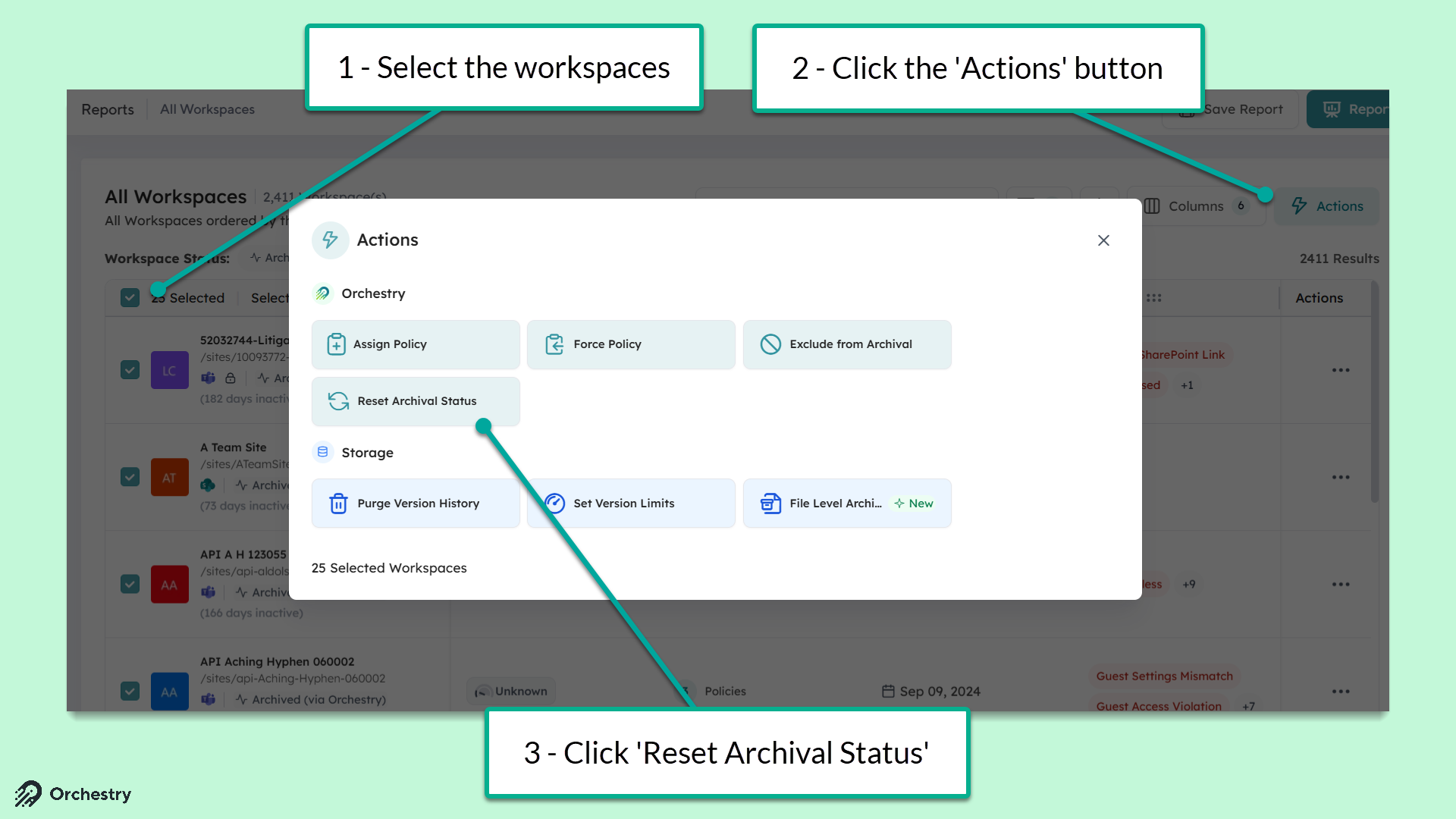
After the manual restoration steps, Orchestry will still classify the workspace as 'Archived'. To reset the workspace lifecycle status back to 'Active':
Navigate to the Workspace Reports page (Workspaces > Reports)
Surface and SELECT the appropriate workspaces
Click the ACTIONS button
Select "Reset Archival Status" from the Actions menu
Click APPLY to confirm your choice
Step #3: Exclude the Workspace from Archival (Optional)
Optionally, you may wish to exclude the workspace from future archival policies altogether.
Want to learn more about excluding workspaces from archival?
Check out the article: How to Exclude Workspaces from Archival Policies