Configuring an Archival Second Step
Last updated: June 9, 2026
Orchestry's "Leave in Place" archival method can be extended with a "Second Step" that will delete the archived workspace (using the same policy) after a defined period of time.
NOTE: The 'Second Step' method is only available for "Leave in Place" archival methods.
How to Enable the 'Second Step' in 'Leave in Place' Archival Policies
To enable the Second Step on a new or existing policy:
Navigate to the Select Archival Method tab
Select the 'Archive in Place' Method (see limitations below)
Enable the toggle under the Add Second Step section
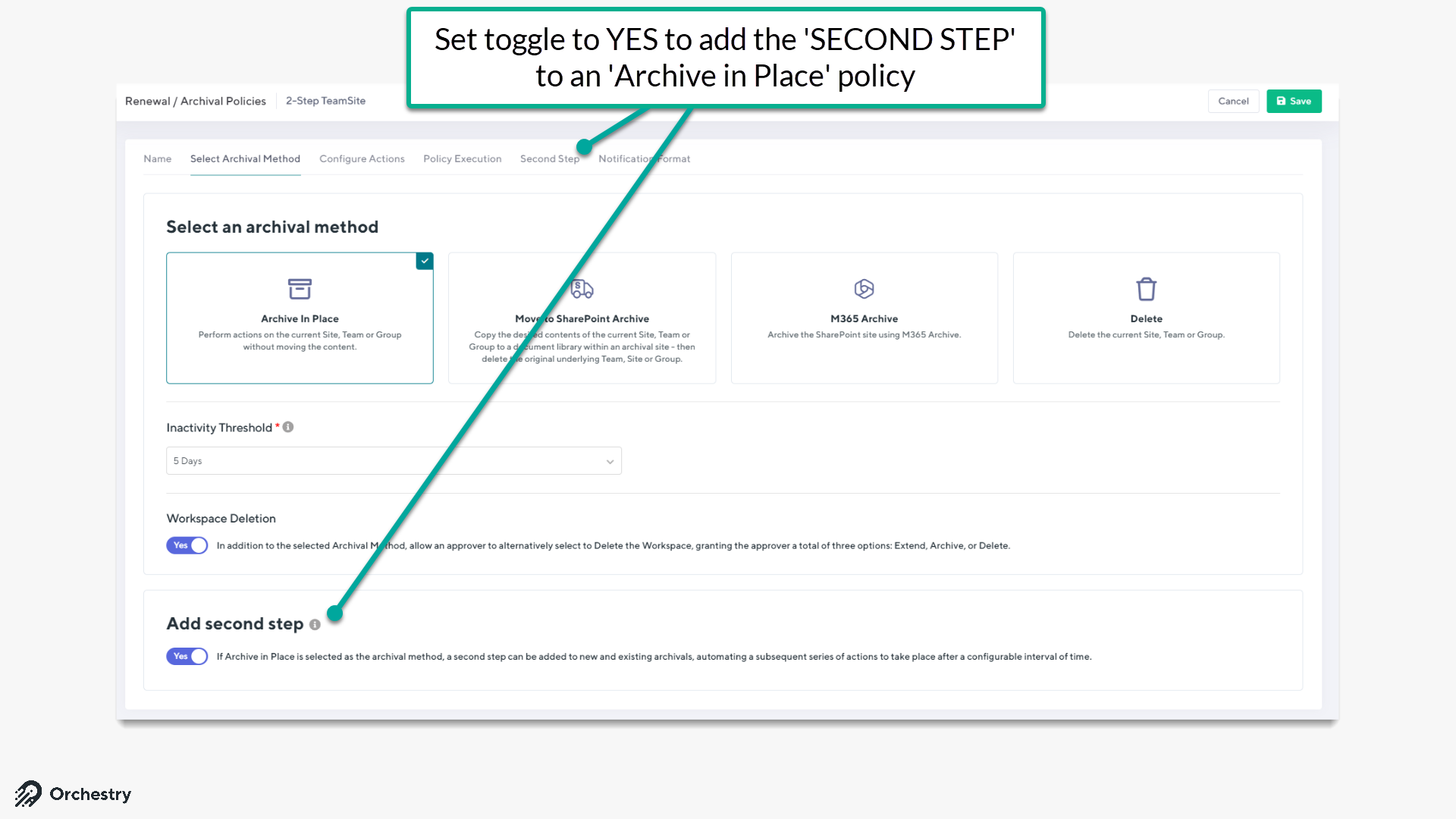
By enabling the 'Second Step' feature, the associated tab will become visible Complete the required configuration for your first step and navigate to the Second Step tab.
Select a secondary (second step) Archival Method of either Move to SharePoint Archive or Delete.
In the case of a Move to SharePoint Archive, complete the associated configuration for archival repository and desired actions
Select the interval of time between the first and second step.
Select the Policy Execution method
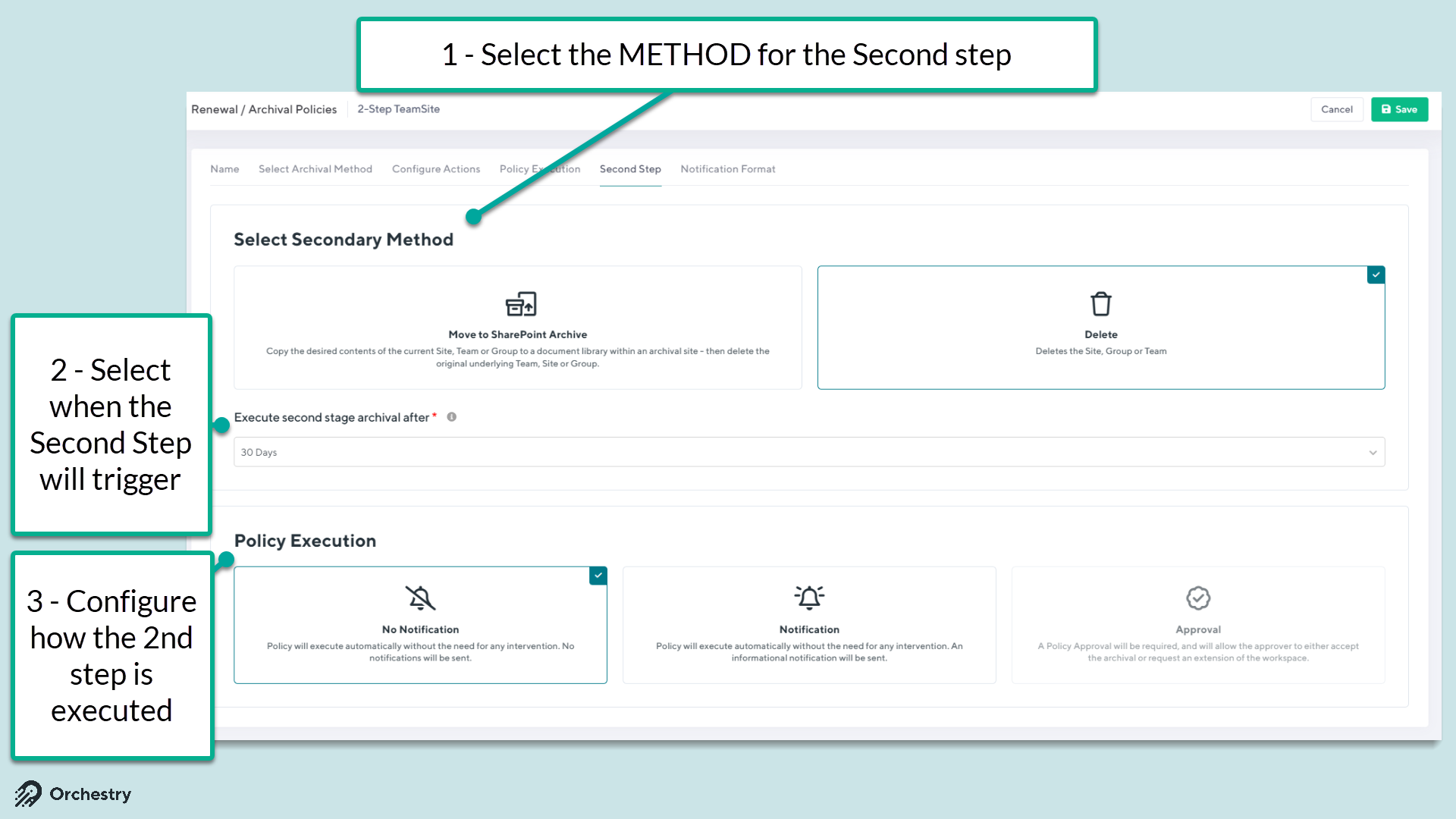
If the Notification option is used, apply the desired configuration.
SAVE the policy.
NOTE: When adding a second step to an existing policy, Orchestry (still) calculates the interval starting from the date of the initial archival, rather than the date the second step configuration is added.
Monitoring
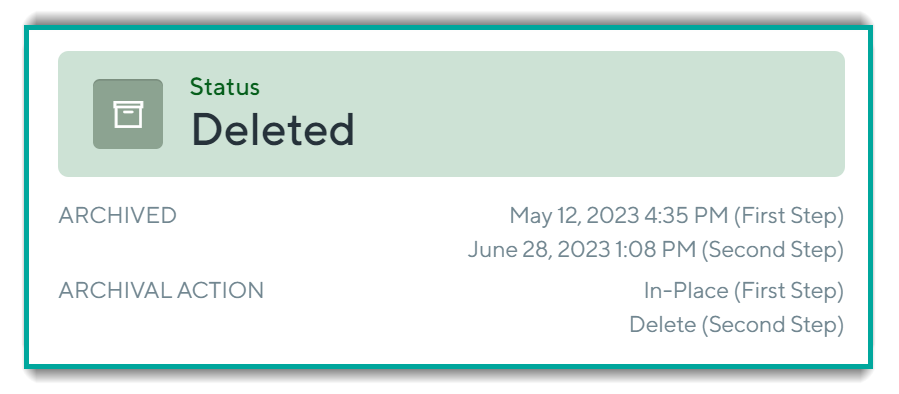
When looking at the 'Overview' tab of Workspace Details, the top-right section of the page will indicate what has taken place and whether 1 or 2 steps were carried out.
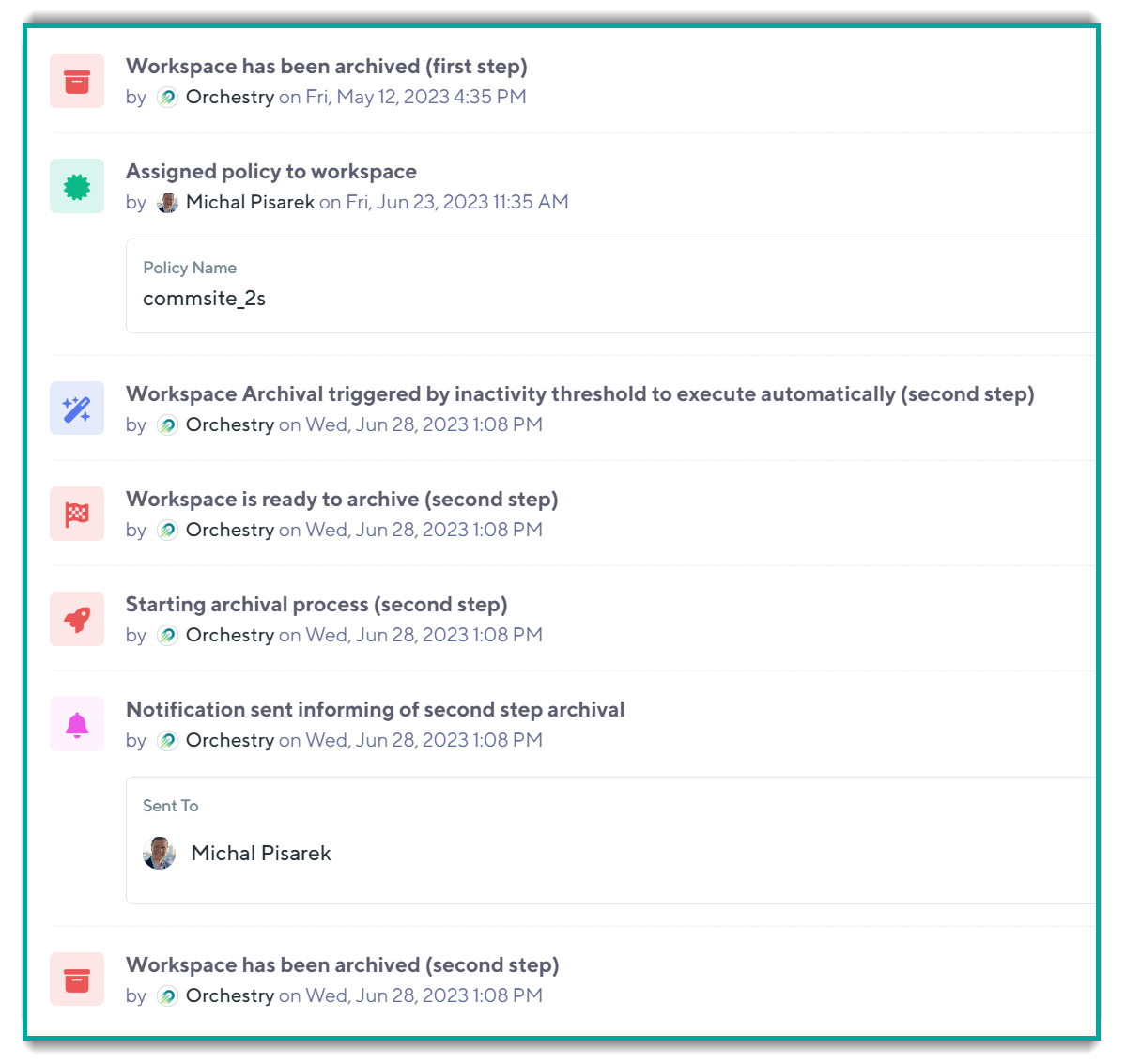
We also log the activity of a second step alongside the audit log for all lifecycle actions in the 'History' tab: