Guest Management Reports Page Overview
Last updated: March 31, 2026
To help you manage the lifecycle of your guest accounts, Orchestry provides built-in reports to help you audit for guest access, status, inactivity and domains.
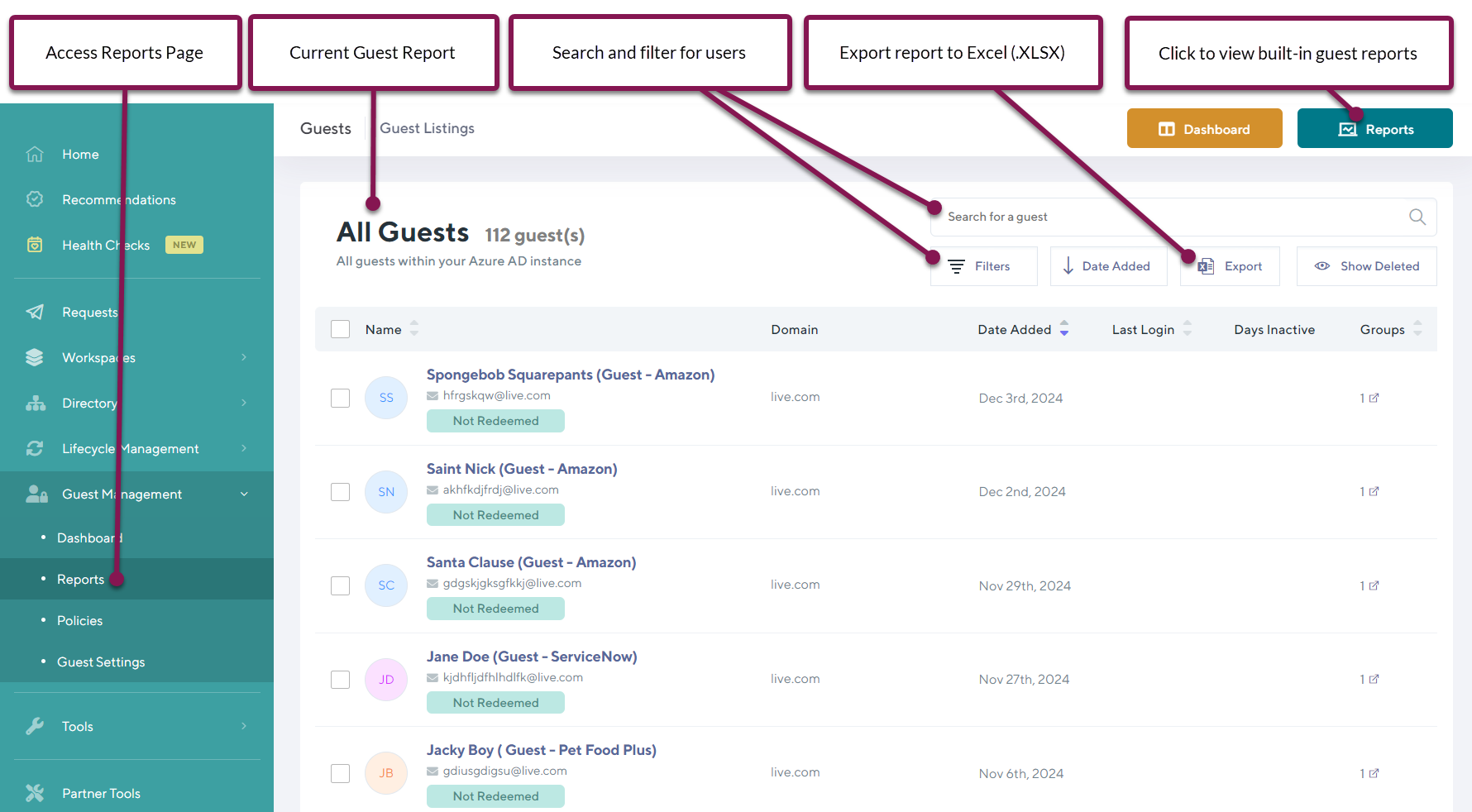
The guest accounts shown on the Reports page are all pulled from Entra ID (formerly Azure) via the MS Graph. This way, you are looking at the most accurate data available from your tenant.
The Guest Management Reports Page
From the (guest management) Reports page you can:
View your guest accounts through the different built-in reports from Orchestry
Manually audit guest accounts through the search and filter tools
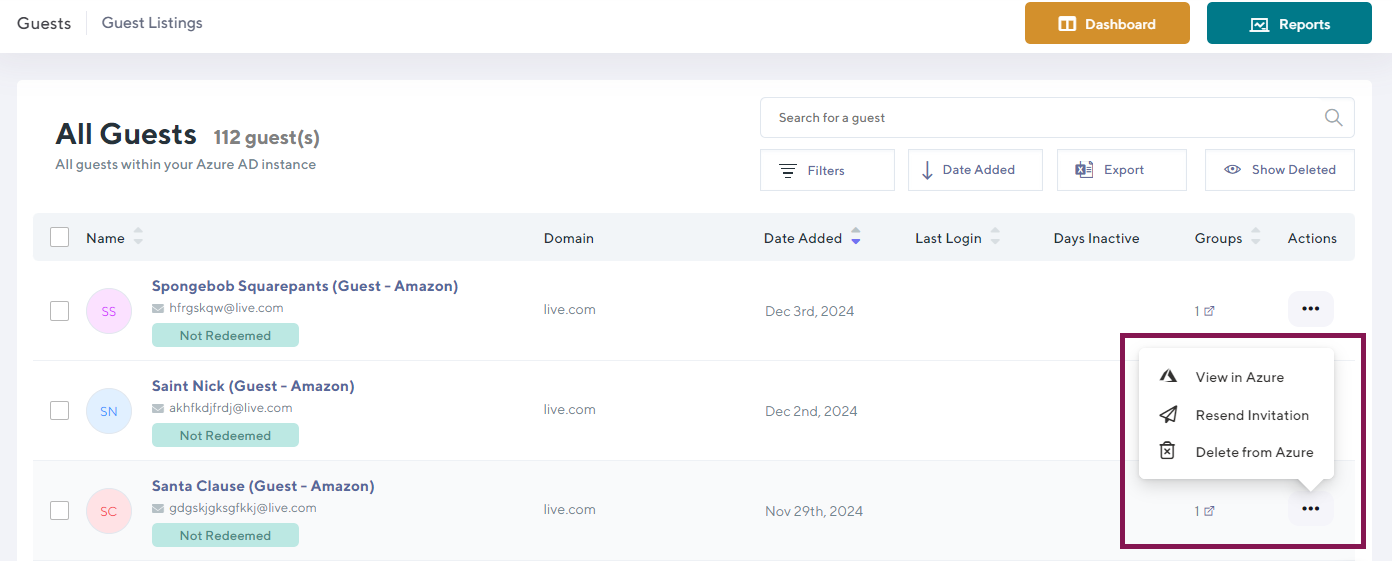
Take actions, such as re-sending guest invitations, or deleting them from Entra
By changing to a different guest report, you can change what information is present on the table.

You can take certain actions on guest accounts, such as:
Re-send Entra invitation
View account in Entra
Delete account from Entra
If you are looking for specific users, or domains - you can use the built-in search and filter:
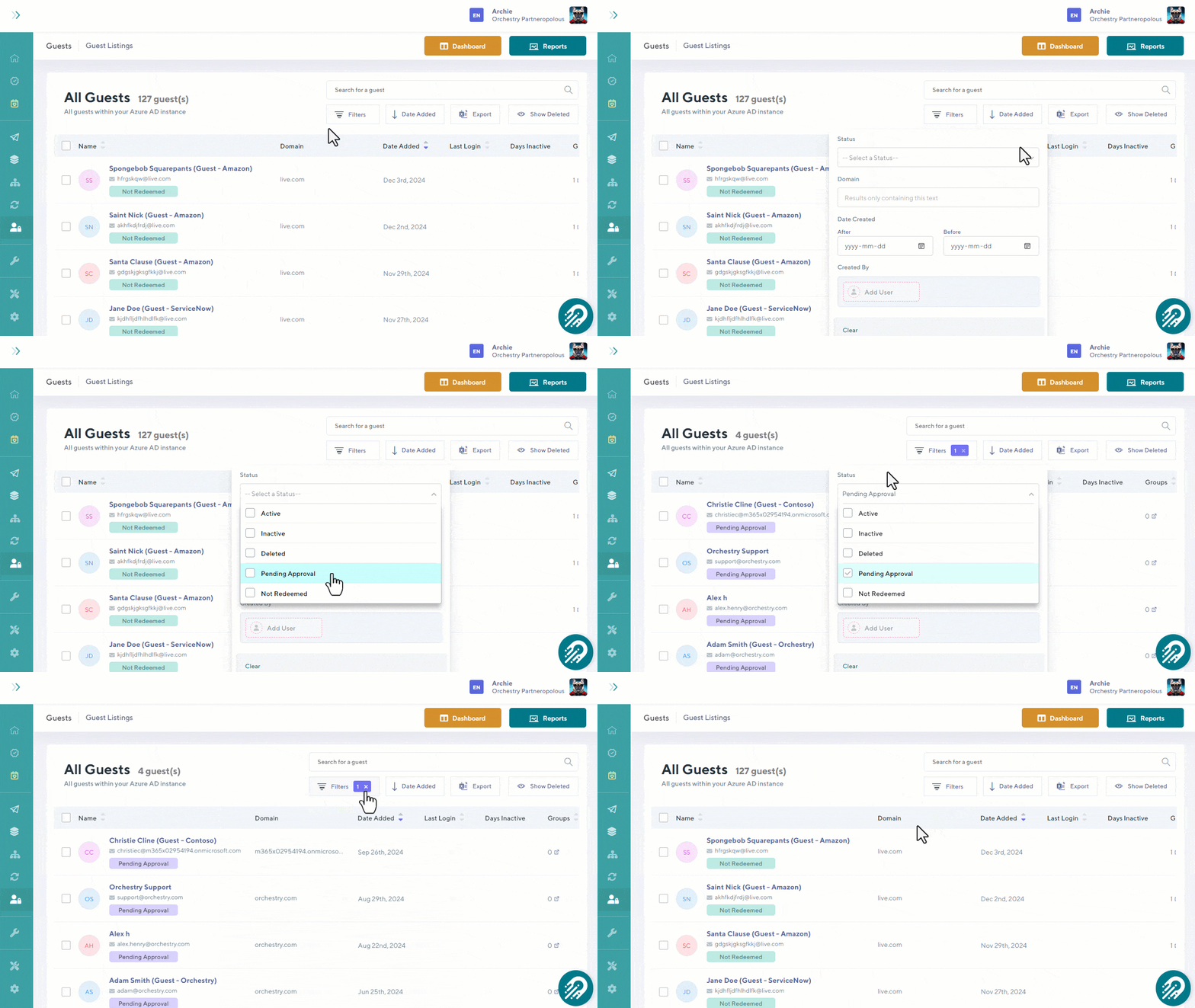
TIP: You can include deleted accounts using the 'Show/Hide Deleted" button
Using Orchestry's Guest Management Reports
Using Orchestry's built-in Guest Management report, you can review your guest accounts across the different scenarios you may need to manage. Different reports will present your information in different ways.
To view a Guest report:
Navigate to the Guest 'Reports' page (Guests > Reports)
Click on a report to view it
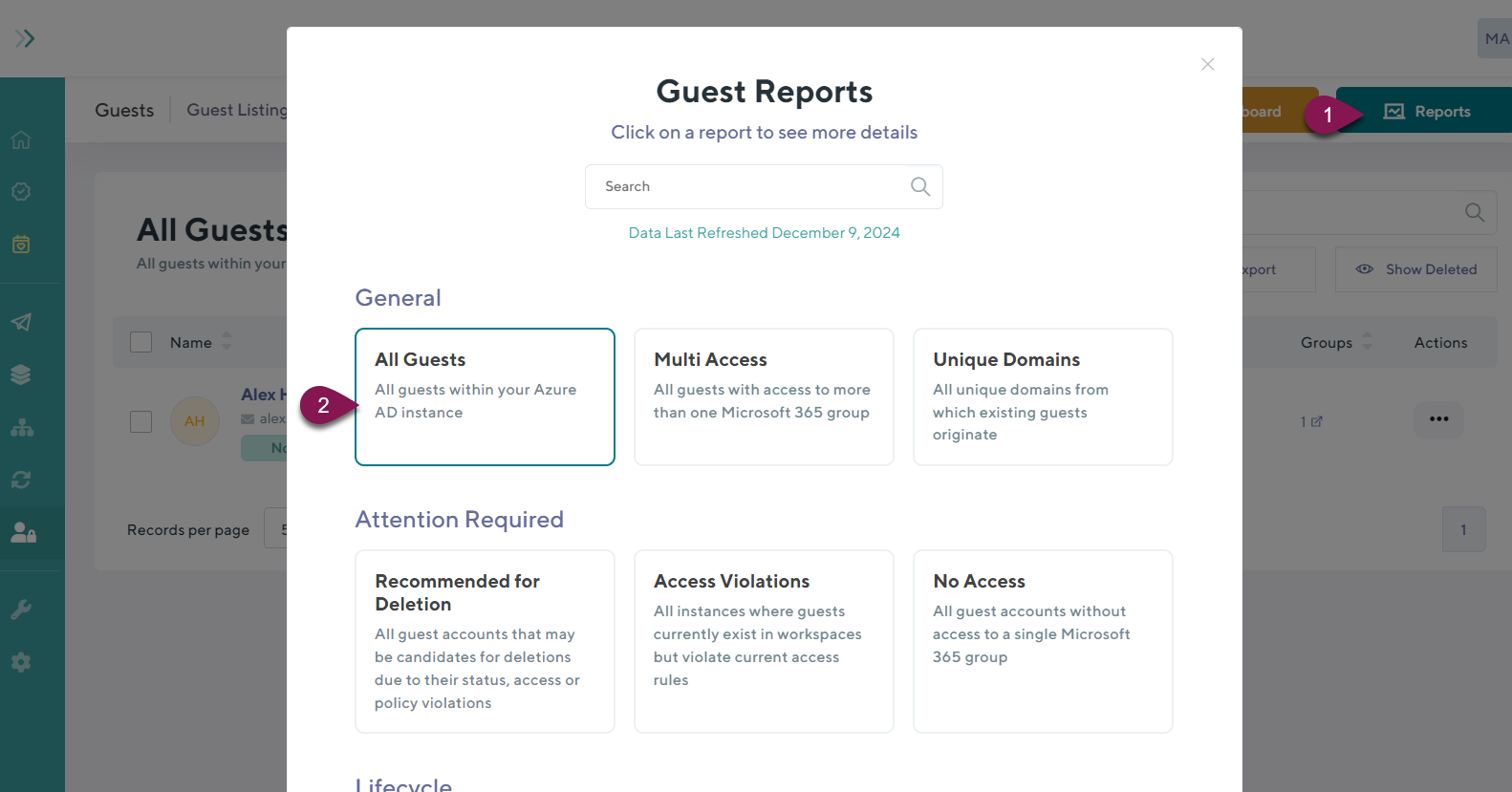
TIP: You can also launch many of these reports from the Guest Management dashboard and certain Recommendations.
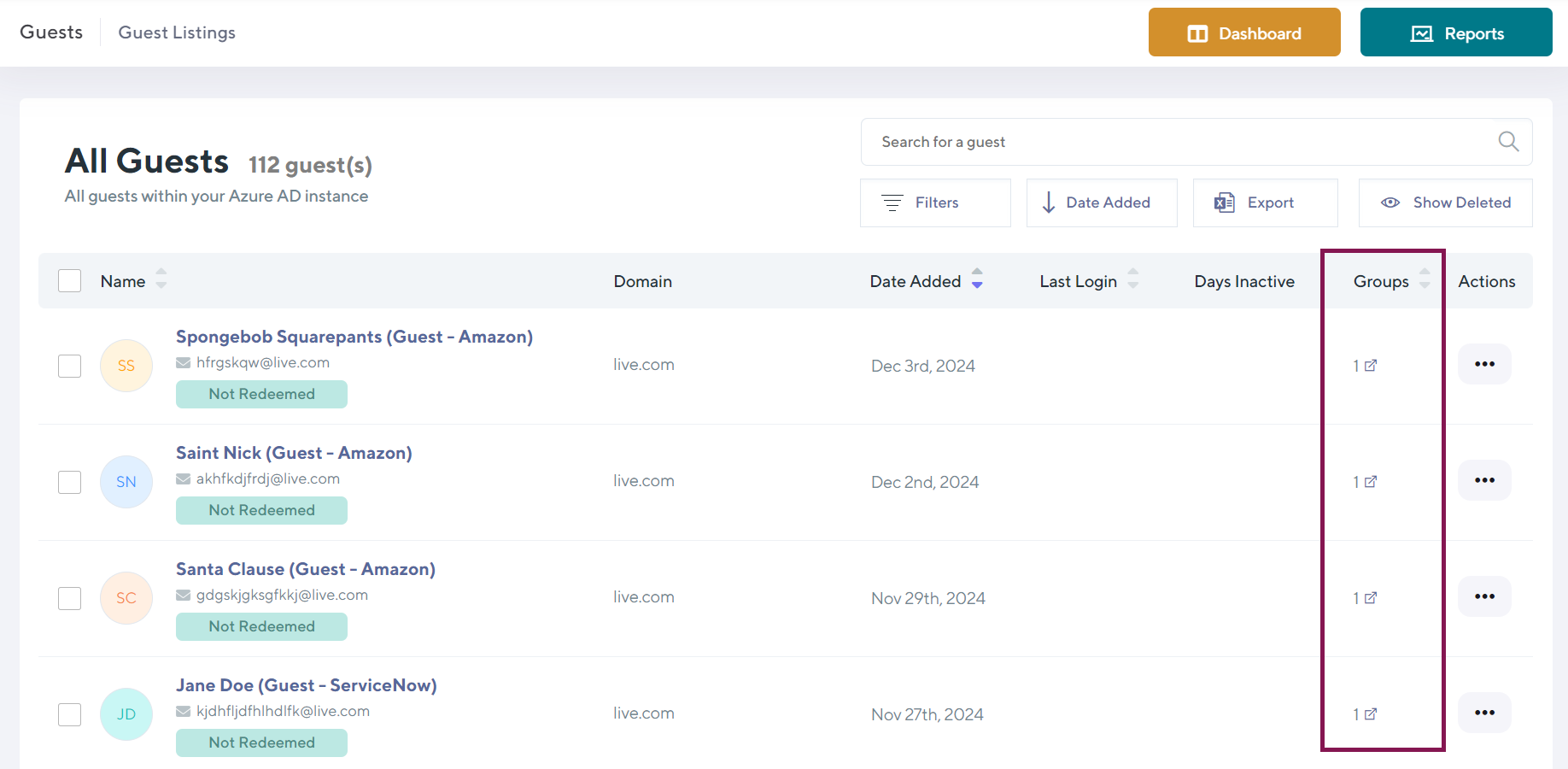
Note that different reports can show different data fields. For example, the 'All Guests' report includes a field called 'Groups' that shows the number of M365 groups a guest has access to:
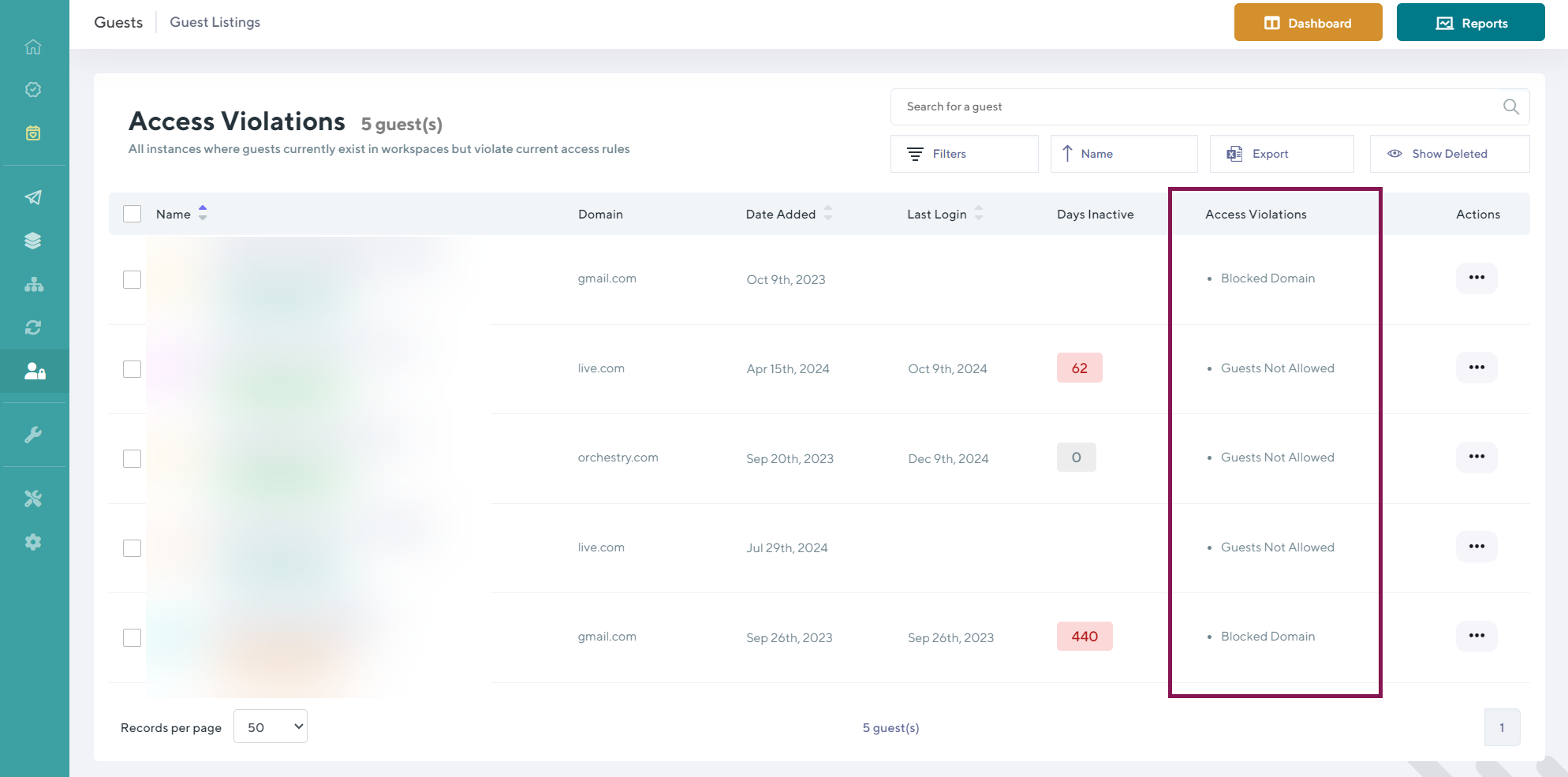
In another example, the 'Access Violations' report doesn't have the 'Groups' field, but adds an 'Access Violation' column that describes why an account is flagged as a violation:
The Guest Account Details Page
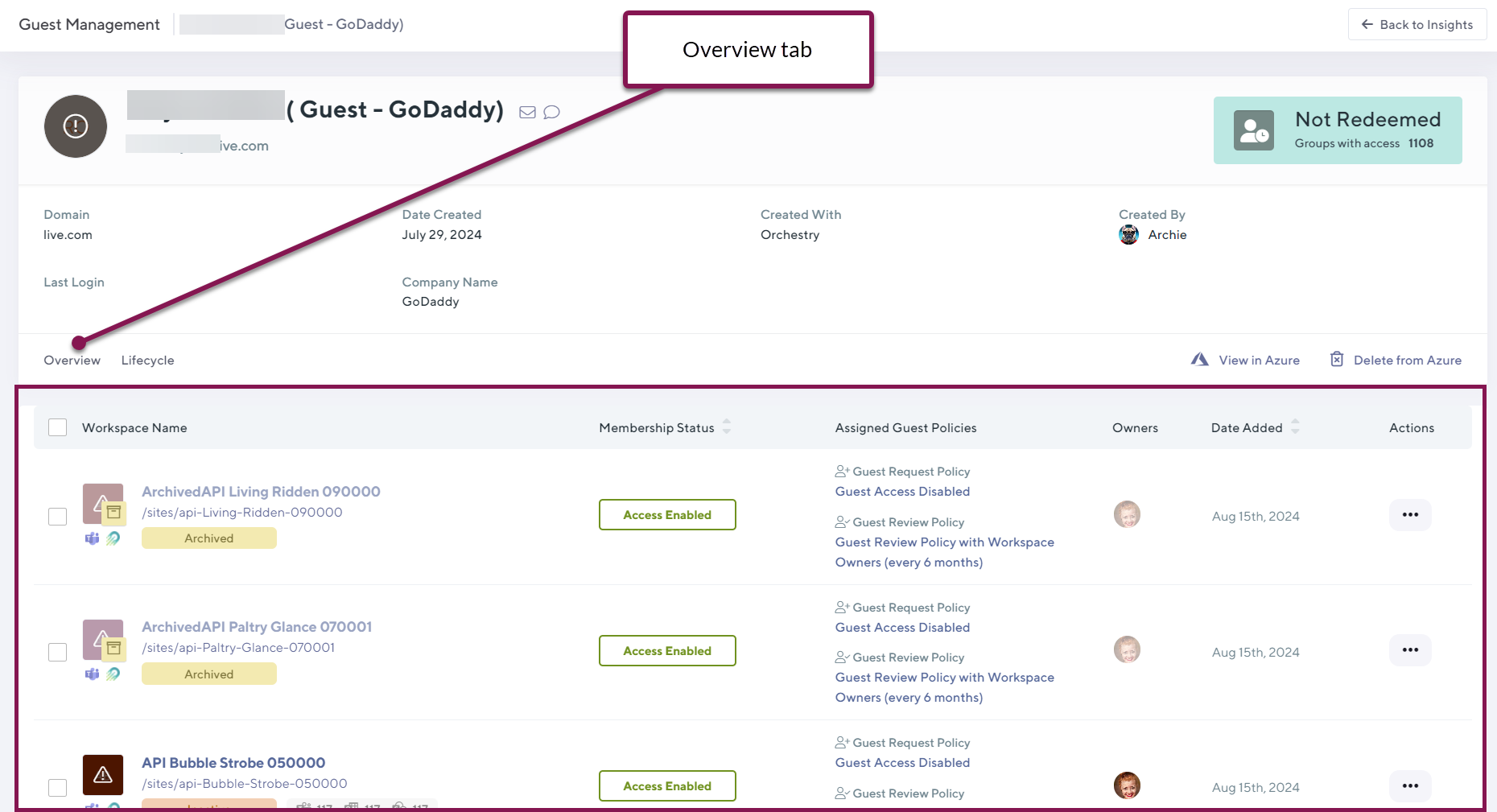
Clicking on a guest account launches the Guest account details page, which enables you to view information about a given guest account, such as the account status, workspaces they have access to, account history and more.
The Overview tab shows all workspaces that a guest account has access to:
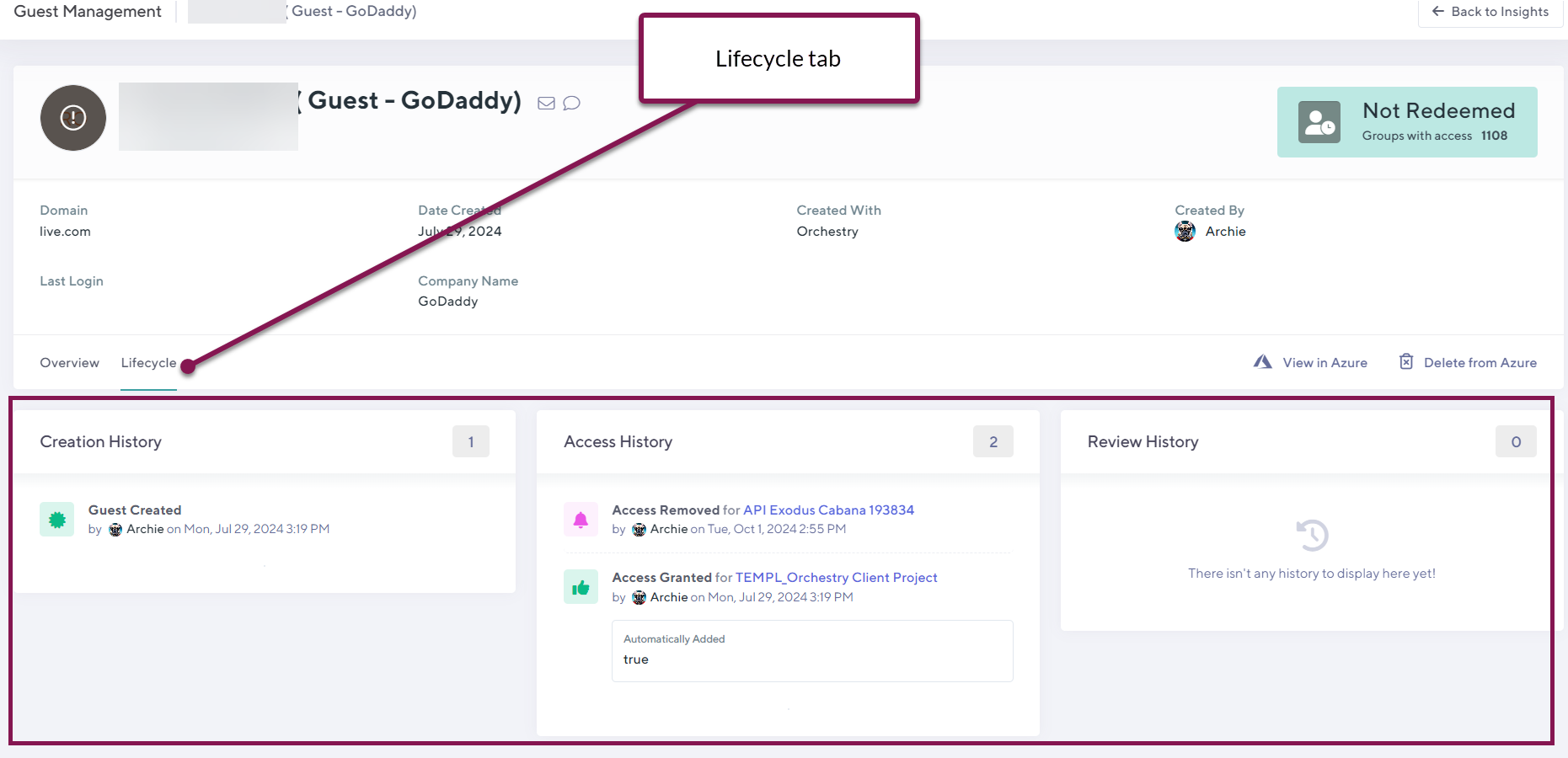
The 'History' tab shows creation, access and review histories of the guest account: