Workspace Metadata Overview
Last updated: July 23, 2026
Orchestry's Metadata feature allows you capture and assign key information to your workspaces. Metadata can be used to apply naming policies during a workspace request, and also be used to filter for workspaces.
Orchestry admins can create and manage Orchestry metadata from the 'Metadata' page:
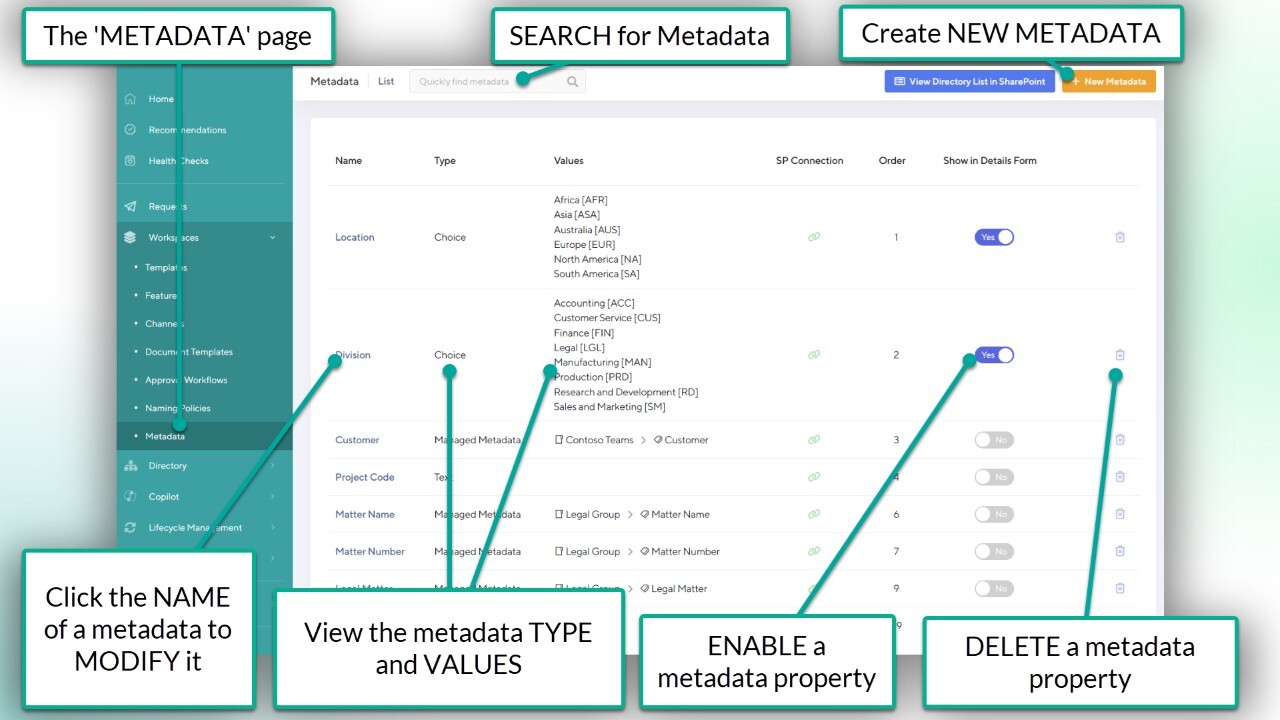
How to Configure Workspace Metadata
Orchestry metadata can be configured into one of five different types of values: Choice, Date, Text Field, Managed Metadata and External Link.
Orchestry admins can configure metadata to support multiple values (or text lines), be required in a workspace request and more.
From the Orchestry Metadata page:
Click "NEW METADATA"
Give it a NAME
Assign a FIELD TYPE
If applicable, specify whether SINGLE or MULTI choices/lines are supported
Write INSTRUCTIONS for your end users (optional)
Set Metadata POSITION (optional).
ENABLE/DISABLE Orchestry Information Panel (enabled by default). This is referring to the Team Information Tab/Workspace Information web part
ENABLE/DISABLE Show in Request Form (enabled by default)
ENABLE/DISABLE Required in Request Form (enabled by default)
If applicable, set as FILTER IN WORKSPACE DIRECTORY (optional)
Add metadata values (if applicable)
SAVE your changes to publish your metadata property
NOTE: You cannot change the NAME or TYPE of a metadata property after it's been saved
Metadata Field Types
When creating (or modifying) metadata, you must assign a FIELD TYPE to it. These field types help capture data in it's most appropriate state. For example, using a DATE type to capture the 'start date' of a project.
The List of Metadata Field Types:
FIELD TYPE | DESCRIPTION | SINGLE/MULTI OPTION AVAILABLE? |
Choice: | Captures metadata from a pre-defined list of choices | Yes |
Date: | Captures metadata in a DATE field | No |
Text Field | Captures metadata in a STRING field | Yes |
Managed Metadata: | Captures metadata from values pulled from the SharePoint Term store | Yes |
External Link: | Captures metadata in a URL field | Yes |
Metadata Field Types Compatible with Naming Policies
Some metadata types can be used within your workspace naming policies. This can allow you to design naming policies that are based off of user-provided information at the time of request.
Metadata can be used in both the workspace name and URL.
Metadata types supported in Naming Policies:
FIELD TYPE | NAMING POLICY COMPATIBLE? |
Choice: | Yes; single-choice configuration only |
Date: | No |
Text Field | No |
Managed Metadata: | Yes; single-choice configuration only |
External Link: | No |
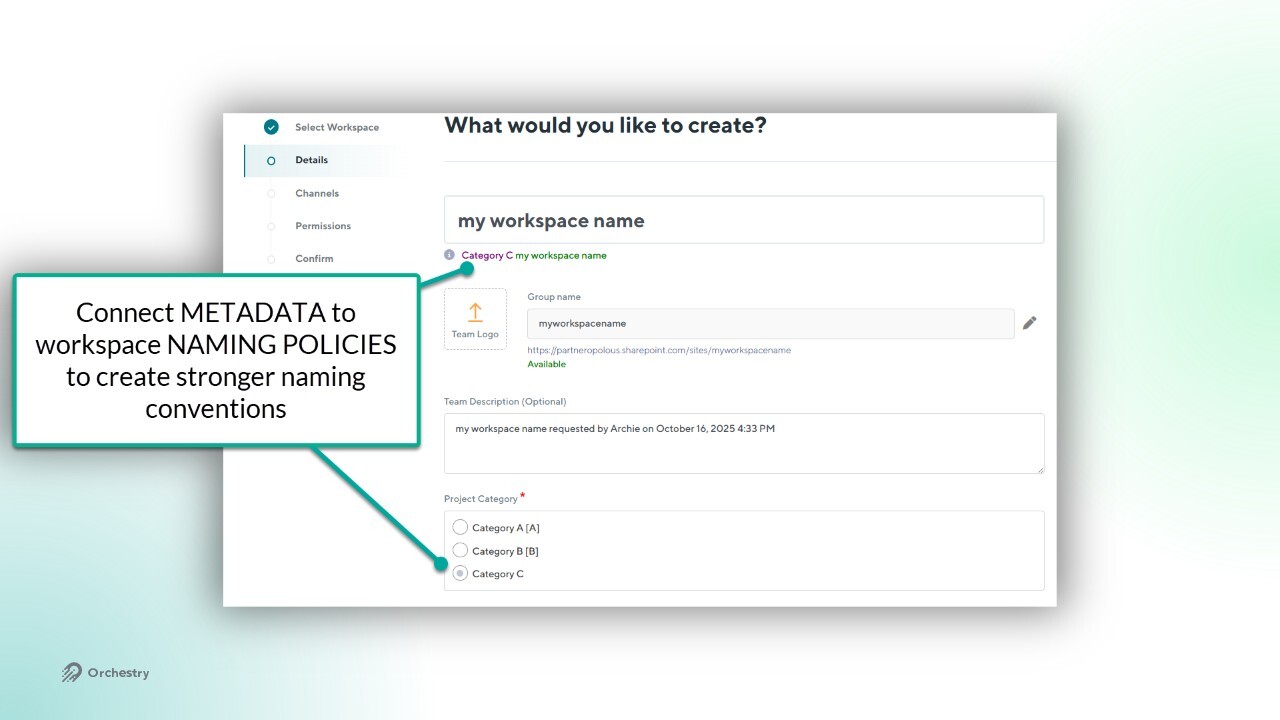
Want to learn about workspace naming policies?
Check out the article: Naming Policies Overview
Metadata Field Types as Directory Filters
You can configure metadata to be used a filter in the Orchestry Directory. For example, end users may need to search for public workspaces based on business locations.
Metadata configured as a filter is added to the 'Directory' SharePoint list in the 'Orchestry' SharePoint site as an indexed column.
Metadata field types supported as Directory filters:
FIELD TYPE | DIRECTORY FILTER COMPATIBLE? |
Choice: | Yes; Single-line configuration only |
Date: | Yes |
Text Field | Yes; Single-line configuration only |
Managed Metadata: | Yes; Single-line configuration only |
External Link: | No |
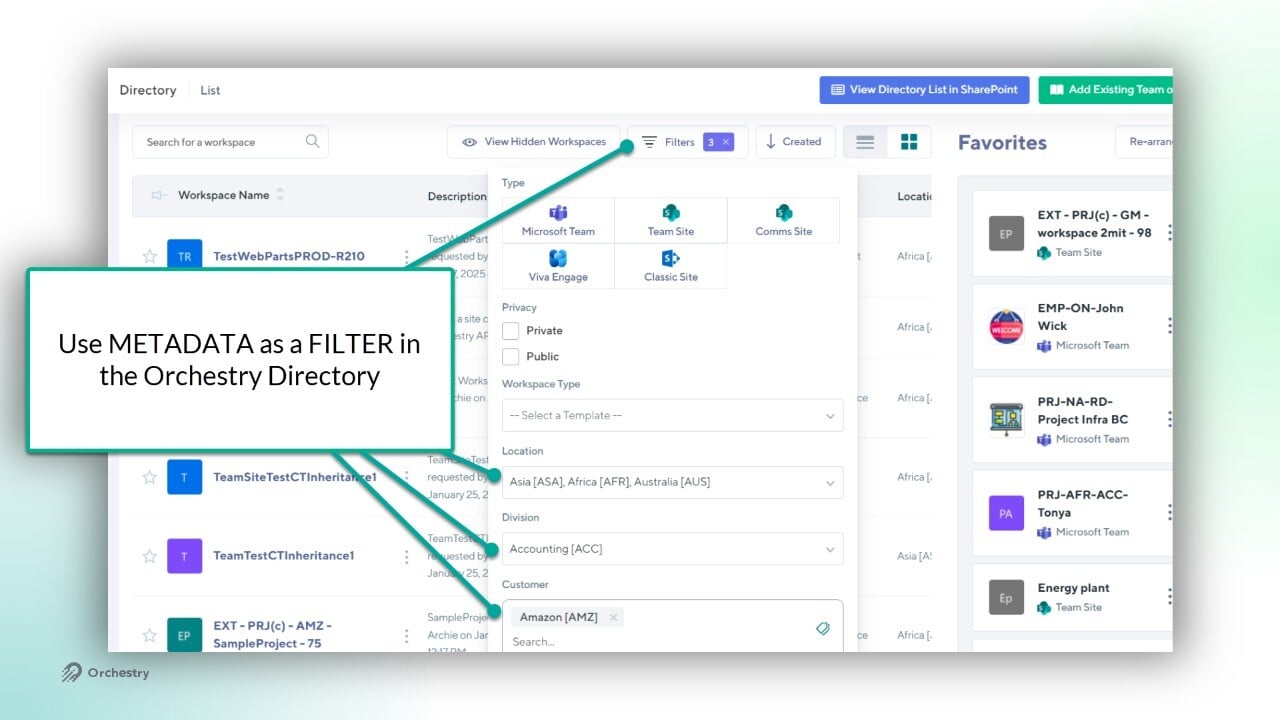
NOTE: Due to the limitations of indexed columns in SharePoint Lists, the workspace Directory can only support (approximately) five metadata properties as filters. Orchestry admins should refer to the 'Directory' list in the Orchestry SharePoint site for an accurate count of 'indexed columns' available to them.
Want to learn about the Orchestry Directory?
Check out the article: Workspace Directory Overview
How to Assign Metadata to Workspace Templates
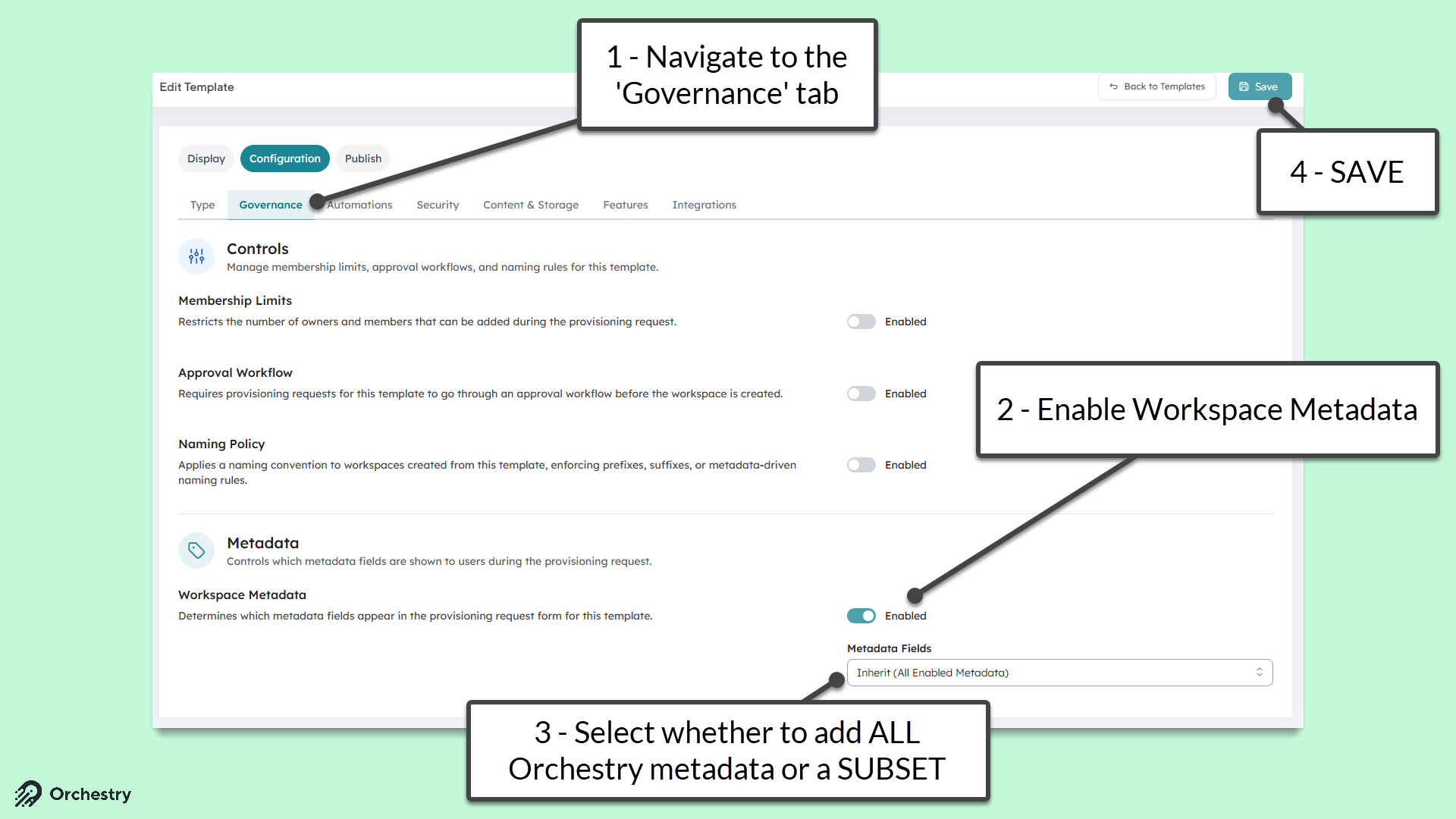
You can assign metadata to any workspace template from the 'CONFIGURATION' tab, under the 'METADATA FIELDS' section:
Navigate to the 'CONFIGURATION' tab in your workspace template.
Under the 'Metadata Fields' section
Choose whether the template will inherit ALL metadata, a SUBSET of metadata, or HIDE all metadata
If metadata is needed, choose the metadata fields applicable to the template
SAVE your changes
How to Assign Metadata to Existing Workspaces
Metadata can be applied to existing workspaces in two ways:
from the Orchestry Directory (admins only), and
the Team Information tab/ Workspace Information Web part (workspace owners)
NOTE: You can only assign ACTIVE/ENABLED metadata properties.
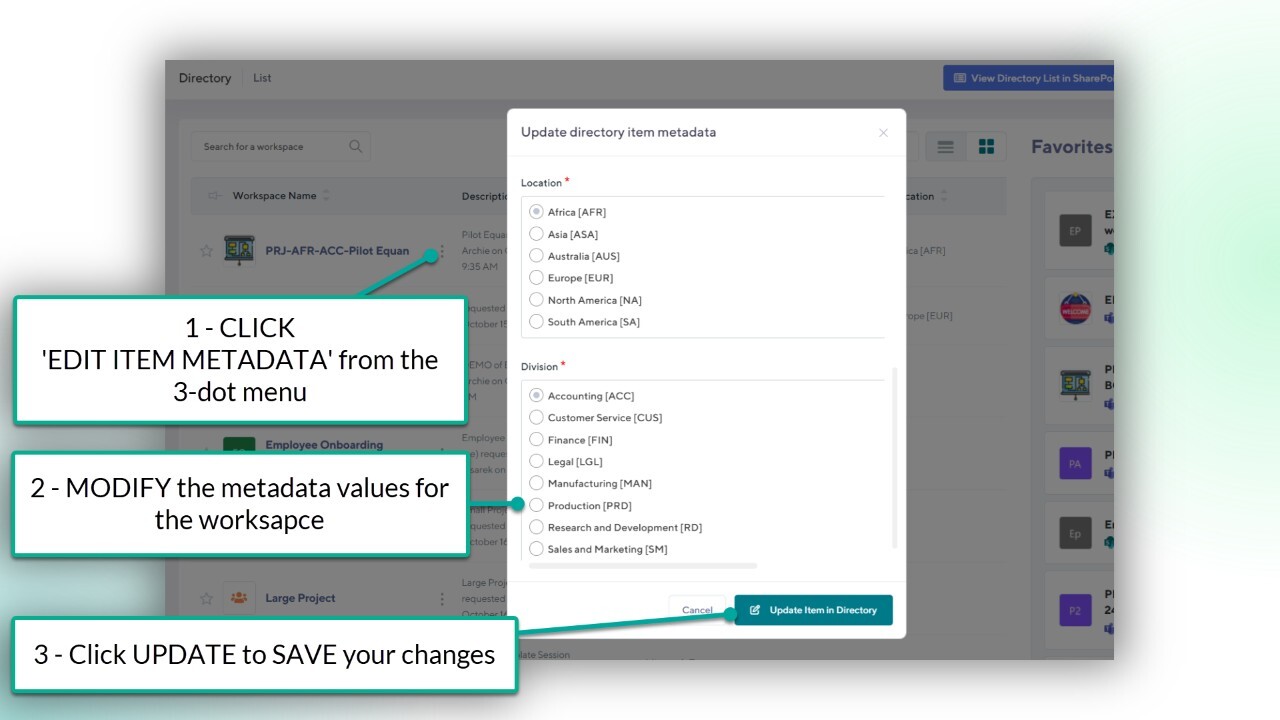
Assigning Metadata from the Orchestry Directory
As an Orchestry admin:
Navigate to the Directory
Click the 3-dot menu > 'EDIT ITEM METADATA'
Add/modify metadata for the workspace as required
Click 'UPDATE ITEM IN DIRECTORY' to SAVE
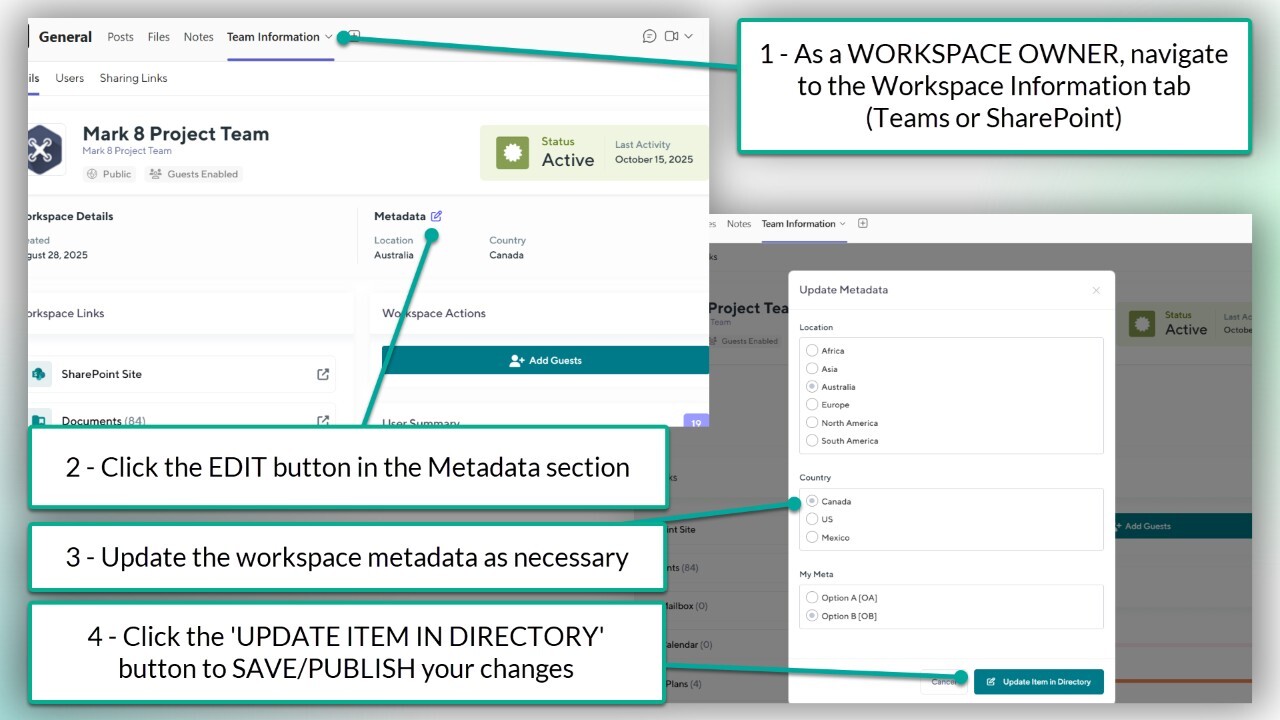
As a Workspace Owner:
Navigate to the 'Overview' tab of the Teams Information Tab/Workspace Information web part
Click EDIT METADATA. This will open the 'UPDATE METADATA' window
Add or change metadata properties as required
Click 'UPDATE ITEM IN DIRECTORY' to SAVE
End User Experience
In addition to Orchestry admins, end users can also assign and modify workspace metadata under certain scenarios.
During a Workspace Request:
Workspace REQUESTORS are responsible for applying (required) metadata to their future workspace. Metadata is input/captured on the DETAILS page of the request.
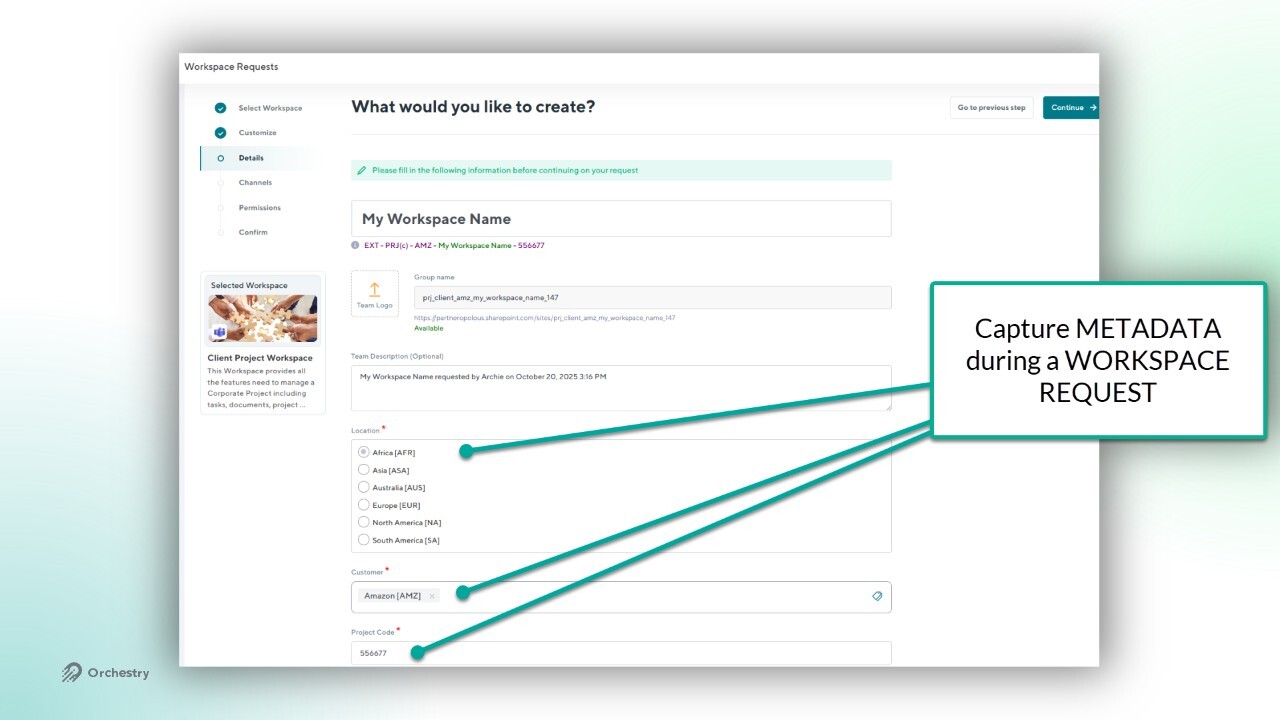
NOTE: When a NAMING POLICY is in place, workspace requestors may be
asked to complete specific metadata fields BEFORE being allowed to name the workspace.
In the Orchestry Directory:
Any end user can use metadata to FILTER for workspaces in the directory. Only metadata that is CONFIGURED AS A FILTER will appear here.
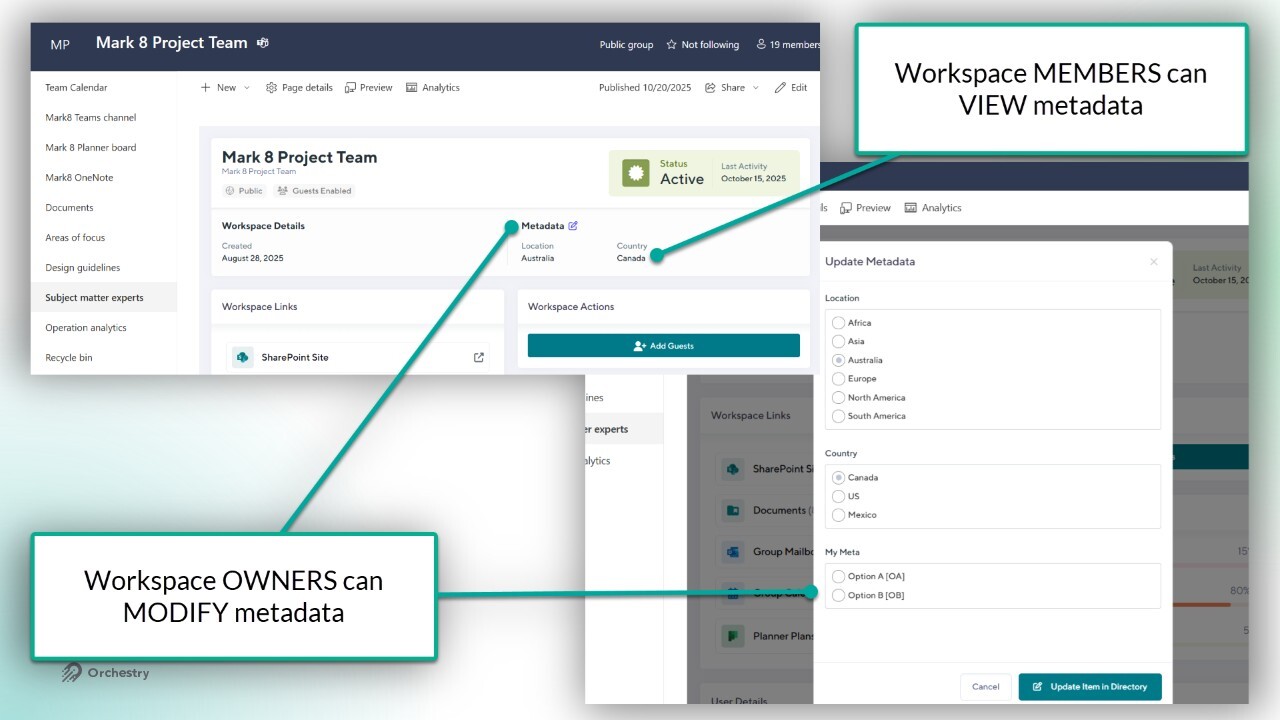
In the Teams Information Tab/Workspace Information Web part:
Any end user can VIEW the metadata assigned to their workspace. Workspace OWNERS can also modify metadata as required.
Q&A
Why Can't I Filter with Metadata in the Orchestry Directory?
Make sure the metadata is CONFIGURED to be a filter. If it it's configured correctly, check the 'Workspace Directory' list in your 'Orchestry' SharePoint site to ensure you haven't exceeded the maximum number of indexed columns.