
To help you manage your workspaces across Microsoft 365, Orchestry provides you with insights and tools such the Workspace Dashboard, built-in reports, workspace details,
Workspace Dashboard
The Workspace Dashboard provides an overview of the current state of your workspaces. The dashboard can help you understand the current and historical state of your workspaces from this single page.
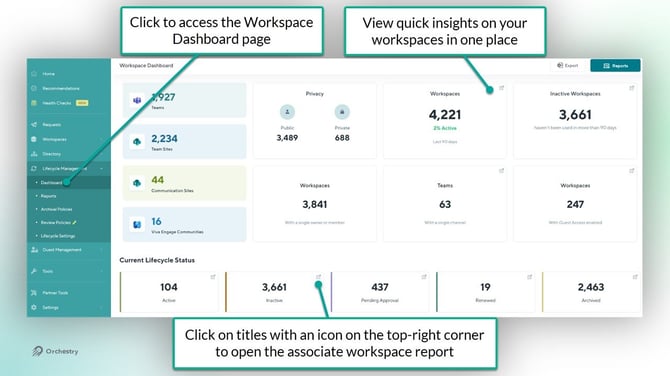
TIP: Try clicking on a tile to view the associated workspaces. Look for any tiles that have an icon on the top-right corner.
The (Workspace) Reports Page
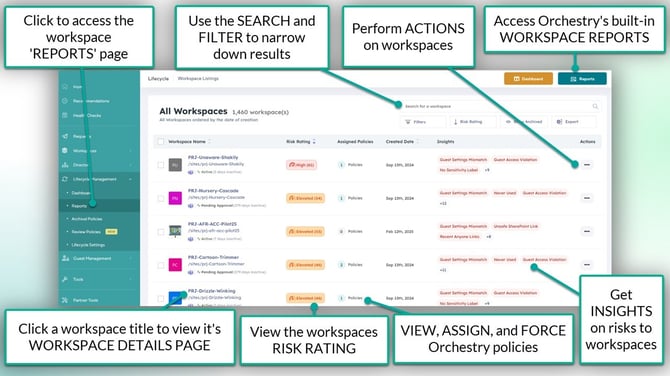
The Reports page is where you can manage your existing workspaces, including Teams, SharePoint sites and Viva Engage communities. From here you can:
- Search, sort and filter for workspaces based on type, membership, status and more
- Assign policies to your existing workspaces, such as archival policies, workspace review polices, and your guest management policies
- View workspaces based on special criteria using Orchestry's built-in workspace reports
- View a Risk Rating and Insights on what is contributing to the risk
- View details about individual workspaces. Simply click on the workspace title to open the Workspace Details page.
Want to learn how to find specific workspaces based on certain criteria?
Check out the article: How to Query for Workspaces in Orchestry
Want to learn how to navigate the details of an individual workspace?
Check out the article: Workspace Details Page Overview
The Workspace Risk Rating
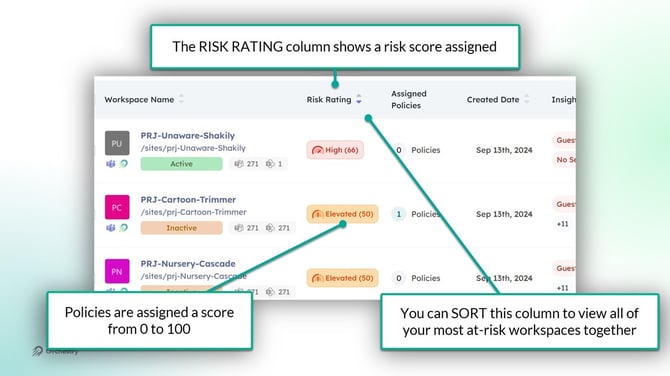
On the Reports page, you will see a Risk Rating assigned to all of your workspaces. This rating is a tenant-wide scoring system to quantify workspace security and governance posture across M365. This gives Orchestry admins an actionable, at-a-glance summary of where risk is accumulating inside their workspace.
The Risk rating aggregates nearly two dozen weighted indicators into a normalized 0-100 score. This score is summarized into the following labels seen in the 'Risk Rating' column: Critical, High, Elevated, Moderate and Low.
Workspace Risk Rating Factors:
| Risk Factor | Weight | Insight Type | Risk Definition & Application |
|---|---|---|---|
| 🔴 Is Public | 10 | IsPublic | Workspace is set to public visibility, allowing anyone in the organization to discover and join |
|
🔴 Recent Anyone Links (180 Days) |
20* | AnyoneLinks180Days | Has sharing links that allow anonymous access created in the last 180 days |
| 🔴 Ownerless | 10 | Ownerless | Workspace has no owners assigned, creating governance and accountability gaps |
| 🔴 Guest Violations | 10 | GuestViolations | Contains guests that violate organizational policies (e.g., from blocked domains) |
| 🔴 No Guest Review Policy | 10 | NoGuestReviewPolicy | Lacks automated guest review policies to audit guest access periodically |
| 🟡 Inactive | 5 | Inactive | No activity detected within the configured inactivity threshold period |
| 🟡 High Private Channels | 5 | HighPrivateChannels | Excessive number of private channels indicating potential over-segmentation |
| 🟡 Guest Settings Mismatch | 5 | GuestSettingsMismatch | Guest access settings differ between Teams and underlying SharePoint site |
| 🟡 No Sensitivity Label | 5 | NoContainerSensitivityLabel | Missing container-level sensitivity labels for compliance and data classification |
| 🟡 Unsafe Default Link | 5 | UnsafeSharePointDefaultLink | Using overly permissive default sharing link types (not "existing access") |
| 🟡 Folders Exposed | 5 | HasFoldersExposed | Contains folders with sharing links that expose entire folder contents |
| 🟡 No Archival Policy | 5 | NoLifecyclePolicy | Missing lifecycle/archival policies for content governance |
| 🟡 No Guest Request Policy | 5 | NoGuestRequestPolicy | Lacks automated guest request approval workflows |
| 🔵 Too Many Owners | 3 | TooManyOwners | Excessive number of owners violating principle of least privilege |
| 🔵 Has Org Links | 3 | HasOrgLinks | Contains organizational sharing links (internal sharing) |
| 🔵 Recent Org Links | 3 | HasRecentOrgLinks | Has organizational sharing links created recently |
| 🔵 Broken Inheritance | 3 | HasBrokenInheritance | Contains items with unique permissions breaking inheritance |
| 🔵 Links Older 1 Year | 3 | LinksOlder1Year | Contains sharing links that are over 1 year old |
| 🔵 Links Never Used | 3 | LinksNeverUsed | Contains sharing links that have never been accessed |
Workspace Insights
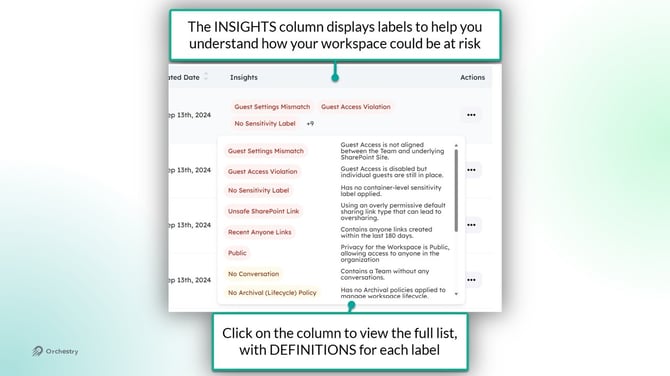
The Insights column does the heavy lifting for M365 admins by monitoring against over 30 indicators across security, permissions, and governance.
Orchestry summarizes its findings on each workspace into colour-coded labels to help you understand exactly what is increasing the risk score. You can click on the labels to view the full list of labels with definitions.
Workspace Actions
Orchestry admins can take direct actions on their workspaces, such as executing a one-time version cleanup and/or apply version limits to selected workspaces.
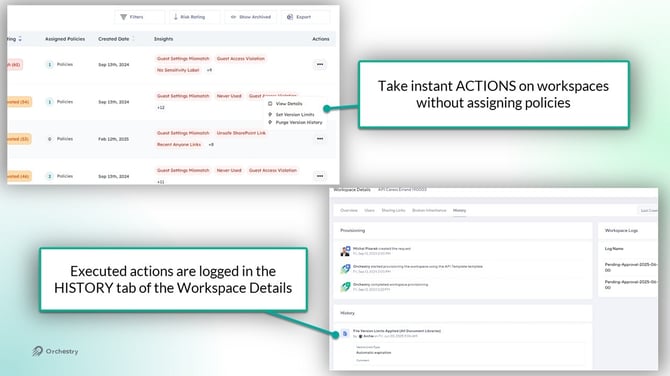
NOTE: Manually trimming version history and/or setting limits from the 'Reports' page uses the same methodology from Microsoft as Workspace Review policies.
Orchestry's Built-In Workspace Reports
These pre-build reports are customized to help you identify workspaces based on a specific criteria, such as:
- Ownerless workspaces
- Workspaces missing M365 groups
- Workspaces with Guests
- and many more
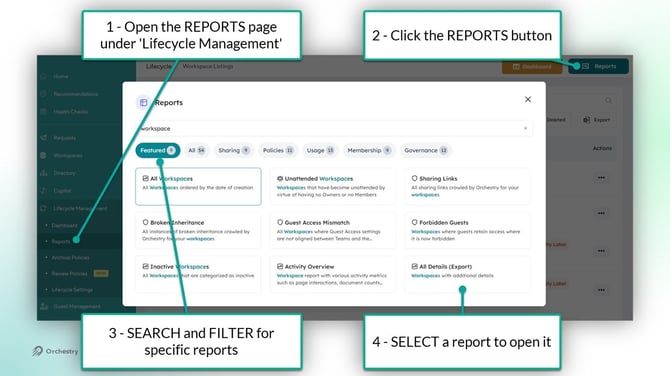
TIP: Different reports will display different properties (columns) about your workspaces. Try them all and see which ones can serve you the best.
Workspace Type Supported in Workspace Reports
Orchestry's built-in reports can support the following types of workspaces:
| Workspace Type | Supported? |
| Microsoft Teams | Yes |
| Microsoft Teams - Private Channels | Yes |
| Microsoft teams - Shared Channels | Yes |
| SharePoint Team Sites (w/ M365 Group) | Yes |
| SharePoint Team Sites (w/out M365 Group) | Yes |
| SharePoint Communication Sites | Yes |
| SharePoint Classic Sites | Yes |
| SharePoint Sub Sites | No |
| Viva Engage | Yes |