How to Query for Workspaces in Orchestry
Last updated: July 3, 2026
The 'Reports' page in Orchestry allows you to view all of your existing workspaces, assign policies and review detailed insights on them. To help navigate the dozens to thousands of workspaces in your tenant, Orchestry admins can:
Use the pre-built workspace reports built by the Orchestry team
Create custom workspace reports using workspace properties and workspace insights
Search to find workspaces by name and URL
Filters to narrow down page results using workspace properties and/or Orchestry's workspace insights
How to Use Workspace Reports in Orchestry
Orchestry's pre-built workspace reports allow you quickly query for workspaces that meet certain criteria, such as ownerless workspaces, inactive workspaces, and much more.
To access workspace reports:
Open the workspace 'Reports' page or 'Dashboard' page
Click the REPORTS button found on the top-right of the page
In the 'Workspace Reports' window, click on a report to launch it on the 'Reports' page
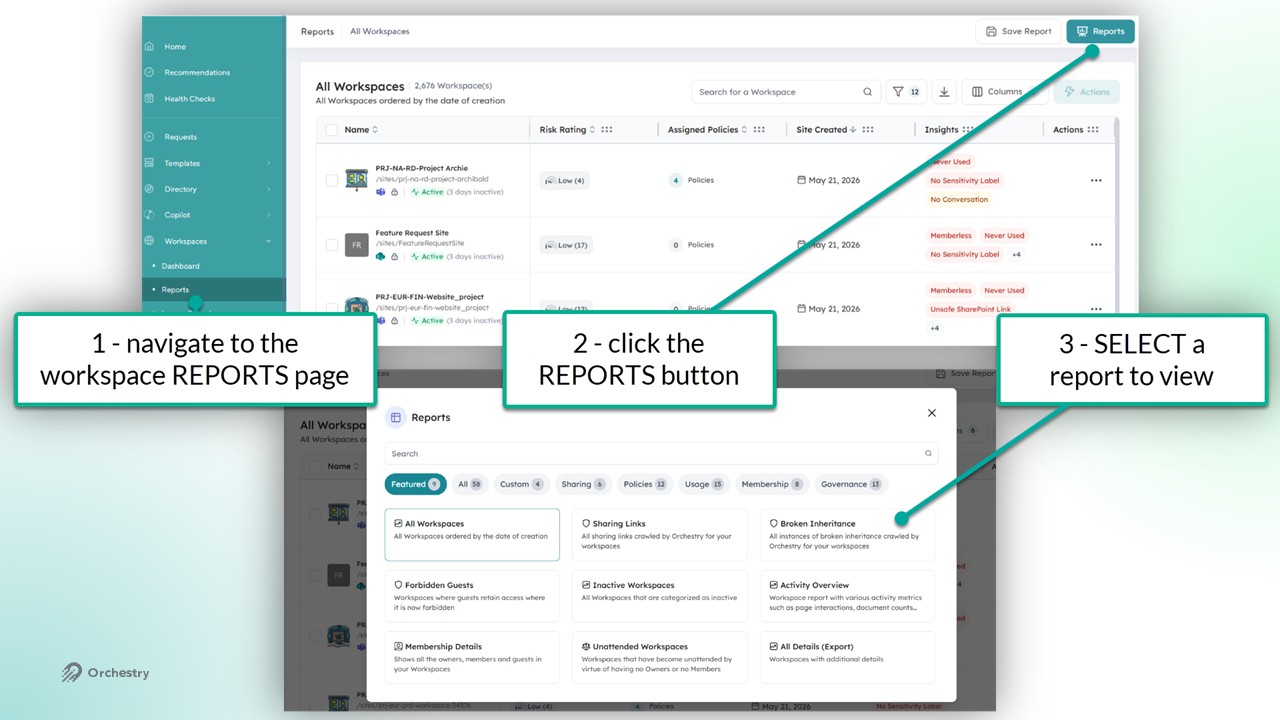
TIP: Use the built-in search to find specific reports quickly
TIP: You can customize Orchestry's built-in reports and save them as Custom reports. Keep reading to learn more.
How to Search for Workspaces
The search and filter tools on the 'Reports' page can help you find workspaces using the name OR the URL.
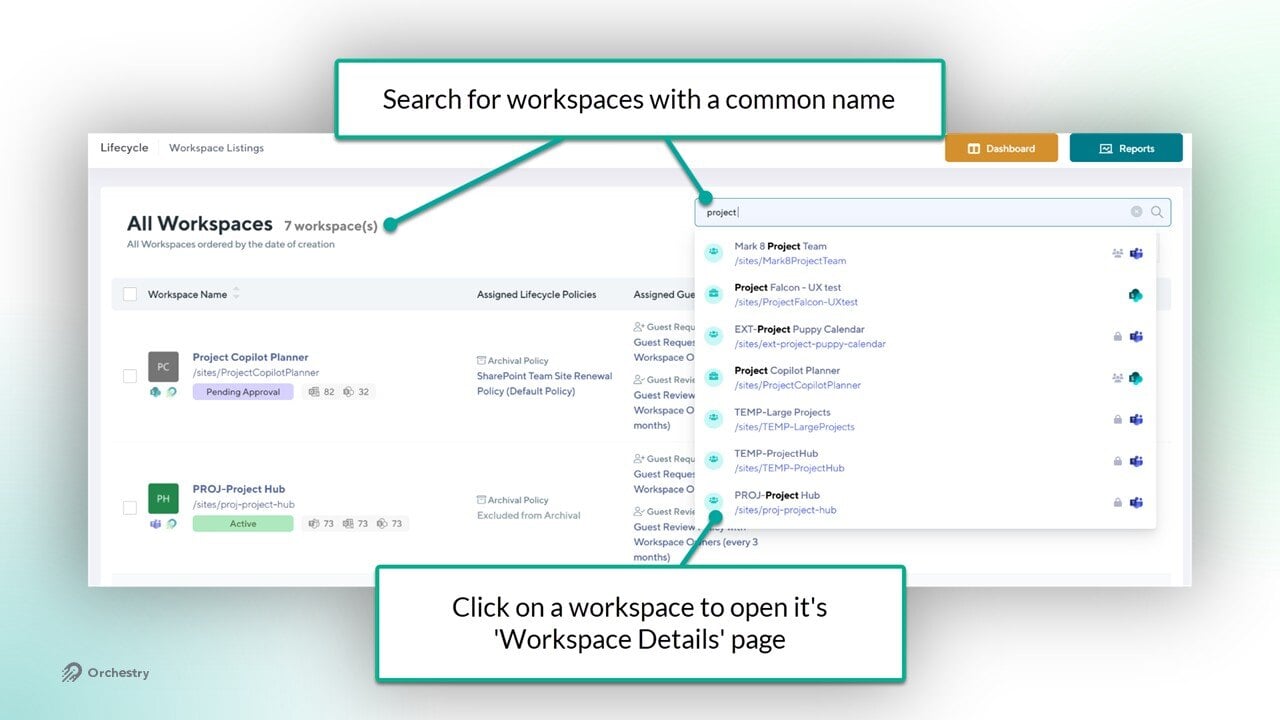
TIP: Search for workspaces via site/group URL by adding the prefix "/sites/.." or "/teams/..." (i.e.: /sites/PRJ-...)
How to Filter for Workspaces
Use filters to locate workspaces that share common properties, such as workspace type, workspace template, policies assigned and more. You can also filter with Orchestry's workspace insights for even better results.
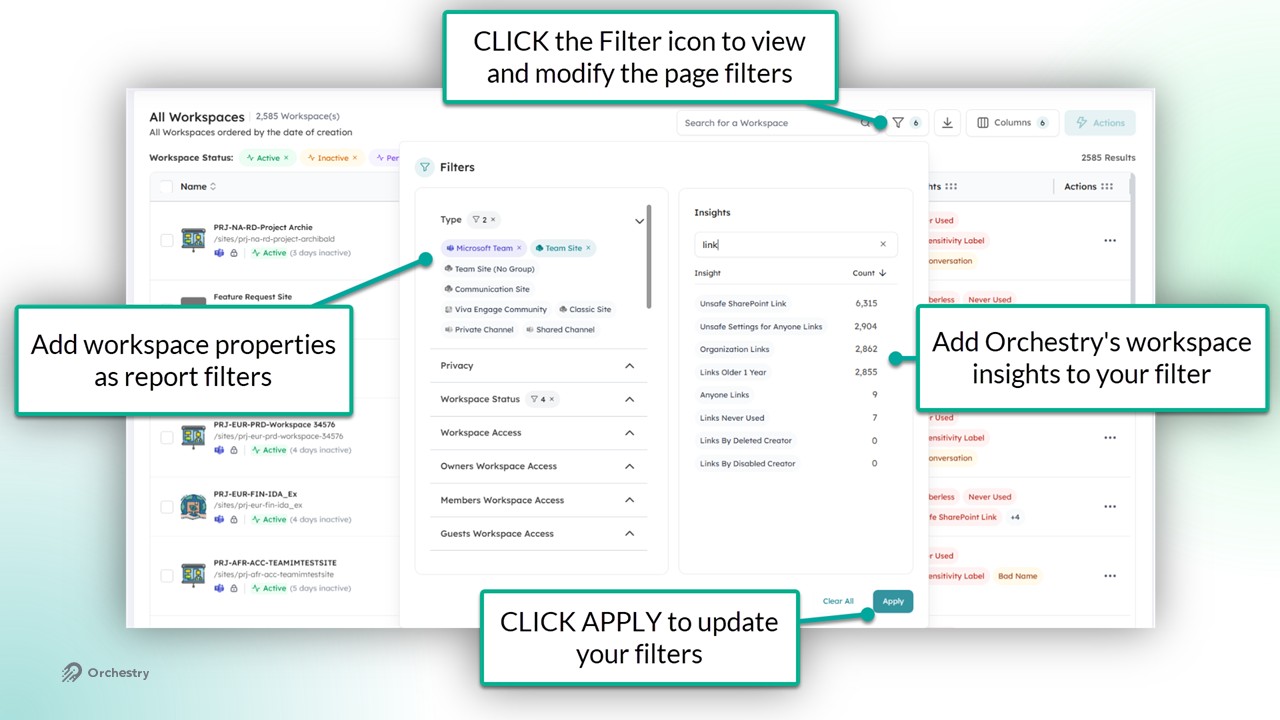
How to Create Custom Workspace Reports
Orchestry admins can customize their own reports and save them into Orchestry for later use. To create a custom workspace report:
Click the 'Save Report' button
Write a NAME and DESCRIPTION
Click SAVE to publish the new custom report
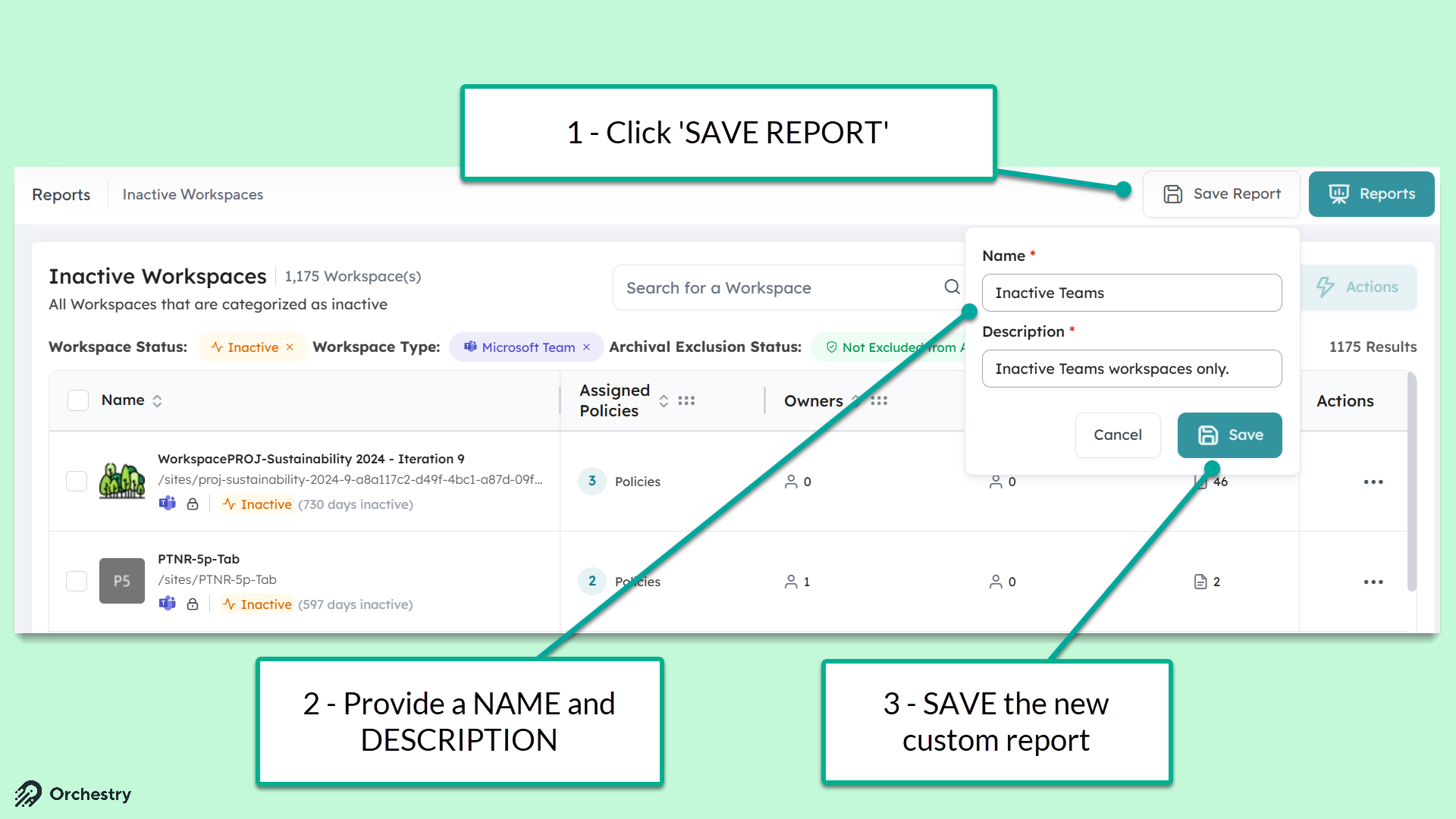
Any Orchestry admins with access to the Workspace Reports page will have shared access to custom reports.
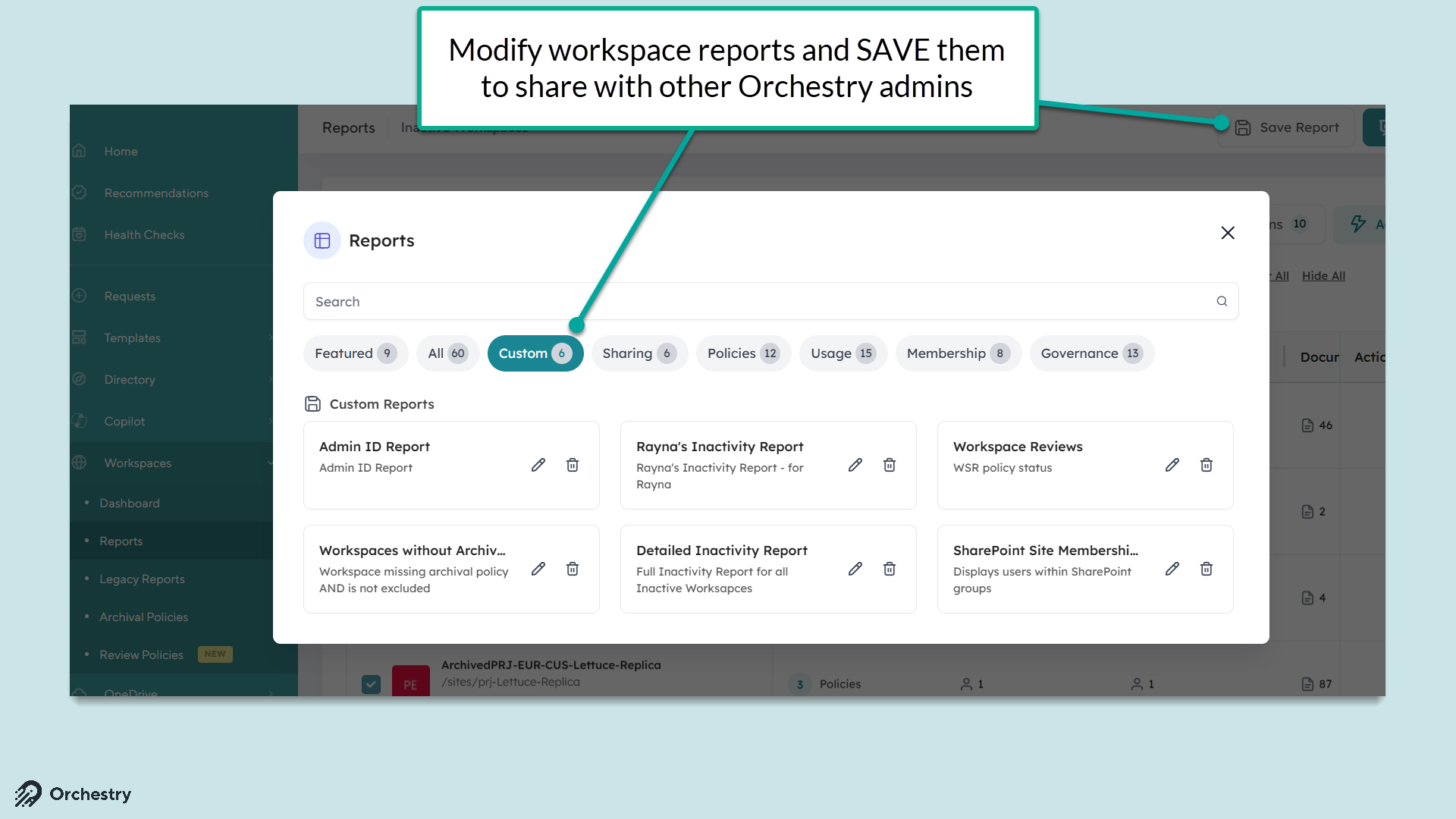
NOTE: Reports cannot be overwritten. A new custom report is created any time an Admin saves their changes.