How to Flag a Workspace for a Re-Crawl
Last updated: March 30, 2026
If you ever notice details of a given workspace are out-of-sync from what you see in your Microsoft 365 tenant, it's possible that the workspace hasn't been recently crawled by Orchestry.
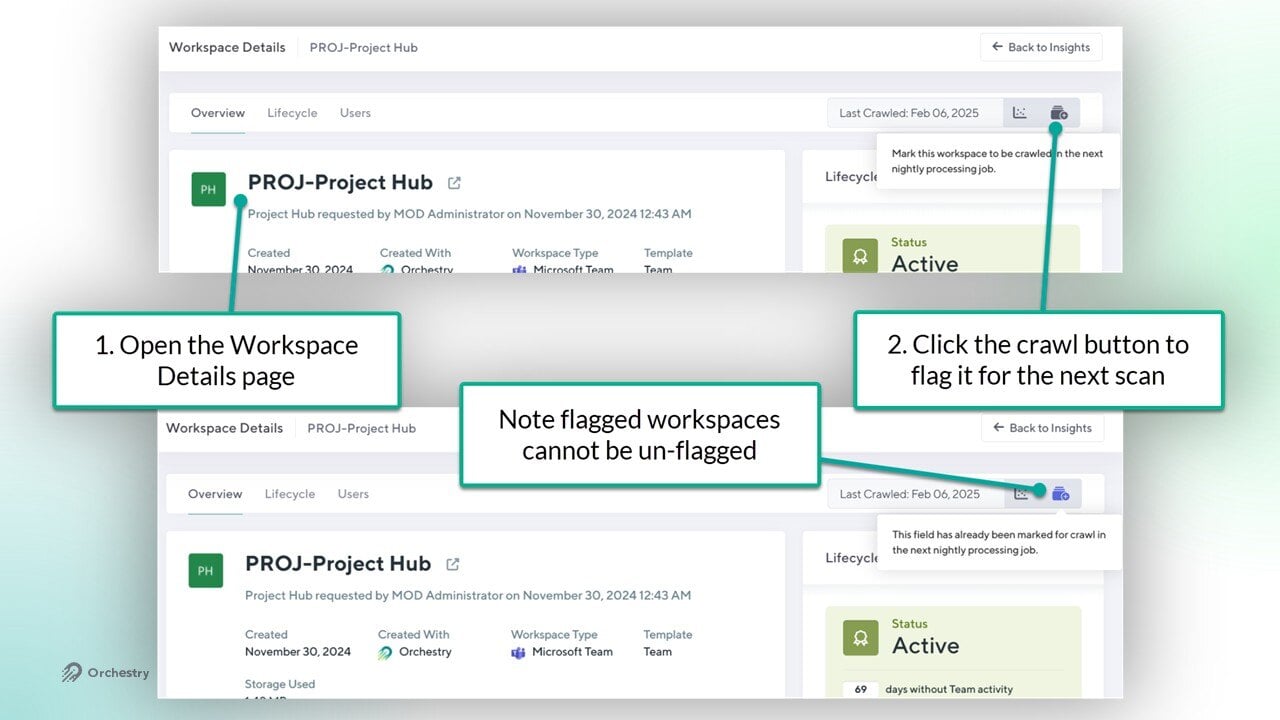
To re-sync the workspace date with Orchestry, you can flag it for a re-crawl on the Workspace Details page.
To Flag a Workspace for a Re-Crawl
Open the Workspace Details page for the workspace that needs to be re-crawled
Click the + button (next to the "Last Crawled" date) to flag the workspace
If re-crawling does not address out-of-date workspace data in Orchestry, please contact our support team: support@orchestry.com