Using a Guest Review Policy
Last updated: March 31, 2026
Once you've configured your Guest Review Policies, and now attached them to Workspace Templates or manually via Workspace Insights, you may want to see what the user experience looks like.
Take a look at the video below which shows the experience for (optionally) forcing Guest Reviews and what the reviewer will see as a result.
Assigning Guest Review Policies to Workspaces
There are multiple ways to assign a policy to your workspaces:
Assign policies to workspace template, ensuring they're applied to all provisioned workspaces
Assign policies to existing workspace (one at a time, or in bulk)
Assigning Guest Review Policies to Workspace Templates
You can proactively assign guest review policies to workspaces by making it a part of your workspace template. All workspaces provisioned from a template will include the polices you've assigned.
Go to the Templates Page (Workspaces > Templates)
Go to the POLICIES tab in the workspace you want to update
Assign your REVIEW policy
SAVE your changes

Assigning Guest Review Processes to Existing Workspaces
You can assign policies to any of your existing workspaces (excluding classic/groupless workspaces), even if they were created before you installed Orchestry.
How to Assign Policies from the Workspace Details Page:
Go to the Lifecycle Reports page (Workspaces > Reports)
Locate and open the workspace you want to update
Click the EDIT button for the Guest Review Policy
Assign the policy. You changes are automatically saved
Return to the Reports/Insights page

How to Bulk Assign Policies to Existing Workspaces
Go to the Lifecycle Reports page (Workspaces > Reports)
Locate and select all of the workspaces you want to update
Click the ASSIGN POLICY button in the 'Guest Actions' toolbar
In the 'Assign Policies' window, select the appropriate policy for each of the workspaces you have listed
Click 'ASSIGN POLICIES TO [X] WORKSPACES' button assign the policies you've selected
Close the window
Triggering Guest Review Policies
Reviews can be triggered in one of two ways:
The Scheduled Cadence: The policy is automatically triggered by Orchestry following an overnight scan (ETL). Policy is triggered X days since being assign to a workspace
Forcing Policies: Manually trigger a policy to trigger on a workspace anytime
How to Force Trigger a Guest Review Policy Manually
There are two ways you can FORCE a policy to trigger:
From the Workspace Details page
From the Workspace Reports (Insights) page
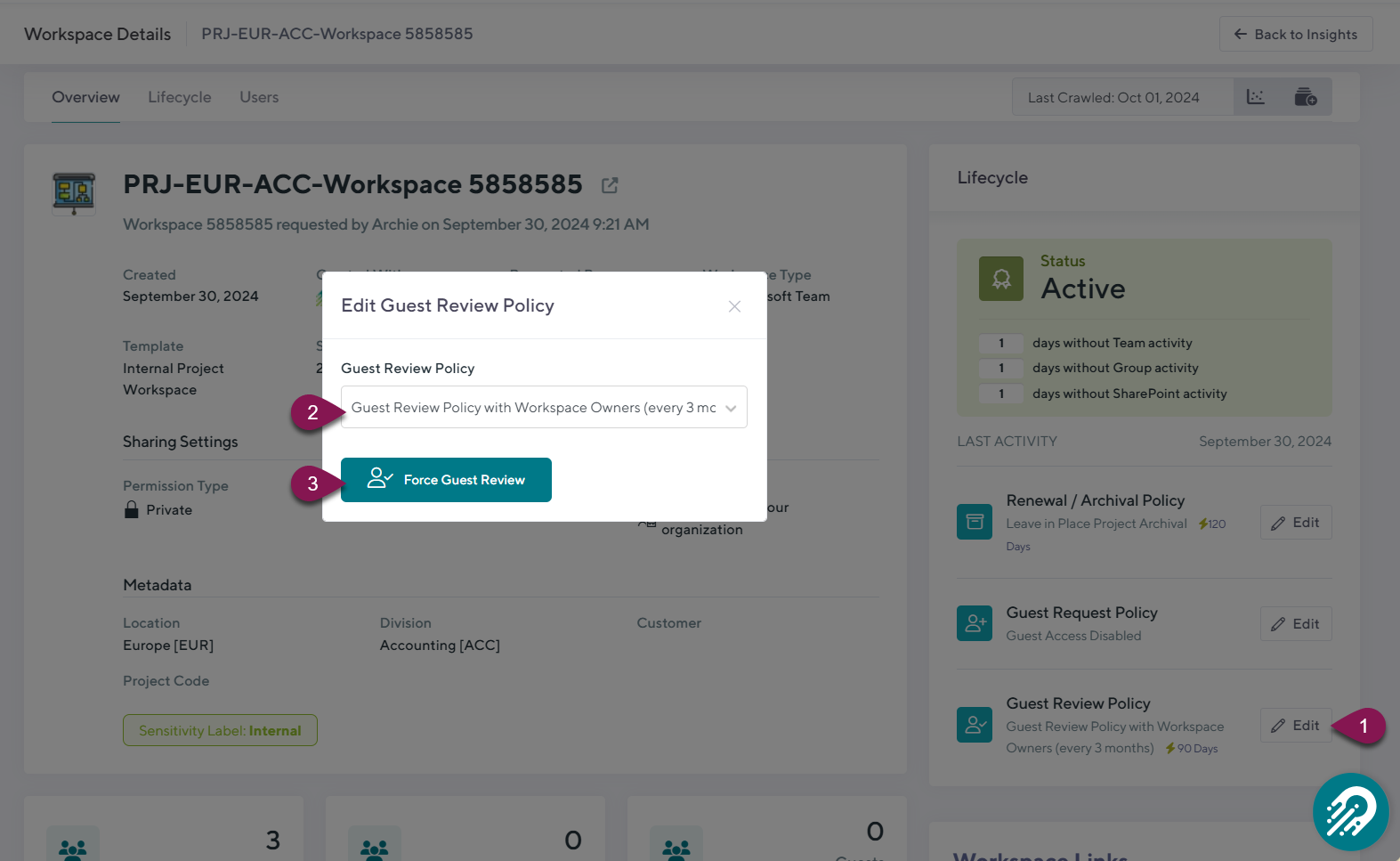
To Force a Policy from the Workspace Details Page:
Click the EDIT button for the Guest Review Policy
Select a Guest Review policy
Click the FORCE GUEST REVIEW button to trigger the policy
To Force a Policy from the Workspace Reports Page:
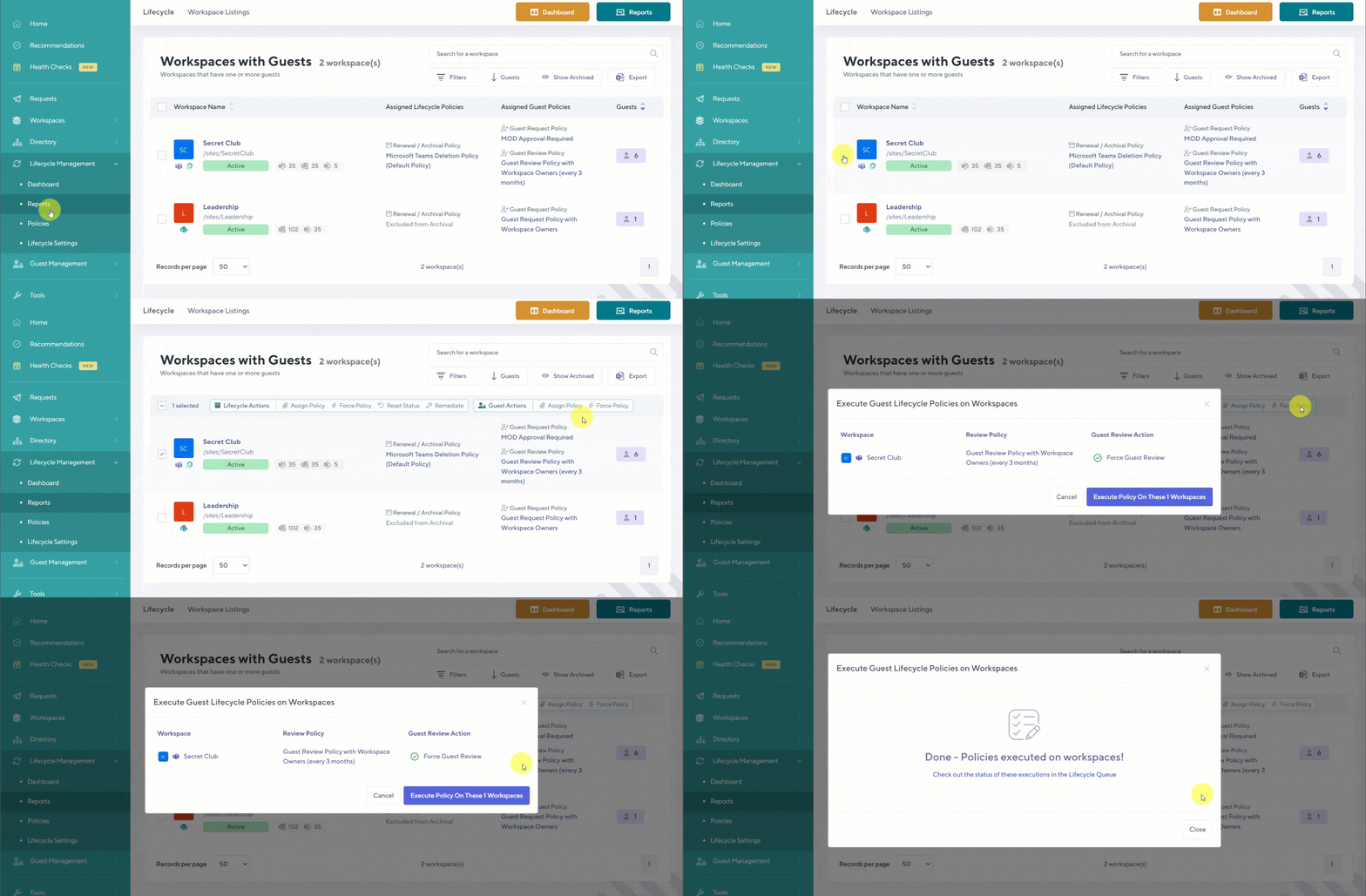
Select one or multiple workspaces that you wish to update
Click the FORCE POLICY button in the 'Guest Actions' toolbar
Click the 'EXECUTE POLICY ON THESE [X] WORKSPACES' button to trigger the policies instantly
The End User Experience for Guest Reviews
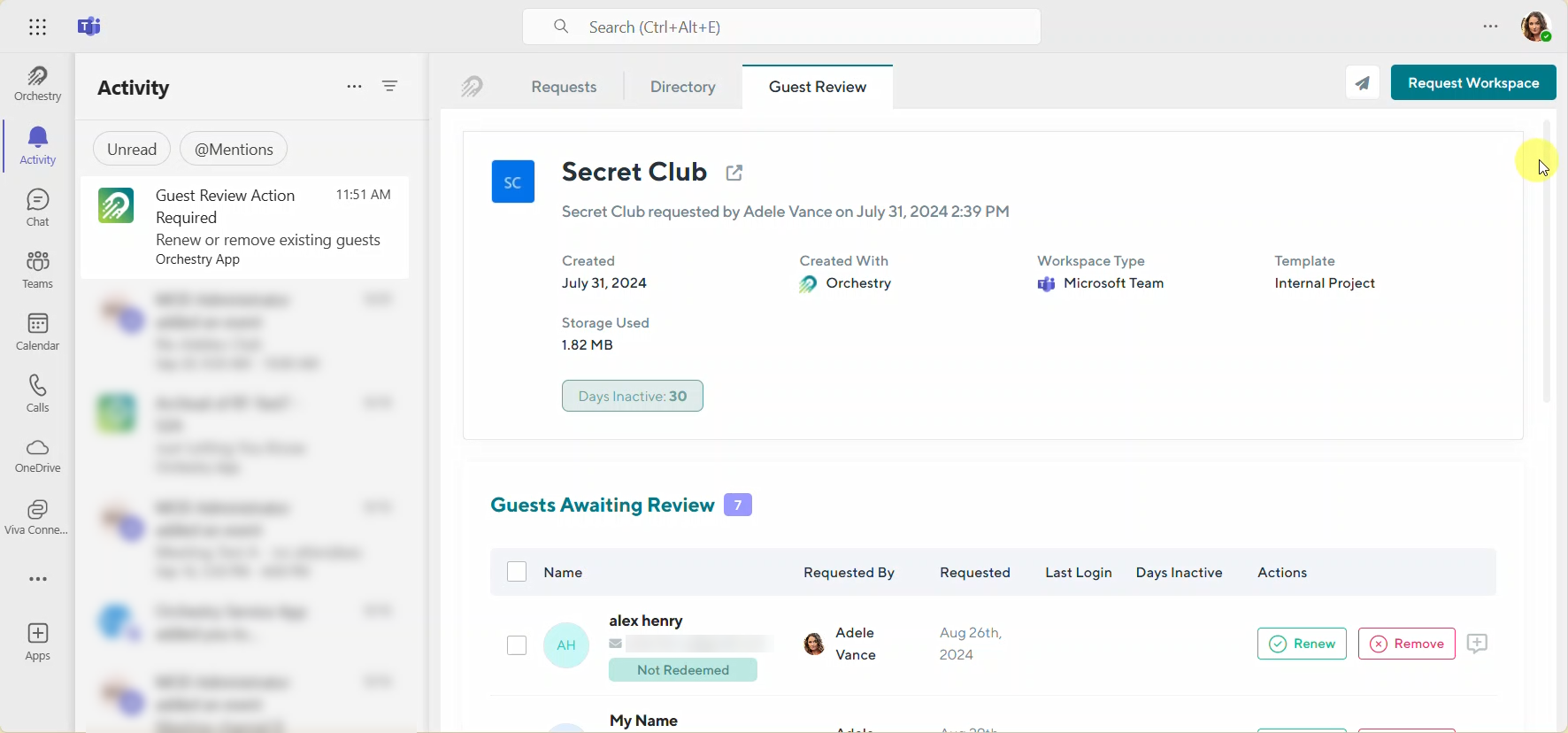
You can assign anyone in your tenant with an M365 license as a Guest Reviewer, the most common choice being the workspace owner.
When a Guest Review policy is triggered, the approver will be notified via email and/or Teams. If they open the review from email, Orchestry will open the review in their web browser. If they get the notification in Teams, they can complete the review from Activity page.
Guest Review Policies vs Workspace Review Policies
In Orchestry, you can leverage Guest Review policies and/or Workspace Review policies to review guest access in your workspaces. These functions can overlap when applied to the same workspace. For example, applying both a Guest Review policy and a Workspace Review policy with a 30-day schedule will assign a task to your workspace owner on the same day.
As a best practice, we recommend only using one or the other. Avoid assigning a Guest Review policy to workspaces that have it enabled in the Workspace Review policy
Advantages of Using a Dedicated Guest Review Policy
Can be independently scheduled from other policies
Can be independently triggered/forced at any time
Can set default action if task is unactioned
Can be extended via webhook and API
Can be filtered for under 'My Tasks'
Want to learn how to setup a Workspace Review policy?
Check out the article: How to Create a Workspace Review Policy