
How Does Orchestry ELT/Crawl Work?
Orchestry performs a crawl every night to make sure we have the most up to date information available from your tenant. While this crawl happens nightly, the scope is determined many factors, such as:
- Workspace activity/inactivity
- Active policies
- Changes in membership
- Tenant size
We also take into consideration the workspace types you’ve selected to be crawled.
To check your current crawl settings, head to Settings > Workspaces> Crawl Settings
Warning: If a workspace type is not selected in Crawl Settings, it will be excluded from the crawl no matter the results of the other factors.
It is NOT advised to modify this section before reaching out to Orchestry support.
Do I Have Access to See the Last Crawl Date?
Yes, there are a few places in Orchestry where you can find crawl information, such as:
-
the Workspace Settings page (Settings > Workspaces),
-
the Workspace Details page, and
-
downloadable crawl reports.
Last Five Lifecycle Crawls Report
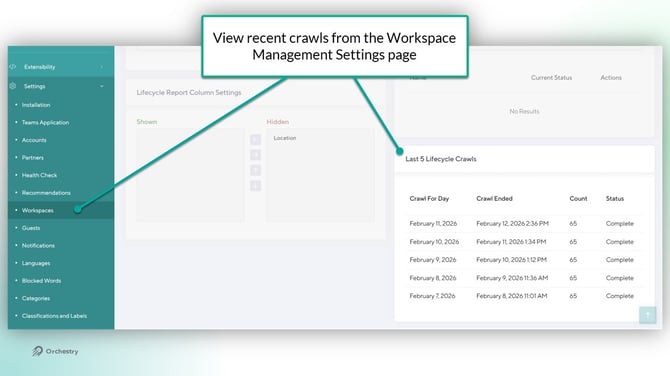
On the Workspace Management settings page, you can view a history of the last five crawls performed
Workspace Data Exports (Workspace Management Settings)
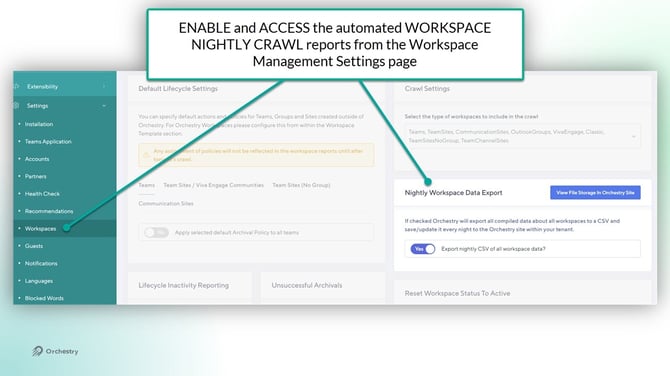
Also found under Workspace Management settings, you can also access the Nightly Workspace Data Export. This report includes workspace information such as membership counts, days of inactivity broken down by product type, guest settings information and even policy information.
If enabled, this report runs daily and is saved (as a .CSV) to your Orchestry SharePoint site (../sites/Orchestry)
Individual Workspace Crawl
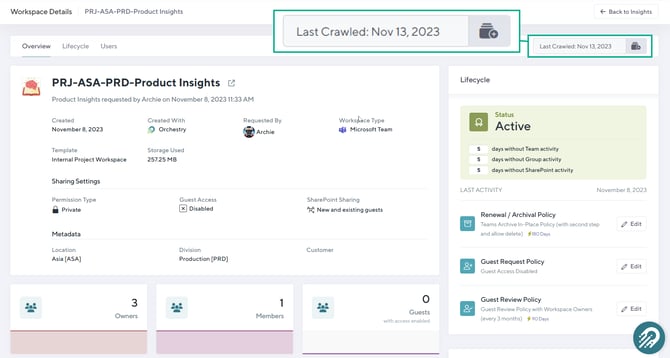
Admins can look up the last crawl date of individual workspaces.
-
Navigate to the workspace 'Reports' page (Workspaces > Reports)
-
Click the name/title of the workspace you want to review
From there, admins can see the last crawl date on the top-right corner of the 'Overview' tab.
Calculating Guest Inactivity
Orchestry uses the lastSignInDateTimefrom Entra's Interactive Sign-In property to calculate guest inactivity.
| Property | Description |
lastSignInDateTime |
Last interactive sign-in date and time |
lastNonInteractiveSignInDateTime |
Last non-interactive sign-in date (e.g: API access) |
lastSuccessfulSignInDateTime |
Last successful sign-in (feature flag-dependant) |
Calculating Workspace Inactivity
Orchestry looks at a wide variety of signals from Microsoft 365 to best determine the inactivity of a workspace. Although we cannot track every possible action in Microsoft 365, we provide a comprehensive overview of your workspaces.
SharePoint Site Inactivity Tracking
The following are included in determining inactivity in SharePoint:
- Document creation, editing
- Page creation, editing
- List item creating, editing
- User Modification dates from the Microsoft APIs
In technical terms, we are iterating through all your sites and looking at the LastItemUserModifiedDate (technical documentation) property, which only logs changes made by a real user (not the system).
This information is taken from the Microsoft Graph and SharePoint APIs and, in some cases, can be delayed by up to 48 hours.
Microsoft Teams Inactivity Tracking
The following are included in determining inactivity in Microsoft Teams:
- Teams Messages
- Teams Message Replies
This information is taken from the Microsoft Graph and is generally done in real-time during the nightly crawl.
What Does Orchestry NOT Include in Workspace Inactivity Tracking?
There are several things that Orchestry doesn't track for several reasons. This includes the following:
| Planner Activity: | Although we would like to track Planner updates, we can't because the Microsoft API is too limiting across all our customers. |
| Permission Changes: | We do not track permissions changes to Group or SharePoint sites. |
| Microsoft Teams Messages Reactions: | Tracking of conversations and replies are tracked, but message "likes", and "reactions" are not tracked. |
| Changes in Names: | We do not track changes in Group, Team or Site names as part of inactivity. |
| Viva Engage Activity: | Activities in Viva Engage communities (formerly 'Yammer') are not included. However, Orchestry does provide inactivity data on the associated SharePoint team site. |
| M365 Group Activity | Activity in the M365 group inbox and calendar are not tracked |