
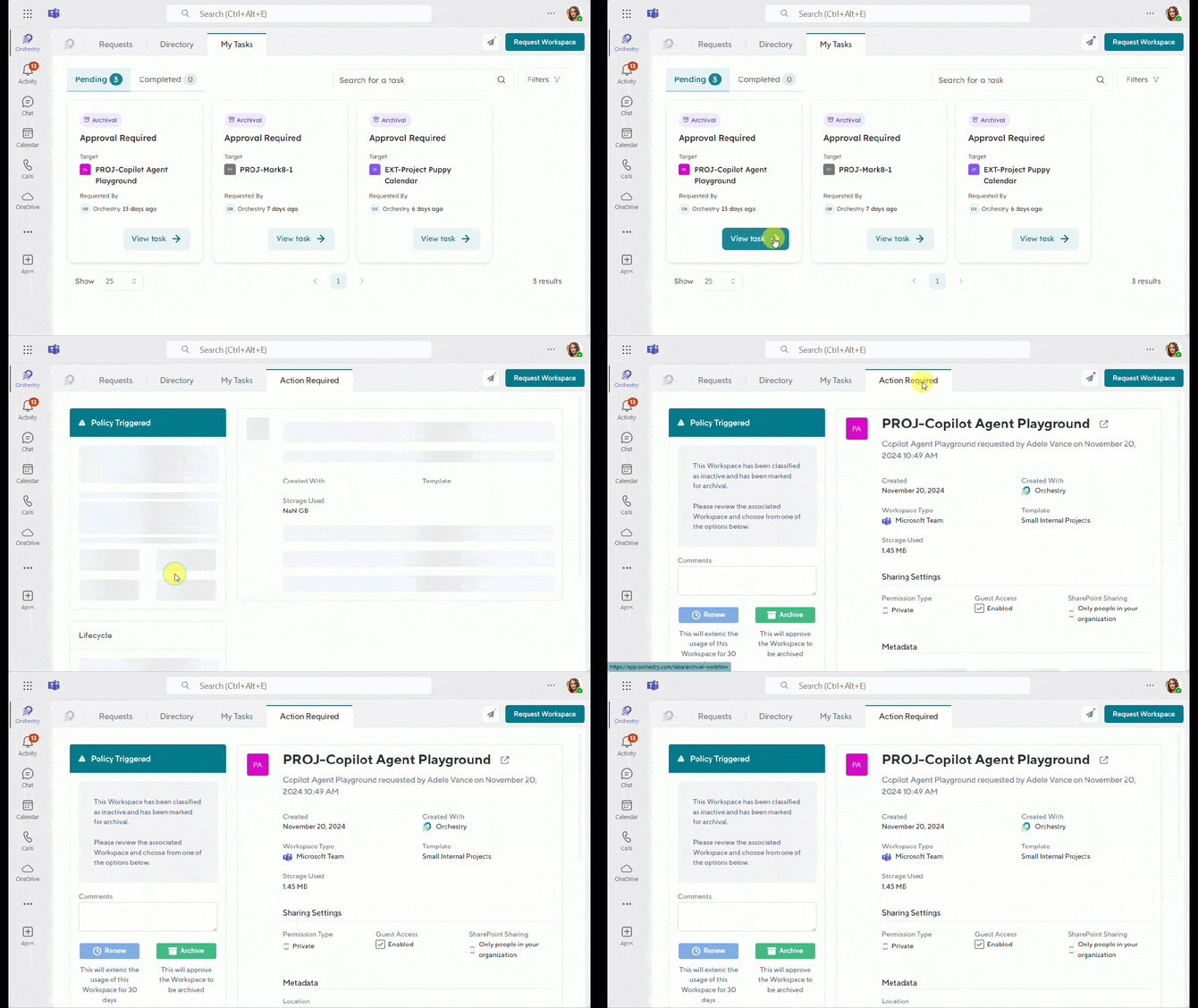
Orchestry admins and end users can access Orchestry without leaving Microsoft teams. This app:
- Enables admins to manage Orchestry (via the 'Orchestry Management' tab)
- Enables users to
- receive notifications from Orchestry
- view and action Orchestry tasks
- access the Directory,
- view their "My OneDrive" (Enterprise only), and
- request workspaces
The navigation is broken up into tabs, based on the user role:
| End Users | Orchestry Admins | |
| Requests | x | x |
| Directory | x | x |
| My Tasks | x | x |
| Action Required | x | x |
| My OneDrive | x | x |
| Orchestry Management | x |
Note that the 'Action Required' tab is only visible when completing Orchestry tasks in Microsoft Teams
How to Configure Tabs in the Orchestry app in Microsoft Teams
The Teams Application page (Settings > Teams Application) allows admins to define which tabs are visible to end users, as well as the order that they appear in.
Configuring the Orchestry Teams app Tabs:
-
Select a tab name
-
Use the UP/DOWN arrows to alter their order. Note that the first (top) item on the list will be the DEFAULT tab users see when opening the Orchestry app in Teams.
- Use the LEFT/RIGHT arrows to show/hide tabs from end users. Note the 'Orchestry Management' tab cannot be hidden.
-
SAVE your changes
Customizing the Orchestry App in Teams
Admins can customize the NAME, DESCRIPTION, and ICON of the Orchestry app from the settings page (Settings > Teams Application).
Want to learn how to customize the Orchestry app for Microsoft Teams?
Check out the article: Customizing the Teams App Name and Icons