
As part of the Orchestry installation there are several SPFx web parts that will be deployed and can be used across your Site Collections.
During the Orchestry Application Installation process, Orchestry will try to deploy the web parts if the Microsoft 365 environment has an App Catalogue already configured.
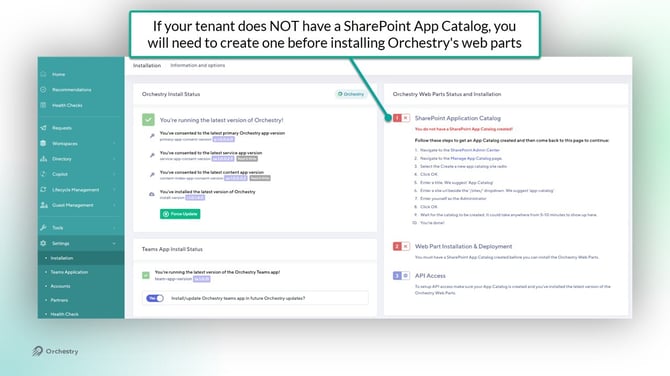
If your environment does NOT have an app catalogue configured, you will need to create one and then install the web parts afterwards.
NOTE: Web parts must be installed/updated by a Global Administrator
Installing Orchestry Web Parts in a New Tenant
Step #1: Create the App Catalog
From the SharePoint Admin Centre:
- Navigate to the 'More Features' page
- Locate 'Apps' and click OPEN. This will automatically trigger the creation of your App catalog
- Return to the Orchestry 'Installation' page
Want to learn more about the SharePoint App Catalog?
Check out the article: Use the Site Collection App Catalog
Step #2: Install Web Parts
After the App Catalog is create you can now install the Orchestry web parts. Click on 'Install and Deploy web parts' button in the Installation page:
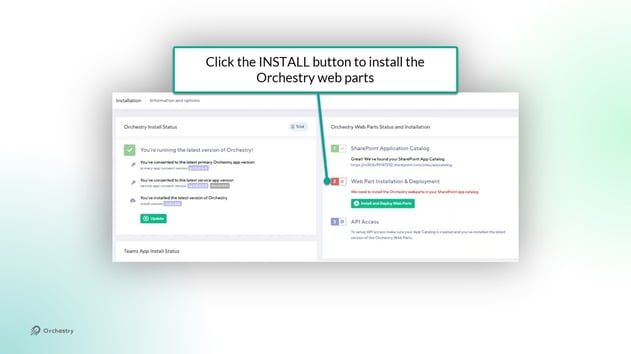
This will automatically add the Orchestry web part solution package to the App Catalog and attempt to deploy it to the tenant. You can verify the installation of the web parts from the App Catalog.
Step #3: Approve Graph Permissions
Once the web parts are installed, the Graph permissions for the web parts must be approved.
- In SharePoint Admin, go to the API Access page. You should see the Orchestry web part APIs in the 'Pending Requests' section
- Select and approve each "Orchestry webpart" API listed
- Exit SharePoint admin.
Upgrading Orchestry Web Parts
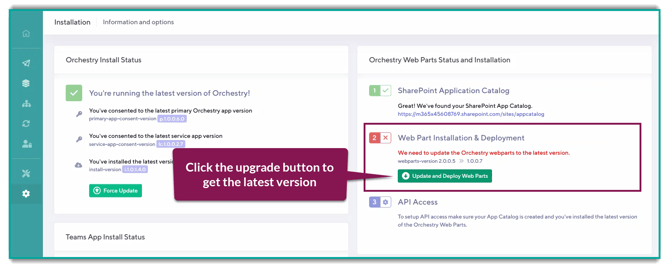
In order to access all five of Orchestry's web parts, you must upgrade them to version V2.x from the Orchestry installation page.
Clicking the 'Update and Deploy Web Parts' will start the update process. When complete, the 2nd step will be marked green again.
Setting Up Guest Access
To ensure your guest users can view and use the Orchestry web parts, follow the instructions in this article.