
If you're looking to start provisioning quickly, you can leverage our Orchestry created templates located in the Orchestry Template Library. These templates are out-of-the-box and ready to deploy. Below is everything you need to know to start using the Orchestry Template Library.
How to Install a Workspace Template from the Library
You can install any of our pre-made workspace templates from the "Orchestry Template Library" in a few clicks.
-
Navigate to the 'Workspaces' page (Templates > Workspaces)
-
Click the 'Orchestry Template Library' button to view the library
-
Click the 'Add to Orchestry' button for the template you wish to add.
-
NAME your new workspace template
-
Click ADD to publish the new template to Orchestry
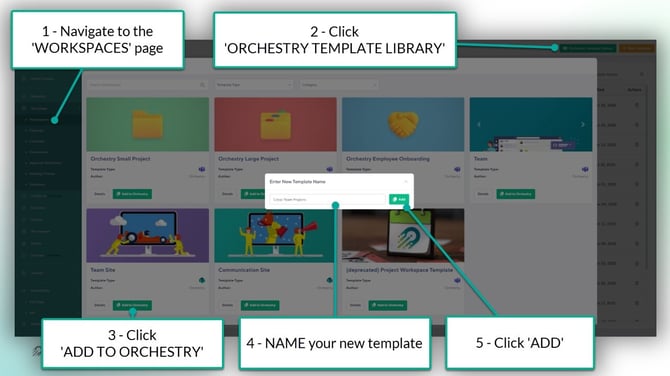
Available Templates in the Orchestry Library
This list is current as of October 2023.
|
Orchestry Employee Onboarding Template: |
This Orchestry-created Workspace Template includes the structure and some commonly requested features for onboarding a new employee. |
|
Orchestry Small Project Template: |
This Orchestry-created Workspace Template includes the structure and some commonly requested features for a lighter, less structured project. It is intended to serve as a starting point to be modified and tailored to your own unique needs! |
|
Orchestry Large Project Template: |
This Orchestry-created Workspace Template includes the structure and some commonly requested features for a larger, more structured project. |
|
Team Template: |
Share documents, have conversations with your team, keep track of events, manage tasks, and more with a site connected to an Office 365 group. |
|
Team Site Template: |
Share documents, have conversations with your team, keep track of events, manage tasks, and more with a site connected to an Office 365 group. |
|
Communication Site Template: |
Publish dynamic, beautiful content to people in your organization to keep them informed and engaged on topics, events, or projects. |
|
(Deprecated) Orchestry Project Workspace Template: |
This feature has been replaced by two new Project Templates - we encourage you to use those instead! |
Orchestry Library Workspace Templates and PnP Packages
The Orchestry-provided templates are installed as PnP packages. Admins can find these packages on the 'Features' page.
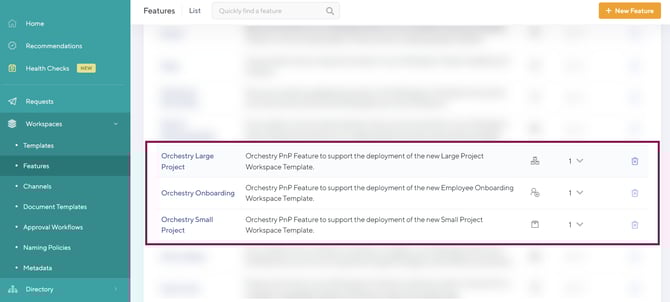
Can I Use These PnP Packages in Other Workspace Templates?
It is unadvisable to add the template PnP packages to any other template. These packages contains specific instructions on how to setup the M365 group, the team channels, the SharePoint site and more.
Live Templates and the PnP Packages
Orchestry admins may wish to leverage the Orchestry-provided templates as a base for live templates. In these scenarios, it's important to ensure the associated PnP package doesn't conflict with customizations in the (live) template workspace.
Follow these steps to turn an Orchestry-provided workspace template into a live template:
-
Install the template(s) from the Orchestry template library
-
Provision a workspace from the template
-
Customize the provisioned workspace as required (i.e.: channel tabs, SharePoint site layout, site content, etc.)
-
Back in Orchestry, connect your newly customized workspace to the workspace template (via the 'Live Template' tab)
-
Remove the PNP package from the 'Features' tab
-
SAVE your changes
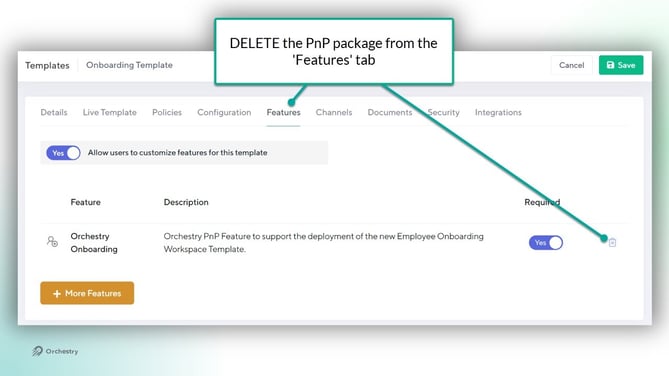
Workspace provisioning may fail, or produce unexpected results if the PnP package is NOT removed from the live template.