
Orchestry is equipped to send end users email and/or Teams notifications when they are assigned new and incomplete (Orchestry) tasks.
Orchestry tasks can be any of the following:
| Description | |
|
Workspace Request Approval: |
Requires user to APPROVE or REJECT (with comment) a new workspace request |
|
Workspace Review: |
Requires workspace owner (or delegate) to complete one or many reviews of their workspace configuration and membership |
|
Workspace Archival: |
Requires workspace owner (or delegate) to ARCHIVE, RENEW or DELETE an inactive workspace |
|
Guest Request Approval: |
Requires user to APPROVE or REJECT a new (or existing) guest user from accessing a workspace |
|
Guest Review: |
Requires user to REVIEW ALL guest users in a workspace. |
|
Task Escalation: |
Incomplete tasks can be REASSIGNED (escalated) to a different user group for action. |
|
Health Check – Ready for Review: |
Users assigned the role "Health Check REVIEWER" will be assigned tasks to review health checks in the 'Ready for Review' state. |
|
Health Check – Published: |
Users assigned the role "Health Check VIEWER" will receive tasks when new health checks reach the PUBLISHED state. |
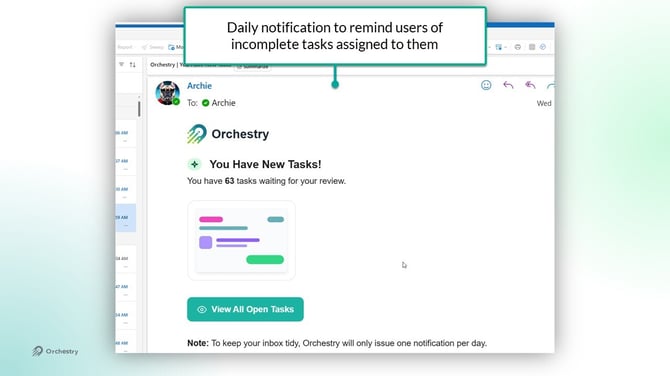
End Users will receive a daily notification reminding them of incomplete tasks currently waiting for them. This notification will lead them to the 'My Tasks' page in Orchestry.
My Tasks
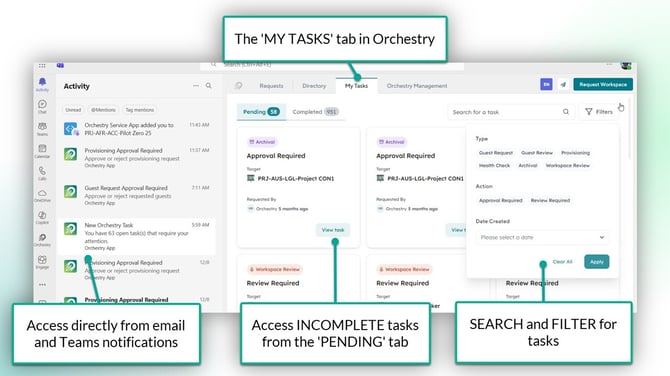
The 'My Tasks' page shows end users all OPEN (incomplete) tasks and COMPLETED tasks. Tasks can be accessed from the "My Tasks" page in both the Orchestry web app and Teams app.
Users can also access most tasks directly from Teams notifications (Activity feed). By default, they will load to the 'My Tasks' page.
Want to learn more about tasks that can be assigned to end users?
Check out the article: Navigating My Tasks
Questions & Answers
Can I Disable 'My Tasks' in Orchestry?
The 'My Tasks' tab can be HIDDEN in the Orchestry app in Microsoft Teams. However, it cannot be disabled in the Orchestry web app.
Can I Create/Assign Custom Tasks in Orchestry?
No, not at this time. Feel free to submit a feature request for this.
Can I Customize the Email Notifications?
Orchestry allows admins to customize the email footer from the Notifications page (Settings > Notifications) in Orchestry. Additionally, some policies (i.e.: Guest Reviews and Archival policies) allow you customize the body (text) of the notification. The overall look and feel of the notification cannot be modified.
Why Can't I find a Task That was Assigned to Me?
Orchestry policies are often configured to send tasks to multiple users at once. Whoever completes the task first closes the task for ALL users it was assigned to. Only the user who completed the task will see it under the 'Completed' tab.