
The Orchestry 'People' web part allows you to show a list of people on a page for different scenarios. For example, on a project page you may want to show a list of people that are part of the project team and on a department page you may want to show a list of departmental members.
There are two different displays for this web part, giving you two different options on how to best display people on the page. In this article, you will learn how to add and configure this web part.
This article assumes you have experience modifying SharePoint pages. If you are new to SharePoint sites, please start here.
Adding the Orchestry People Web Part
You can learn how to add web parts to SharePoint pages in this article. You can view all of our web parts by searching for 'Orchestry'.
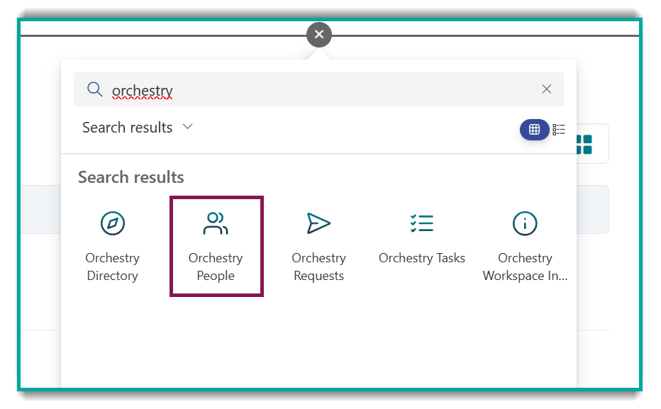
TIP: Learn more about how to add, edit and use web parts on SharePoint pages from Microsoft's documentation.
Configuring the Orchestry People Web Part
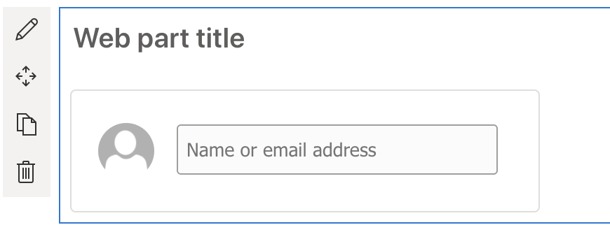
Once the web part has been added, you can start configuring the People web part. The first thing you can change is the web part title.
To do this, click on where the "web part title" placeholder text and begin typing the title you want to see on this web part. E.g. "Project Team", "Department members" etc.
Data Options
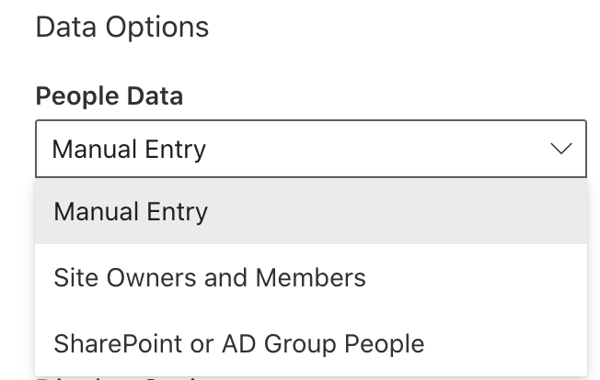
From the web part properties options on the right side of the page, the first option you will see is Data Options. This is where you can decide if you want to manually enter in the people to display, show the Site Owners and Members of the current SharePoint Site or show a list of people from an existing SharePoint or AD Group.
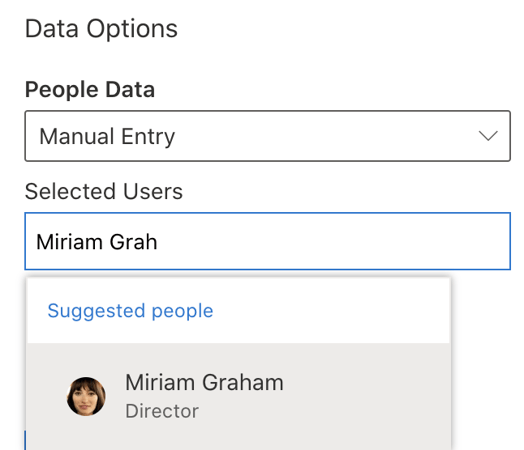
Manual Entry: Manually enter the people you want to display in this web part by typing the name of individual people in the Selected Users field. Any matched results will automatically appear below as Suggested people. Once the person you are searching for appears in the results, click on the name of the person to add your selection. To add more people, repeat the same steps.
Site Owners and Members: The Site Owners and Members that are assigned to the current SharePoint Site will be automatically displayed. The Display Options instructions below will further explain how this will appear.
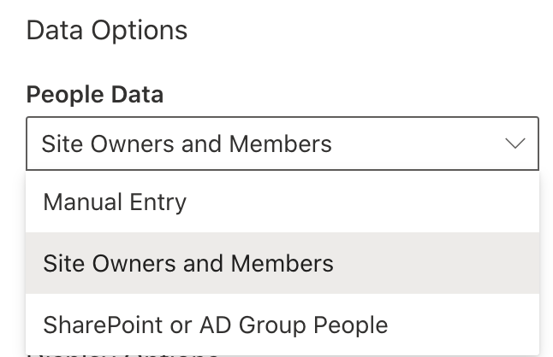
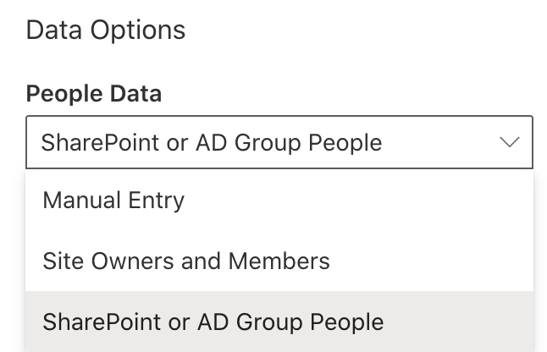
SharePoint or AD Group People: The SharePoint or AD Group option allows you to show people from either an SharePoint OR Active Directory Group.
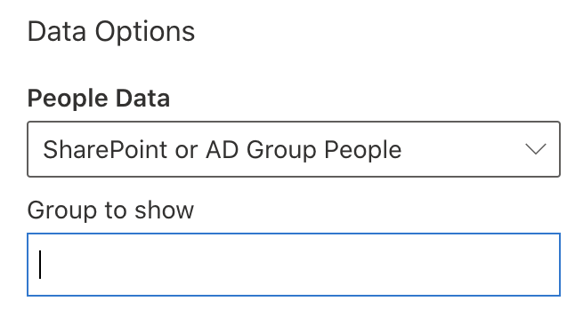
To look for an existing SharePoint or AD Group, begin typing in the name of the group you would like to use in the Group to show field. Once you found the group you are searching for, click on the result to add your selection.
Display Options
Under Display Options, you will see 2 options: List and Cards
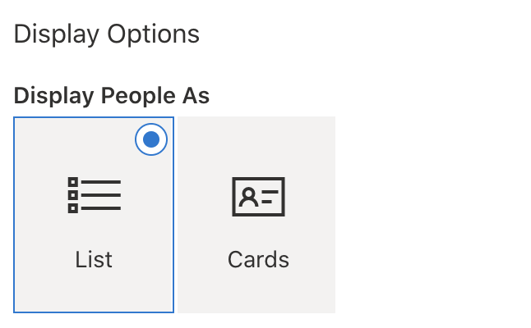
List View: The List option shows the people results in a more compact format.
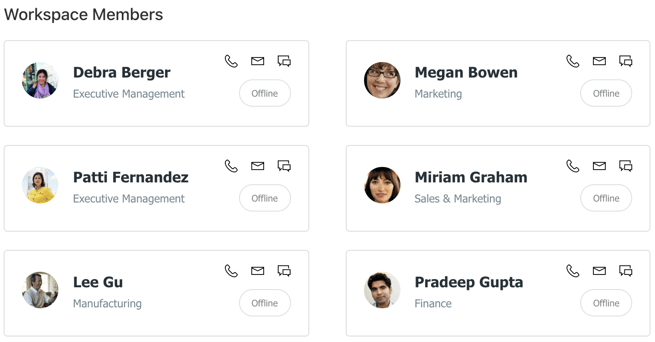
Card View: The Cards option shows the same people results in a card-like display.
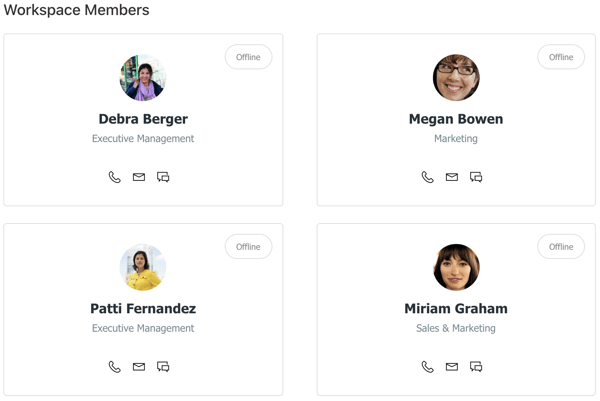
Other Options
Show Contact Details
The Show Contact Details option allows you to turn on/off the contact buttons that appear on the contact display. These buttons allow you to Call, Email or Chat (via Teams) with the contact.

Show Status
The Show Status option allows you to turn on/off the current Outlook status of the contact. E.g. Offline, Away etc.

Show Borders
The Show Borders option allows you to turn on/off the visual borders around the contact display.
Order Users By
The Order Users By option allows you to set whether you want the people to be ordered by First or Last name. If you chose the Manual Entry option from the Data options above, there will also be an option to set the order as Manual.
The Manual order will be based on the order of which the people have been added from the Selected Users field.
Show Additional People Data
The Show Additional People Data allows you to choose whether or not you want to display additional people data. Choosing the On option will show a list of additional People Data options below.
You may choose multiple data options using the check boxes provided.
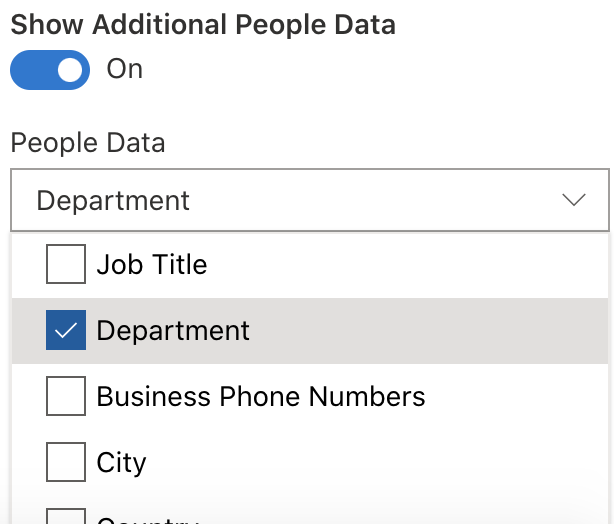
Note that if the profile of the person currently does not contain the selected information, it will not appear in the display.
Show Pagination
The Show Pagination option allows you to turn on/off paging on the display. If Pagination is turned on, you may enter the number of items to display in the Items to Display box below.
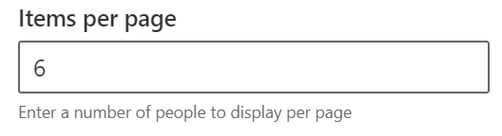
Once you are finished with the configuration, you can SAVE or PUBLISH the page, or choose any of the available page options to save your changes.
To learn more about how to Add, Edit and use web parts on SharePoint pages, refer to the Microsoft documentation.