
While Orchestry does NOT have a function for restoring archived or deleted workspaces, it is possible for M365 Admins to restore archived and deleted workspaces from the Admin center and/or PowerShell.
The article below details how to approach restoring workspaces based around the archival method used.
Want to learn more about the different archival methods available in Orchestry?
Check out the article: Archival Policies Overview
Note that some steps require some PowerShell, as well as access to multiple Admin centers (Teams, SharePoint, Exchange, etc.). The instructions below should be performed by a M365 Admin with sufficient permissions.
How to Restore Deleted Workspaces
Workspaces archived/deleted via the "Move to SharePoint" or "Delete" archival methods are sent to the M365 recycle bin. While they cannot be restored through Orchestry, M365 admins can restore them through the M365 admin center.
Please refer to the following links for restoring DELETED workspaces:
- For M365 Group-connected workspaces (Teams, Team Sites and Viva Engage communities): Restore a deleted Microsoft 365 Group
- For non Group-connected workspaces (Communication sites and Team sites): Restore Deleted Sites
How to Restore a Workspace Archived via the 'M365 Archive' Method
Please refer to the following article for restoring workspaces archived via 'M365 Archive': Manage Microsoft 365 Archive - Reactive a Site
How to Unarchive "Archived In-Place" Workspaces
Step #1: Reversing the Archival Steps
The first step is to navigate to Lifecycle Management, and find the workspace that's been archived (hint: you likely will need to use the “Show Archived” button to see any workspaces that are hidden).
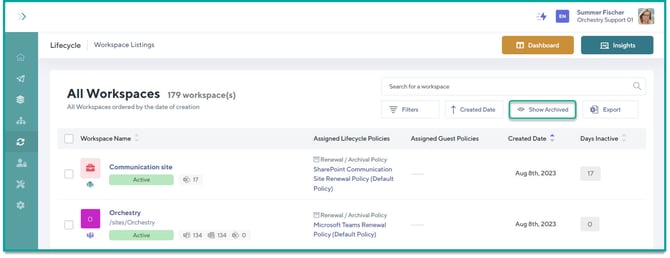
After searching and locating the Archived workspace, you can quickly identify the Archival Policy that was used by clicking on the hyperlinked Policy under the 'Assigned Policies' column of Workspace Insights.
Once you’ve jumped to the Lifecycle Policy Configuration, navigate to the 'Configure Actions' tab. Using the sub-menus on this page, you can identify what actions were carried out as part of the archival. Use that as a checklist to go about un-doing the changes made.
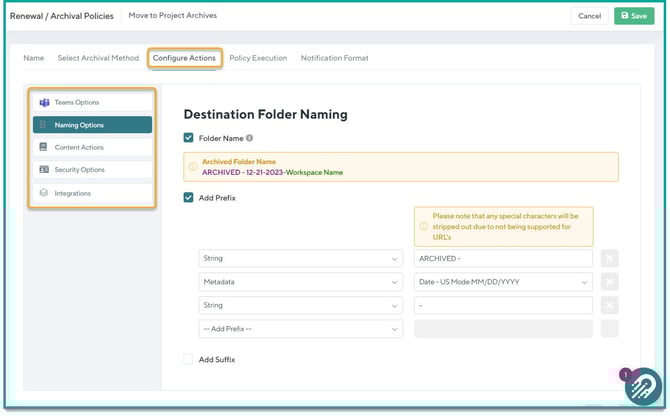
You will need to manually "undo" the actions that were taken, such as adding permissions back (this is where the permission export can be very useful), remove the mapping to a hub site, or rename the workspace.
See below the Archival actions and their reversal steps:
| ACTIONS | REVERSAL STEP | SUPPORTING LINKS | |
| Teams Options: | Set Team Status to Archive | Undo Archival in Teams Admin Center | Archive or delete a team in Microsoft Teams - Microsoft Teams | Microsoft Learn |
| Export Channel Posts to Excel | Not Applicable. This is a Orchestry Export feature. | Configuring Archival Actions | |
| SharePoint Options: | Set Site to Read Only | Change Lock State of a Site via Powershell | Lock and unlock sites - SharePoint in Microsoft 365 | Microsoft Learn |
| Remove SharePoint site from default search scope | Change search scope through Site Settings > Search and offline availability | SharePoint Online: How to Exclude a Site from Search Results? - SharePoint Diary | |
| Associate SharePoint Site to Hub | Change Hub Association in SP Admin Center | Associate a SharePoint site with a hub site - Microsoft Support | |
| Naming Options: | Change Group/Site Name | Change Group/site name in either M365 Admin Center under Teams & Groups > Active teams &groups or in Entra Identities Group Properties settings | How to manage groups - Microsoft Entra | Microsoft Learn |
| Change Site Url | Change Site URL in SP Admin Center | Change a site address - SharePoint in Microsoft 365 | Microsoft Learn | |
| Content Actions: | Process Site Documents |
Recover items from SharePoint recycle bin |
Restore items in the recycle bin that were deleted from SharePoint or Teams - Microsoft Support |
| Process Site Lists | |||
| Process Pages | |||
| Group Options: | Remove from Global Address List (GAL) |
Change Hide this group from the global address list group's setting in Exchange Admin Center |
Manage address lists in Exchange Online | Microsoft Learn |
| Remove from Exchange Client | Change HiddenFromExchangeClientsEnabled property in UnifiedGroup using PowerShell | Set-UnifiedGroup (ExchangePowerShell) | Microsoft Learn | |
| Security Options: | Remove Access for All Owners/Members/Guests | Change Membership permissions depending on Workspace Type in M365 Admin Center, Teams Admin Center and/or SharePoint Admin Center | Manage sites in the SharePoint admin center - SharePoint in Microsoft 365 | Microsoft Learn Manage a group in the admin center - Microsoft 365 admin | Microsoft Learn Assign team owners and members in Microsoft Teams admin center - Microsoft Teams | Microsoft Learn |
| Set Owners/Members To | |||
|
Extract permission configuration |
Not Applicable. This is a Orchestry Export feature. | Configuring Archival Actions |
|
| Integrations: | Ability to run webhooks, automations post-archival |
Not Applicable |
Configuring Archival Actions |
Step #2: Resetting the Workspace Status to 'Active'
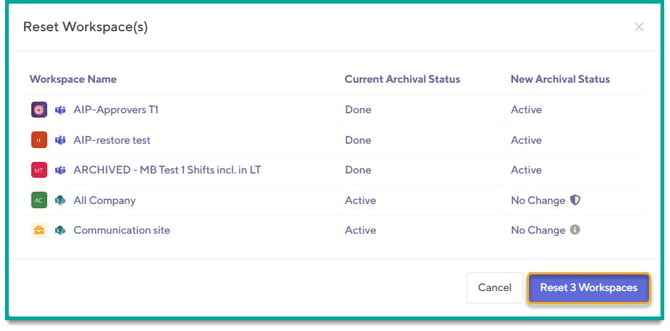
After the manual restoration steps, Orchestry will still classify the workspace as 'Archived'. You will need to manually reset this status. This can now be accomplished via the Workspace Insights page for one or multiple workspaces.
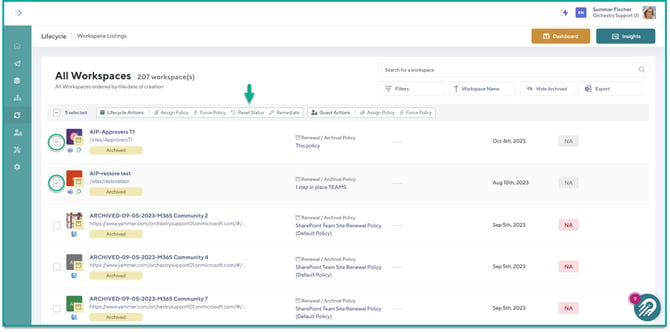
To do so, navigate to the Lifecycle Management then Workspace Insights. Locate and select the archived workspaces on this page, then from the toolkit press on 'Reset Status'. Once the new prompt appear, press on "Reset X Workspaces". You will see the status change in Orchestry from 'Archived' to 'Active' again.
Step #3: Excluding the Workspace from Archivals (Optional)
Optionally, you may wish to exclude the workspace from future archival policies altogether. To do this, you will navigate to the workspace in Lifecycle Insights.
Either by selecting the workspace from the 'Insight Report' (using the toggle) or by clicking into the 'Workspace Details' page, click the 'Edit' button to edit the attached Archival Policy. From the dialogue, select the 'Exclude Workspace from Archivals' to YES.
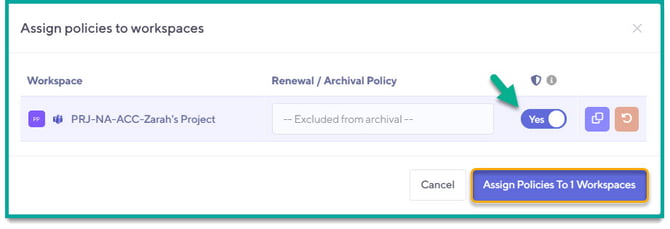
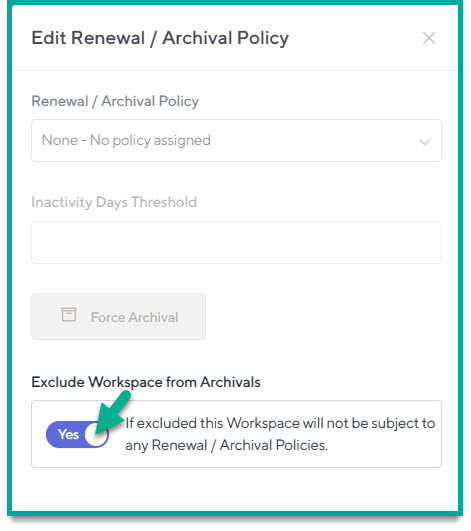
NOTE: If the 'EXCLUDE WORKSPACE' option is greyed-out, it may be because the workspace status is not set to 'ACTIVE'(see step above).
Want to learn more about excluding workspaces from archival?
Check out the article: How to Exclude Workspaces from Archival Policies