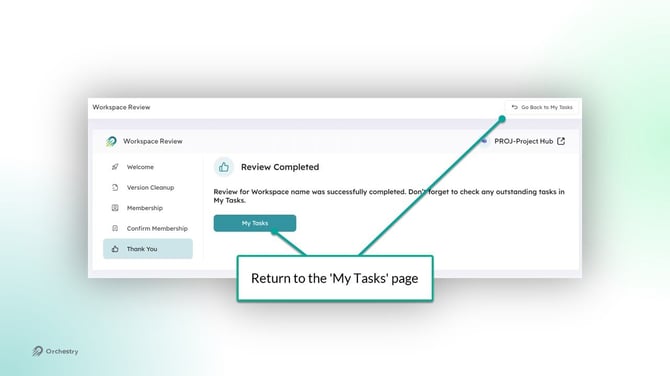
Workspace reviews are designed to be intuitive for all users. The review is conducted through a simple step-by-step wizard to guide users through the task.
Getting Assigned a Workspace Review Task
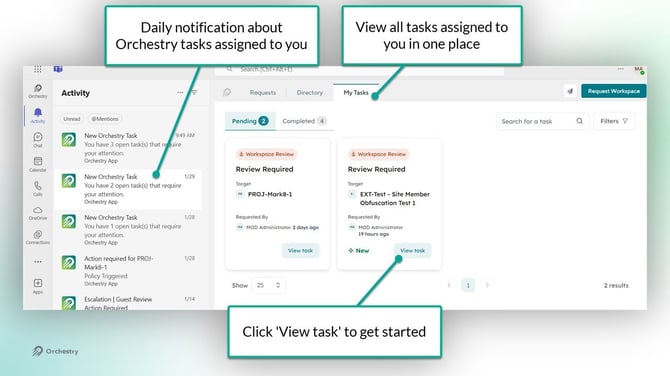
Any user in your tenant with a M365 license can be assigned a workspace review task. When a review is triggered, they will be notified via email and Microsoft Teams (if Orchestry's Teams app is installed).
To start a workspace review, click "View Task" on the task in Orchestry.
The Welcome Page
This is the first page of the Workspace Review wizard. It provides reviewers with information about the workspace.
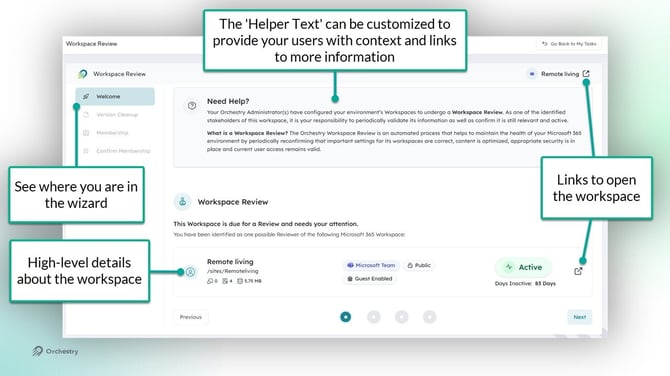
You can also customize the 'Helper Text' to provide your users with more context, set expectations and link to resources.
Sensitivity Configuration
This page allows reviewers to modify the Sensitivity label assigned to their workspace.
To complete the Sensitivity Configuration:
- Choose a Sensitivity label from the available options
- Click NEXT to proceed
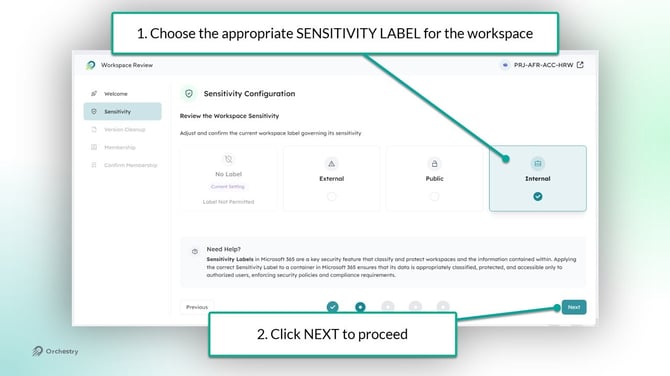
TIP: Provide your users with the information they need to make the right choice with the helper text.
Want to learn how to configure your Workspace Review policies? Check out the article:
How to Create a Workspace Review Policy for Department Workspaces
Want to learn how to use Sensitivity Labels in Orchestry? Check out the article: Getting Started with Classification and Sensitivity Labels
Version Cleanup
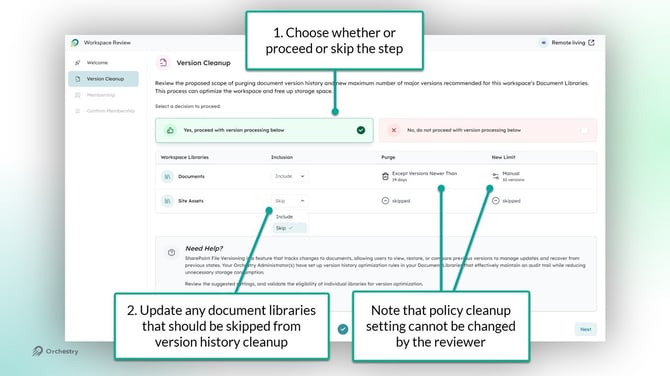
This stage allows reviewers to initiate the clean-up of version history from their document libraries.
To complete the Version Cleanup:
- Choose "Yes, proceed with version processing below". Alternatively, choose the NO option to skip the cleanup stage entirely.
- Mark any document libraries that should be skipped in the cleanup
Membership (Review)
This stage allows reviewers to add and/or remove users from their group. They can also change people's roles within the group. For example, the reviewer can promote members into new owners, which can help reduce the number of ownerless workspaces in your tenant.
To complete the membership review, the reviewer must
- Choose whether to KEEP or REMOVE each listed user, including guests.
- Update user roles (Access) to meet minimum owner and membership requirements (if applicable)
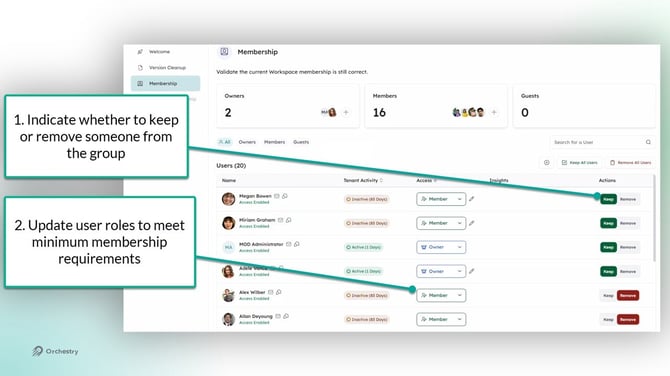
TIP: Use the "Keep All Users" and "Remove All Users" buttons to action all non-reviewed users in bulk!
If the Workspace Review policy stipulates a minimum number of owners and/or members, the reviewer must meet this requirement before they can move forward with the review process.
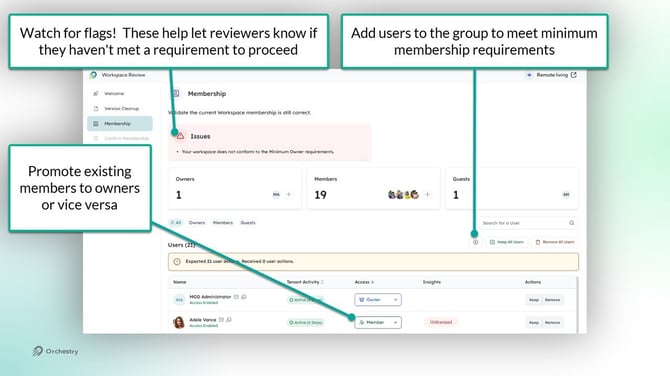
Note that guest users cannot be added to workspaces in the review. Workspace owners can continue to add guests using Orchestry's Guest Request policies.
WARNING: It's possible for reviewers to leave private and shared channels ownerless when removing members from the group. It's advised that they review all private and shared channels prior to completing this step.
Should a channel be left ownerless, tenant admins can assign new owners via the Teams admin center.
Confirm Membership
The final step of the workspace review is to simply verify all changes to the group membership. If corrections are required, the reviewer can return to past pages and make adjustments as necessary.
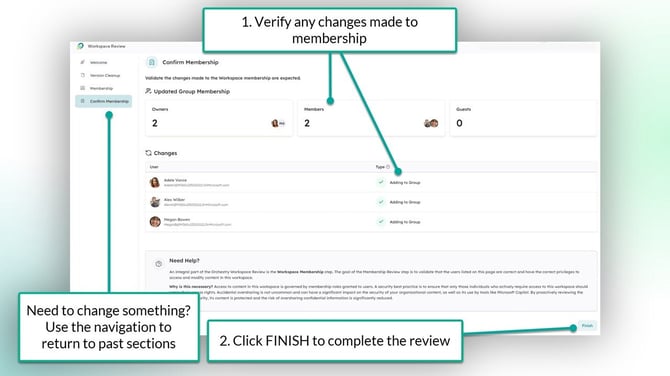
To complete the review, click 'FINISH'. Orchestry will execute the version history cleanup and membership changes within a few minutes.
The task will automatically move to the 'Completed' tab after a few moments.