Guest Management Settings
Last updated: March 31, 2026
The Guest Management settings provides a range of general settings that can be applied to the Insights and Lifecycle Management features of Orchestry.
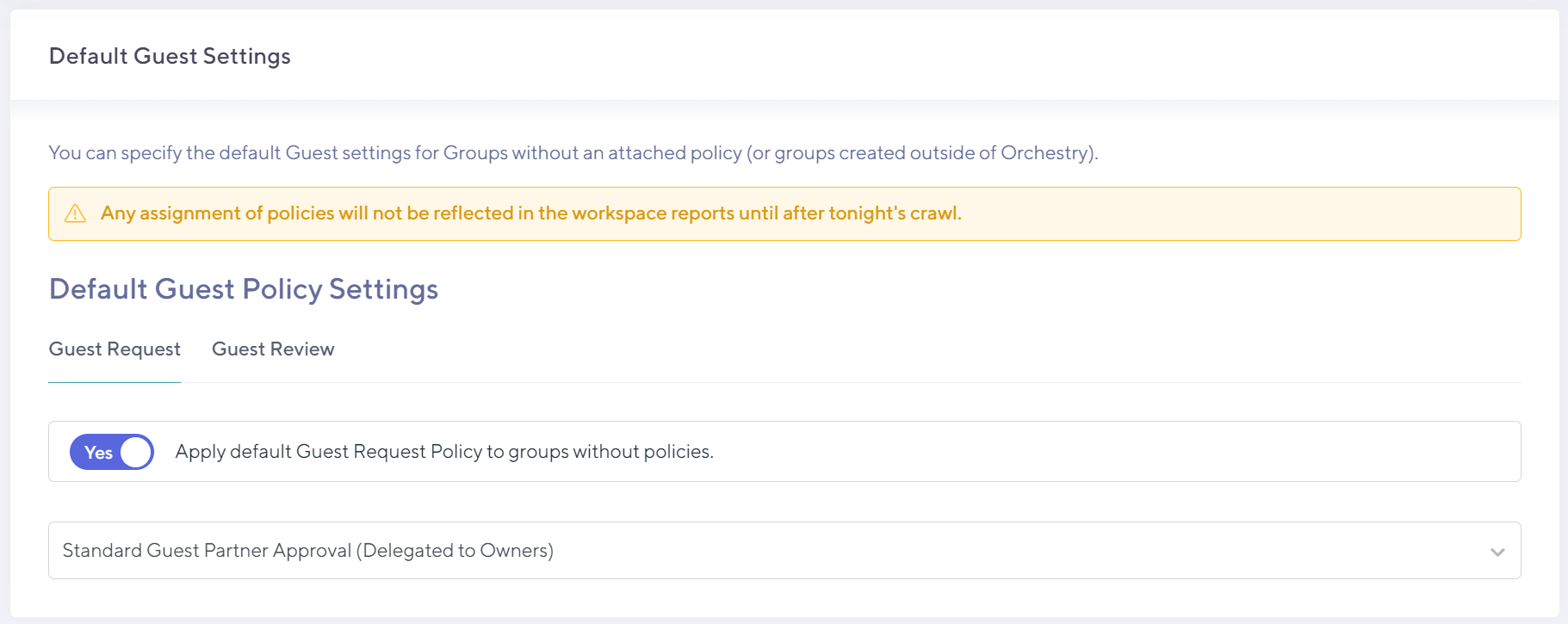
Default Guest Settings
The default settings allow you to specify a default Request Policy and Review Policy to be attached to all existing teams or team sites in your organization, that currently have no policy applied.
This means that you do not have to manually apply policies to your existing workspaces, but can instead rely on a default approach that most (or all) workspaces can follow.
Default policies can be very powerful as they can have a huge impact across your environment in a flash! We recommend you test out your policies and use the default capabilities with caution to ensure your desired processed will work at scale.
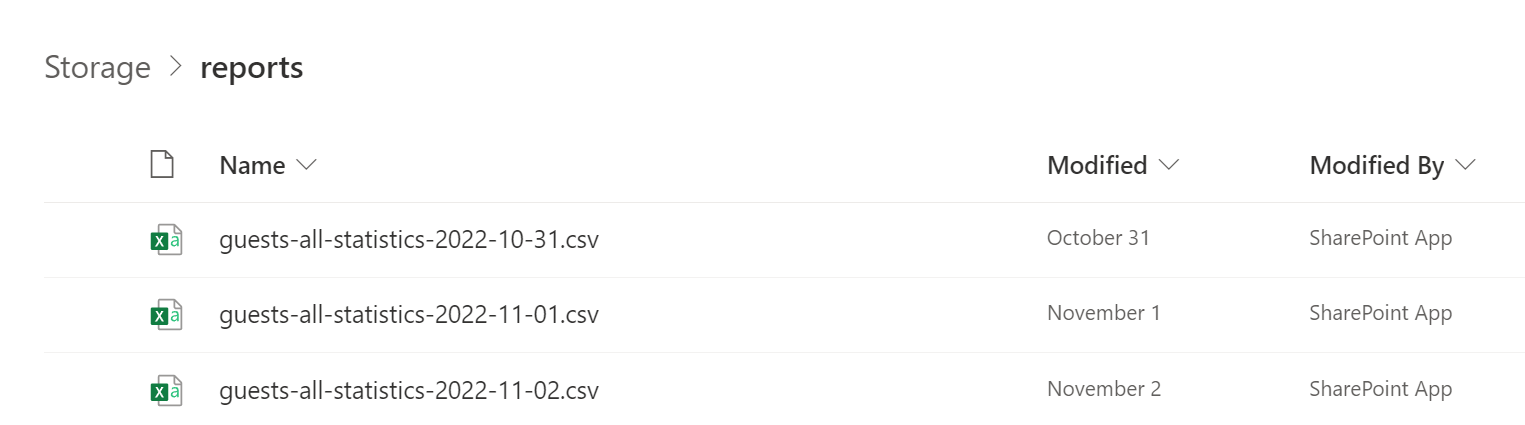
Nightly Guest Data Export
This option allows you to export all of the Insight Data that Orchestry stores to a CSV file that can be used for additional reporting or historical information.

Blocked Domains
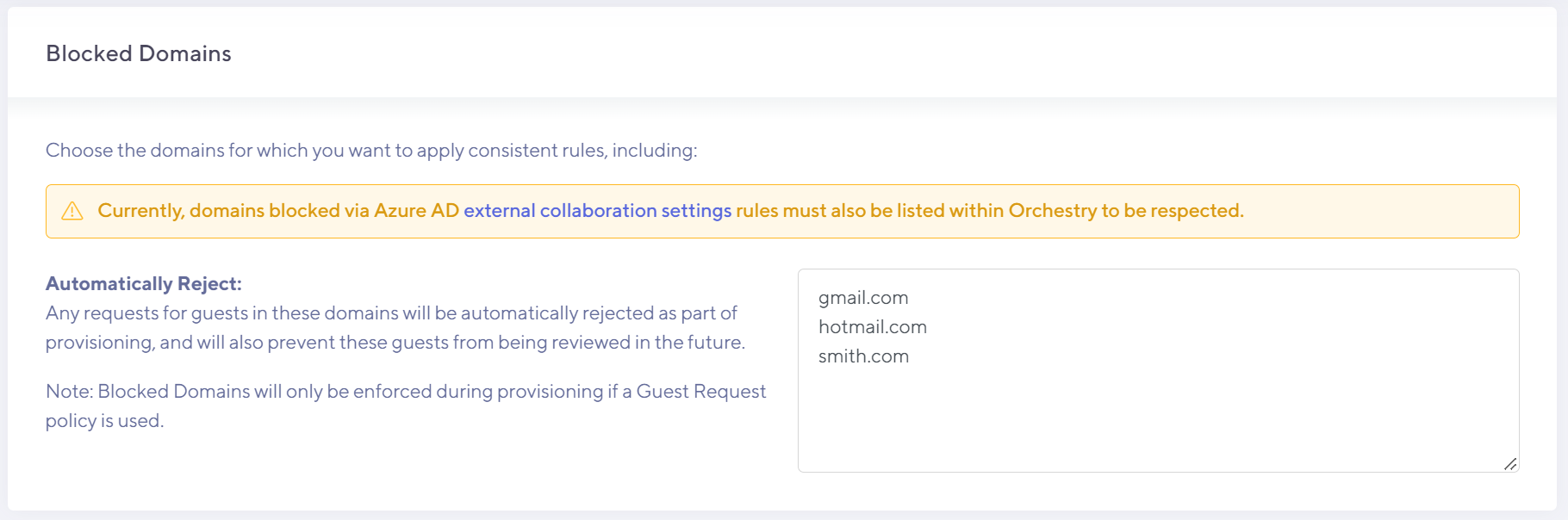
This option allows you to specify domains you wish to block or blacklist to prevent unwanted users from being added to your tenant.
We recommend you add any blocked domains currently block in Azure External Collaboration Settings into Orchestry too.
Impact of Using Blocked Domains
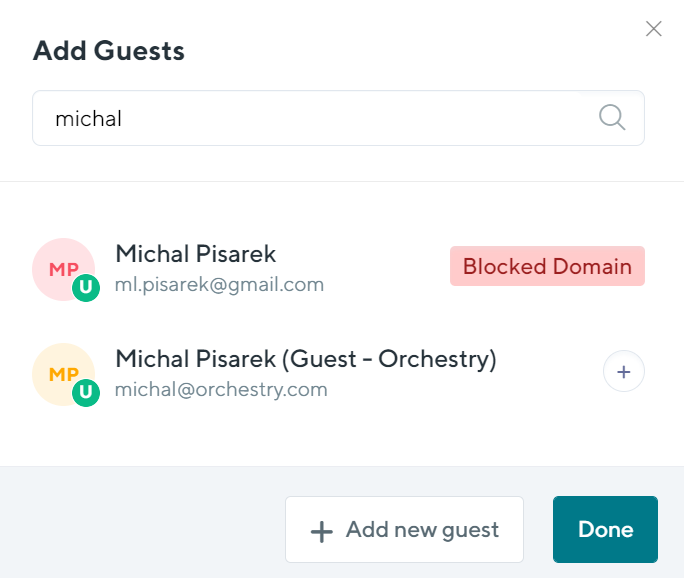
If guest request policies are in effect, existing (currently within AAD) guests from these domains will not be allowed to be added going forward to any new or existing workspace.
TIP: To see a list of guests users that violate your blocked domain policies, check out the Orchestry Guest Management report "Access Violations"
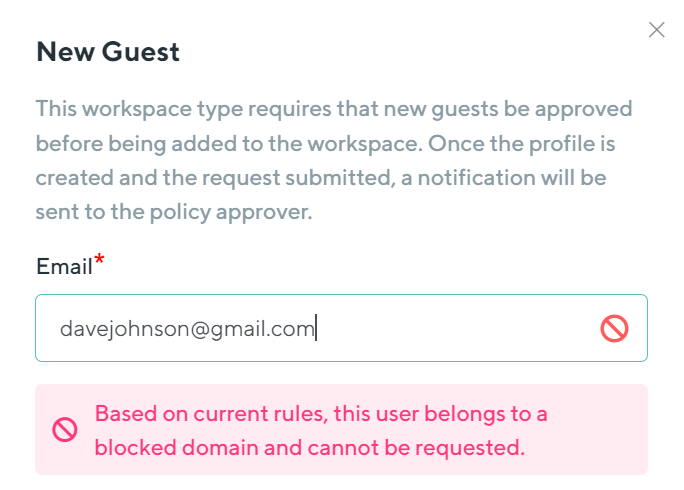
WARNING: Orchestry does not enforce Blocked Domains during Guest Reviews at this time.
Whitelisting Domains
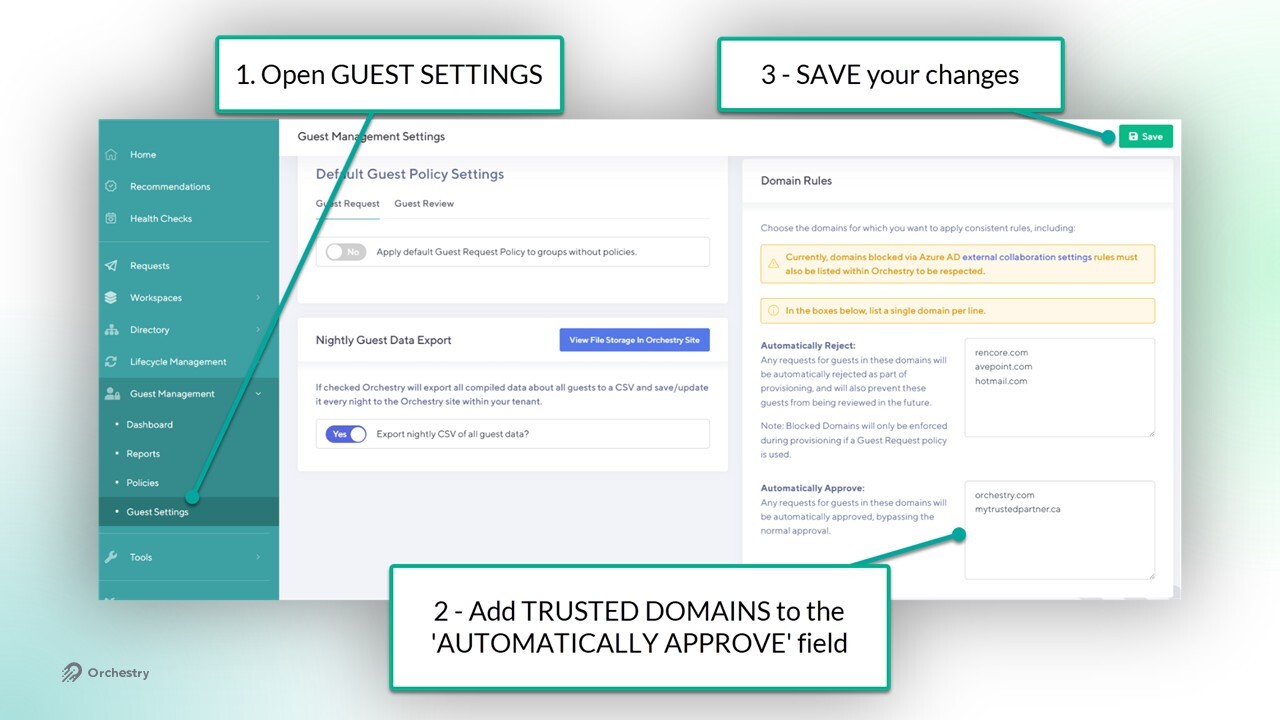
By whitelisting a domain in Guest settings, you allow guest users from that domain to bypass the approval stage of a Guest Request policy. Adding trusted domains to your safe list can help remove friction from the guest request process for workspace owners and guest approvers.
How to Whitelist a Domain in Orchestry:
Go to the 'GUEST SETTINGS' page
Add domains to the 'AUTOMATICALLY APPROVE' field to whitelist them
SAVE your changes
Guest Inactivity Threshold
This option allows you to specify the number of days before a Guest is classified as Inactive in Orchestry. The default value is 90 but changing this option will affect all of the Orchestry calculations and display in the Dashboard and Insight Reports.

This value will set whether Guests are flagged as Active or Inactive throughout Orchestry.

Want to learn how Orchestry calculates inactivity?
Check out the article: Understanding Inactivity in Orchestry