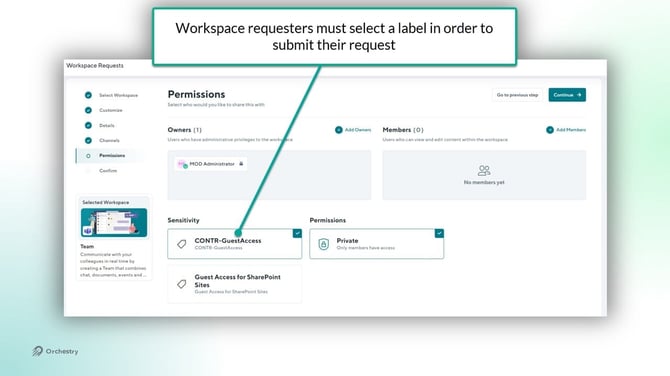
By integrating your Classification or Sensitivity labels from Microsoft Purview into Orchestry, you can provision workspaces to enhance your data security.
What are Classification and Sensitivity Labels?
Classification labels are used to tag types of data. For example, documents with confidential client data such as credit cards numbers, SINs, etc. can be tagged with classification labels to help inform/remind users to handle that data carefully.
Want to learn more about data classification in Microsoft 365? Check out the article: Data classification & sensitivity label taxonomy
Sensitivity labels are used to protect your data and are generally thought to be the successor to Classification labels. In addition to labeling data, sensitivity labels can control the privacy setting for workspaces, restrict external user access to content, restrict external sharing, and more.
Want to learn more about Sensitivity Labels for M365 Groups and SharePoint sites? Check out the article Use sensitivity labels to protect content in Microsoft Teams, Microsoft 365 groups, and SharePoint sites
How Does Orchestry Use Classification and Sensitivity Labels?
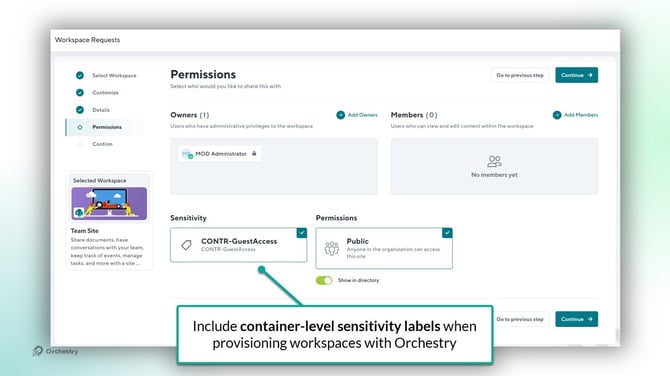
You can add Classification and Sensitivity labels to your Workspace templates to ensure provisioned workspaces include these labels. This helps ensure your workspaces have the appropriate level of protection, whether your goal is AI-readiness or to simply improve data governance.
Orchestry only works with container-level labels. Item-level labels (for files and folders) are not supported at this time.
Want to learn more about container-level Classification labels? Check out the article: SharePoint "Modern" Sites Classification
Showing Labels in the Orchestry Directory
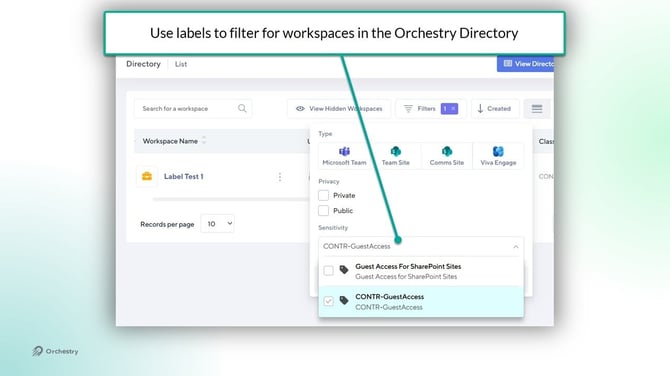
You can configure the Orchestry Directory to show Classification and Sensitivity labels applied to your workspaces.
End users can filter for workspaces using labels as well.
Enabling Labels in Orchestry
Prerequisites to Enabling Classification and Sensitivity Labels in Orchestry
Before enabling Classification and Sensitivity labels in Orchestry, you must have:
- Published at least ONE Classification or Sensitivity label in Microsoft Purview
- Ran PowerShell to import the labels into Orchestry
Want to learn about the PowerShell needed to sync labels? Check out the article: Enabling Sensitivity Labels in Orchestry
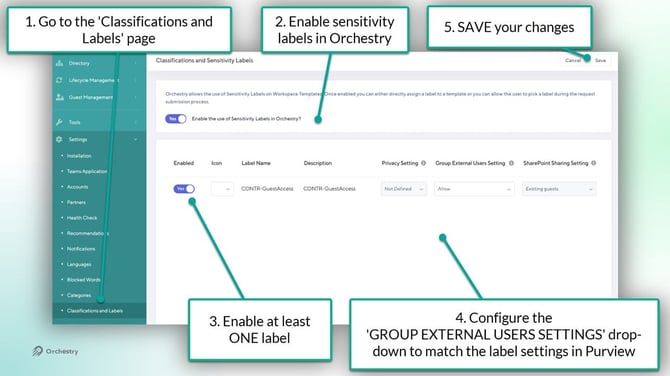
How to Enable Labels in Orchestry
- Go to the 'Classifications and Labels' page in Orchestry.
- Set the toggle that enables labels to YES. Your Classification labels will sync within a moment
- Enable at least ONE label
- Configure the GROUP EXTERNAL USERS SETTINGS field. If the label allows guest access to a workspace, set to YES.
- SAVE your changes
Assigning Labels to Workspace Templates
Orchestry applies labels to workspaces during the provisioning process. To leverage this functionality, you must apply your labels to workspace templates.
The Classification Label and Sensitivity Label Fields in Workspace Templates
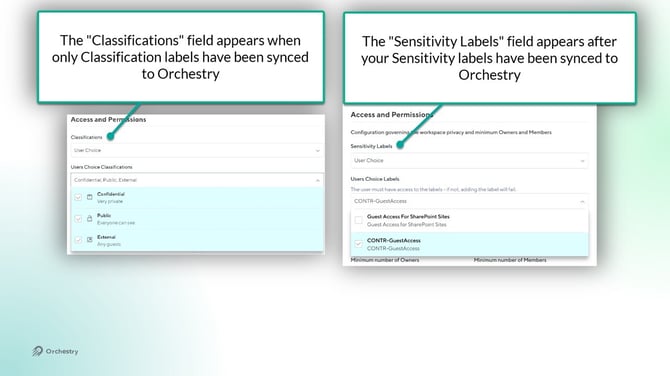
Either the "Classifications" field or "Sensitivity Labels" field will appear on the 'Configuration' tab of your workspace templates after you've synced them from Microsoft Purview.
- the 'Classifications' field appears when only Classification labels have been synced
- the 'Sensitivity labels' field appears after you've synced at least one Sensitivity label
How to Assign Labels to Workspace Templates
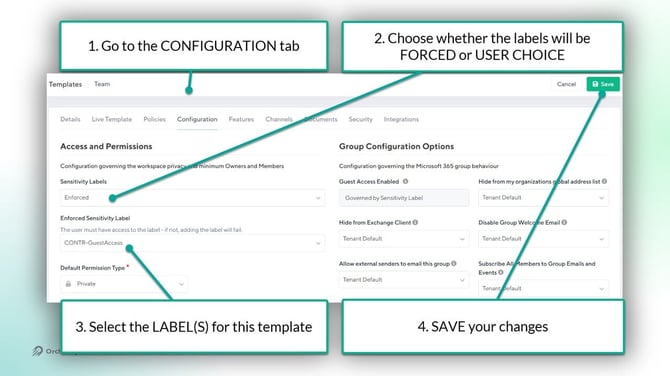
- Open the 'Configuration' tab of a workspace template
- Choose whether the label should be 'Enforced' or 'User choice'
- Select the label(s) for the workspace template
- SAVE your changes
At this time, you cannot use Orchestry to assign policies to EXISTING workspaces.
NOTE: If the workspace requester does NOT have access to the sensitivity label, the provisioning job may fail.
How to Enable End Users to Select a Label for their Workspace
Users can only apply labels when (1) they are requesting a new workspace, and (2) the workspace template is configured to allow for it.
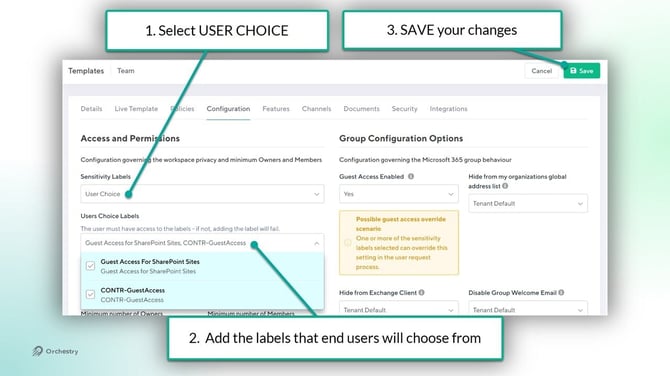
To configure a workspace template to allow for user choice:
- Select 'User Choice' in the 'Classification'/ 'Sensitivity Label' field
- Select any appropriate labels for the workspace template
- SAVE your changes.
When your end users create a new workspace request, they will need to choose a label before proceeding.