Orchestry can incorporate your container-level sensitivity labels during workspace provisioning. This enhances the security of your M365 Groups, Teams, and SharePoint sites by including privacy controls, external user access, external sharing, and more.
Want to learn more about container-level sensitivity labels? Check out the article: Use sensitivity labels to protect content in Microsoft Teams, Microsoft 365 groups, and SharePoint sites
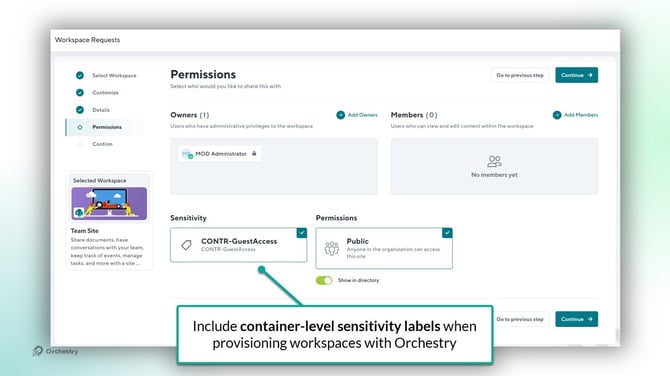
Orchestry does not support item-level sensitivity labels at this time.
If you have sensitivity labels that manage guest access to workspaces, refer to the section "Enabling External User Access from a Sensitivity Label" for key information.
Importing Container-Level Sensitivity Labels into Orchestry
In order to access your Sensitivity labels in Orchestry, you will need to run a one-time PowerShell script.
Note it can take approximately 60 minutes for your labels to appear in Orchestry.
Importing Sensitivity Labels into Orchestry via PowerShell 5.0 and Higher
NOTE: You must be an M365 admin to complete these steps.
- Install the Microsoft Graph (beta) module if it's not already installed
Install-Module -Name Microsoft.Graph.Beta.Identity.DirectoryManagement -Scope CurrentUser -Force

Import-Module Microsoft.Graph.Beta.Identity.DirectoryManagement - Connect to Microsoft Graph with Directory.ReadWrite.All permissions
Connect-MgGraph -Scopes "Directory.ReadWrite.All"
- Retrieve the Group.Unified template
$template = Get-MgBetaDirectorySettingTemplate | Where-Object { $_.DisplayName -eq "Group.Unified" } - Get existing Group.Unified settings
$existingSettings = Get-MgBetaDirectorySetting | Where-Object { $_.TemplateId -eq $template.Id } -
Define the setting parameters without EnableGroupCreation, including the validation section. Remember to replace the classification list and descriptions with your own values.
$params = @{ Values = @(

  @{
    Name  = "ClassificationList"
    Value = "Confidential,Public,External" # Replace with your own parent-level labels
  }

  @{
    Name  = "ClassificationDescriptions"
    Value = "Confidential:Very private,Public:Everyone can see," # Replace with the descriptions for each of your labels listed above
  }
)
}

if ($null -eq $existingSettings) {

# If no settings exist, create new ones using the template ID
  $params.Add("TemplateId", $template.Id)

New-MgBetaDirectorySetting -BodyParameter $params

Write-Output "New Group.Unified settings created successfully."

}

else {

# If settings already exist, update them

Update-MgBetaDirectorySetting -DirectorySettingId $existingSettings.Id -BodyParameter $params
  Write-Output "Existing Group.Unified settings updated successfully."

}
Now you will be able to see the list of sensitivity labels that you have defined:
Item-Level sensitivity labels can be imported into Orchestry, but they cannot be used. It's recommended that you only import container-level sensitivity labels.
At this time, Microsoft does not have an API that allows us to filter for only container-based labels.
Importing Using PowerShell 4.0 or Later
Run this PowerShell code to import your labels into Orchestry:
Install-Module AzureADPreview
Connect-AzureAD

// If you have never set group settings before
$TemplateId = (Get-AzureADDirectorySettingTemplate | where { $_.DisplayName -eq "Group.Unified" }).Id
$Template = Get-AzureADDirectorySettingTemplate | where -Property Id -Value $TemplateId -EQ
$Setting = $Template.CreateDirectorySetting()
$Setting["ClassificationList"] = "Confidential,Public,External"
$Setting["ClassificationDescriptions"] = "Confidential:Very private,Public:Everyone can see,External:Any guests"
New-AzureADDirectorySetting -DirectorySetting $Setting
If the first code block fails, try:
Install-Module AzureADPreview
Connect-AzureAD

$Setting = Get-AzureADDirectorySetting | ? { $_.DisplayName -eq "Group.Unified"}
$Setting["ClassificationList"] = "Confidential,Public,External"
$Setting["ClassificationDescriptions"] = "Confidential:Very private,Public:Everyone can see,External:Any guests"
Set-AzureADDirectorySetting -Id $Setting.Id -DirectorySetting $Setting
Enabling Sensitivity Labels in Orchestry
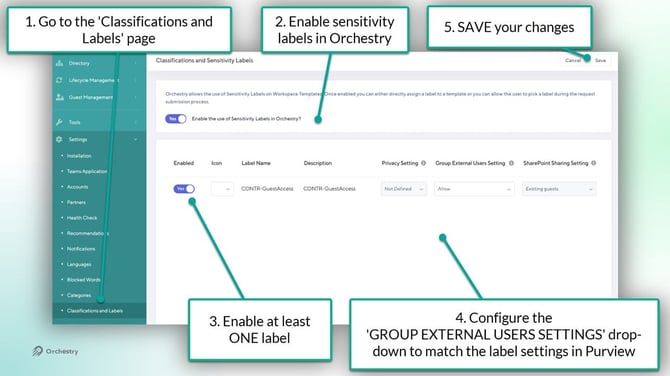
As an Orchestry admin:
- Go to the Classifications and Labels page in Orchestry
- Enable sensitivity labels in Orchestry. Your labels may take time to appear.
- Enable your labels. You need a minimum of one to save your changes
- If applicable, set the 'Group External Users Settings' field to align with the label settings in Purview. Learn more here.
- SAVE your changes
Sensitivity Label Configuration
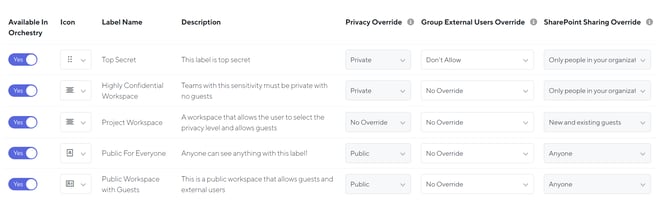
For each sensitivity labels there is a number of configuration options available:
| Available in Orchestry: | Enables the label in Orchestry. |
| Icon: | An icon that you can choose to associate with the label. This icon will be shown to end users in the Workspace Request Wizard and also in the Team Information Panel |
| Label Name: | The name of the label. This information is taken directly from the Sensitivity Label definition in Microsoft 365. |
| Description: | The description of the label. This information is taken directly from the Sensitivity Label definition in Microsoft 365. |
| Privacy Override: | This shows the associated Privacy associated with the label. If you are a SharePoint Administrator you will see that this is automatically extracted and non editable. For users that are Orchestry Administrators but not SharePoint administrators this setting will have to be done manually. |
| Group External Users Override: | The Guest setting for the Sensitivity Label. This needs to be set manually and correspond to the same setting as the Sensitivity Label. |
| SharePoint Sharing Override: | The SharePoint Sharing Override setting associated with the Sensitivity Label. If you are a SharePoint Administrator you will see that this is automatically extracted and non editable. For users that are Orchestry Administrators but not SharePoint administrators this setting will have to be done manually. |
Once you are happy with the label configuration you can now start to configure your Workspace Templates with sensitivity labels . To find out how please see the following article.
Enabling External User Access from a Sensitivity Label
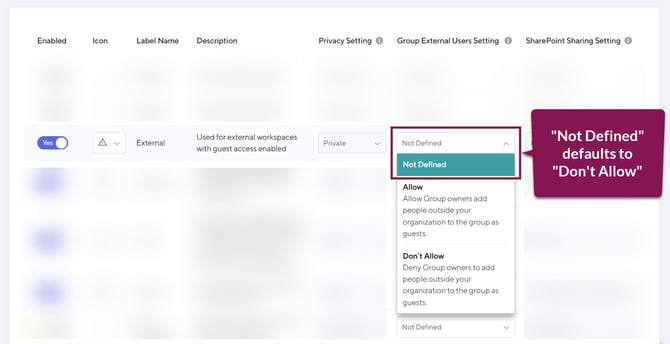
If you have sensitivity labels that are configured to allow guest access, you must update the field 'Group External Users Settings" to 'Allow" in order for the label to work correctly.
If the field is set to "Not Defined", Orchestry will default to NOT allowing guests in the associated workspaces.