
With Orchestry, you can provision workspaces custom objects built with Microsoft's PnP framework. In the app, they are simply called 'Features' and can be uploaded and managed by Admins from the 'Features' page (Templates > Features).
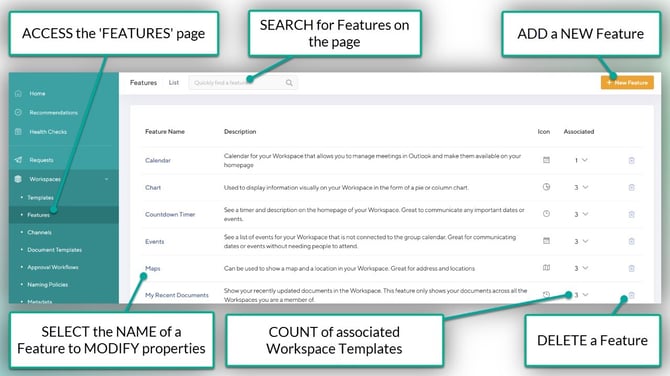
Features can be used for a variety of use-cases, from adding web parts and apps to a SharePoint site to modifying site settings, user permissions and anything else you can create with PnP.
Want to learn more about PnP and the Microsoft 365 Platform Community?
Check out the article: Microsoft 365 Platform Community (PnP) resources around SharePoint Framework
NOTE: Any custom 'Features' developed by your organization are outside the scope of the Orchestry support team.
Custom Features Included with Orchestry
Orchestry comes with several features out-of-the-box. Some are custom-made by Orchestry, while others are samples of SharePoint web parts that help serve as examples of what a PnP Feature can be.
Orchestry-Made Custom Features
| Orchestry Large Project | Orchestry PnP Feature to support the deployment of the 'Large Project Workspace' template. |
| Orchestry Small Project | Orchestry PnP Feature to support the deployment of the 'Small Project Workspace' template. |
| Project Workspace Template | This feature contains all the configuration for the 'Project Workspace' SharePoint site. It should only be used as part of the Orchestry 'Project Workspace' template and attached as a required feature. |
| Task Report |
The 'Task Report' will show you the status of all your site Planner tasks in a number of different formats, including GANTT |
Want to see more CUSTOM Feature samples?
Check out the articles here: Custom Features in Orchestry
How to Add Custom Features to Orchestry
Admins can upload and publish their own PnP packages to Orchestry as "Features" within a few clicks. These features can be later added to workspace templates to add customizations that are not possible with Orchestry's provisioning engine.
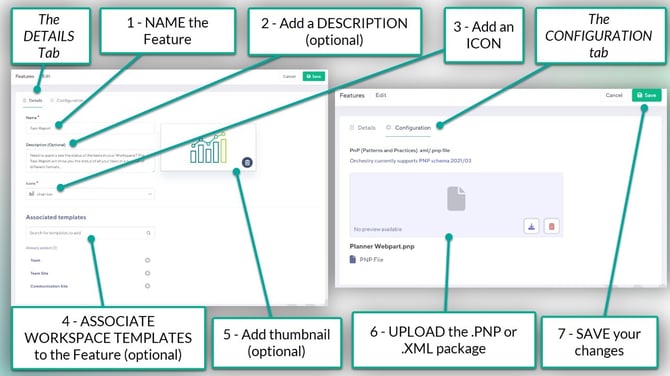
To Add a Custom Feature to Orchestry:
- Click NEW FEATURE
- On the DETAILS tab,
- NAME the Feature
- Write a DESCRIPTION (optional)
- Assign an ICON to the Feature
- ASSOCIATE it with the desired workspace templates (optional)
- UPLOAD a thumbnail (optional)
- On the CONFIGURATION TAB
- UPLOAD your .PNP or .XML package
- SAVE your changes
TIP: Don't forget to TEST your new features before rolling them out to end users
How to Add Extracted Templates As Custom Features
Admins can convert existing SharePoint sites in their tenant into custom Features in Orchestry by extracting them and then re-loading them to Orchestry as PnP packages.
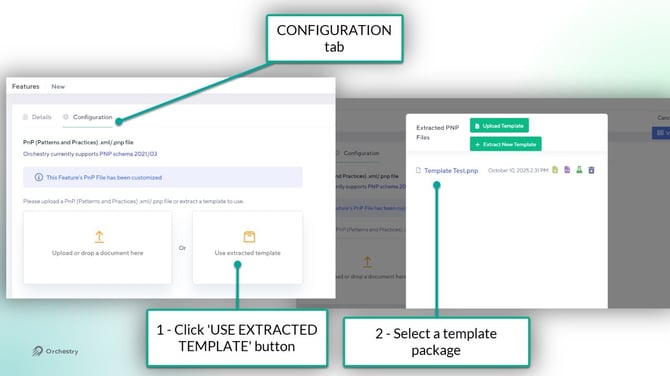
How to Load a Extracted Template as a Feature:
- Click NEW FEATURE
- Complete the DETAILS page as outlined above
- On the CONFIGURATION TAB
- Click "Use Extracted Template"
- In the pop-up window, you can
- Choose a previously-uploaded template,
- UPLOAD A TEMPLATE that was previously extracted, or
- extract a NEW TEMPLATE
- SAVE your changes
Extracted templates are stored in the Orchestry SharePoint site. They can also be viewed from the Tools page in Orchestry.
How to Associate Custom Features with Workspace Templates
NOTE: Viva Engage workspace templates do NOT support Features at this time.
There are two places Orchestry admins can associate PnP Features with workspace templates:
- from the 'Features' page, when CREATING or MODIFYING a Feature, and
- from the 'Features' tab of a workspace template.
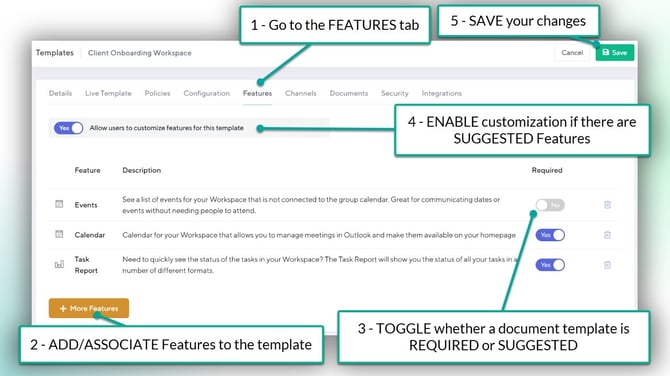
How to add Associations from a Workspace Template:
- Go to the 'Features' tab of a workspace template
- Click the MORE FEATURES button to any Features uploaded to Orchestry
- Click the 'REQUIRED' toggle to the OFF position for any Features that are SUGGESTIONS
- If you added SUGGESTED Features, flip the "Allow users to customize.." toggle to YES
- SAVE your changes
Want to learn how to setup a workspace template?
Check out the article: How to Configure a Workspace Template
The End User Experience
In a workspace request, the 'Customize' page will appear for end users when
- the associated workspace template includes SUGGESTED templates, and
- End user customization is ENABLED in the workspace template
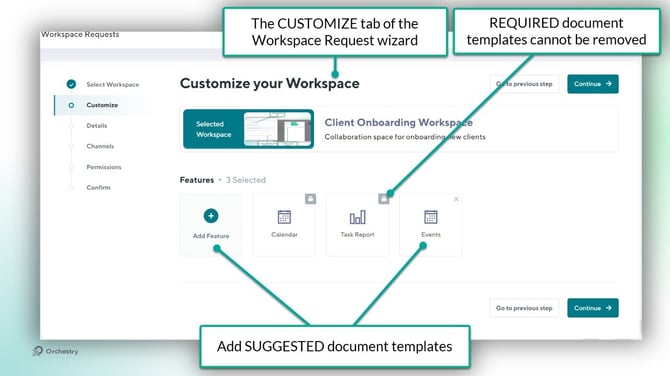
This same logic applies to document Temples in Orchestry as they share the 'Customize' screen. Want to learn more?
Check out the article: Document Templates Overview
Want to learn about WORKSPACE REQUESTS?
Check out the article: Workspace Request Overview
Questions and Answers
"What version of the PnP Schema does Orchestry support?"
Orchestry currently supports PNP schema 2021/03