
In Orchestry, you can upload your organization's document templates and distribute them to organizations through workspace templates. Orchestry supports any document format that is also supported by SharePoint Online.
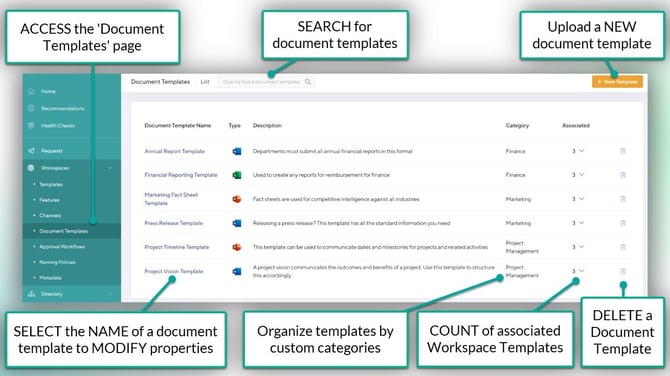
From the 'Document Templates' page, you can:
- Upload new document templates to Orchestry
- Search for document templates
- Manage categories and workspace template associations
- Delete document templates
NOTE: Uploaded documents are stored on the 'Orchestry' SharePoint site in your tenant. Orchestry does not store any document templates on its servers, and only uses a copy from the configuration site collection when creating a workspace.
How to Add Document Templates to Orchestry
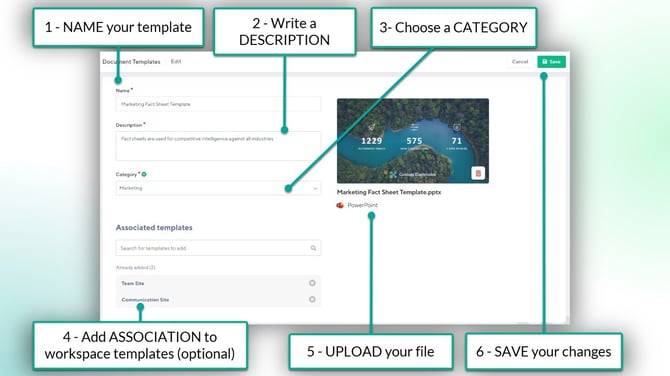
From the "Document Templates" page:- Click "NEW TEMPLATE"
- Add a NAME for the template
- Add a DESCRIPTION
- Add a CATEGORY
- UPLOAD your document
- Associate with workspace templates (optional)
- Click SAVE to publish your template to Orchestry
-
How to Associate Document Templates with Workspace Templates
NOTE: Viva Engage workspace templates do NOT support document templates.
There are two places Orchestry admins can associate Document Templates with a workspace template:
- from the 'Templates' page, when creating or modifying a document template, and
- from the 'Documents' tab of a workspace template.
How to add Associations from a Workspace Template:
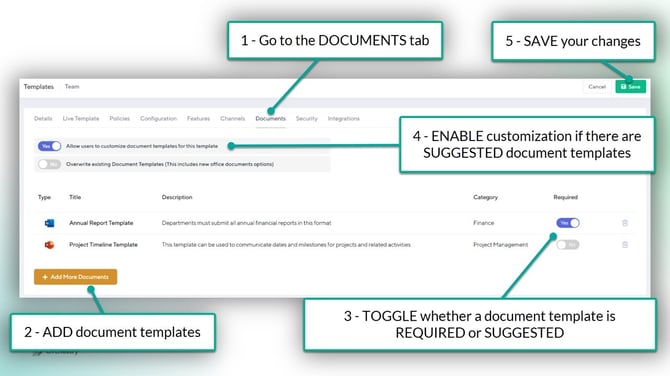
- Go to the 'Templates' tab of a workspace template
- Click the ADD button to associate document templates with this workspace template
- Click the 'REQUIRED' toggle to the OFF position for any templates that are SUGGESTIONS
- If you added SUGGESTED document templates, flip the "Allow users to customize.." toggle to YES
- SAVE your changes
Want to learn how to setup a workspace template?
Check out the article: How to Configure a Workspace Template
The End User Experience
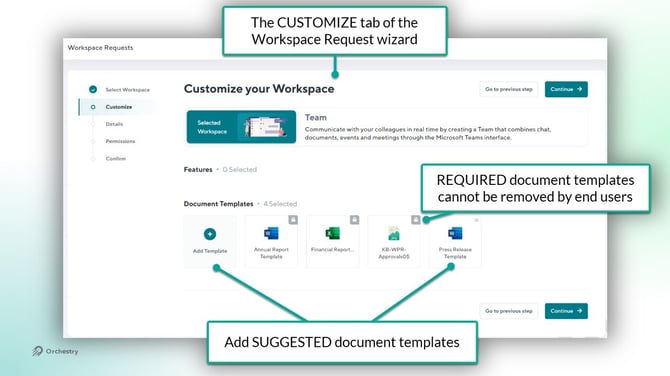
In a workspace request, the 'Customize' page will appear for end users when:
- the associated workspace template includes SUGGESTED templates, and
- End user customization is ENABLED in the workspace template
Want to learn about WORKSPACE REQUESTS?
Check out the article: Workspace Request Overview
How to Manage Document Template Categories
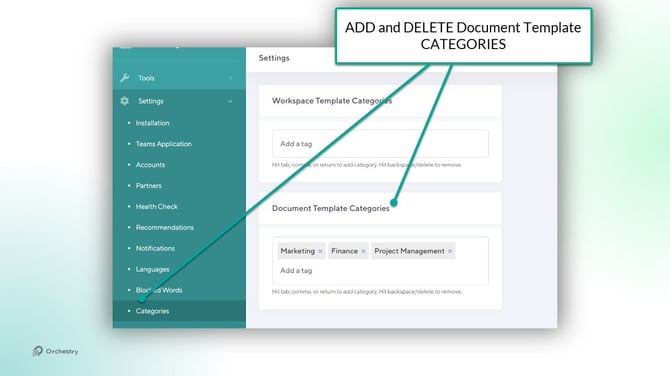
All document templates must be associated with a CATEGORY. These categories can be viewed, created and deleted from the Categories page (Settings > Categories)
Questions and Answers
"Where are the Document Templates Stored in Orchestry?"
Each document template is stored in the Orchestry configuration Site Collection, which is located under /sites/orchestry of your Microsoft 365 tenant.
Orchestry does not store any document templates on its servers, and only uses a copy from the configuration site collection when creating a workspace.
"Can I Attach Metadata to my Document Templates?"
Not at the moment. If you want to have templates that are based on content types with additional metadata, you can have them as part of your workspace templates and Orchestry will provision that over.
"How are the Document Previews generated? Can I control what previews are displayed?"
Orchestry uses the Microsoft 365 document preview capability to generate previews. You cannot control what previews are shown as we leave that up to Microsoft 365.