The Workspace Details page provides you with insights and tools on individual workspaces, such as lifecycle status, workspace metadata, membership insights, workspace links and more.
How to Access Workspace Details
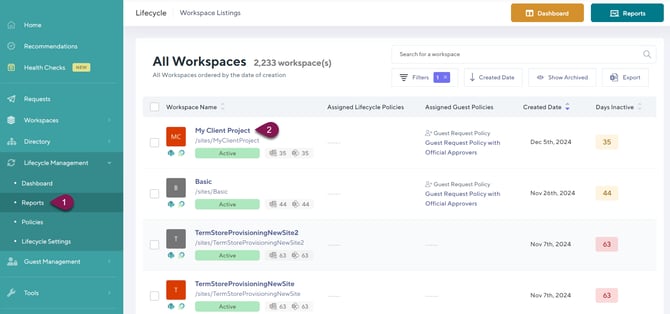
- Go to the 'Reports' page found under 'Lifecycle Management'
- Click the title of the workspace you wish to review
This page is divided into five tabs:
- The Overview tab: view high-level insights into your workspace, links and more
- The Users tab: view members of the workspace's M365 Group or SharePoint Group
- The Sharing Links tab: view and manage share links created in the workspace.
- Broken Inheritance: view files from the workspace SharePoint site with broken permission inheritance
- History: view history of the workspace, such as creation history, guest access and archival insights.
Workspace Details - The Overview Tab
The Overview tab is the default view in the Workspace Details page.
Overview Tab - General Information
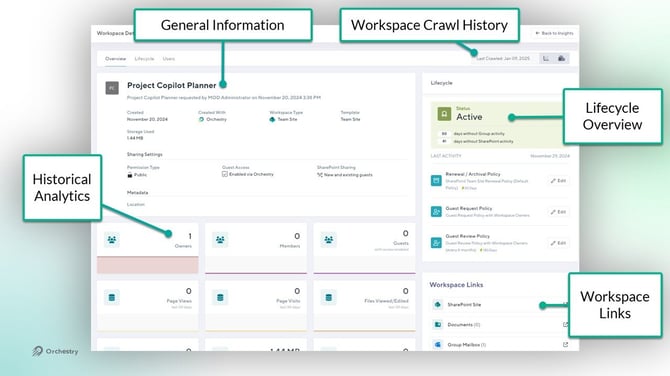
This section provides a broad overview on the workspace. From this section you can:
- View details about the workspace
- View and edit workspace metadata
Overview Tab - Historical Analytics
This section contains various analytics on the workspace. These values start at the date of Orchestry's installation in your tenant, and are kept for a period of three years by default.
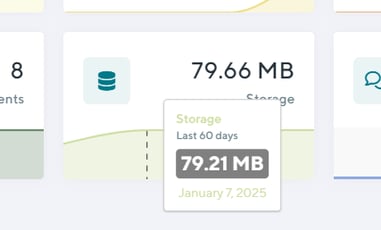
TIP: Try hovering your mouse over the charts to see daily values!
Overview Tab - Lifecycle (Overview)
This section shows the workspace inactivity counters of the workspace. You can also add/view/edit the archival and guest policies.
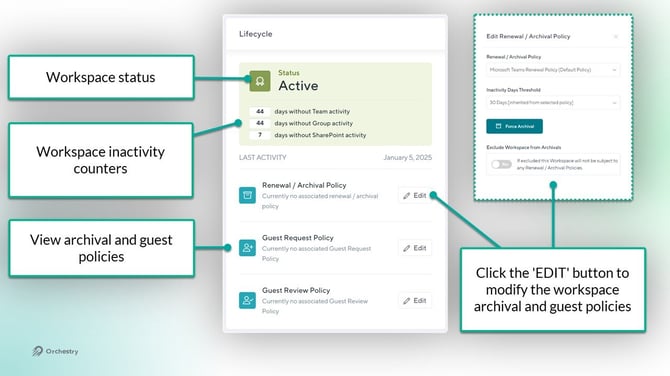
Curious how inactivity is calculated in Orchestry?
Check out the article: Understanding Inactivity in Orchestry
Overview Tab - Workspace Links
This section allows you to quickly access the different areas of this workspace, such as the SharePoint site, team, Viva Engage community, group inbox, group calendar and more.
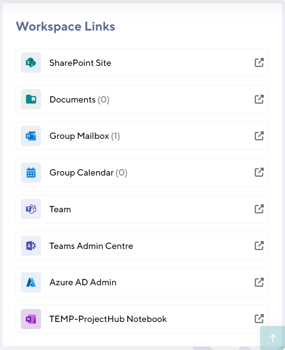
NOTE: You must be a member of the workspace and/or a M365 admin to use these links.
Workspace Details - The Users Tab
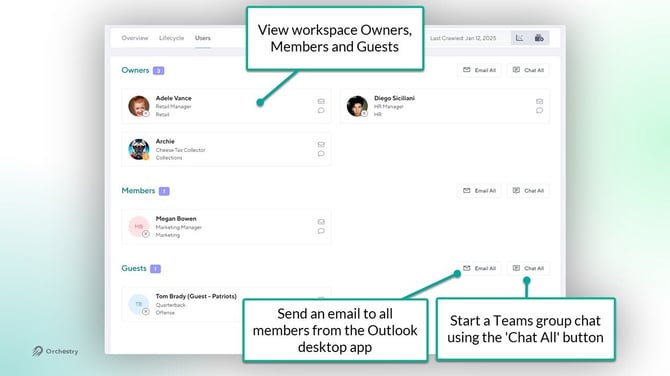
The 'Users' tab in shows you information about the Owners, Members and Guests in your workspace.
- For Teams, SharePoint Team site and Viva Engage Community workspaces, this tab shows M365 Group membership
- For SharePoint Communication sites and non group-connected SharePoint team sites, this tab shows site-level membership only
Workspace Details - The Broken Inheritance Tab
NOTE: This tab requires the Content app to function
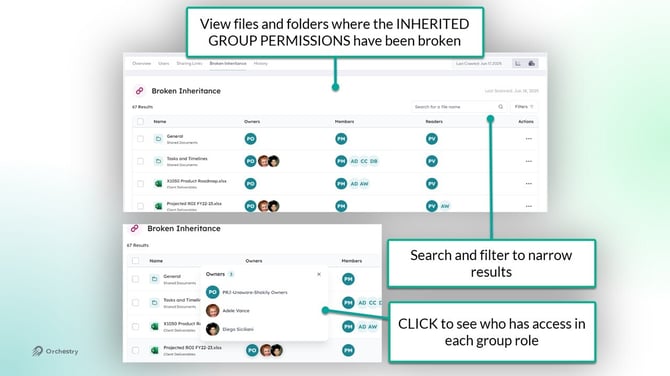
The 'Broken Inheritance' tab displays a list of files and folders from the workspace's SharePoint document libraries. This can help you stay on top of workspaces that may be oversharing and leaving sensitive content at risk.
Workspace Details - The Sharing Links Tab
NOTE: This tab requires the Content app to function
The 'Sharing Links' tab allows you to view and delete any (or all) Share links from a given workspace. The Share links are displayed in a table that can be searched, sorted and filtered.
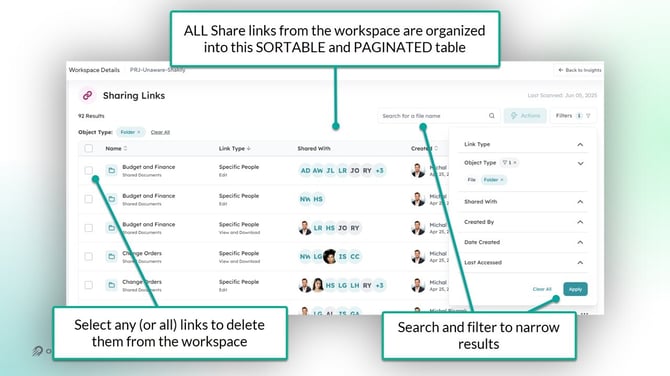
From this tab, you can
- View ALL share links in the workspace (including expired links)
- Sort columns, such as NAME, LINK TYPE and LAST ACCESSED
- Search and filter for links based on properties, such as link type, file names and more
- Delete share links
- Exclude the workspace from sharing links
Sharing Links Tab - How to Delete Share Links in a Workspace
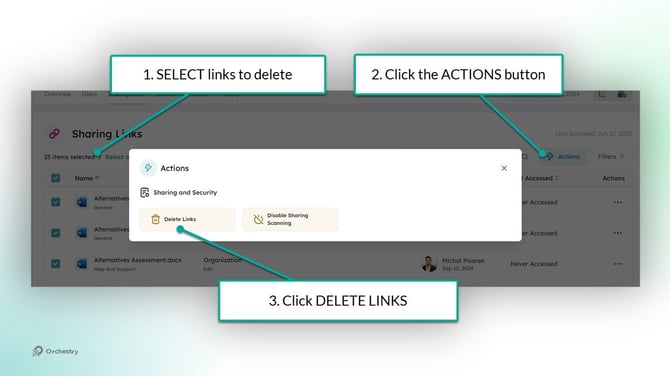
To delete MULTIPLE share links at once:
- Select the links you wish to delete
- Click ACTIONS
- Click DELETE LINKS
To delete INDIVIDUAL share links:
- Select the link you wish to delete
- CLICK DELETE under the ACTIONS tab
- Click CONFIRM in the pop-up window
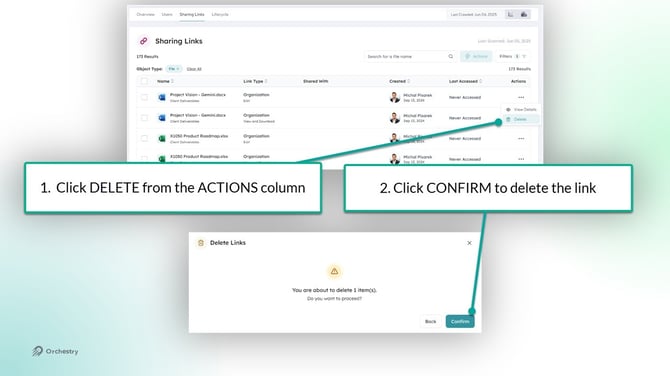
Orchestry will immediately delete all selected share links for that workspace.
CAUTION: There is no way to recover deleted Share Links.
Want to learn which workspaces have risky sharing links?
Try the 'SHARING LINKS' workspace report in Orchestry
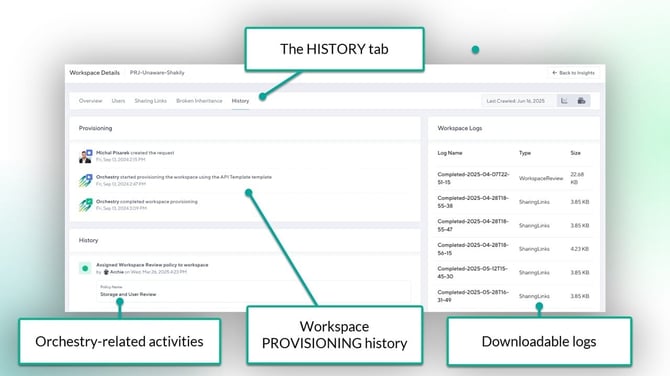
Workspace Details - The History Tab
The History tab can be used to view historical activity on the workspace, including:
- Provisioning: This section details the creation history of the workspace including the date and if it was created through or outside of Orchestry.
- History: This section shows you the history of past archival tasks, workspace reviews, policy changes and more.
- Workspace Logs: This section allows you to download audit logs for past jobs, such as Workspace Reviews, sharing link scans and more.