For organization unfamiliar with external sharing, it's recommended that you consult some preliminary reading on the subject, such as the articles below. We also will use this page to highlight some "gotchas" or things you may want to investigate, even for companies already using these features.
- Collaborating with people outside your organization
- Plan external collaboration with channel conversations, file collaboration, and shared apps
Excluding Guests from the All Users Security Group
Many organizations with licenses such as E3 or higher (which include Azure Premium P1) will have the ability to use Azure Dynamic (Membership) Security Groups. In these cases, Azure generates an "All Users" Security Group which dynamically updates itself as new members are added to the tenant. By default, this group automatically adds Guest accounts to this list as well. This is not related to Orchestry in any way.
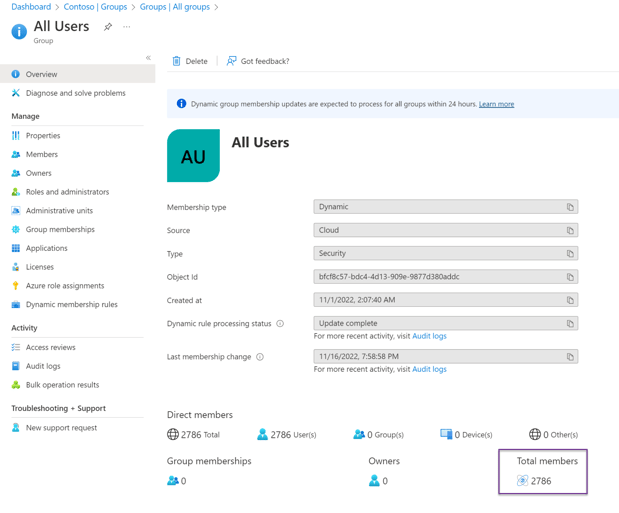
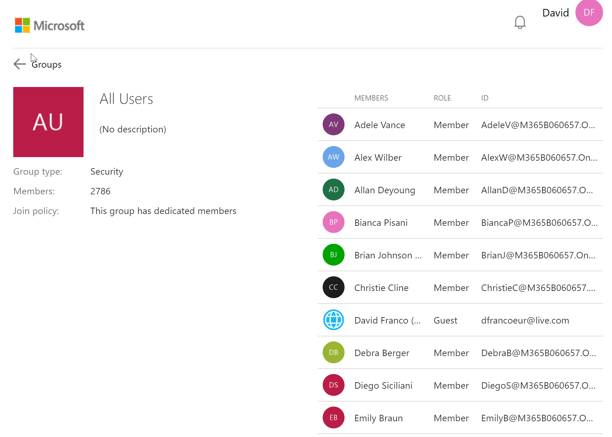
One concern some organizations may have is that by virtue of being a member in this group, Guests can also navigate and view the entire group's membership (i.e., your entire corporate directory) including Names and Emails. If you do not wish this to be the case, follow the steps below to remove Guests from this group.
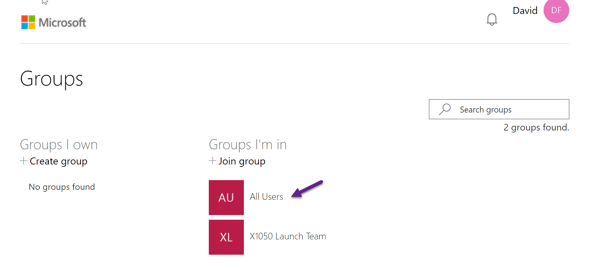
Below is what a Guest may see with the default settings:
Edit the Rule syntax to follow the pattern below (see https://learn.microsoft.com/en-us/azure/active-directory/enterprise-users/groups-dynamic-membership#create-an-all-users-rule):

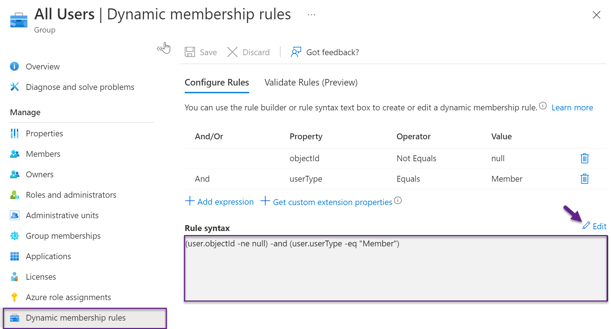
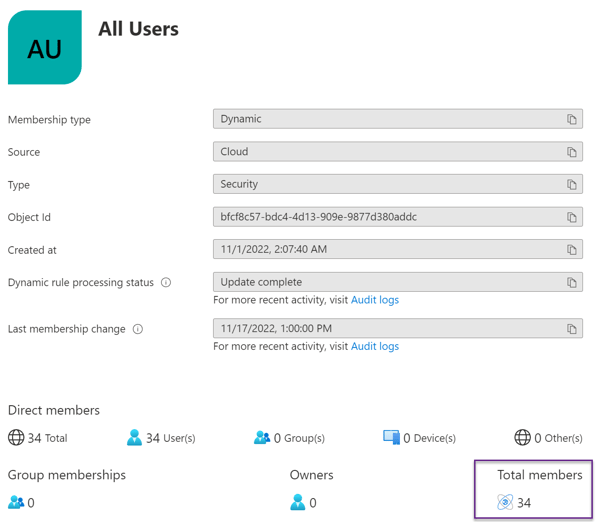
Once the Dynamic Group refreshes its membership, the number will update to reflect only accounts from within your organization.
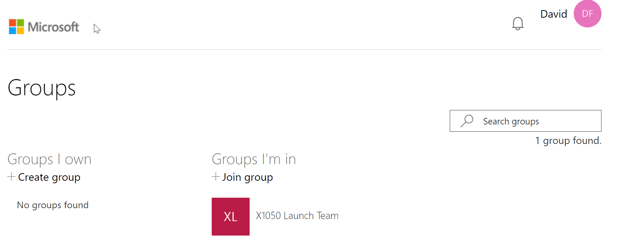
Following this change, Guests will only be able to see and find Groups they are explicitly added to (assuming there are no other non-standard dynamic groups granting them access). Below is the updated view for a Guest: