Recommendations Tab Overview
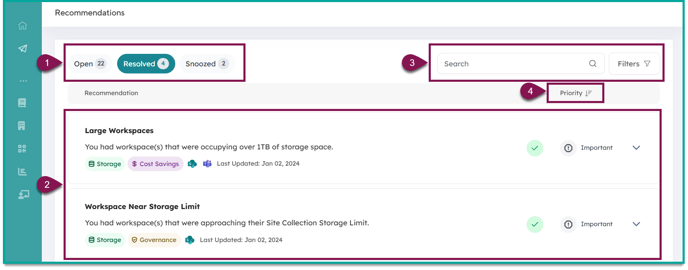
The 'Resolved' tab contains all recommendations that have been moved to the 'Resolved' state.
|
1. Recommendations Navigation: |
Navigate between the 'Open', 'Resolved', and 'Snoozed' tabs |
| 2. Resolved Recommendations: |
All recommendations currently in the 'Resolved' state. This list is refreshed during the nightly scan and may not include recently resolved recommendations. |
| 3. Search & Filter: | Narrow down results by applying a filter or using the search bar |
| 4. Sort by Priority: | Recommendations are sorted by priority. You can sort the list in ascending or descending order |
Reviewing Resolved Recommendation Details
By clicking on a resolved recommendation, you can view it's history as well as provide feedback.
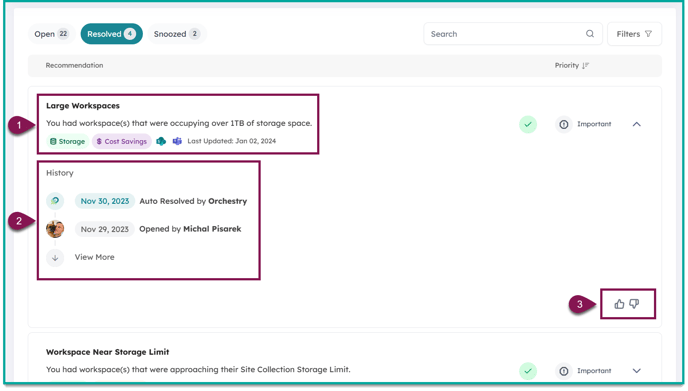
| 1. Recommendation Summary: | Name and description of the recommendation. Also includes categories and the date the recommendation was last updated. |
| 2. History: | The activity history includes every action taken to the recommendation, including when it was resolved, and who resolved it. |
| 3. Give Feedback: | Send the Orchestry team instant feedback on a recommendation by giving it a thumbs-up or thumbs-down. |
How to Resolve Recommendations
Recommendations can be solved by applying the recommended changes to your M365 environment. Recommendations can be closed automatically or manually.
To get started, check out the article: How to Resolve Recommendations
Automatically Resolved Recommendations
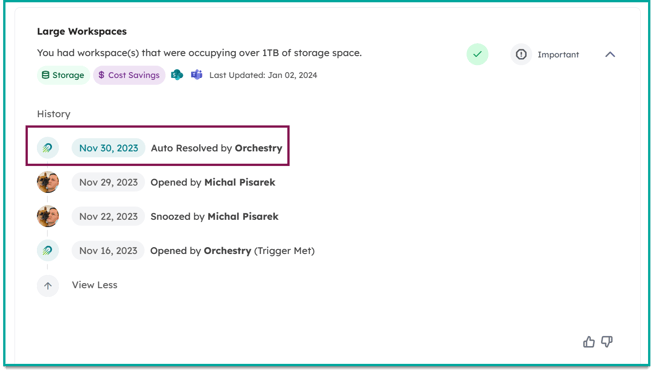
When viewing resolved recommendations, you may notice items that you and your team did not personally resolve. In such a case, you will see the line 'Auto Resolved by Orchestry' in the recommendation history.
This occurs during Orchestry's overnight scan of your M365 environment. If it finds a recommendation that has it's requirements satisfied, Orchestry will automatically resolve it for you.