Overview of the Recommendations Tab
All actionable items can be found on the 'Open' tab of the Recommendations page. From here, you can review details, review history, snooze recommendations or resolve them.
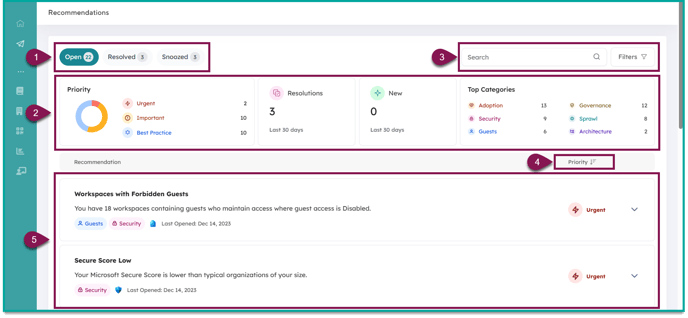
| 1. Recommendations Navigation: | Navigate between the 'Open', 'Resolved', and 'Snoozed' tabs |
| 2. Summary Bar: | Get a high-level look at your open recommendations by priority, resolved items, new items and by category |
| 3. Search & Filter: | Narrow down results by applying a filter or using the search bar |
| 4. Sort by Priority: | Recommendations are sorted by priority. You can sort the list in ascending or descending order |
| 5. Open Recommendations: | Your list of open recommendations today. Clicking on a recommendation will reveal information and actions you can take. |
Reviewing Open Recommendations
By clicking on a recommendation, you can view information about it and take actions.
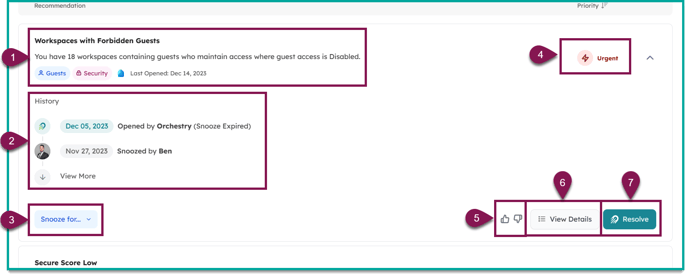
| 1. Recommendation Summary: | Name and description of the recommendation. Also includes categories and the date the recommendation was last moved to the 'Opened' state |
| 2. History: | The activity history includes every action taken to the recommendation, when it was done, and who performed it. |
| 3. Snooze (action): | Move recommendations to the 'Snoozed' state. To learn more, check out the article "How to Snooze and Un-snooze Recommendations" |
| 4. Priority Level: | Priority levels are designed to help you quickly identify recommendations that should be worked on first. These cannot be changed. |
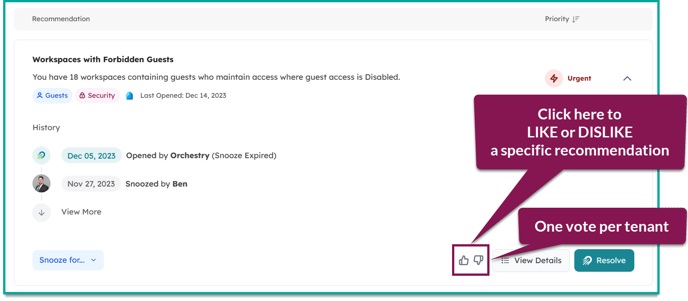
| 5. Give Feedback: | Send the Orchestry team instant feedback on a recommendation by giving it a thumbs-up or thumbs-down. |
| 6. View Details: | Clicking the 'View Details' button opens a window that includes recommended actions, why it matters and resources to help you get started. |
| 7. Resolve (action): | Clicking the 'Resolve' button will que the recommendation to be moved to the 'Resolved' state after the next sync. To learn more, read "How to Resolve a Recommendation". |
Reviewing Recommendation Details
Every recommendation comes with information to help you:
- understand what the recommendation is about,
- why it's important, and
- learn how to help you get started with a list of resources.
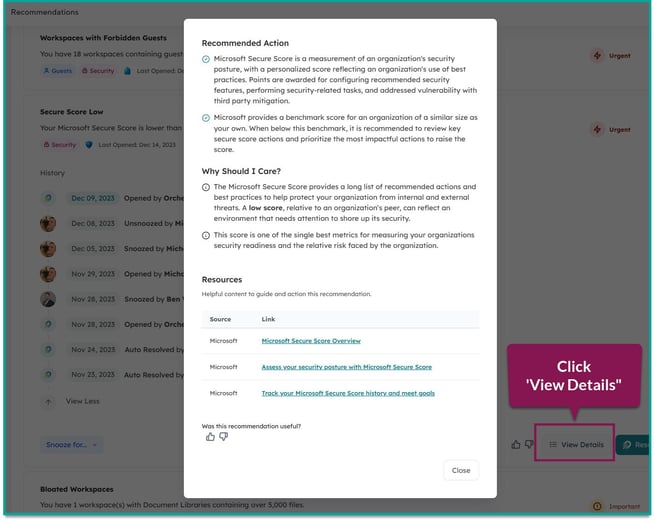 Screenshot of a recommendation's details window
Actioning an Open Recommendation
Open recommendations can be moved to either the 'Snoozed' or 'Resolved' state. To learn how to action an recommendation, check out the guides listed below:
Send Orchestry Feedback
You can help Orchestry improve our recommendations with your feedback. There are two methods you can use tell us how we're doing.
Method #1: Like/Disliking a Specific Recommendation
Each recommendation has LIKE and DISLIKE buttons that can use to tell us what you think of a specific recommendation. As a tenant, you can tell us which recommendations are important to you, and which ones are not.
Method #2: Share a Suggestion
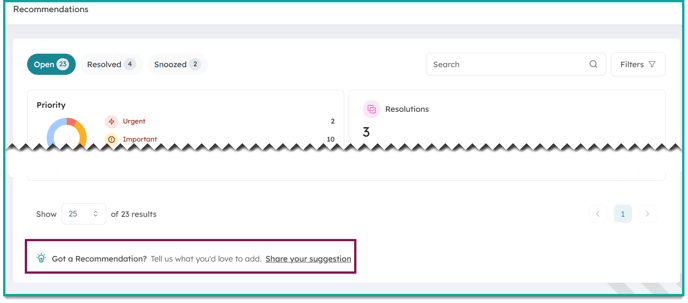
You can help us improve our library of recommendations by submitting suggestions.
To submit a recommendation, use the link at the bottom of the 'Open' recommendations tab.
Reviewing the Resolutions Page
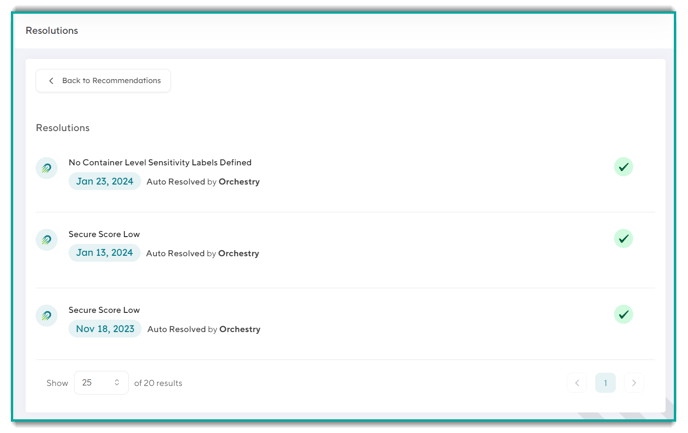
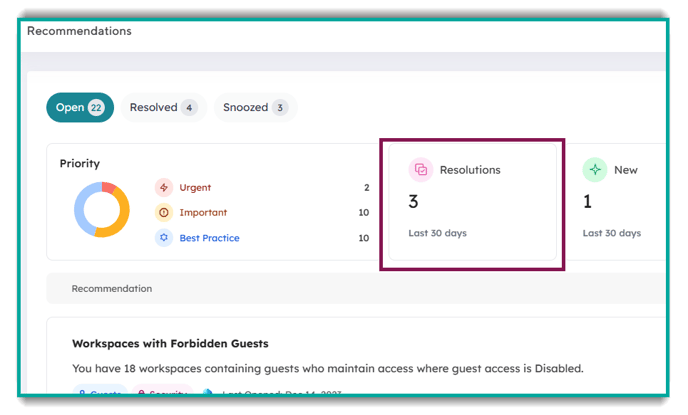
You can view your organizations history of successful resolutions by clicking "Resolutions" on the Summary bar.
The page sorts the most recent resolutions at the top, and can display up to 100 records per page. You can view up to 100 resolutions per page, with the most recent records sorted to the top.
To return to the 'Open Recommendations' page, click 'Back to Recommendations".