
Orchestry comes with five custom web parts that enable users to submit new workspace requests, view workspace details, and much more.
These web parts can be especially helpful in environments where SharePoint sites are used more than Microsoft Teams sharing information and collaboration.
Installing and Updating Orchestry Web Parts
The web parts are included as part of the initial installation of Orchestry. Global Admins and/or SharePoint admins may need complete a few steps before they are accessible to end users.
Want to learn more about installing and updating Orchestry web parts?
Check out the article: How to Install and Update the Orchestry Web Parts
Configuring Orchestry Web Part Permissions
To enable end users to see the Orchestry web parts, they have VIEW/READ access from the SharePoint App Catalog at minimum.
By default, the App Catalog is configured to be viewable to all users ("Everyone expected external users"). However, if your tenant has a custom permission schema applied, users may not be able to use the web parts without a SharePoint (or Global) admin leveraging one of the two options discussed below.
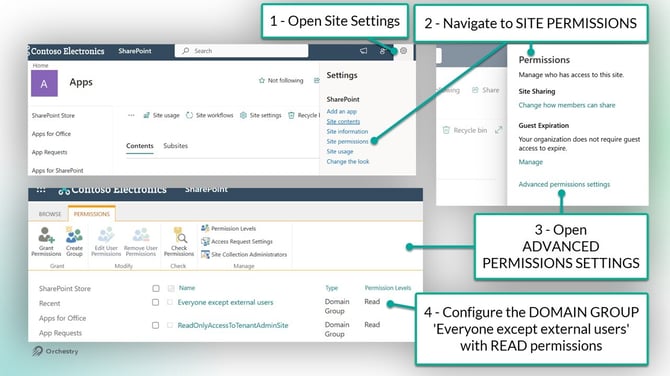
OPTION A: Grant Everyone 'Read' Access to the Entire App Catalog
This configuration allows anyone to use any /all custom apps in the App Catalog, excluding ones with custom permissions. This configuration allows users to VIEW apps, not change them.
To grant users READ access to the App Catalog:
-
Navigate to the App Catalog site
- Navigate to the 'Advanced Permissions Settings' page(Settings > Site Permissions > Advanced Site Permissions)
- Configure the 'Everyone except external users" domain group with READ access
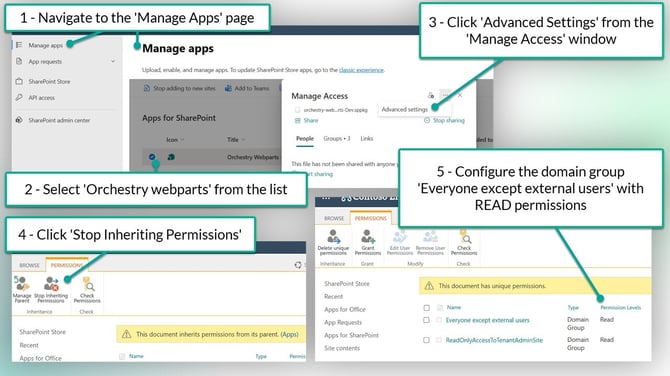
OPTION B: Grant Everyone 'READ' Access to ONLY Orchestry web parts
This option enables anyone to use the Orchestry web parts, and nothing else.
To grant users READ access to the Orchestry web parts:
-
Navigate to the 'Manage Apps' page in the App Catalog
- Select 'Orchestry webparts' from the list
- Click 'Advanced Settings' from the 'Manage Access' window
- On the Advanced settings page, click 'Stop Inheriting Permissions' from the toolbar. Confirm the change if prompted by your browser.
- Configure the 'Everyone except external users' domain group with READ access
Orchestry Web Parts
Check out the following articles to learn more about the individual Orchestry web parts:
Adding Orchestry Web Parts to SharePoint Pages
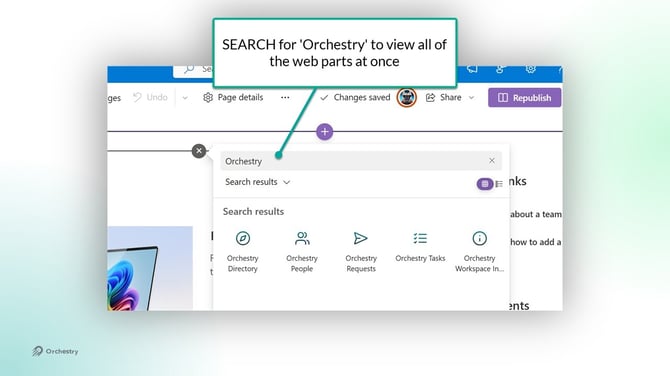
Orchestry web parts can be added to SharePoint sites like any other web part.
TIP: Search for 'ORCHESTRY' in the web app search window to locate them quickly
Orchestry Web Part Questions and Answers
How I Enable Guest User to Access Orchestry Web Parts?
In order for guest users to view certain web parts, M365 admins will need to create a dynamic group specifically for guest and external users.
Want to learn how to give guest users access to Orchestry web parts?
Check out the article: How to Grant Guest Users Access to the Orchestry Web Parts
Why Do the Web Parts Require Me to Sign-In?
Users should NOT be prompted to login to view/use Orchestry web parts. If your users are experiencing this, it may be due to your browser blocking third-party cookies.
To remedy this, please add your SharePoint domain as an EXCEPTION in your browser settings. I.E: <mydomain>.sharepoint.com
If you are still having issues, please contact our help desk: support@orchestry.com