
The 'Orchestry Tasks' web part is a custom web part made available by Orchestry. It is a great way to visualize tasks across your workspace Planner plans.
A single plan can be displayed four different ways, with various helpful configuration options for each display.
Web Part 'Tasks to Display' Options
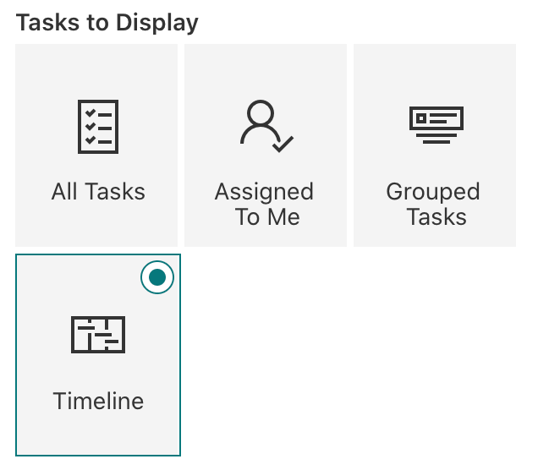
All Tasks
Displays a list of every task in the selected plan(s):
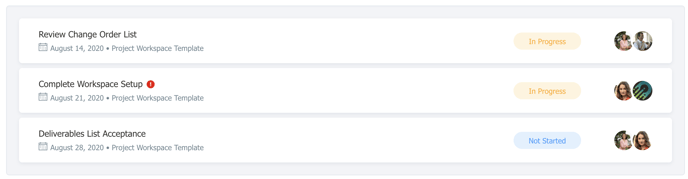
Assigned to Me
Displays only the tasks assigned to the current user:

Grouped Tasks
Display tasks by grouping them by 'Due Date', 'Label', 'Bucket', 'Assigned To' or 'Progress':
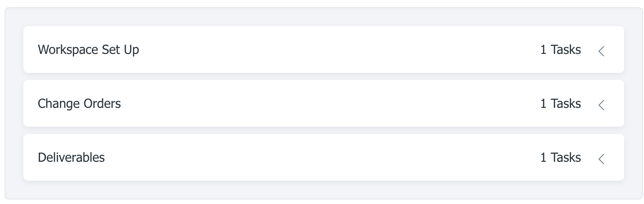
Timeline
Display tasks on a timeline like a Gantt chart. Uses the 'Start date' and 'End date' assigned to each task:
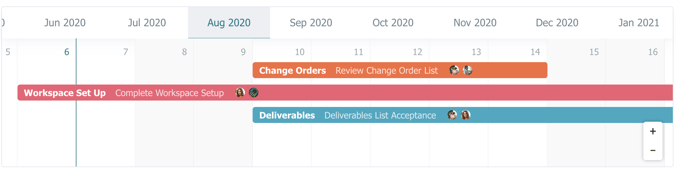
An important note to remember is that this web part retrieves tasks from the Planner plans that are within the Group associated with the current SharePoint Site. If you have no Planner plans created within the current Group, there will be no tasks to display on this web part.
If there are no tasks within a Planner plan, you can still configure the web part, but it would appear empty until tasks are created.
Adding the Orchestry Tasks Web Part
First, you must have permissions to edit the page. If you do not see the 'Edit' button on the top-right of the page, contact your SharePoint administrator.
NOTE: You must have 'Edit' permissions to modify a SharePoint page. If you do not see the 'Edit' button on the top-right of the page, contact your SharePoint administrator.
- To edit the page, click on the Edit option on the top right:
.jpeg?width=630&height=25&name=xHoqZBlVFvgyafRihIFnX9aCgRQa6uo8mg%20(1).jpeg)
- To add a web part to your page, hover your mouse above or below an existing web part to view a line with a plus sign:
.gif?width=595&height=335&name=Untitled%20Project-min%20(1).gif)
Click on the plus sign to see list of available web parts. - You can scroll down to find the Orchestry Tasks web part or you can use the Search box to find the web part by typing in "Orchestry Tasks":
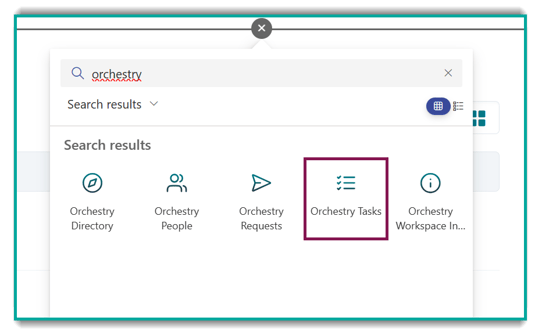
- Click on the "Orchestry Tasks" web part to add the web part to the page.
Configuring the Orchestry Tasks Web Part
- To edit the web part, click on the 'Configure Web Part' button. The web part properties and configuration options will show on the right-side of the page:

- Select the Planner plans you want to show the tasks for. If the Group has multiple plans, you will see them all listed. You may select one or multiple plans to display their associated tasks:
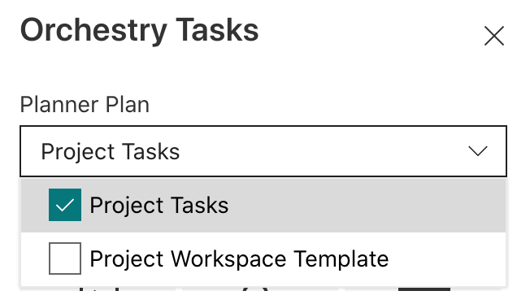
- Next, select how you would like your tasks displayed. As introduced above, there are four options: 'All Tasks', 'Assigned to Me', 'Grouped Tasks' and 'Timeline':
Each display option has different configuration options to help you:
| All Tasks |
|
| Assigned to Me |
|
| Grouped Tasks |
|
| Timeline |
|
Once you have chosen the display and configured the associated web part options available, you may Save, Publish the page or choose any of the available page options to save your changes.
TIP: To learn more about how to add, edit and use web parts on SharePoint pages, refer to the Microsoft documentation.