Notification Settings and Configurations
Last updated: April 1, 2026
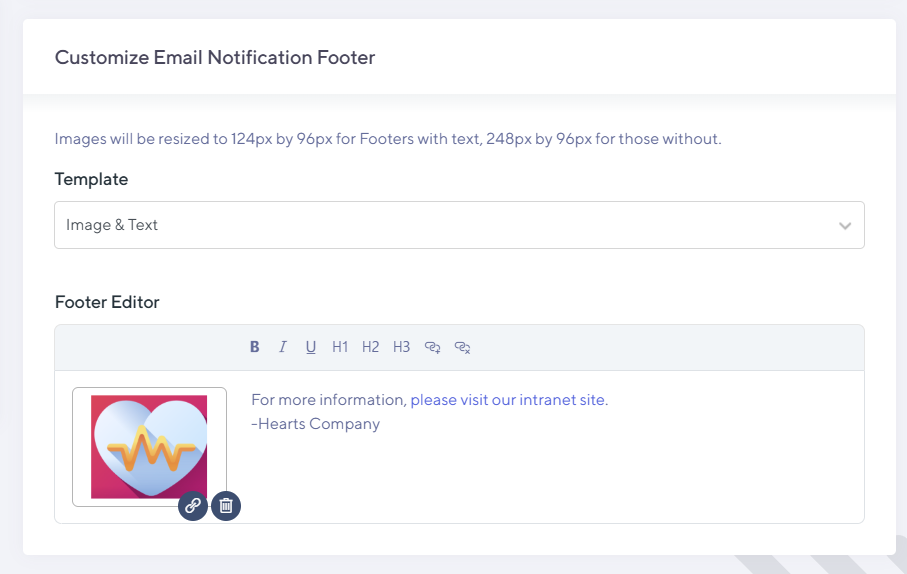
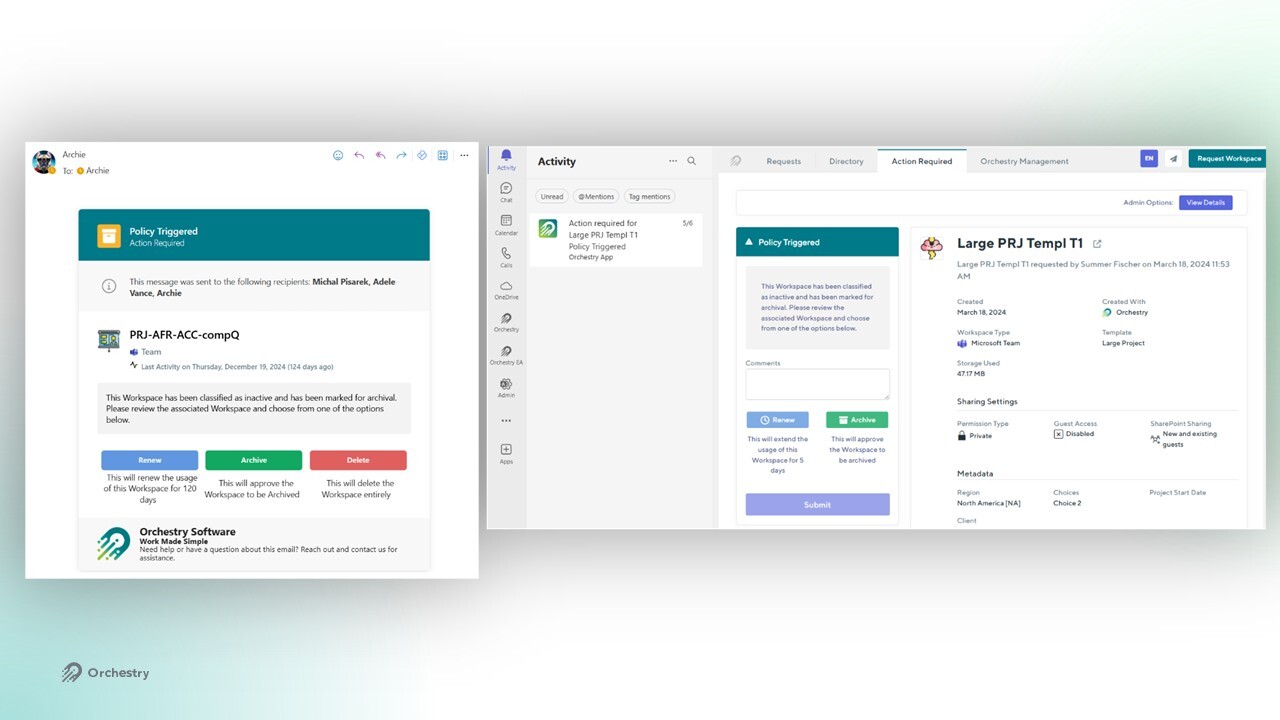
Orchestry notifications are used to notify users about new tasks they've been assigned, such as Workspace Archival, Workspace Reviews, Guest Requests, Guest Reviews, and more.
Orchestry can send users notifications in two ways:
Microsoft Teams, and/or
Email in Outlook
Configuring Notifications in Policies
Orchestry's Archival, Guest Request and Guest Review policies allow you to configure whether notifications are sent through email and/or Microsoft Teams.

Notification Sending User Address
This is the email address that emails will come from, so it's a mandatory property when configuring Orchestry for the first time.
The email address can be configured during or after installation, We suggest that using something like a general IT helpdesk email would be a good option for this.
Recommendations to Consider When Setting Up Notifications:
Because this is a mailbox users can reply to, it is important to ensure the mailbox is monitored.
As users will be seeing this mailbox name, it is a good idea to choose a mailbox that will be recognized as legitimate and not cause confusion. Often times, organizations will choose to use options like:
A general IT Helpdesk email (e.g., IT Helpdesk)
A general Teams Admin email (e.g., Microsoft Teams Admin)
Note: Accounts that are 'Blocked from Sign In' (Account = Disabled in Graph) are filtered out from the query for users.
Notifications Send As Group/Shared Mailbox Address (optional)
If you wish to have the notifications sent on behalf of a Microsoft 365 Group Mailbox, you will find that these cannot be selected from the first field. This is because the "Notification Sending User Address" requires a user-based mailbox.
This supplemental field allows the option to provide a Microsoft 365 mailbox, so long as the Group mailbox is accessible by the Sending User.
Shared Mailboxes must be configured to allow sign in.
Shared mailboxes must be hosted in the cloud
The user specified in the first field of Notifications configuration must have "Send As" right to the group, otherwise this will not work properly.
Customize Email Notification Footer
Admins can customize the footer in Orchestry emails from the 'Notifications' settings page (Settings > Notifications).
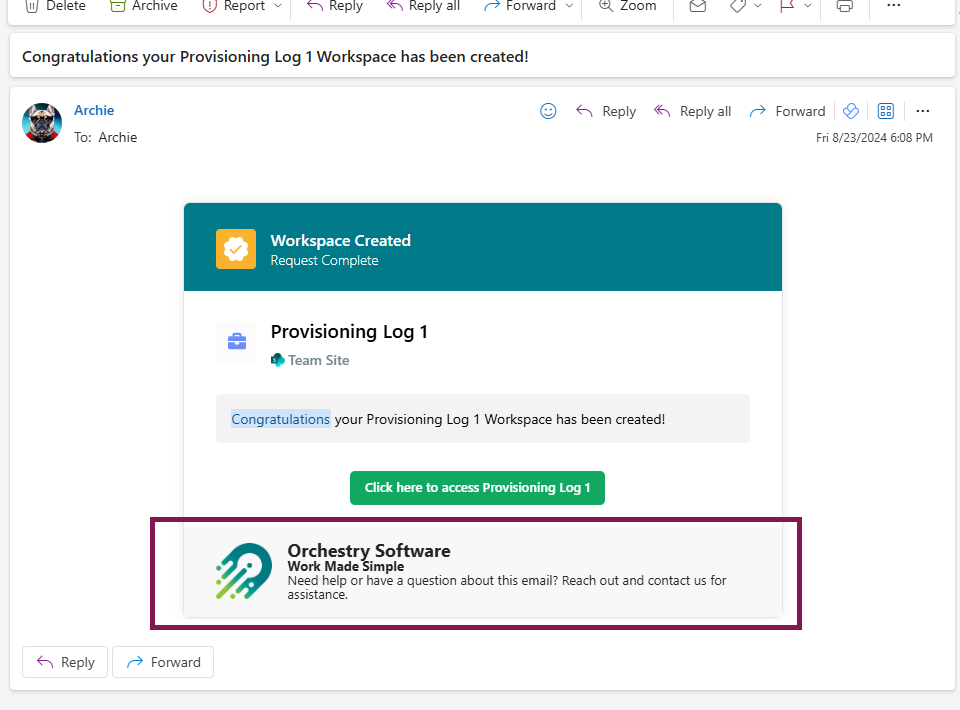
Admins have four options for customizing the email notification footer:
Default: The default Orchestry footer, where no customization is enabled
Image & Text: Provide your own small image (i.e.: company logo) and a brief
Text Only: Only adds a text footer
Image Only: Only adds a image to your footer