
Orchestry allows you to target workspace templates to specific regions, with our Multi-Geo support. This allows you to ensure that data from provisioned workspaces are stored in the right geo for your end users.
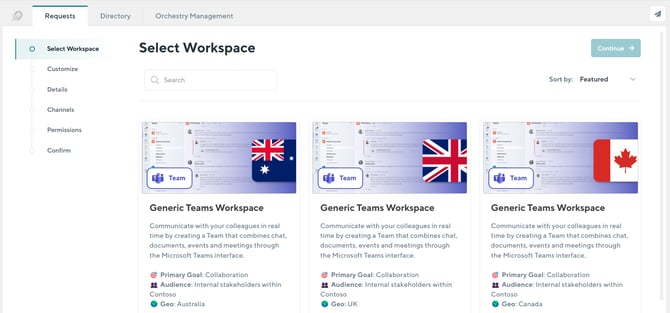
To access the Multi-Geo functionality in Orchestry, your Microsoft 365 tenant must already be configured. Learn more from Microsoft here.
Configuring Data Storage Location in Workspace Templates
Workspace templates in a multi-geo environment include a new section under the 'Configuration' tab called "Data Storage". When users provision new workspaces from this template, the data will be stored in the specified geography.
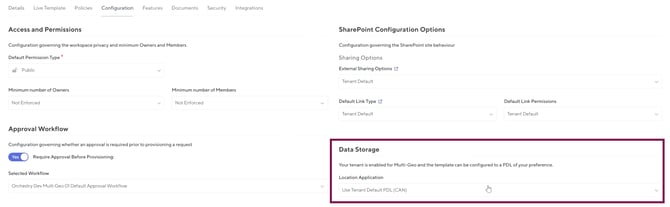
By default, workspace templates will be configured to your tenant's 'Preferred Data Location'. You can change this on a template-by-template basis.
To configure a workspace template to a specific region:
- Go to the "Configuration" tab
- Under the "Data Storage" section, change the 'Location Application' field to 'ENFORCED', which will trigger the "Enforced Geography" field to appear.
- Under the 'Enforced Geography' field, select a target geography from the list.
- SAVE your changes to the template.
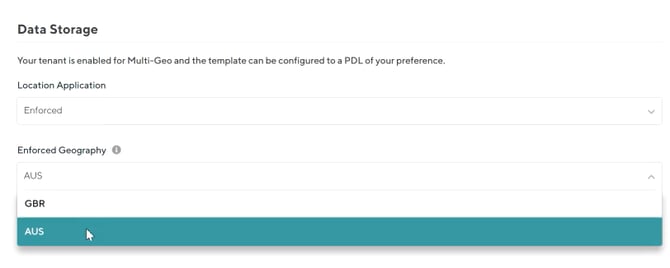
The data storage setting will automatically be set to the tenant default unless otherwise configured.
Targeting Geo-Specific Workspace Templates to Security Groups
As each workspace template can only target a single geo, you may need to create additional identical workspace templates for each geo you manage.
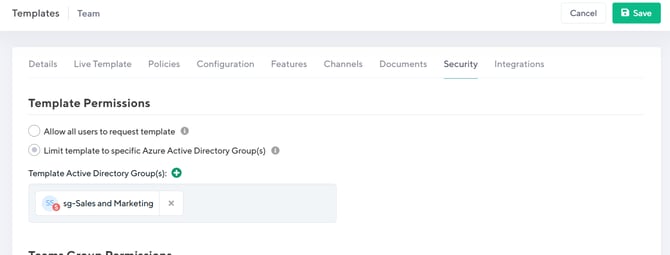
To avoid confusing end users with multiple identical workspace templates to choose from, you can security trim the workspace templates to target different groups of users across.
Current Limitations of Workspace Templates with Targeted Geos
Certain workspace template features are not supported in workspace templates that are set to a custom geo. Including, but not limited to:
- Live templates
- Team Workspace Information tab
- Workspace Information web part
- Sensitivity Labels
- Guest Management Policies
- Lifecycle MGMT Policies