
Overview
As part of a workspace template there is an integration point in Orchestry that allows you to fire off a POST request after the provisioning process is complete. This can be useful for a number of scenarios including:
| Advanced Provisioning Scenario: | This Webhook can be used to perform additional operations on the Workspace post provisioning such as changing permissions or metadata |
| Adoption Scenarios: | Webhook can call a Power Automate that sends customized emails to the members and owners of the Workspace |
| Third Party Integration: |
Webhook can call a third party system such as Salesforce or ServiceNow as part of a larger provisioning process with the proper connections in place |
Orchestry may not be able to post directly to your third-party solution. If you wish to leverage third party tools, plan a process that can extrapolate data from Orchestry into your other system's API.
Configuration
To configure a webhook, enter in it's URL in the 'Webhook URL' field:
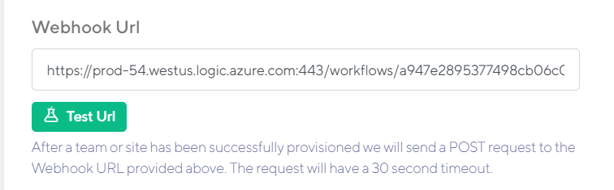
In order to test your webhook without needing to run a provisioning job you can click on the 'Test' URL button. This will fire off a POST request with example data.
One tool to ensure that the webhook is posting correctly is to use https://webhook.site/ to verify.
Supported Platforms
Since Orchestry does a POST request, you can use any type of function to consume the webhook including:
Client Secret
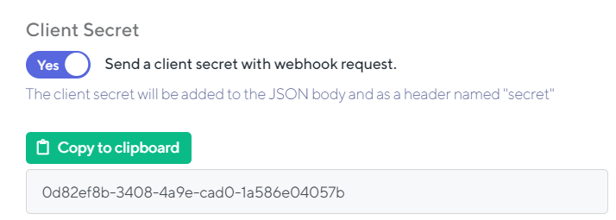
The Client Secret is a unique ID that is sent when Orchestry fires the webhook. This client secret can be used in the webhook code to ensure that the end point is not been spammed.
To create a client secret, set the toggle to 'YES' and Orchestry will send the client secret both in the JSON body and the POST header:
Webhook Details
The following information will be sent as part of the POST JSON payload:
| Secret: | Client Secret if enabled |
| Group ID: | ID of the group if this is a Group connected Team Site or Team. |
| Team ID: | ID of the Team |
| isTeam: | Specifies if this is a Microsoft Team |
| URL: | URL of the SharePoint Site |
| Type: | Type of Workspace |
| Permission: | Permission of the associated Group |
| Description: | Group or Team Description |
| Name: | Name of the Group, Team or SharePoint Site |
| TemplateID: | The ID of the Orchestry template used |
| TemplateName: | Name of the Orchestry Template used |
| TemplateType: | Type of the Orchestry Template used |
| TemplateSharePointType: | Type of the Orchestry SharePoint Template |
| RequestCustomMetadata: | Any metadata as part of the request |
| RequestUserPrincipalName: | The name of the requesting user |
| RequestUserGraphID: | The GraphID of the requesting user |
| Owners: | A JSON array of any owners |
| Members: | A JSON array of any members |
| Channels: | A JSON array of any channels that are part of the Team including any tabs |
| Plans: | A JSON array of any Planner Plans associated with the Group |